Home
» PC Tips
»
Instructions for installing .NET Framework 3.5 on Windows 10
Instructions for installing .NET Framework 3.5 on Windows 10
Windows 10 comes with .NET framework 4.8 pre-installed. However, many applications developed since Windows Vista and Windows 7 require .NET Framework v3.5 to run. Applications will not run unless you install the correct version of .NET Framework that the application requires.
This guide will show you different ways to install .NET Framework 3.5 online and offline in Windows 10.
Note : You must log in with admin rights to install .NET Framework 3.5.
If you need to repair .NET Framework 3.5, you can uninstall and reinstall using the option below.
What is .NET Framework?
Microsoft .NET Framework is an open source software development framework created by Microsoft. The first version was released in 2002. It includes both the Command Language Runtime and the Framework Class Library..
The .NET Framework was created to make it easier to design web applications and software in multiple languages. Developers can create applications for Windows, Microsoft Azure, Windows Server, and XML Web services on a single platform.
Install .NET Framework 3.5 on demand
This option requires an Internet connection to install .NET Framework 3.5.
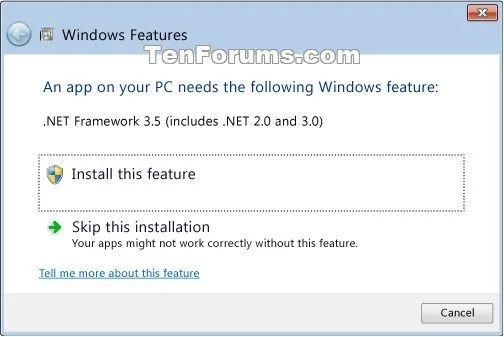
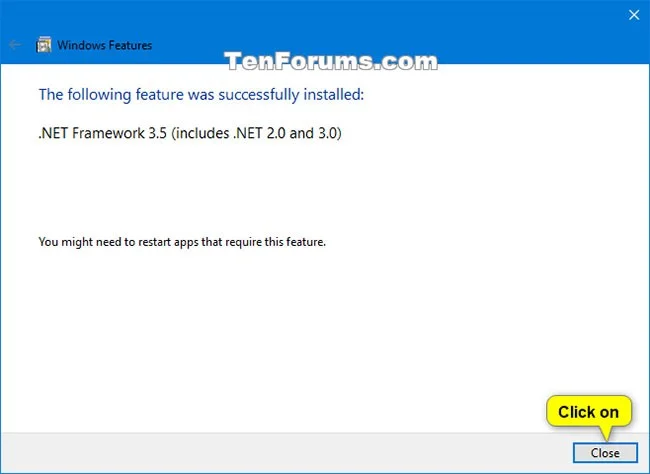
1. You may see the following configuration dialog if you try to run an application that requires .NET Framework 3.5. Click Install this feature .
3. Once the installation is complete, you can close PowerShell if you want.
Install .NET Framework 3.5 in PowerShell
Install .NET Framework 3.5 offline
This option does not use an Internet connection to install .NET Framework 3.5. This can be useful if you cannot install .NET Framework 3.5 using any of the other options above.
1. Do one of the following depending on what you want to use:
If you don't use media that has the same Windows 10 build as what is currently installed, you'll get a source file not found error and .NET Framework 3.5 won't install.
A) Connect a Windows 10 installation USB that has the same build as what is currently installed.
Or:
B) Mount a Windows 10 ISO of the same build as what is currently installed.
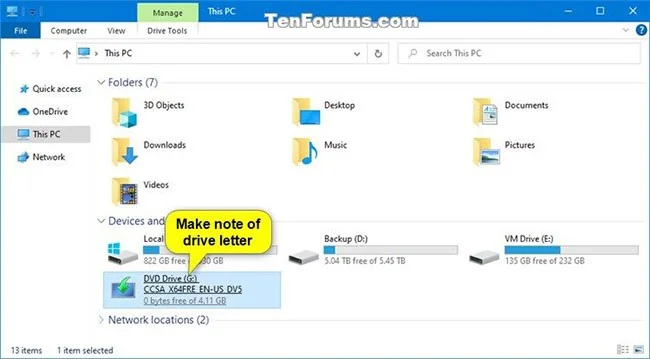
2. Open This PC in File Explorer ( Win + E ) and note down the drive letter (e.g. "G") of this USB or mounted ISO.
Record the drive letter of the mounted USB or ISO
3. Open Command Prompt with admin rights.
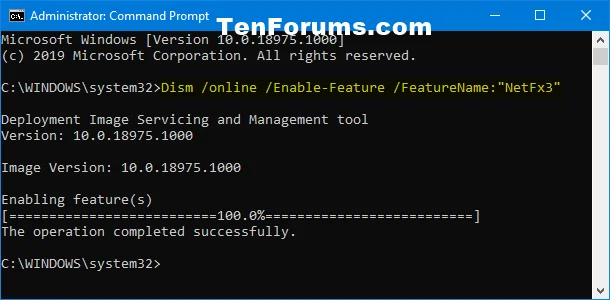
4. Type the command below into Command Prompt and press Enter.
5. Once the installation is complete, you can close Command Prompt if you want.
Available .NET Framework versions
Although this article focuses on .NET Framework version 3.5, that is not the only version available. As of August 2021, the latest version is actually .NET Framework 4.8.
The current list of older versions includes:
.NET Framework 2.0
.NET Framework 3.0
.NET Framework 3.5 (installing 3.5 also installs 2.0 and 3.0)
.NET Framework 4.0
.NET Framework 4.5
.NET Framework 4.5.1
.NET Framework 4.5.2
.NET Framework 4.6
.NET Framework 4.6.2
.NET Framework 4.7
.NET Framework 4.7.1
.NET Framework 4.7.2
Troubleshoot installation
While you usually won't have any problems installing the .NET Framework, sometimes problems do arise. Some of the most common issues include:
Compatibility Error - If you get a message that the .NET Framework is not compatible with your operating system, the version you are trying to install is not compatible and will not work. If you know for sure it is supported, install the latest Windows update. This error often occurs when trying to install a newer version on an older PC.
Invalid Windows Installation - If you are not running a licensed copy of Windows, the .NET Framework may not install at all. Registering your copy or installing a valid copy is the only solution.
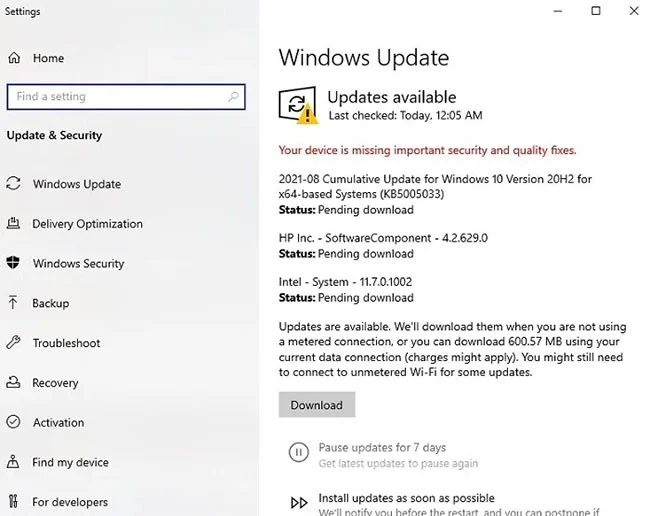
Windows Update issues - If you get errors about specific KB numbers or additional updates are required, install all the latest Windows updates before continuing.
Please install all the latest Windows updates before continuing.
Downloads Failed - If you get any errors about a corrupted installation, check your Add or Remove Programs to see if anything is installed. Uninstall them if possible. Then, manually download the version you need and install it that way.
Microsoft offers more troubleshooting options for more advanced errors. See:
Frequently asked questions when installing .NET Framework
1. Can I install multiple versions of the .NET Framework?
Yes, you can install multiple versions of the .NET Framework. Different applications require different versions and can coexist peacefully on the same PC. But be careful to only install the versions of the .NET Framework that you really need.
2. How long are .NET Framework versions supported?
.NET Framework 3.5 SP1 is supported through October 10, 2028. This is ideal for applications that require versions 2.0, 3.0, and/or 3.5. These are supported long term because they are the most popular and stable older versions.
Versions 4.0 to 4.5.1 are no longer supported. Versions 4.5.2 to 4.6.1 wukk will stop supporting on April 26, 2022.
Versions 4.6.2 and later do not currently have an end of support date listed.
3. How can compatibility be checked?
If you are not sure whether your PC supports the specific version of .NET Framework you want to install, you can easily check. Microsoft has a list of dependencies and system requirements for every version of .NET Framework. For detailed instructions, please refer to the article: How to check the version of .NET Framework on your computer .
You can now run programs that require older versions of the .NET Framework on your PC. Share which of these Microsoft .NET Framework installation methods worked for you in the comments below!