You can create calendars using Microsoft Excel from existing templates or create your own. This article will show you how to make a simple calendar using Excel.
In today's modern society, most of us are reeling from a ton of work from discussions in meetings, projects, task deadlines to organizing our personal lives. It's hard to keep track of everything, right? Therefore, the calendar has become an important part, supporting us to track the entire activity, meetings, appointments, events. You can do a lot of work on a calendar. Many people also use them as a time table, to do a schedule, a schedule, track projects ...
Thanks to the development of technology, you have a lot of options for creating monthly, yearly calendars. You can make a calendar using Excel but it will be time-consuming if done manually. Instead, you can use the built-in calendar template in Excel, including 12-month calendars, monthly calendars, weekly displays, calendars with notes.
With so many options, how to choose the right one for you? This article categorizes the best calendar templates in Excel, including monthly and yearly calendars for users to choose.
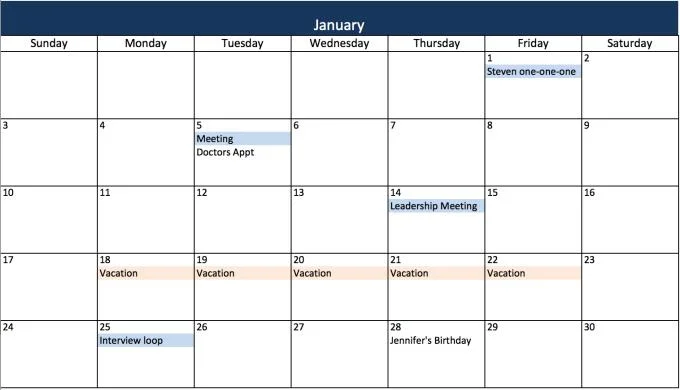
How to use Excel calendar template by month / year
Using this calendar template is extremely easy. All you need to do is select a calendar template and add the desired event. You can also customize the font style & size, color. If you choose a monthly calendar, the first thing you need to do is change the title, the day of the month you want to use.
Here's how to further customize the calendar template you choose:
1. Format calendar template by month
- To change the title, double-click the title cell, delete the formula, type the new month.
- Mark the number of days. You can type or use the auto-fill feature ( AutoFill ).
2. Add events to the monthly or yearly calendar template
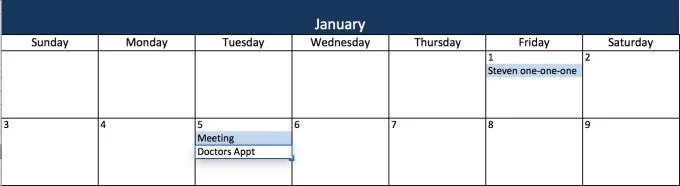
- In another calendar template, double-click the cell in the date box and enter the event. To enter multiple events on the same day, click in the other box in the date box.
- To center the text, click on the cell. On the Home tab , in the Alignment group , click the Center Text icon .

Change font and color
- Click on the cell containing the content you want to edit, in the Home tab , you can change the font style & color, bold / italic / underline text.
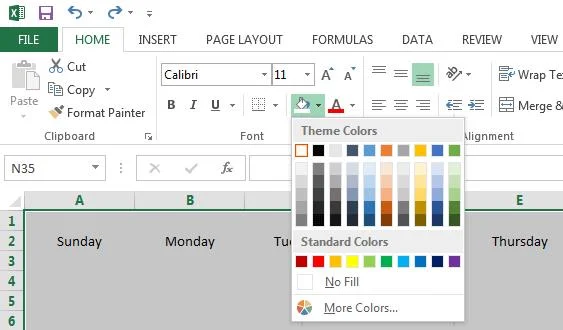
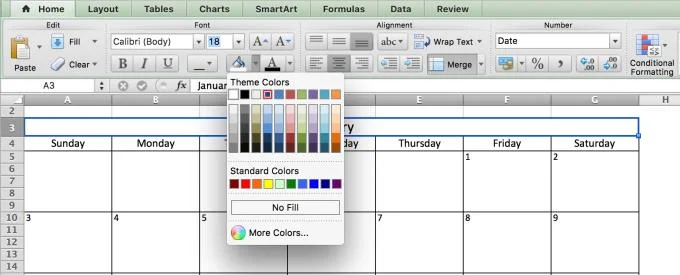
- To change the background color for the day of the week or the event category, check the box, click the paint bucket icon, and select a color.
You can also personalize your calendar template by adding photos (company logo). On the Insert tab , click Pictures . Upload the image you want to use. It will be added to the spreadsheet. You can drag it to any position in the spreadsheet.
How to create monthly calendars in Excel 2003, 2007 and 2010
Here's a step by step guide to creating a calendar by month or year in Excel.
1. Add a day of the week title
First, you will need to add the name of the day of the week and the name of the month.
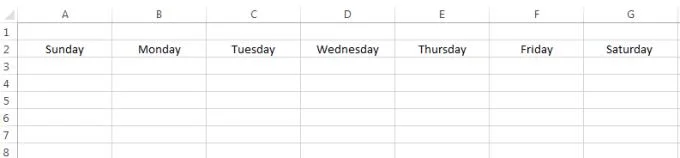
- Leave the first row blank in the spreadsheet. In the second row, type the day of the week (day / cell).
- To format the day of the week & ensure proper spacing, highlight the day you just typed and on the Home tab , in the Cells group , click Format . Select Column Width , set the width to about 15-20, depending on the width of the calendar you want.

2. Add a calendar title
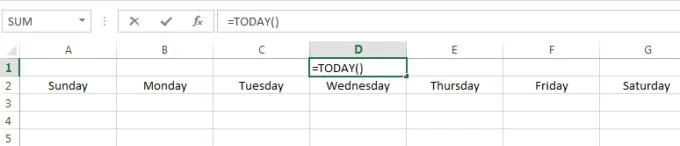
1. In the first blank row, this article will add the current month as a calendar title with a formula. Click any cell in the first row and in the fx field above the blank row, enter = TODAY () . This function tells Excel that you want today to be in that field.

2. You will see non-standard date format. To correct it, click on the date box. On the Home tab , in the Number group , click Date and drop down. Select More Number Formats and choose the format you want for the month title.
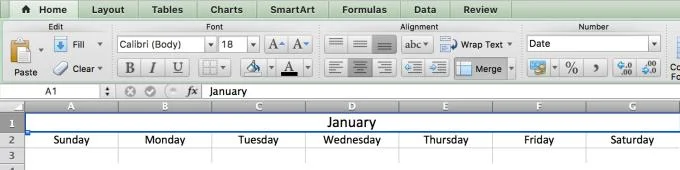
3. To center the title, highlight the entire box in the header row (including the month-enclosed box), click the Merge and Center button in the Home tab .

3. Create a date in the calendar
This is a guide to creating content in a calendar. Posts will use borders to create date cells.
1. First, highlight the whole worksheet.
2. Click the paint bucket icon in the Home tab and select white. Spreadsheets should have this color background.

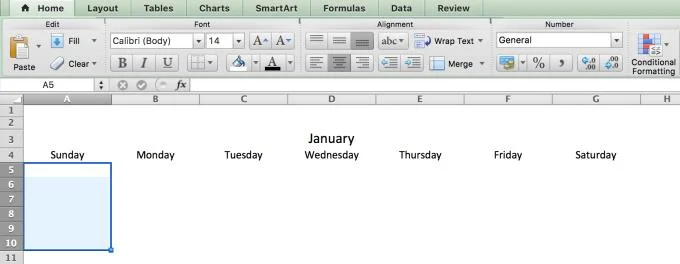
3. Then, check boxes 5 or 6 in the title of the first day of the week, Sunday.

4. While the cells are still highlighted, click the contour icons in the Home tab , select the outer border. This will box the first day of the row.
5. Highlight the box you just created, copy & paste it into another weekday title. This will duplicate the box to other dates.
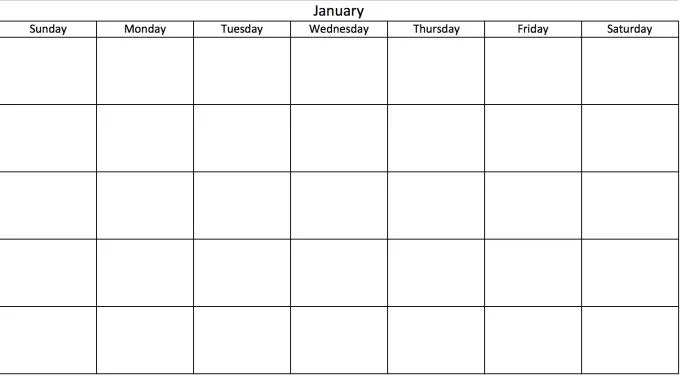
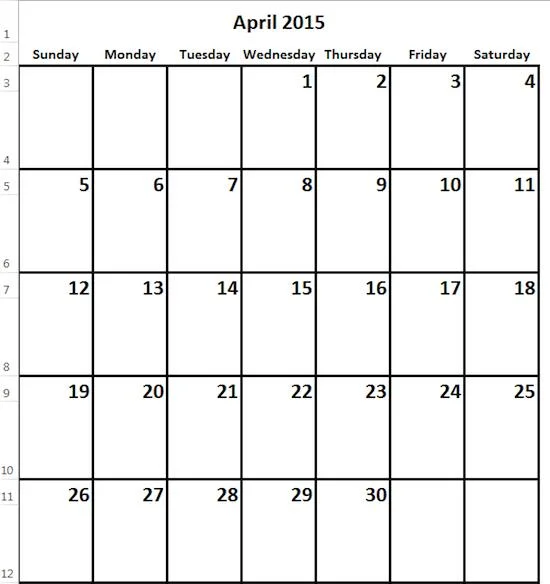
6. Repeat the above steps for the 5 rows in the worksheet. The result you get will look like this:

To add a border around a day title, highlight the day of the week, click the border icon, select the entire border.
4. Add dates
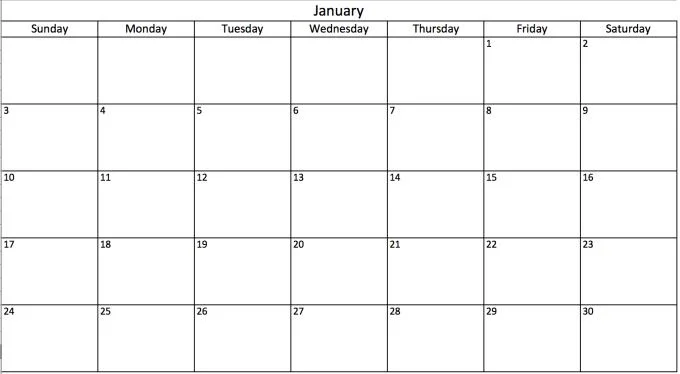
Now that we've finished creating the calendar, it's time to add the date. You can manually enter dates into each box or use Excel's auto-fill feature. Here are detailed steps:
- For each row in the calendar, enter the first two days of the week into the first box in each box. For example, if the 1st day on a Wednesday, type 1 in the first Wednesday box, and 2 in the Thursday box.
- Hold Shift and highlight both cells with numbers.
- Drag down the right corner of the selected cells to automatically fill in the rest of the week.
- Repeat that operation to get all the days of the month automatically.

Note: You must manually enter the first two days for each row before dragging to another box to automatically fill in the rest of the week.
How to create a whole year calendar in Excel
By completing the steps above, you already have a monthly calendar template. For the new year, simply change the month title and retype the number of days.
Besides, you can also use that monthly calendar template to create an annual calendar as follows:
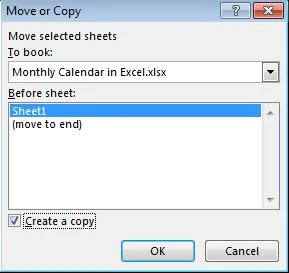
1. At the bottom of the worksheet, right-click on the Sheet1 tab .
2. Click Move or Copy .
3. Check the Create a copy box , and then click OK .

4. Make 12 copies, corresponding to each month of the year. Note: With the 31-day month, you need to add rows to the calendar.
Go to each copy of the calendar table, change the title to the corresponding month. You also need to retype the number of days in the month. If you want to save time, instead of typing it yourself, use the AutoFill feature as mentioned in step 4 of creating monthly calendar entries with Excel 2003, 2007, 2010.
Customize the calendar in Excel
It's easy to customize the calendar by month or year in Excel. You can color code events on the calendar like meetings, birthdays or change the font size, and even insert a company logo into the calendar.
1. Font format
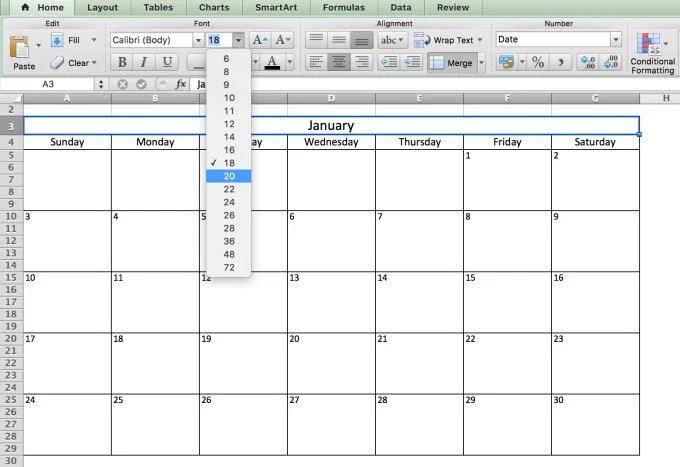
1. To make the title larger, click the row containing the title. In the Home tab , you can change the font type & size, bold / italic / underline it.
2. To change the font name of the day of the week, highlight the entire title. On the Home tab, you can format the font type & size.

4. To format the date stamp, highlight the entire date box. On the Home tab , you can adjust the font type & size.
2. Change color
You can change the font color or calendar background. Color codes are useful when you want to label events.
- To change the title color, click on the header row. On the Home tab , select the desired color from the color drop-down window.
- To change the title color of the day of the week, highlight the entire row, click on the paint bucket icon, select the fill color. You can also change the text color by repeating step 1.
- To color the event, type the event or appointment in the date box. Then, select the text, click the paint bucket icon> select fill color.

3. Add photos
Personalize the calendar by adding a personal photo or company logo.
- On the Insert tab , click Pictures . Upload photos you want to use.
- The image will be added to the spreadsheet and you can drag it anywhere in the worksheet.

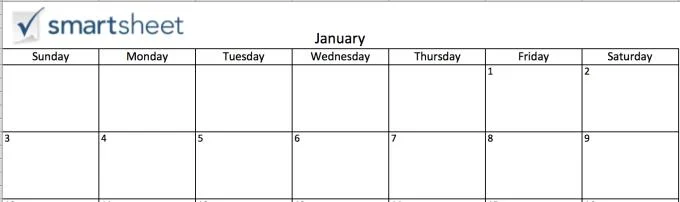
If you want to add a logo or image to the top of the calendar, you must add some space so that the image fits the scale.
- Right-click on the first row containing the title> select Insert .
- Click Entire Row .
- The number of times the Insert operation is repeated depends on the number of rows you want to add.
- To make a white background for a new row, highlight that new row, click the paint bucket icon> select white.
- To remove gridlines on the header row, select the header row> click the grid icon> click the option to remove gridlines.
Print a calendar in Excel
Your custom and formatted calendars can be difficult to print. The extended sides of a calendar may exceed the printed page size, so the results you get are easily turned into an asymmetrical two-page calendar. Here's how to fix this situation:
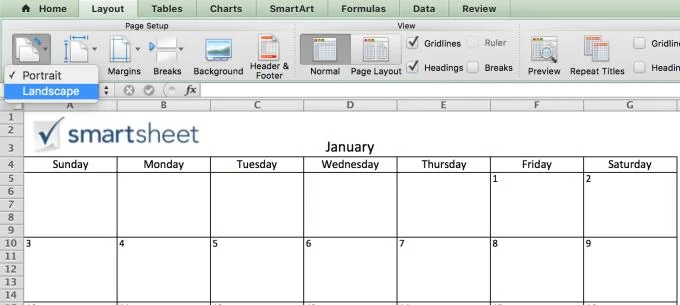
1. In the Page Layout tab , click Orientation> Landscape .

2. In the Scale to Fit group , change the width and length of the page 1.
You can now print the completed calendar on one page.
How to find Microsoft calendar templates
Microsoft also has beautiful calendar templates, from multi-page calendars, yearly calendars, weekly calendars ...
Here's how to use the calendar template available in Excel:
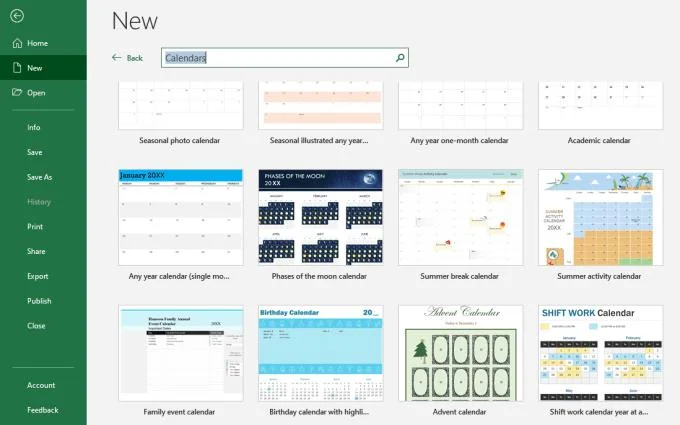
- Click File> New .
- Type Calendar in the search box.
- You will see many different options. For this example, select Any year one-month calendar , then click Create .

You will see a table on the right with Calendar Month , Calendar Year , 1st Day of Week .
- Select the January box > click on the arrow keys that appear. In the drop down menu, choose the month for the calendar.
- Enter the calendar year in the box below the month.
- Check the box Monday , click the arrow that appears. In the drop down menu, choose the first day of the month.
You can also refer to Microsoft's online calendar template here , select the calendar category on the left.
How to insert a calendar using Visual Basic
You can insert a built-in calendar directly into Excel when using CalendarMaker with the Visual Basic Editor. You will need to turn on Developer Mode in Excel and use a programming language. However, Microsoft will help you make it simpler with a sample code.
1. Open Developer Mode
First, you need to enable programming mode.
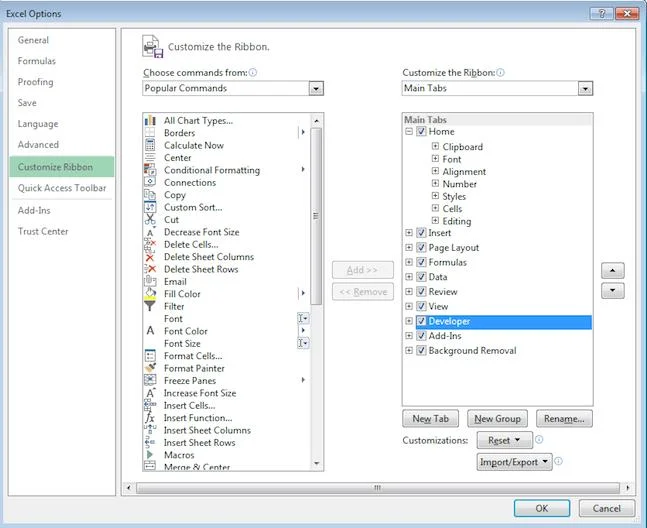
- Click File> Option .
- In the popup window, on the left hand side, click Customize Ribbon .
- In Main Tabs , make sure Developer Box is checked .

You will see a new tab in the Excel ribbon at the top of the spreadsheet.
2. Use Visual Basic to insert a schedule into your application code
1. Create a new workbook.
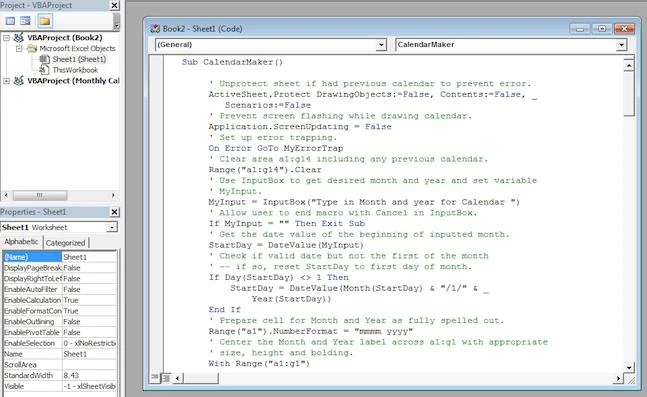
2. In the Developer tab , click Visual Basic .
3. You will see a list of workbooks and spreadsheets (in VBAproject on the left). Find and double-click Sheet1.
4. An empty popup box appears. Copy and paste Visual Basic for the Applications code into the box.

5. In the File menu, click Close and return to Microsoft Excel .
6. Return to the Developer tab and click Macros .
7. Select Sheet1.CalendarMaker , click Run .
8. In the popup box, type the entire month and year you want to make the calendar> click OK . The result you get will look like this:

How to create a calendar in minutes using the Smartsheet calendar template
Try Smartsheet for free
Smartsheet templates let you create instant calendars. Date, day, month are all formatted. Users only need to add description, comment, time for each activity.
Here's how to use the calendar template in Smartsheet:
1. Select a calendar template
- Go to Smartsheet.com , log in to your account (or start a 30-day free trial).
- From the Home screen, click Create New and select Browse Templates .
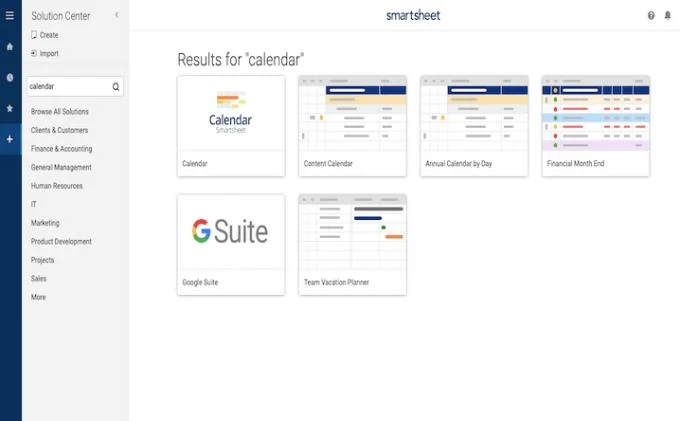
- Type "calendar" in the Search Templates box , click the magnifying glass icon.
- You will see a lot of results, in this example, click 2019 Calendar by Day , click the blue Use Template button in the upper right corner.
- Name the template, choose a save location, click the OK button .

2. List calendar information
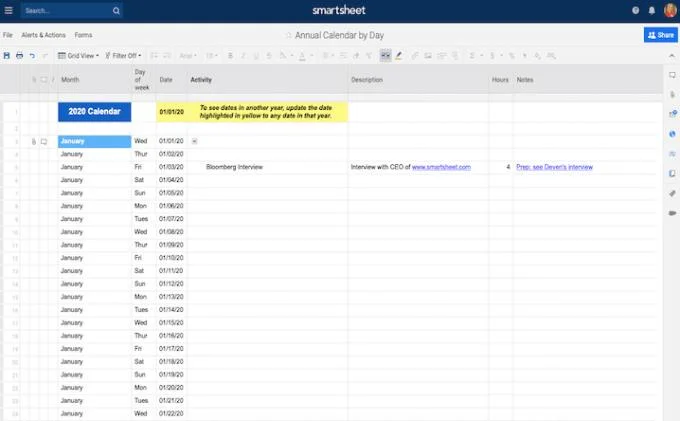
The available template opens, with full months and dates formatted for the entire 2019, with sample content for users to reference.
- Add events to the calendar in the Activity column . You can also add details in the Description , Hours , Comments column .
- To add more events on the same day, you must create a new row. Right-click on the row and choose Insert Row Above or Insert Row Below . Then, in new rows, add stuff, dates, and activities.
- If you need to delete a row, right-click the cell in the row you want to delete and select Delete Row .

On the left of each row, you can attach files directly to the task or start commenting events, adding more content to the calendar.
3. Switch to the calendar viewer
All calendar information is in this table. By clicking the corresponding button, you can see all the information in the calendar.
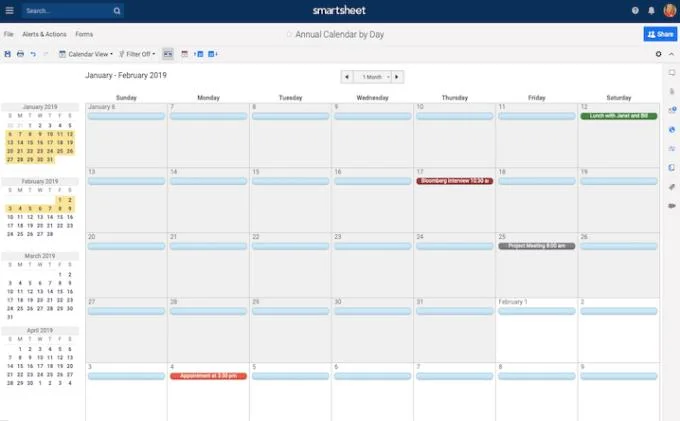
1. In the left toolbar, click the calendar icon to switch to the view mode.
Now you will see all the information in the calendar (today will be surrounded in blue). You can edit or add events directly to the calendar viewer by double clicking on the green bubble. You can also change the event date by dragging & dropping the green bubble into the other date box.

Any changes in this calendar viewer will be automatically updated to your calendar table.
Customize the calendar created with Smartsheet
It's easy to customize your calendar with Smartsheet. With just a few clicks, you can add your company logo or event coloring.
1. Change event color
- Right-click on the blue bubble, select Color Settings .
- A color palette appears, allowing you to change the calendar content color.
2. Change calendar color
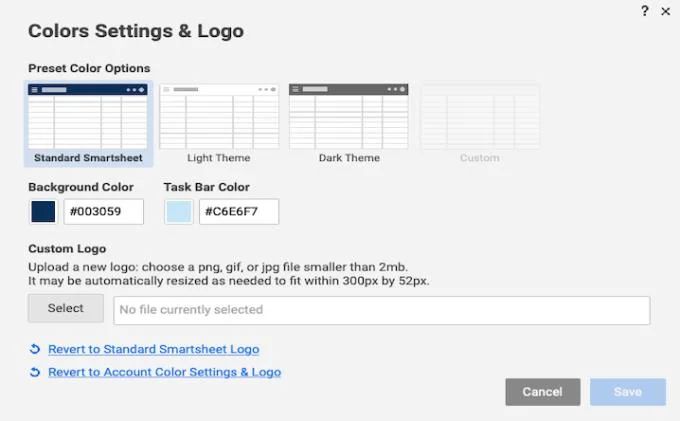
- To change the calendar color, click Account in the upper left corner.
- Choose Colors & Logo . Here, you can change the background color, tabs and elegance as well as select the available color settings.
- Click Save .

You can reverse the standard color settings and logo all the time.
3. Add the logo
By default, the Smartsheet logo is located in the upper right hand corner. You can change it by uploading your company logo.
- Click Account in the upper left hand corner.
- Choose Colors & Logo .
- In Logo , click Select and select the image file. When uploaded, click Save .
- Your new photo will be added to the calendar.
Send mail, share or print calendars
Share your calendar with colleagues, friends or family members. You can choose to print, export, or send a calendar from Smartsheet.
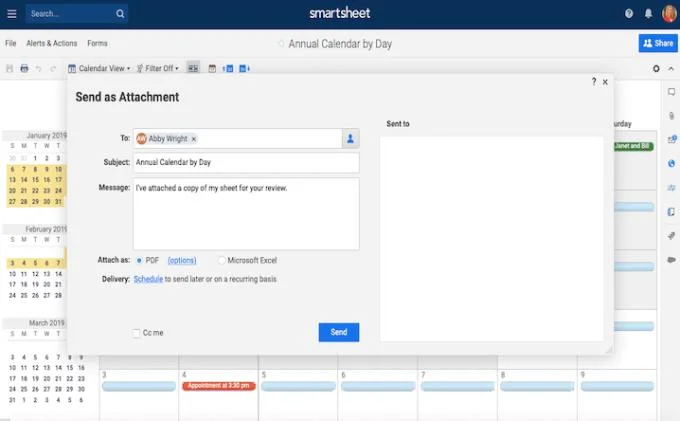
To send the calendar by email
- In the toolbar on the left, click the envelope icon.
- Select Send as Attachment .
- In To field, add recipients. Select who to send from the contact list or type the email address.
- The Subject and Message fields are automatically filled out, but you can choose to delete and add your content.
- Choose to attach calendars like PDF or Excel spreadsheets, choose to send now or on schedule.

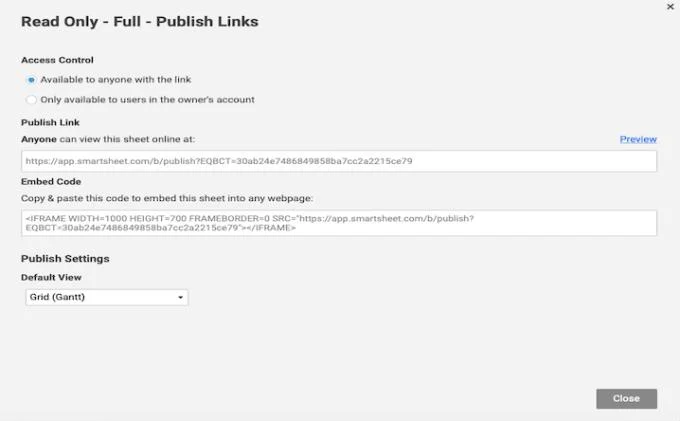
To share the calendar with a link
- At the bottom of the calendar, click Publish .
- Click the publishing option you want by clicking the slider.
- A pop-up box appears with the publishing link. You can copy and paste the link for everyone to view the calendar or use the embed code to insert the calendar into the web.

To print the calendar
- In the toolbar on the left, click the printer icon.
- Select a date range, paper size, orientation, and so on . Click OK .
- The PDF version of the calendar will be downloaded, then you can print it.
Keeping track of tasks, filing deadlines, updating daily, weekly and monthly schedules is the key to ensuring that your work goes smoothly. So, don't be afraid to create calendars with Excel or Smartsheet to manage your daily life activities smarter. In addition, you can refer to the 2019 Calendar Template to design the desired calendar layout faster.
Hope the article is helpful to you!