Device Links
When it comes to video conferencing, Zoom is one of the best choices on the market. It does not matter if you are using it at home or in an office setting; it will connect your team members in no time.

But you do not have to use the video feature if there is no need. You can just set up a profile picture and use the audio-only option.
Adding a profile photo is more personal than having just your name displayed during a meeting. In this article, we will show you how to change your profile picture and some other helpful customization options.
Adding a Zoom Profile Picture: Desktop
One of the great things about Zoom is that you can personalize your profile in many ways. To change the settings, you will need to access your profile via the Zoom web portal. So, if you have the perfect profile picture ready, here is what you need to do:
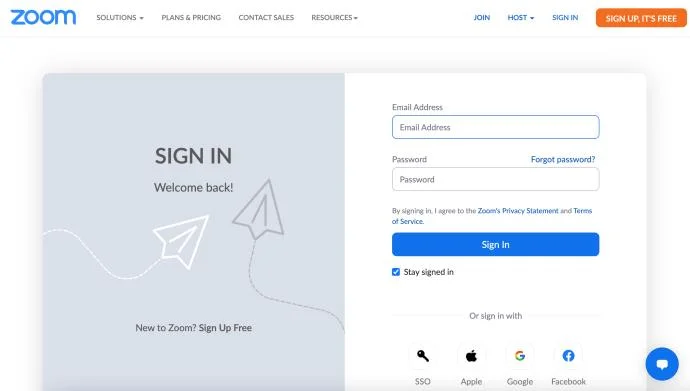
- Log into your Zoom account on a web browser.
Note: If you’re using the Desktop app, you will be directed to the website.

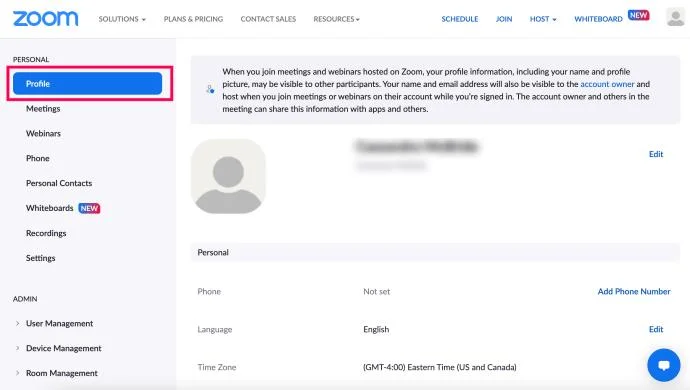
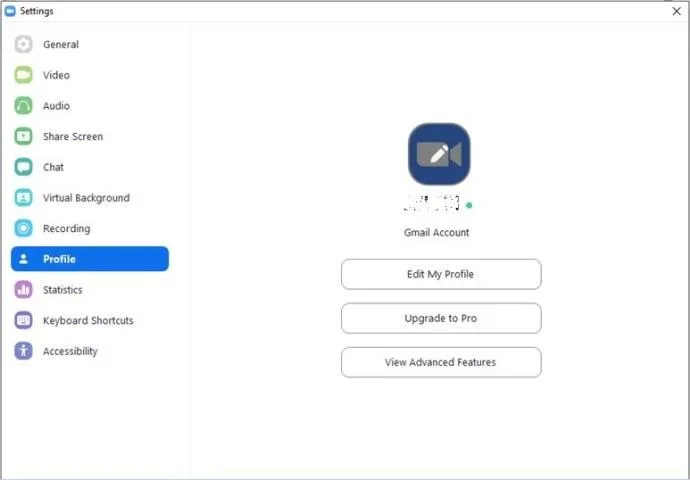
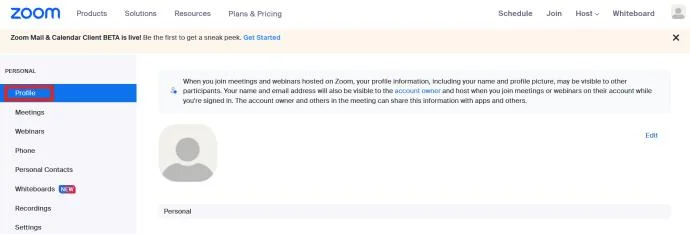
- Click Profile in the left-hand menu.

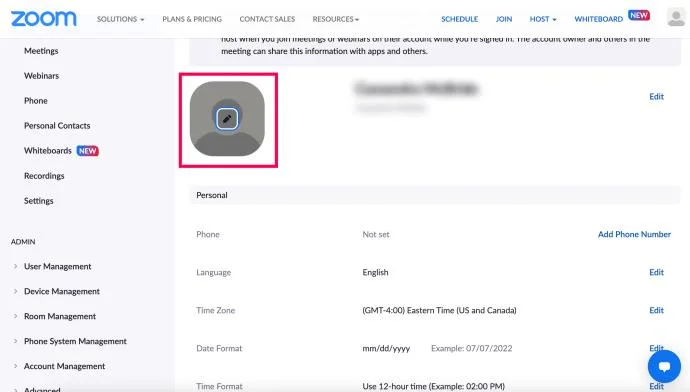
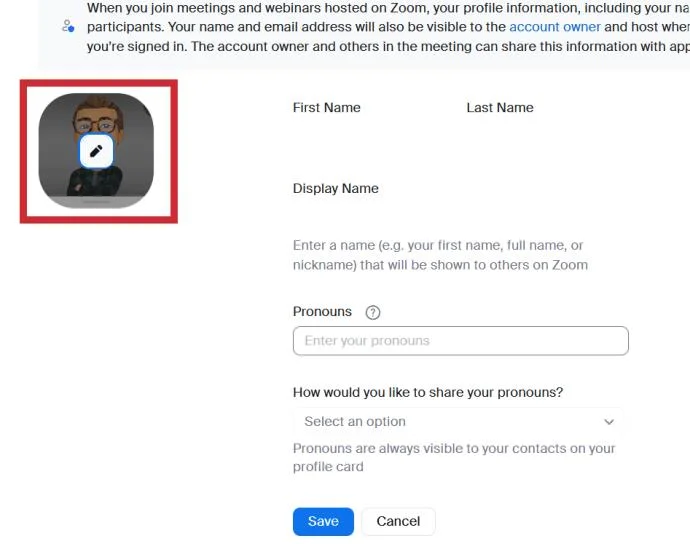
- Hover over the stock profile picture until a pencil icon appears. Then, click it.

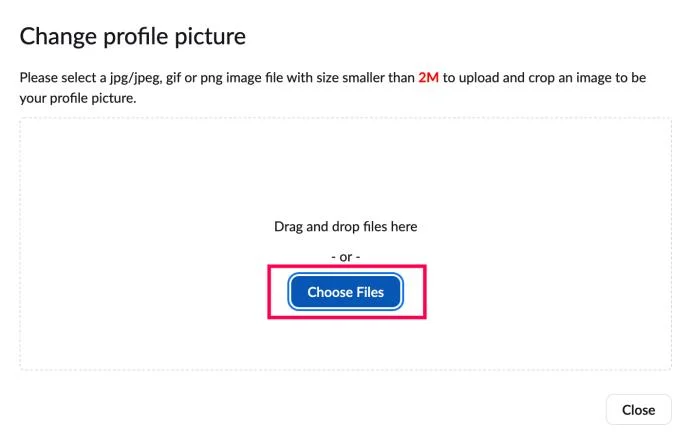
- Click on Choose File.

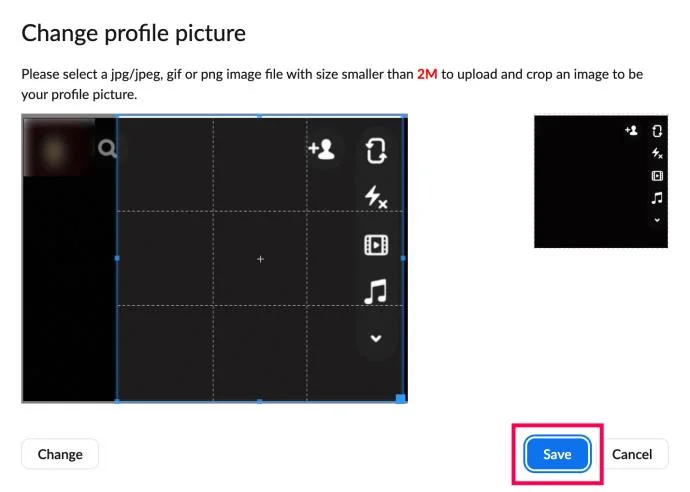
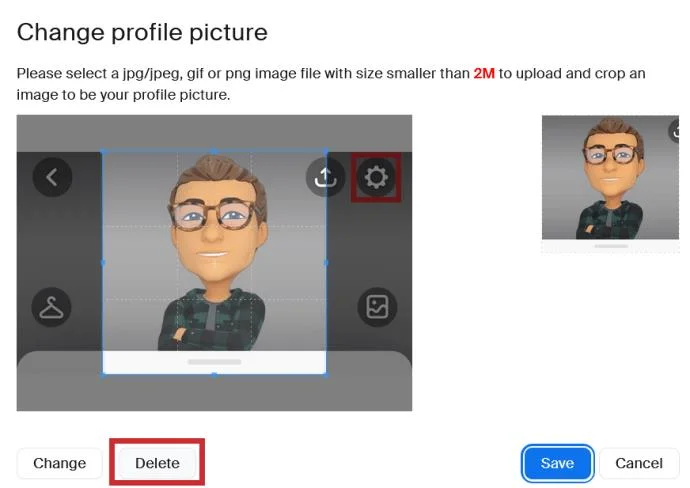
- Select the image from your computer. Then, crop the image and click Save.

You can refresh your page and check your profile picture. If you are unhappy with how it looks, just repeat the process. Or, if you change your mind about having a Zoom profile photo, just select Delete.
Also, remember that your picture shouldn’t exceed 2MB in size and should be in one of the following formats: PNG, JPG, or GIF.
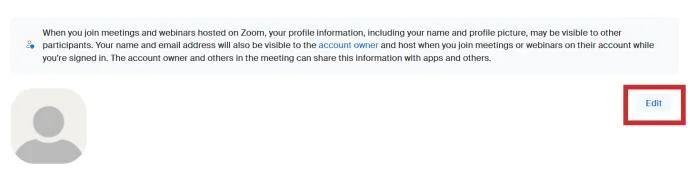
On the same Profile page, you can also edit other personal information. Next to your profile picture is your display name. You can select edit in the top right corner of the screen and change it. You can also edit your email address and change your Zoom user type.

How to Add a Profile Picture During the Call
Next time you are on a Zoom video call and decide to turn off your camera, other participants will see your profile picture. But you can also add a profile picture during your Zoom video call.
- Just right-click on More the video preview and select Edit Profile.

- When you stop the video, you can see your picture. The option to edit your profile picture won’t always appear. Sometimes, you’ll click More only to find the Rename option.

How to Add a Profile Picture on the Mobile App
If you primarily use Zoom on your mobile device, follow these steps to add a profile picture:
- Launch the Zoom app.

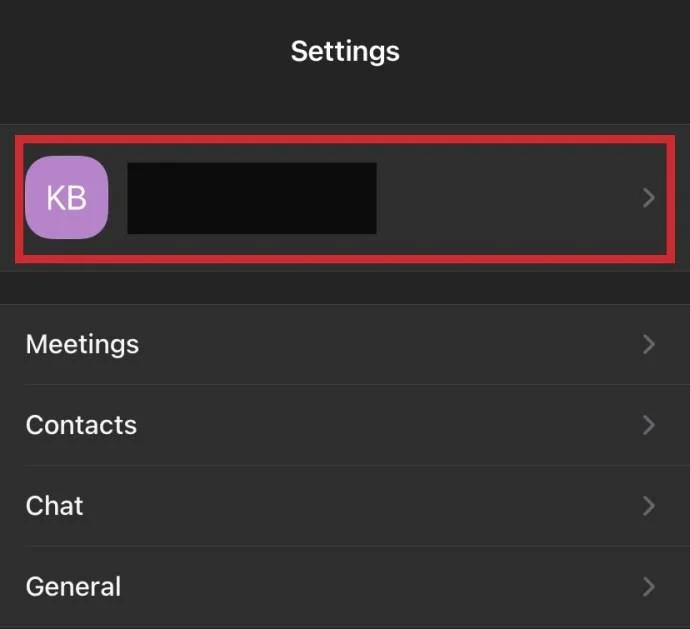
- Select Settings.

- Tap on your name to access your Profile.

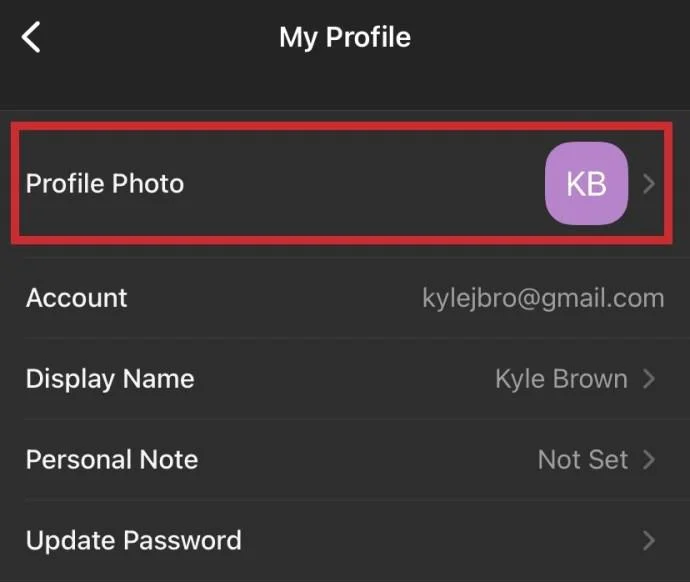
- Tap on Profile Photo.

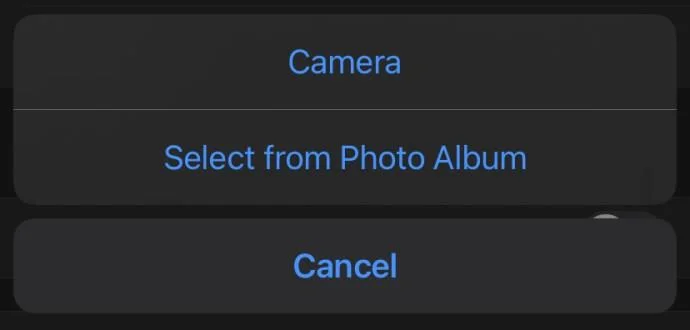
- Select either Camera or Select from Photo Album and select your desired profile picture.

How to Disable Profile Pictures
You may also notice that no one’s profile pictures appear in this meeting. This happens when the meeting’s moderator has the option turned off. You can turn this option on from the Zoom website if you’re the moderator. Just follow these steps:
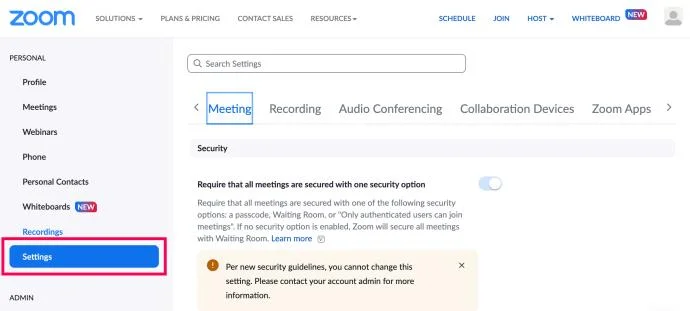
- Go to the Zoom webpage and log into your account. Click on ‘Settings” on the left side and ensure you’re on the Meeting tab at the top.

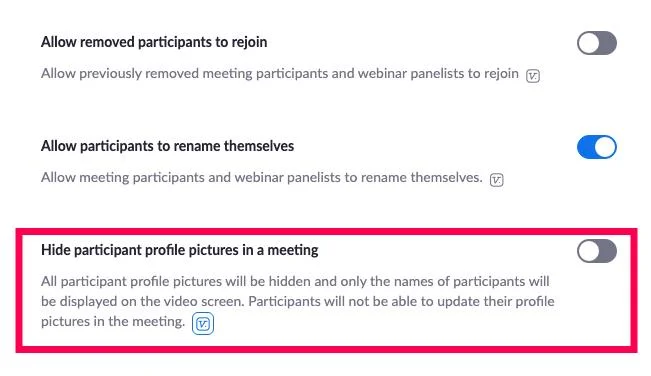
- Scroll down to Hide participant profile pictures in meeting. Make sure that it’s toggled on. If this doesn’t work, Zoom does warn that the feature is only available on versions 5.0.0 or later.

Adding Picture to Your Google Account for Zoom
There are four ways you can log in to your Zoom account. You can use your work email, Facebook, a Single Sign-on, or a Google account. In the latter case, Zoom will automatically load your Google or Gmail Profile picture as a Zoom profile picture.
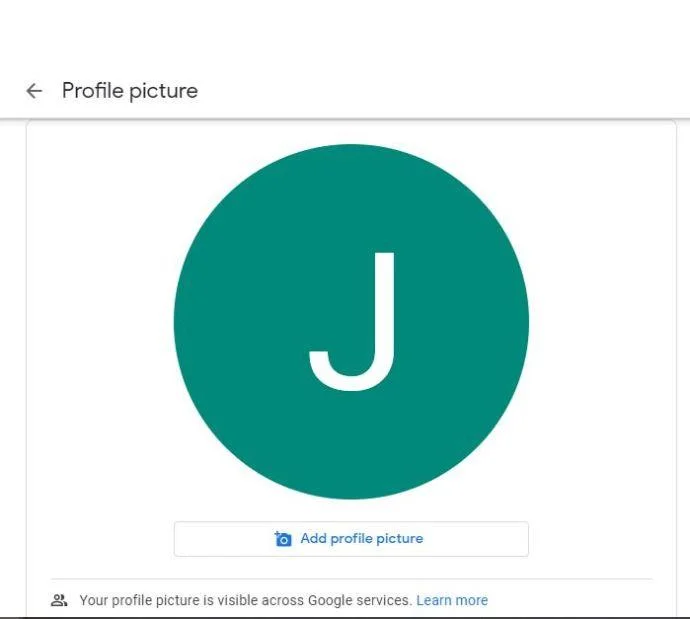
If your Google profile is without an image, you can add it there first and then log into Zoom. That way, you will have the same picture in both locations with just one upload. Here’s how you change your Google account picture:
- Sign in to your Gmail account.

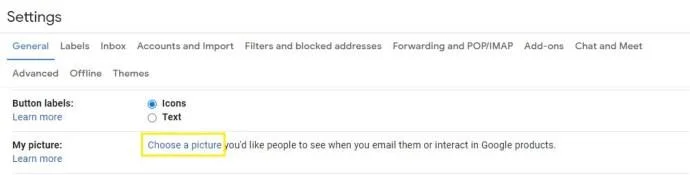
- Select Settings in the top right corner of the screen.

- From the menu, select My Picture and then Choose a picture.

- Upload a profile photo of your choosing.

You can change your Google profile picture from your mobile device as well. But keep in mind that regardless of where you make these changes, you’ll have to wait a little bit until they apply. But once they do, the same image will appear in all Google products, wherever you sign in with your account.

Frequently Asked Questions
Zoom is a program that has been available for a long time, but it is more widely used in 2022 than ever before. If you’re still new to the platform, we’ve got answers to some more frequently asked questions right here:
My profile picture isn’t showing in the meeting. What’s going on?
Zoom makes it super easy to log in, and you don’t even need an account to join someone’s meeting. Assuming you clicked on the link to enter someone’s meeting, you probably aren’t logged in. If your profile picture isn’t showing, you need to go to the Zoom app or a web browser, sign in, then join the meeting with the meeting ID (which should have been sent to you in the invite).
Also, remember that Zoom meeting administrators have a lot of control over what you can do within the meeting. This means they may have turned the option to show profile pictures off within their meeting. If you’re positive that you’ve logged into the correct account, this is likely the reason you aren’t seeing your profile picture. To confirm, create your own meeting and see if your profile picture appears.
Do I even need a profile picture?
While it isn’t absolutely necessary to have one, it can be a great asset with many benefits. For one, depending on the type of meeting you’re in, a profile picture can be a great substitute for turning off your camera. Your profile picture will display when you speak, making it more personable and letting others see who they’re talking to during the meeting.
Can I delete my profile picture?
If you update your profile picture while in a meeting, beware; there’s no way to change it from within the meeting (so make sure you select an image you’re comfortable with everyone looking at for a while).
To delete your profile picture, you’ll need to do so from a web browser. Follow these steps:
1. Click Profile in the left-hand menu

2. Click Edit Profile.

3. Click the Pencil icon on your profile picture.

4.Tap Delete and confirm to get rid of your picture.

Choosing the Right Profile Picture Is a Big Deal
How many profile pictures do you have across apps and platforms? Probably many. When you’re setting up your Zoom profile picture, you’ll perhaps wonder what kind of message it sends.

Is it professional enough, or is it too serious? Or maybe it’s best not to put much thought into it. When you find the right picture, just follow the steps above and add it to your Zoom profile.
What kind of picture do you think should go on the Zoom profile? Let us know in the comments section below.