Have you ever wondered if it was a convenient time to ask a teammate a quick question? Or maybe you wished that there was a way to let everybody know that you’re in a meeting?

Microsoft Teams gives you a straightforward solution: change your online status. Check out how to take control of your online status message and how to create your very own.
Desktop
Setting your status in Teams is a simple way to let people know when you’re busy or away from your desk. There are a couple of ways to change your status.
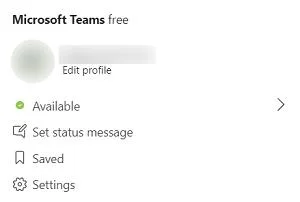
First, you can manually change your status online by clicking on your profile name located in the upper right corner. Use the drop-down menu to select a different status or to reset the one that Teams auto-filled.
The command box also works well if you want to change your status, but you’re in a hurry. Use a forward slash and type your new status to change it. For example, Do Not Disturb turns into /dnd and Be Right Back is /brb.
Keep in mind that Teams will never set the Be Right Back status automatically. You have to manually set it if you want Teams to show this online status.
Mobile
Setting your online status for the Teams mobile app works the same way that it does on a desktop, although the controls are a little different. Instead of clicking on your profile name, you’d tap on the three vertical lines for the Menu icon.
In the next drop-down menu, scroll and select your status to see your options. The colored dots appear the same way regardless of whether you’re using a desktop or mobile app.
What Each Dot Means
If you check out your profile, you’ll see a colored dot near your name.

Here are your status indicators, and they’re similar to traffic lights in meaning:
Red Dot
It can occur in a couple of instances. Either you’re Busy, or you have a Do Not Disturb status on your profile. Both are a clear sign to everybody who’s looking at it that you’re unavailable.
Yellow Dot
When a yellow dot appears next to your name, it generally means that you’re unavailable. But it doesn’t have quite the same weight that a red dot does. Like a traffic light, a yellow dot symbolizes caution. In this case, it could mean that you Appear Away or that you’ll Be Right Back.
However, if someone is patient, you could appear available in a short amount of time.
Green Dot
Lastly, you can have a green dot. Like traffic lights all over the world, the green light means “Go!” on Teams. You’re available and ready to chat if needed.
Many of these statuses change depending on your Outlook calendar and what’s on it. The Teams app pulls your status directly from your calendar.
For example, if you don’t have any calls or meetings scheduled, Teams will list you as Available. On the other hand, if you are in a scheduled meeting or call, the app automatically changes your status. It may read Busy when you’re in a call or a Meeting.
Setting a Custom Message
Teams also give you the option of setting a custom message instead of the standard online status messages. To make a custom message, go to your profile name and click on it for the drop-down menu. Scroll down and select Set Custom Message.

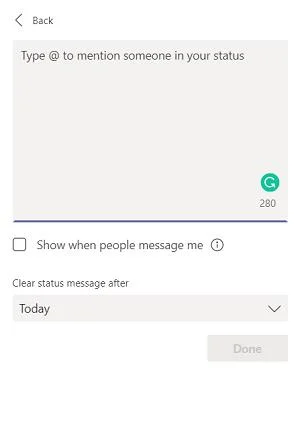
A new window will open, and you can set a message up to 280 characters long there. You can also tag another team member in your status message by using the “@” and the person’s name. Although your status message shows up above the composition box when someone messages you, they’re free to send you messages. If you want notifications for those messages, check the box below the text box.
Don’t forget to set when you want the message cleared. By default, it will stay there only until the end of the day. But you do have different time options ranging from Never to This Week. You can set a custom period, too.

Increase Your Productivity with Teams Statuses
Selecting your online status is a great way to let other people know when you’re available or if they need to check back later. Not only does it help them plan their workload, but it can also aid you if you want to work uninterrupted.
Just remember, though, that the Teams app works in tandem with your Outlook calendar. So, if you see your status changing throughout the day without your input, that may be the reason.
How well do Teams online statuses work for you? Do you use the standard ones or make custom statuses? Let us know in the comments section below.