How to Update Google Chrome Browser

Learn how to update Google Chrome browser on Windows, Mac, and Android in minutes to enjoy better security, speed, and new features. Follow these clear steps.
Need to use WhatsApp on a larger screen without reaching for your phone every time? The PC WhatsApp Messenger Download gives you full access to chats, calls, and media directly from your computer. This guide covers the official method to install WhatsApp Desktop on Windows or macOS so you can start messaging right away.
WhatsApp offers a native desktop application that syncs with your mobile device. Using the official PC WhatsApp Messenger Download avoids third-party sites that may contain malware or outdated versions. The app supports Windows 10 and later as well as macOS 10.15 and newer. Once installed, it mirrors your phone conversations while allowing you to type faster with a keyboard.
Before starting, make sure your smartphone has an active WhatsApp account and is connected to the internet. You will need to scan a QR code during setup, so keep your phone nearby.
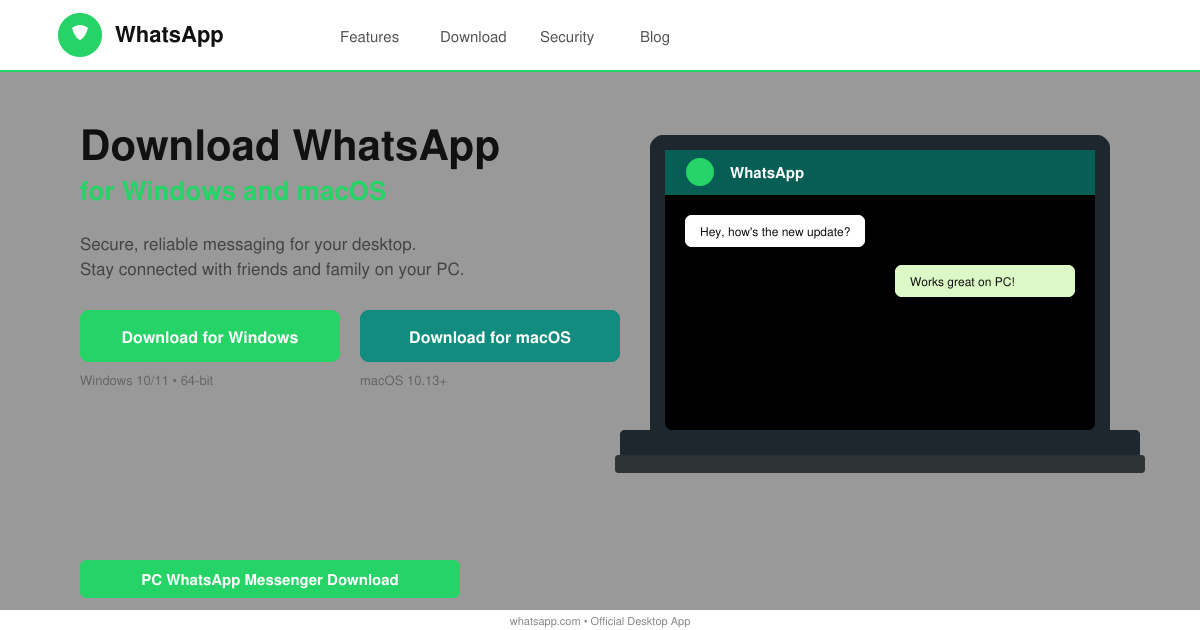
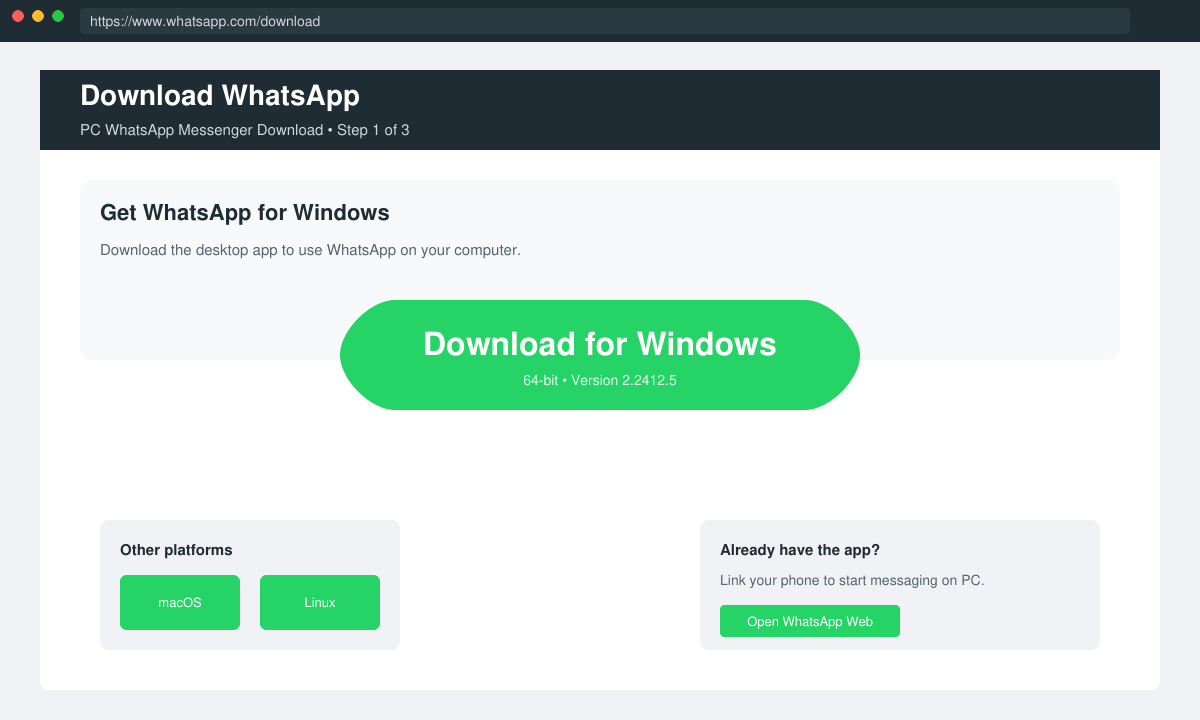
Open your browser and go directly to whatsapp.com/download. Click the green download button that matches your operating system, either Windows or macOS. The file size is around 150 MB, so the download completes in under a minute on most connections.
Locate the downloaded file in your Downloads folder. Double-click the .exe file on Windows or the .dmg file on Mac. Follow the on-screen prompts to complete installation. On Windows, allow the app through Windows Defender if prompted. On Mac, drag the WhatsApp icon into your Applications folder.
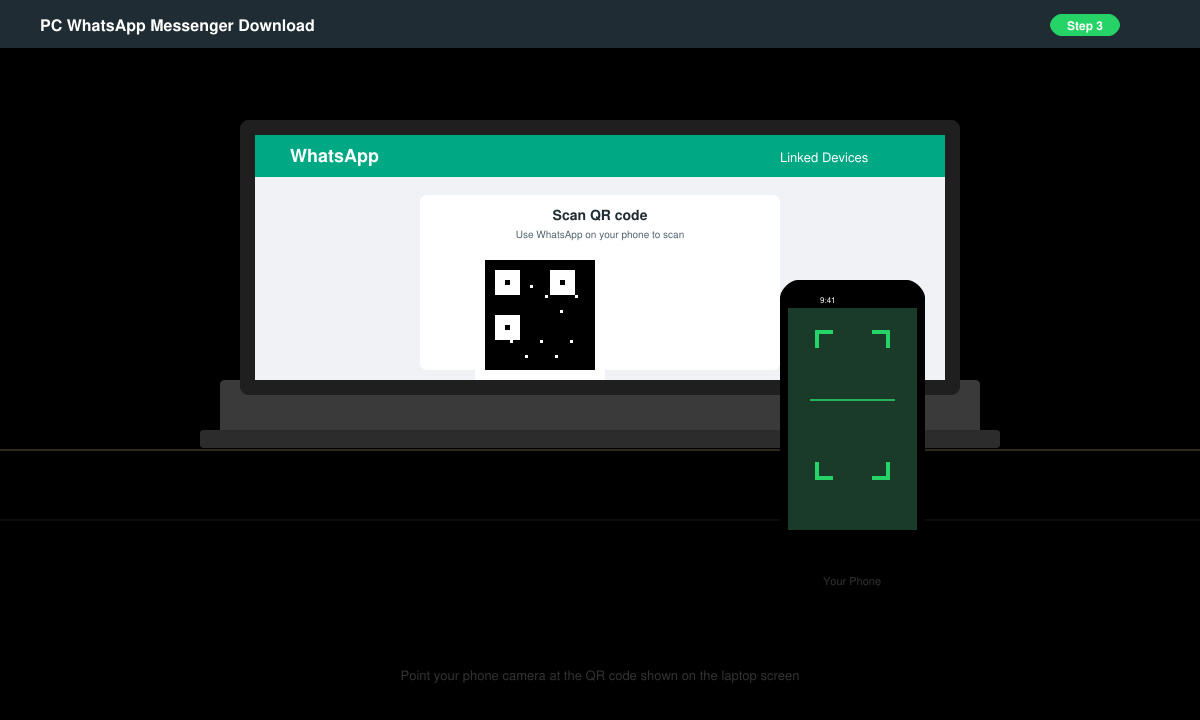
Open the newly installed WhatsApp Desktop app. A QR code appears on screen. On your phone, open WhatsApp, go to Settings, select Linked Devices, and tap the plus icon to scan the code. Your chats will load within seconds after successful pairing.
After the initial sync, click the three-dot menu in the top left of the desktop app. Choose Settings and enable desktop notifications if you want alerts for new messages. You can also set a custom download folder for media to keep your computer organized.
Yes, the official desktop application is completely free. No subscription or payment is required beyond your existing WhatsApp account.
No. The desktop version requires an initial link to your mobile phone and periodic connection for security. It cannot run as a standalone account.
Official support starts at Windows 10. Users on Windows 8.1 or earlier should use WhatsApp Web in a browser instead of the desktop app.
Following these steps gives you a stable and secure PC WhatsApp Messenger Download that keeps all your conversations in sync across devices.
Learn how to update Google Chrome browser on Windows, Mac, and Android in minutes to enjoy better security, speed, and new features. Follow these clear steps.
Learn how to download old media from WhatsApp and recover photos or videos from past chats. Follow these clear steps to save files that no longer appear in your gallery.
Facebook Messenger Isn T Working on your device? Use these exact troubleshooting steps to restore chats, calls, and notifications fast on Android, iOS, or desktop.
How to See Deleted WhatsApp Messages using your phone's built-in tools. Follow these exact steps to recover messages that contacts have deleted from chats.
Learn how to clear browser history in Chrome on desktop and Android with this exact step-by-step process. Keep your browsing private and free up storage space quickly.
Master how to use CapCut with this practical walkthrough covering project setup, editing tools, effects, and export options for high-quality video results.
Get the latest WhatsApp App Update Download from official sources to access new features and security improvements. Follow these clear steps for Android and iOS devices.
Learn how to safely Download WhatsApp App for Android from the official Google Play Store. Follow our clear step-by-step instructions to install the latest version quickly and securely.
Google Download WhatsApp App safely through the Google Play Store with this clear guide. Get the official version on your Android device quickly and avoid fake downloads.
Facebook and Messenger not working can disrupt your day. Follow these targeted fixes to restore access quickly on mobile and desktop.








