How to Update Google Chrome Browser

Learn how to update Google Chrome browser on Windows, Mac, and Android in minutes to enjoy better security, speed, and new features. Follow these clear steps.
Sometimes, a message saying “Connection problem or invalid MMI code” shows up and can be frustrating for Android users. When the invalid MMI code message appears, it generally means that you can’t make calls or text messages until the issue gets resolved. This can occur for many reasons.
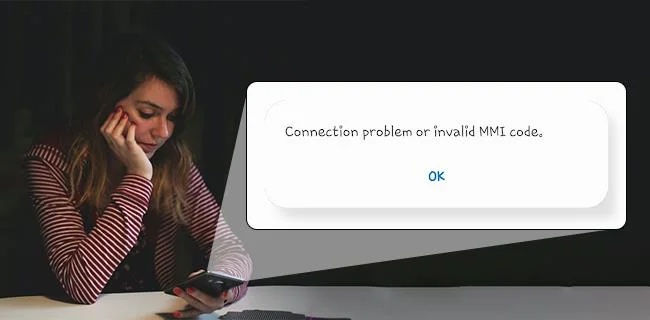
Fortunately, there are several ways to potentially fix the Android “Connection problem or invalid MMI code” error. Try the following options below. If one process fails to resolve the problem, move on to the next one.
What is an MMI Code?
Any SIM-compatible device has a plethora of codes and numbers it can be difficult to identify the purpose of each one. An MMI code (Man-Machine interface code) begins with an asterisk (*) or pound (#) sign that lets users enable or disable various star code functions (*#06# to reveal IMEI, for example).
There are several reasons why the “Connection problem or invalid MMI code” error message appears on your phone. The main reason is an issue with the carrier provider or problems with the SIM authentication on the smartphone. The error is quite common for phones with dual-SIM capabilities, but it does occur on others too.
Ways to Fix the MMI Code Error
Several methods exist to fix the “Connection problem or invalid MMI code” on an Android device. We’ll cover them from the simplest method up to the more complicated ones.
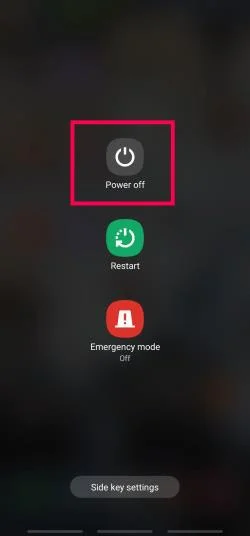
1. Restart the Android Device
The first way to try to fix an invalid MMI code would be to restart the smartphone.
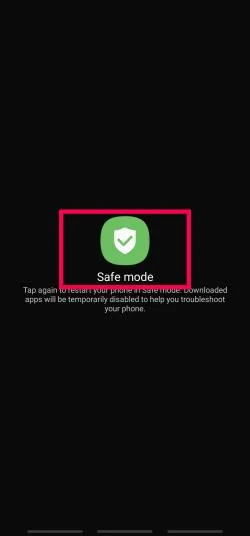
2. Run Your Device in Safe Mode
It’s possible that third-party software is interfering with your connection and causing an MMI error. Fortunately, it’s easy to rule this out. Here’s what to do:
If your phone doesn’t throw any error codes, third-party software is interfering with your network. You’ll need to start removing third-party apps. Start with the applications you installed around the time you started seeing the error.
When you follow the Settings>Apps path scroll down and uninstall any apps you believe may be the culprit. Then, power your phone out of Safe Mode and see if the error appears. Keep doing this until the MMI code ceases.
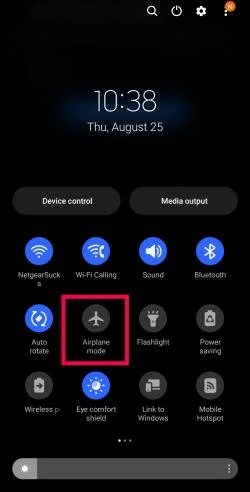
3. Use Airplane Mode
Some users have had success using Airplane Mode to resolve their MMI code error issues.
Given that an MMI Code error can occur due to weak signal strength performing this can reset your connection and correct the error.
4. Reset Your Network Settings
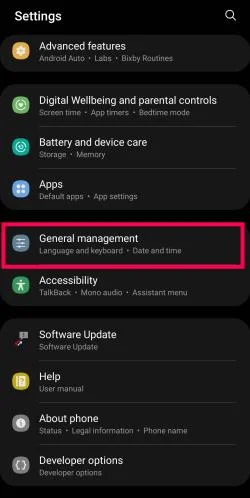
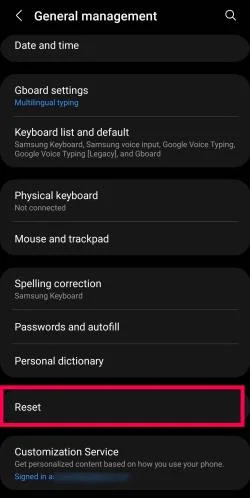
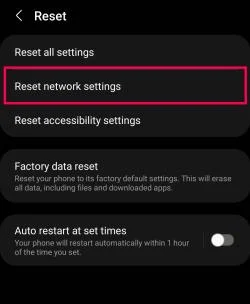
Because we know that the MMI error indicates an issue with your device’s cellular connection, the next logical step is to reset your Network Settings. Perhaps your network settings haven’t updated properly or there’s a glitch in the system. Performing a network reset will clear any problem codes and help you start fresh. Here’s what to do:
When your phone powers back up, the error should disappear.
5. Modify the Prefix Code
Another way to fix the Connection Problem or Invalid MMI Code on an Android smartphone would be to add a comma at the end of the Prefix code. When a comma gets added, it forces the operation to execute and overlook any error.
Below are two different ways to modify the prefix code.
6. Activating Radio and Turning on IMS over SMS
Frequently Asked Questions
Hopefully, your MMI error is gone by this point. But, if you still have questions, keep reading.
Do I need to get a new SIM?
If you’ve tried all of the fixes above and the error continues, you may need to contact your cell phone carrier for more information. They may recommend a new SIM or they can resend OTA (over-the-air activation).
Android MMI Code Error Resolved
In closing, there are a few methods/options you can use to remedy the MMI error on your phone, some a little more involved than others. While most MMI errors occur on dual-SIM phones, they also appear on phones with one SIM due to weak signals or tower network issues. If the above solutions don’t work for you, contact your service provider for assistance.
Learn how to update Google Chrome browser on Windows, Mac, and Android in minutes to enjoy better security, speed, and new features. Follow these clear steps.
Learn how to download old media from WhatsApp and recover photos or videos from past chats. Follow these clear steps to save files that no longer appear in your gallery.
Facebook Messenger Isn T Working on your device? Use these exact troubleshooting steps to restore chats, calls, and notifications fast on Android, iOS, or desktop.
How to See Deleted WhatsApp Messages using your phone's built-in tools. Follow these exact steps to recover messages that contacts have deleted from chats.
Learn how to clear browser history in Chrome on desktop and Android with this exact step-by-step process. Keep your browsing private and free up storage space quickly.
Master how to use CapCut with this practical walkthrough covering project setup, editing tools, effects, and export options for high-quality video results.
Get the latest WhatsApp App Update Download from official sources to access new features and security improvements. Follow these clear steps for Android and iOS devices.
Learn how to safely Download WhatsApp App for Android from the official Google Play Store. Follow our clear step-by-step instructions to install the latest version quickly and securely.
Google Download WhatsApp App safely through the Google Play Store with this clear guide. Get the official version on your Android device quickly and avoid fake downloads.
Facebook and Messenger not working can disrupt your day. Follow these targeted fixes to restore access quickly on mobile and desktop.








