
How to Update Google Chrome Browser

Learn how to update Google Chrome browser on Windows, Mac, and Android in minutes to enjoy better security, speed, and new features. Follow these clear steps.
Device Links
Google Assistant is a popular AI-enabled virtual assistant, and the software is compatible with different mobile and smart devices. It helps users complete daily tasks and simplify their routines, but you’ll need to access the program’s settings to customize your experience.
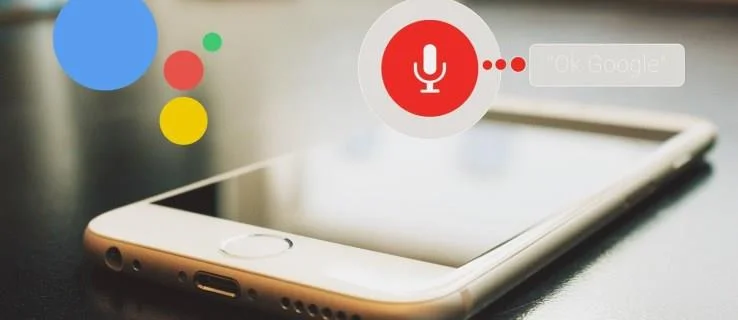
Fortunately, you can open Google Assistant settings using your iPhone, iPad, or Android device.
How to Open Google Assistant Settings on an Android Device
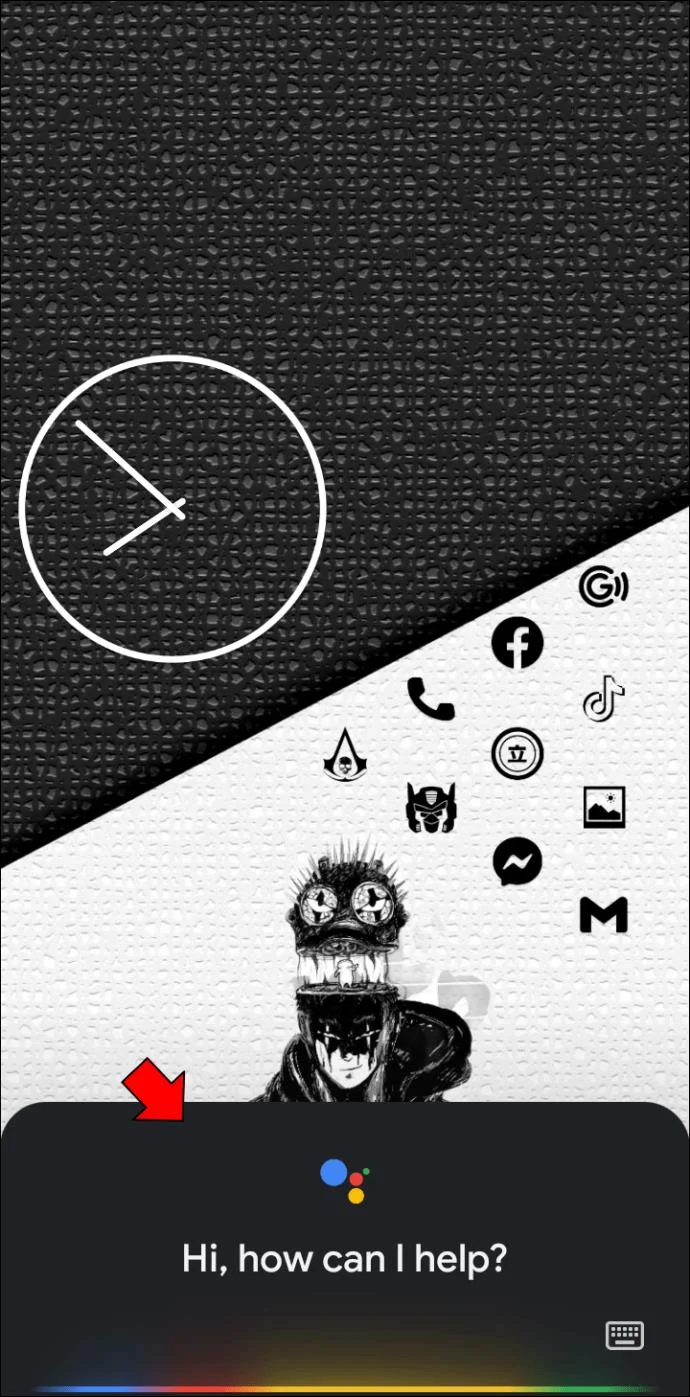
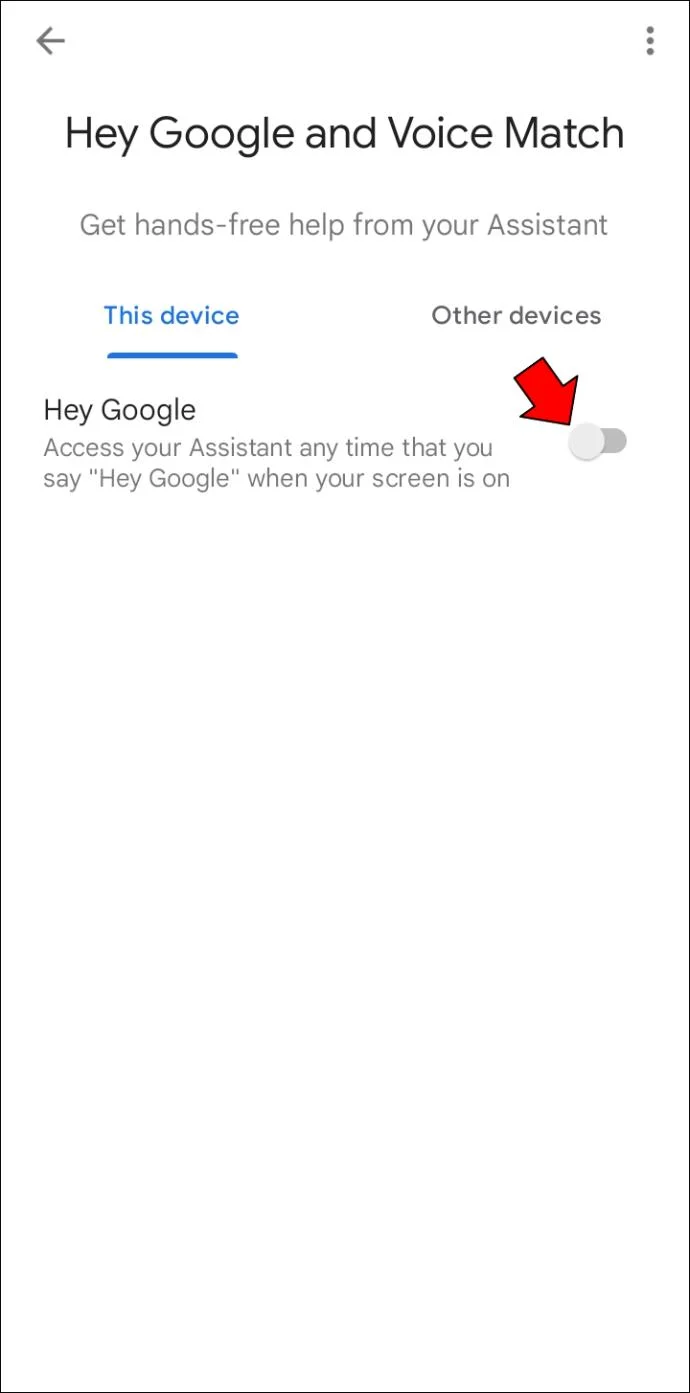
The simplest way to access your Assistant’s settings on an Android device is by using Voice Match. All you need to say is, “Hey Google, open Assistant settings.”
Once the app completes your command, you’ll be able to tweak the language options in Google Assistant, adjust other preferences, and manage Voice Match.
The following steps will walk you through the process:
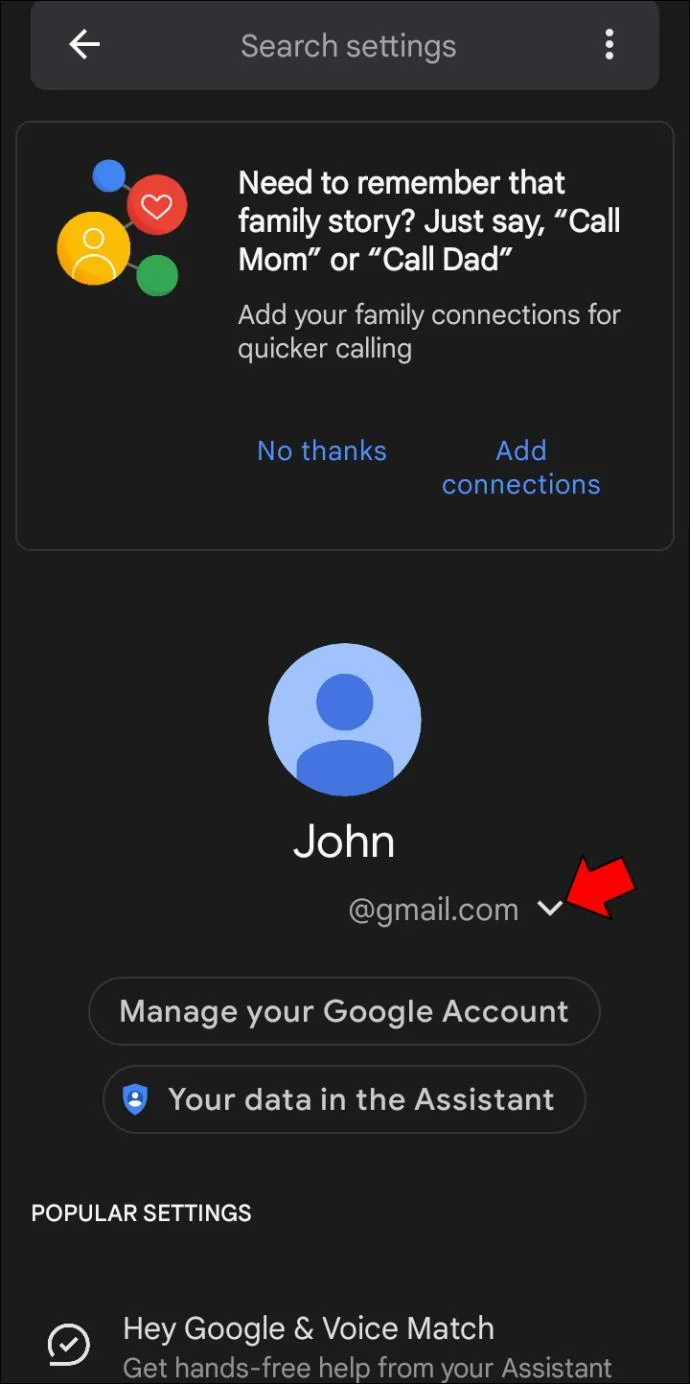
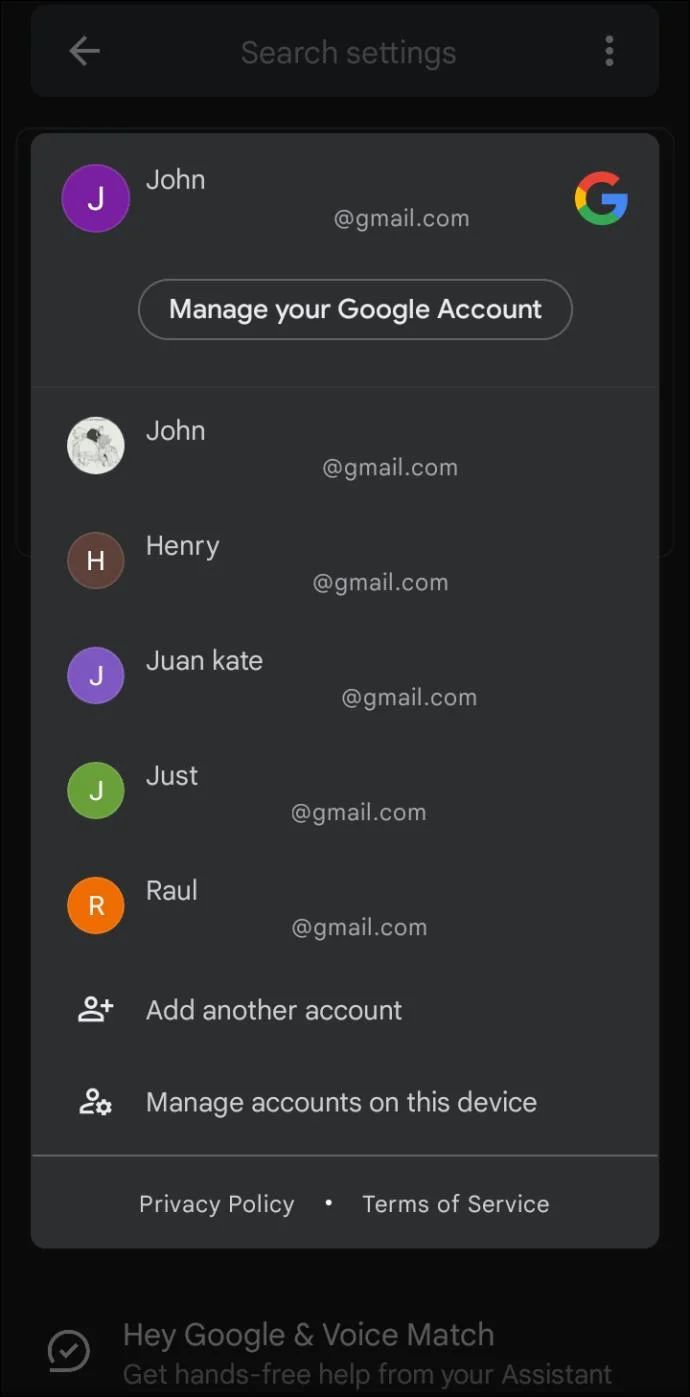
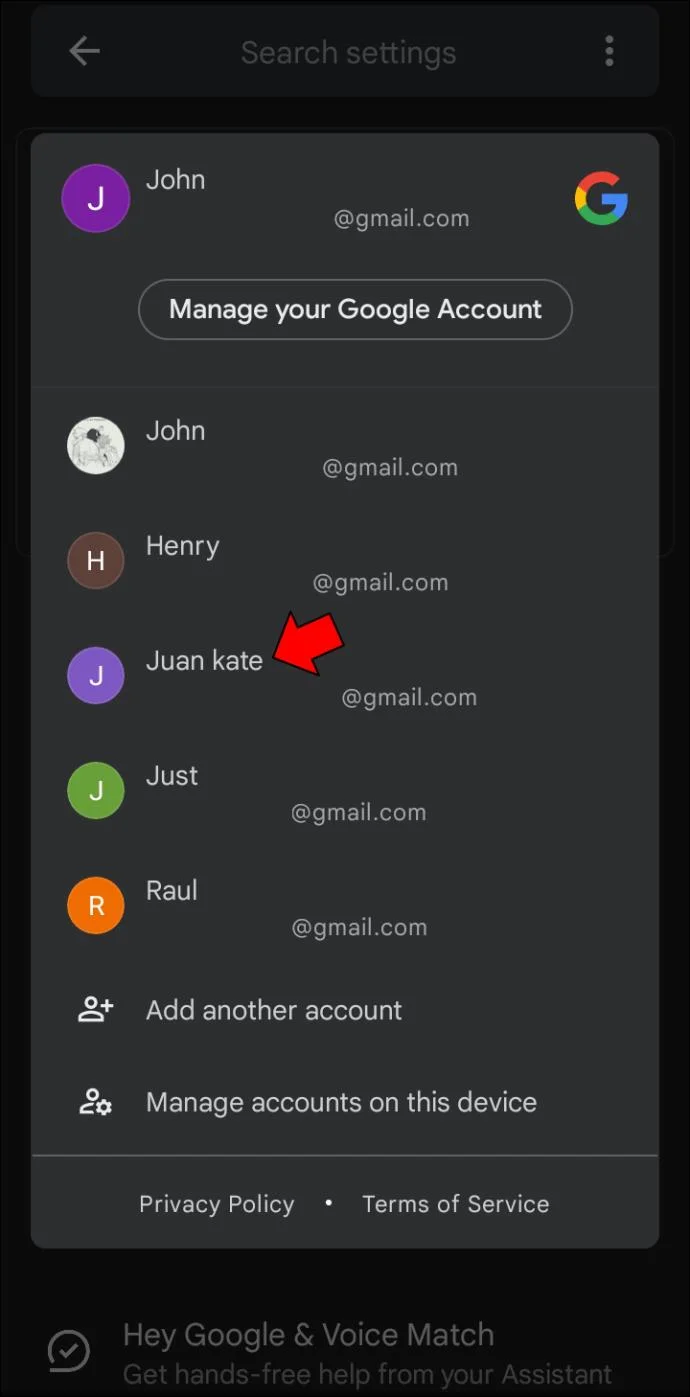
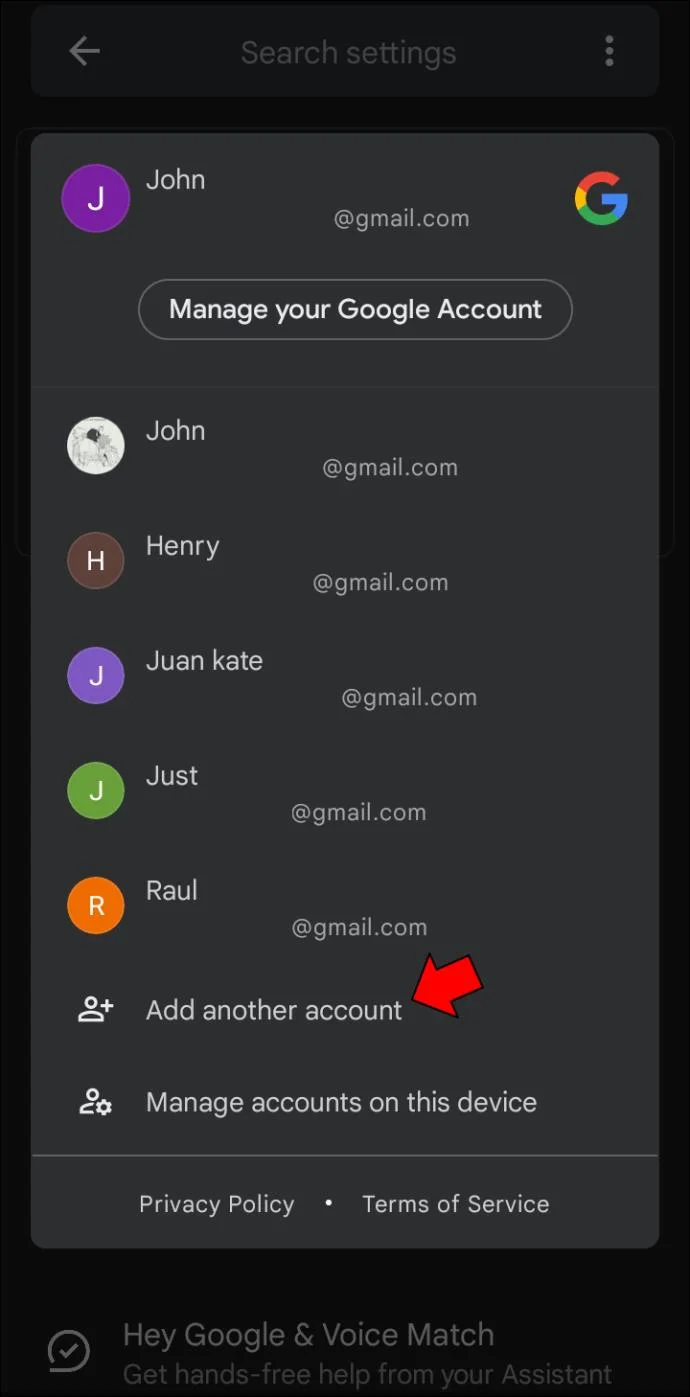
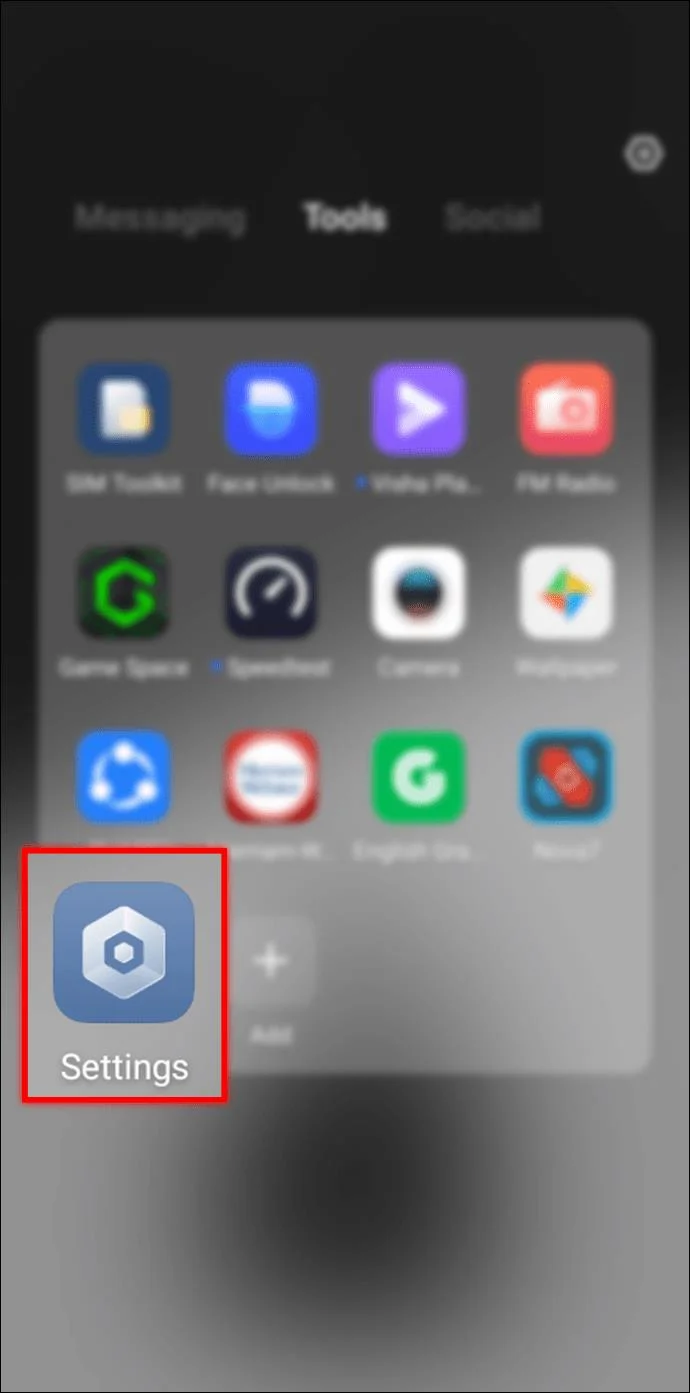
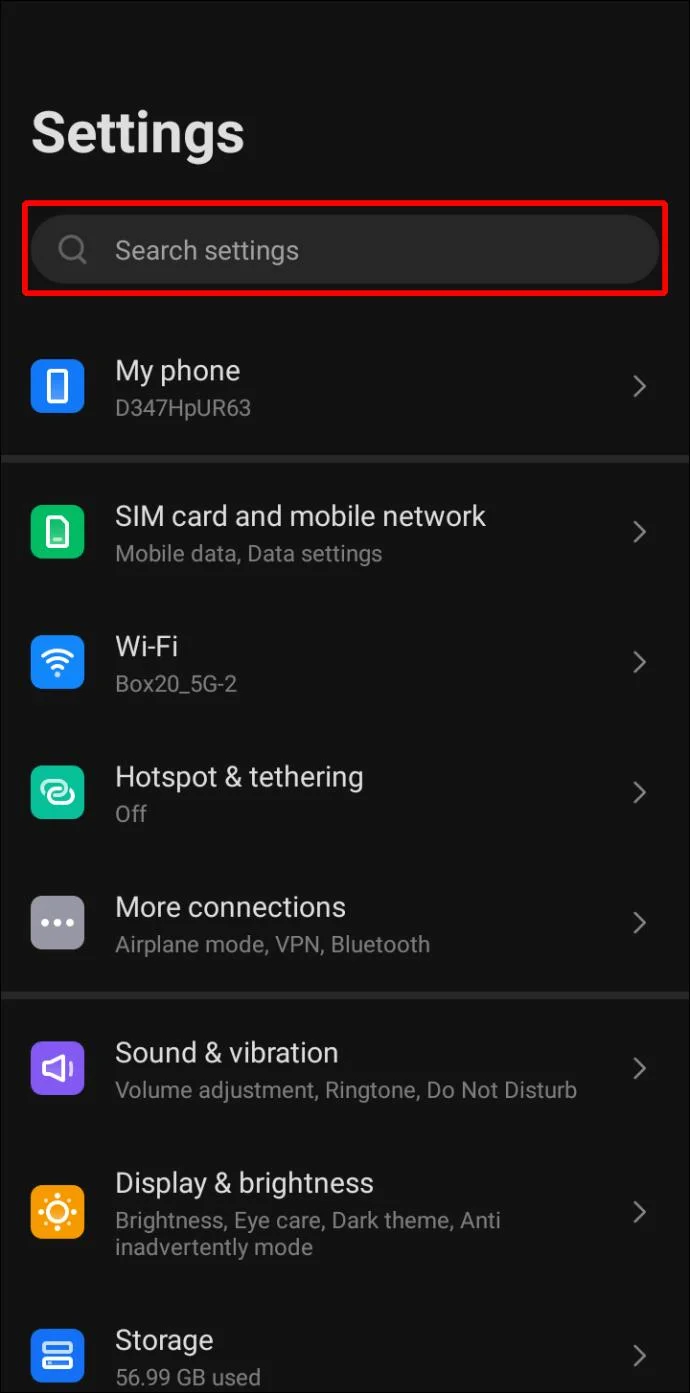
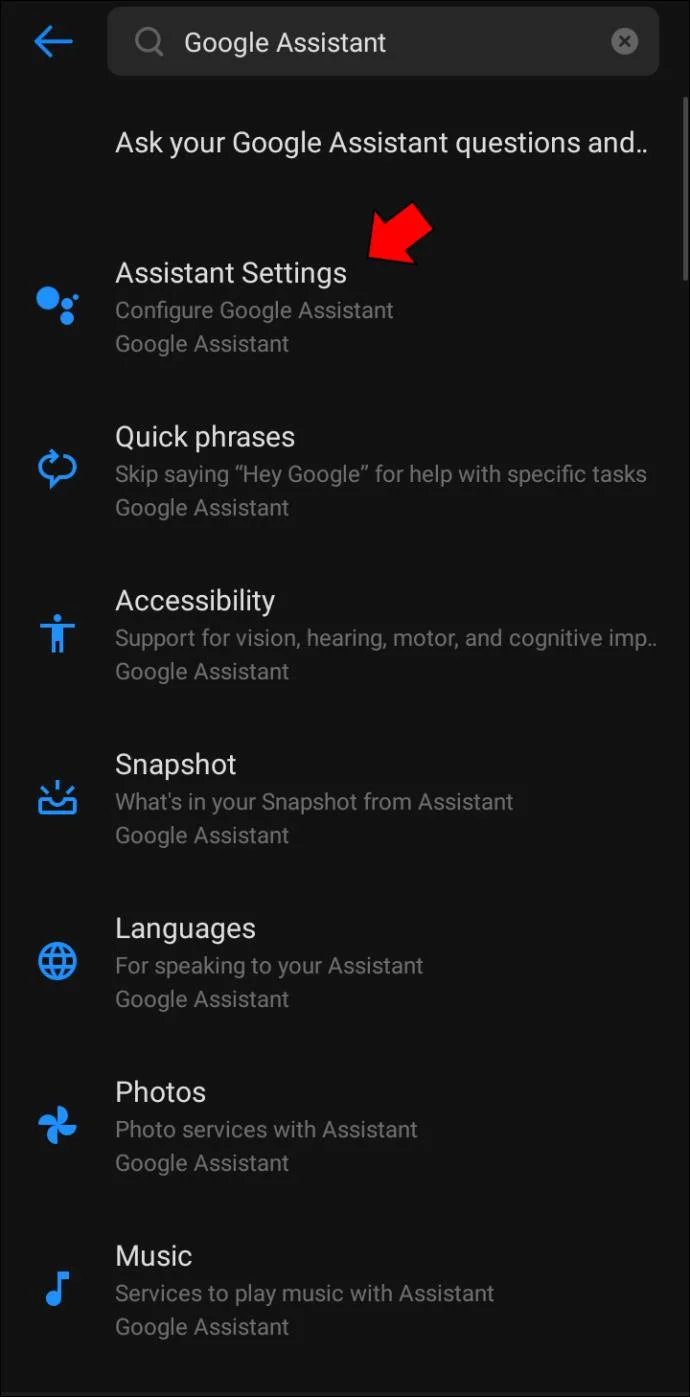
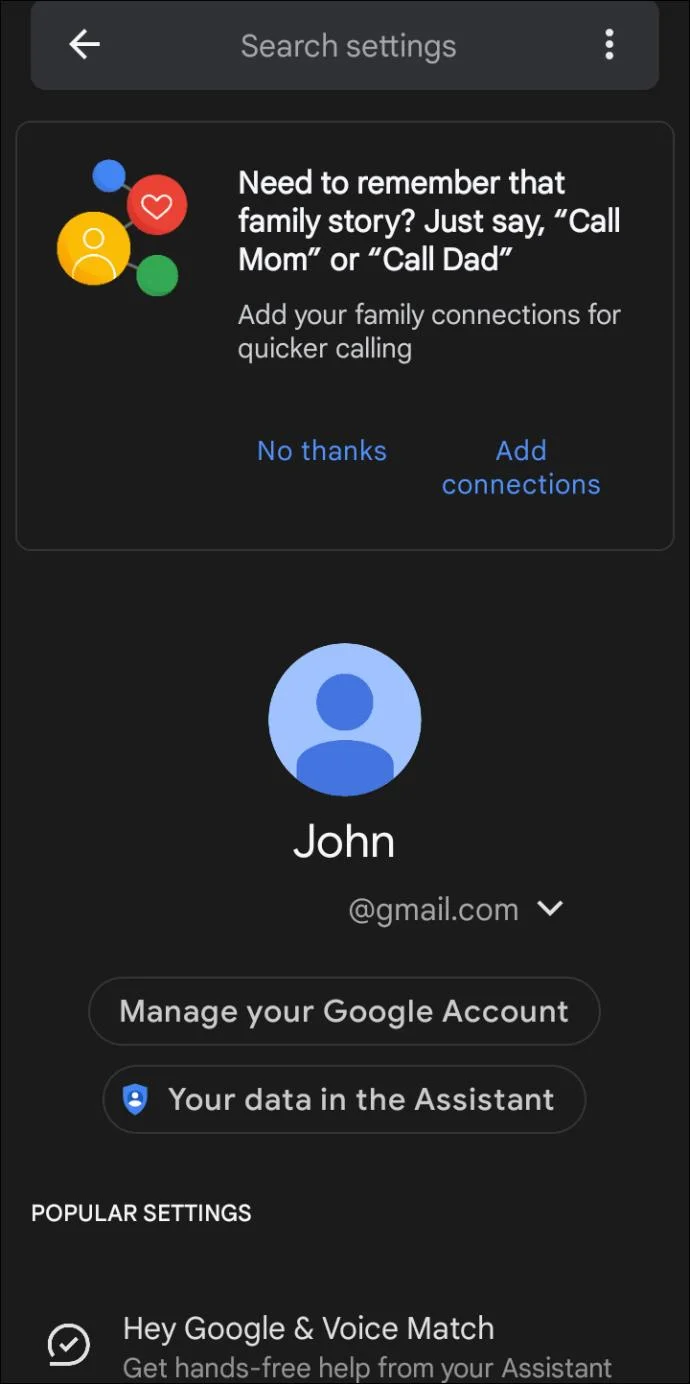
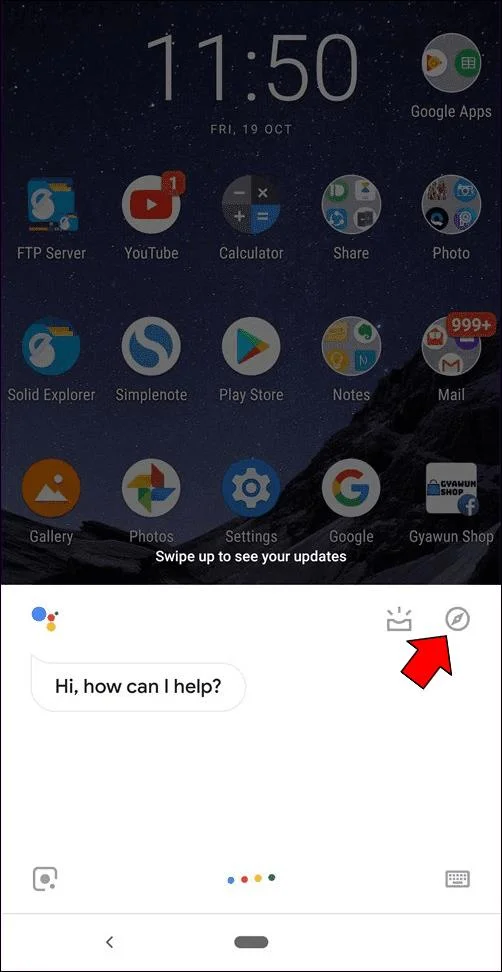
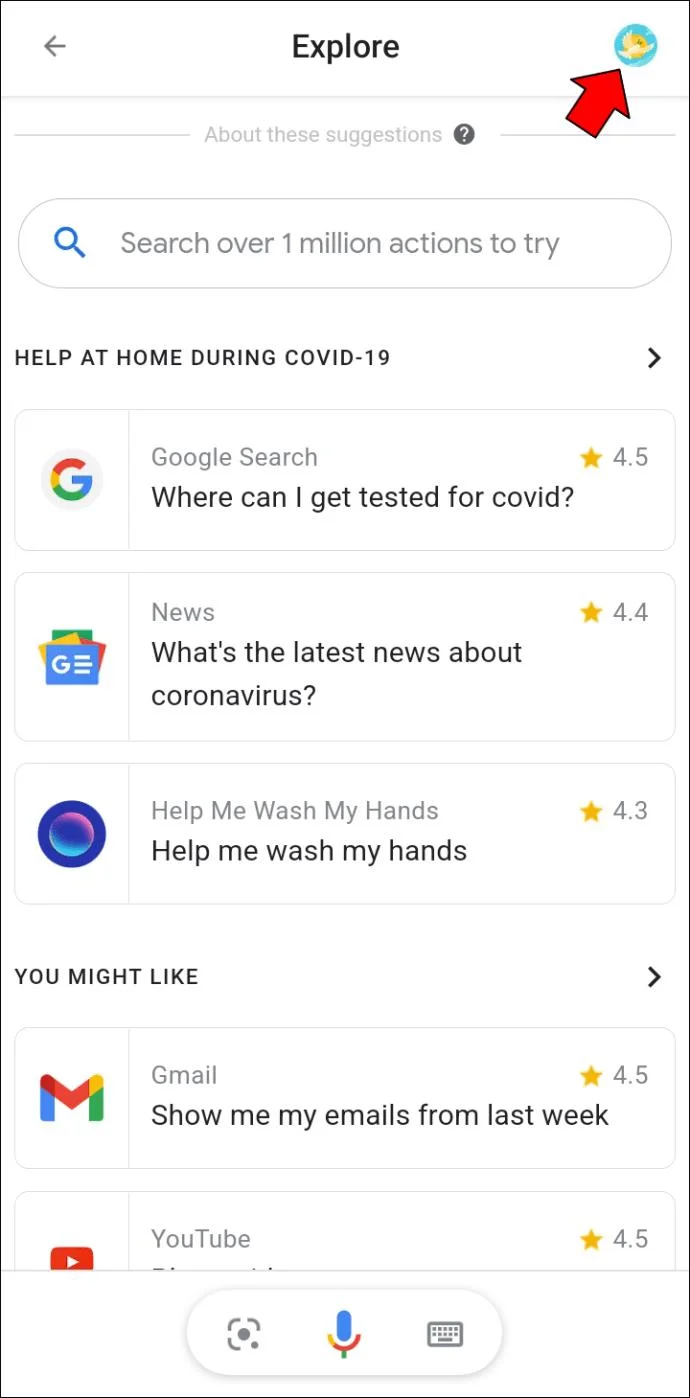
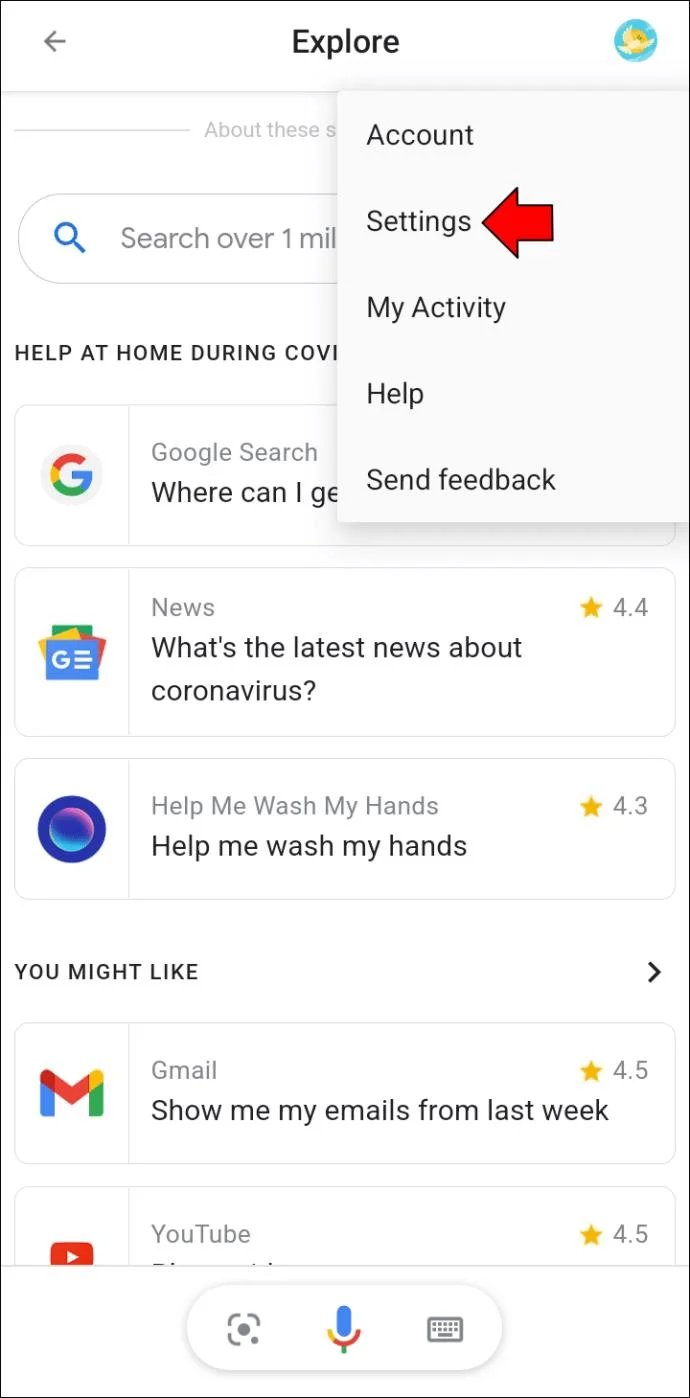
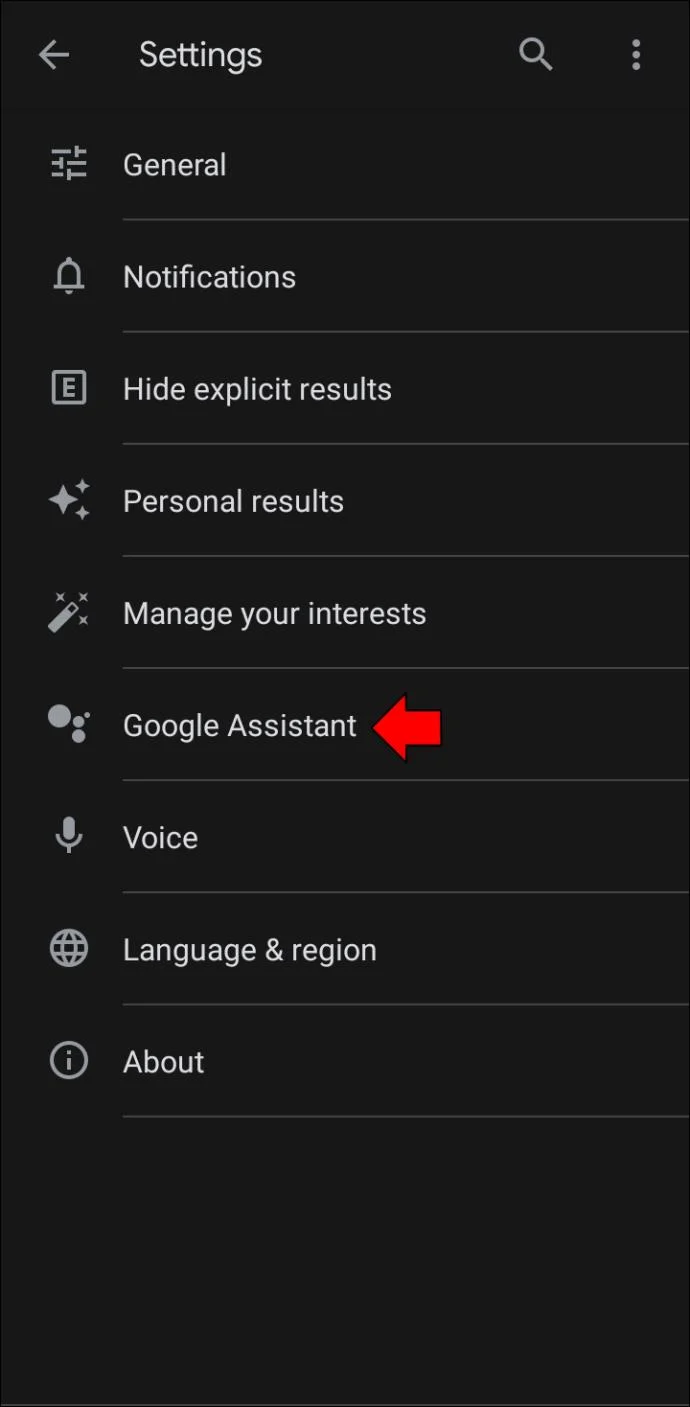
If you’re having problems using Voice Match, don’t worry. You can still open your Assistant’s settings from your phone. Here’s what you need to do:
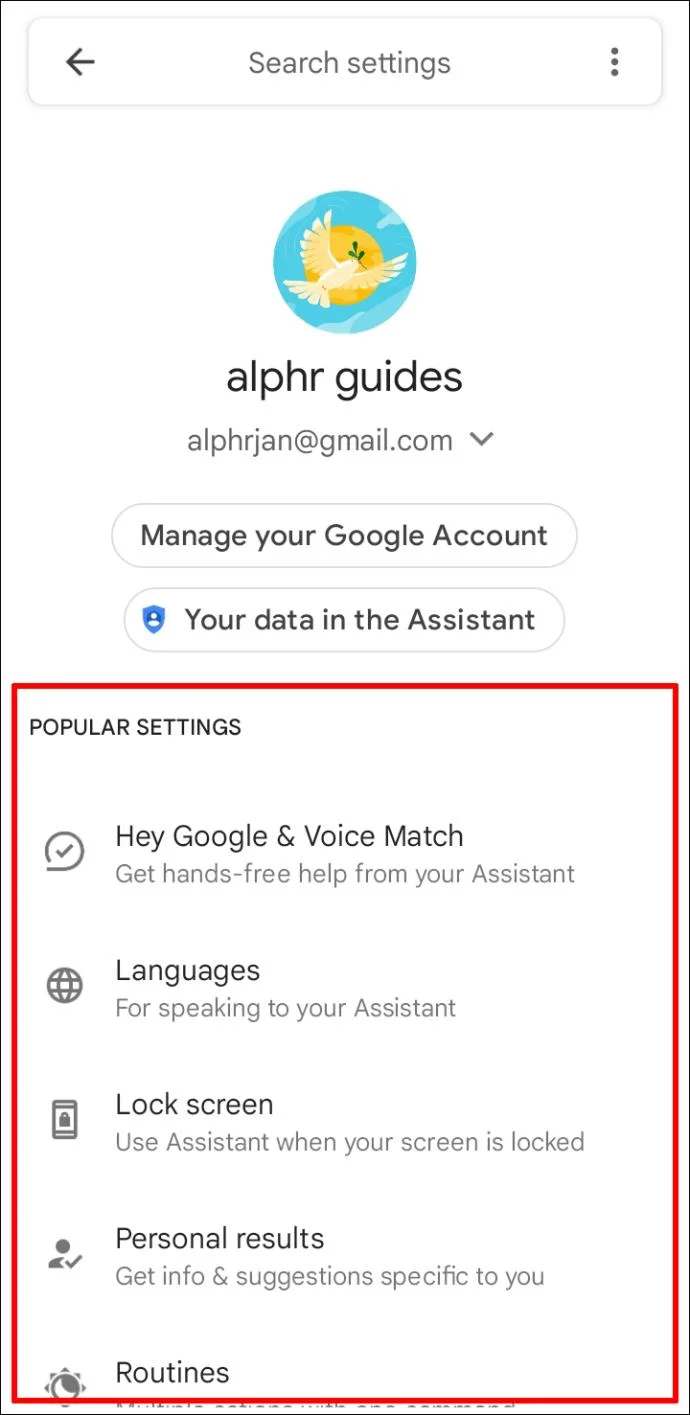
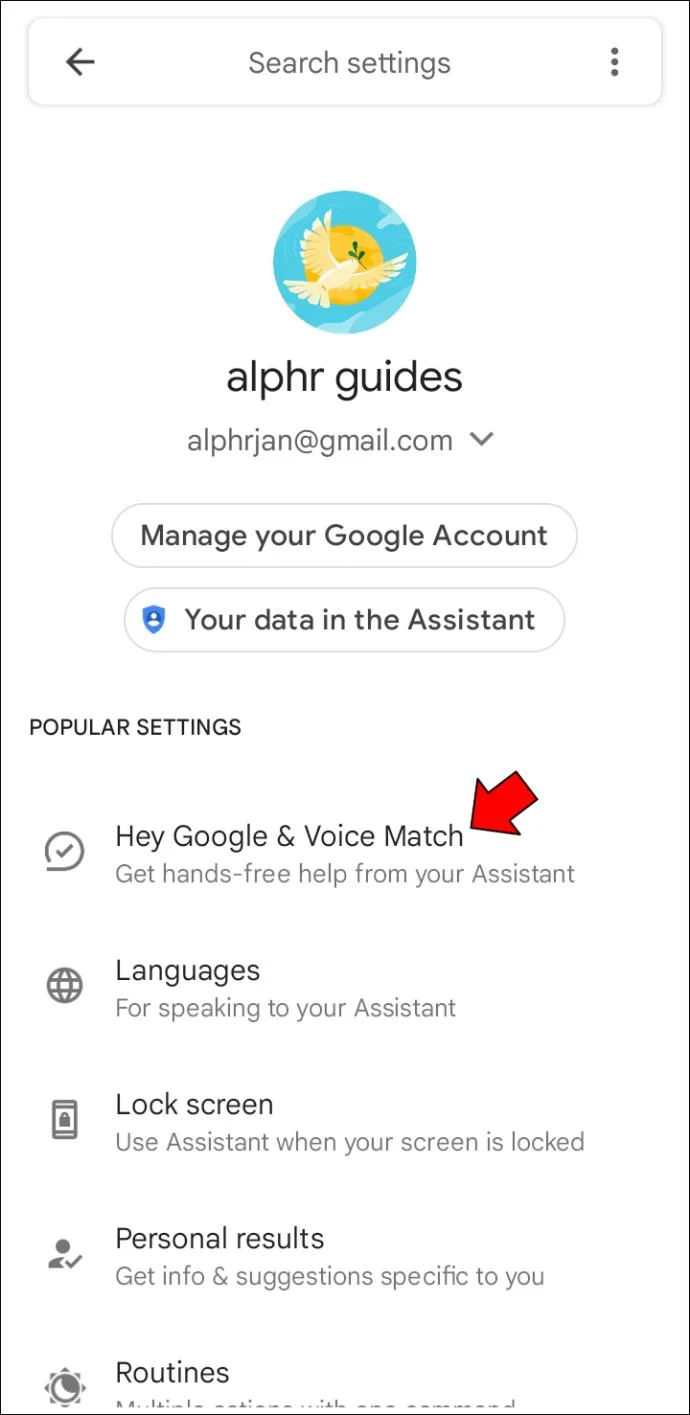
You can now adjust numerous options to customize the behavior of your Google Assistant. You can train it to recognize your voice, select its preferred language, and decide whether it will respond when you lock your screen. Scroll down the list of options to see which suits your needs the most.
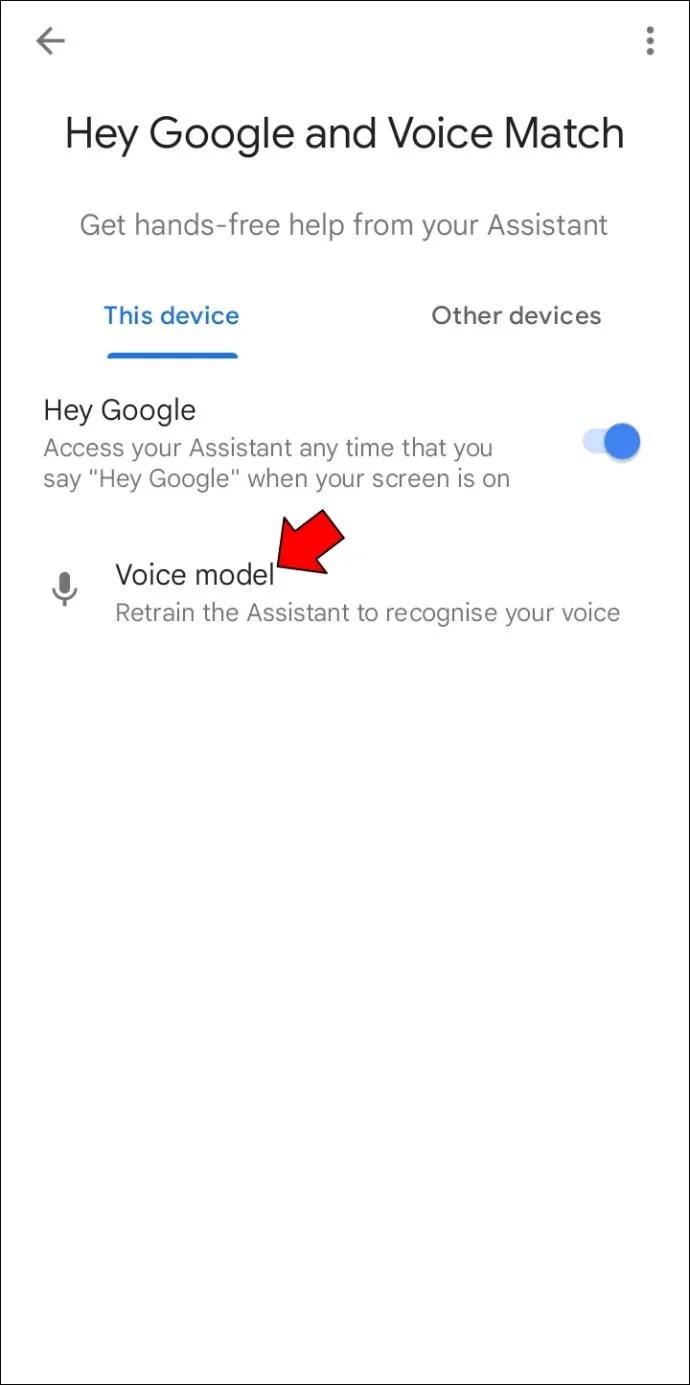
If you want to ensure your Assistant delivers the best performance, you should train it to recognize and understand your voice. Follow the below instructions to do so:
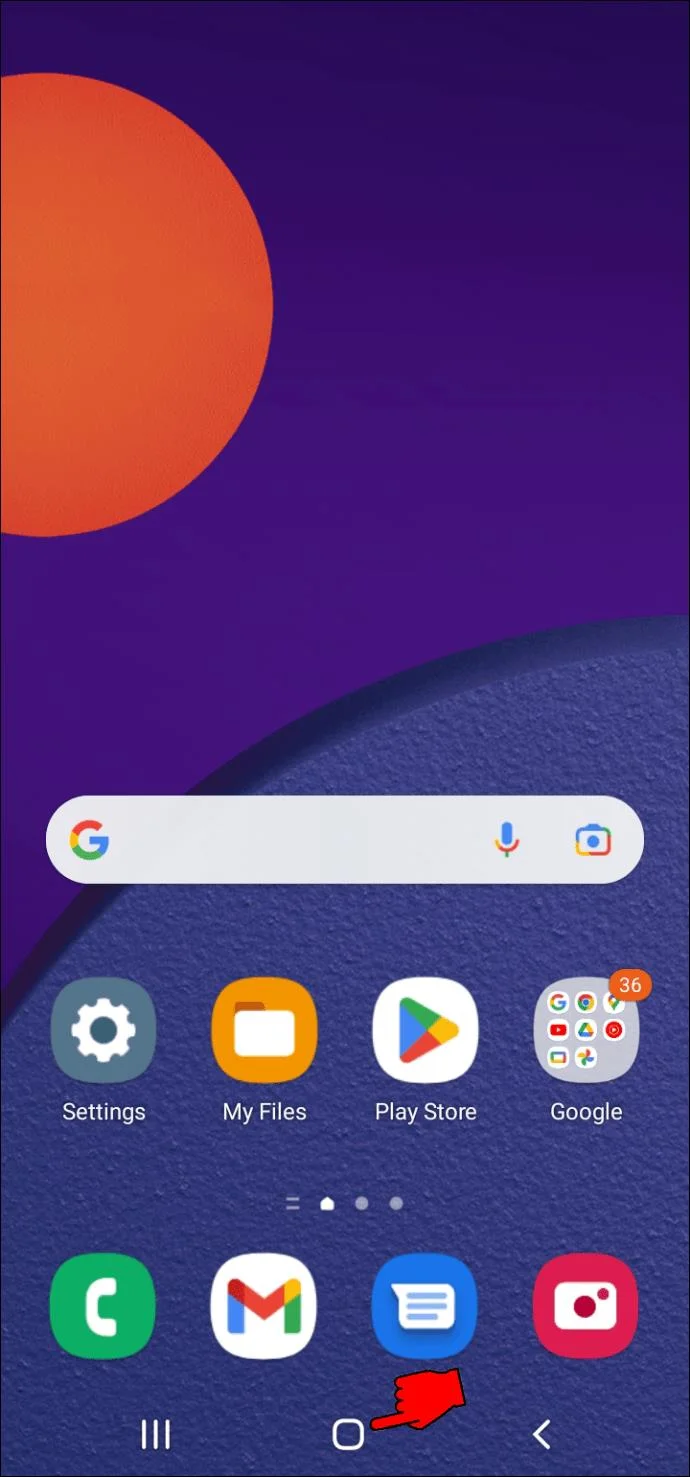
Another helpful way to launch Google Assistant settings is by pressing the home button.
And that’s it. You can now customize several features of your Assistant, including “Languages,” “Assistant Voice,” “Continued Conversation,” “Home Control,” and more.
Android users can also use the Google app to launch their Assistant settings. Here’s how to do so:
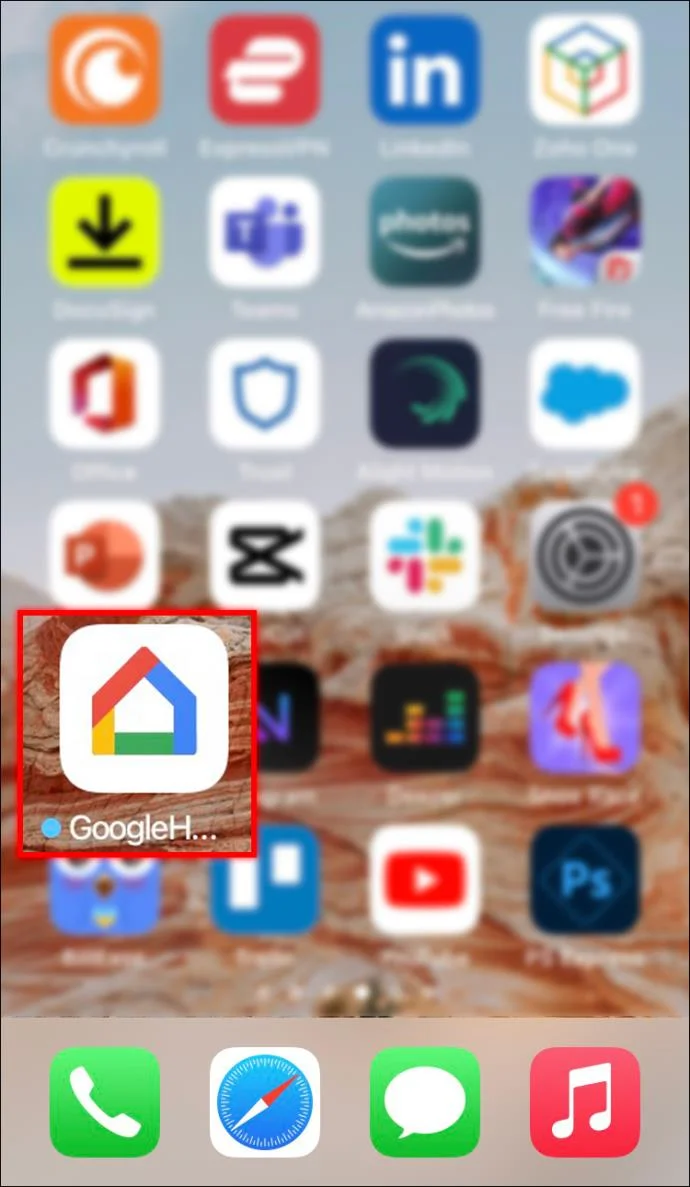
How to Open Google Assistant Settings With the Google Home App
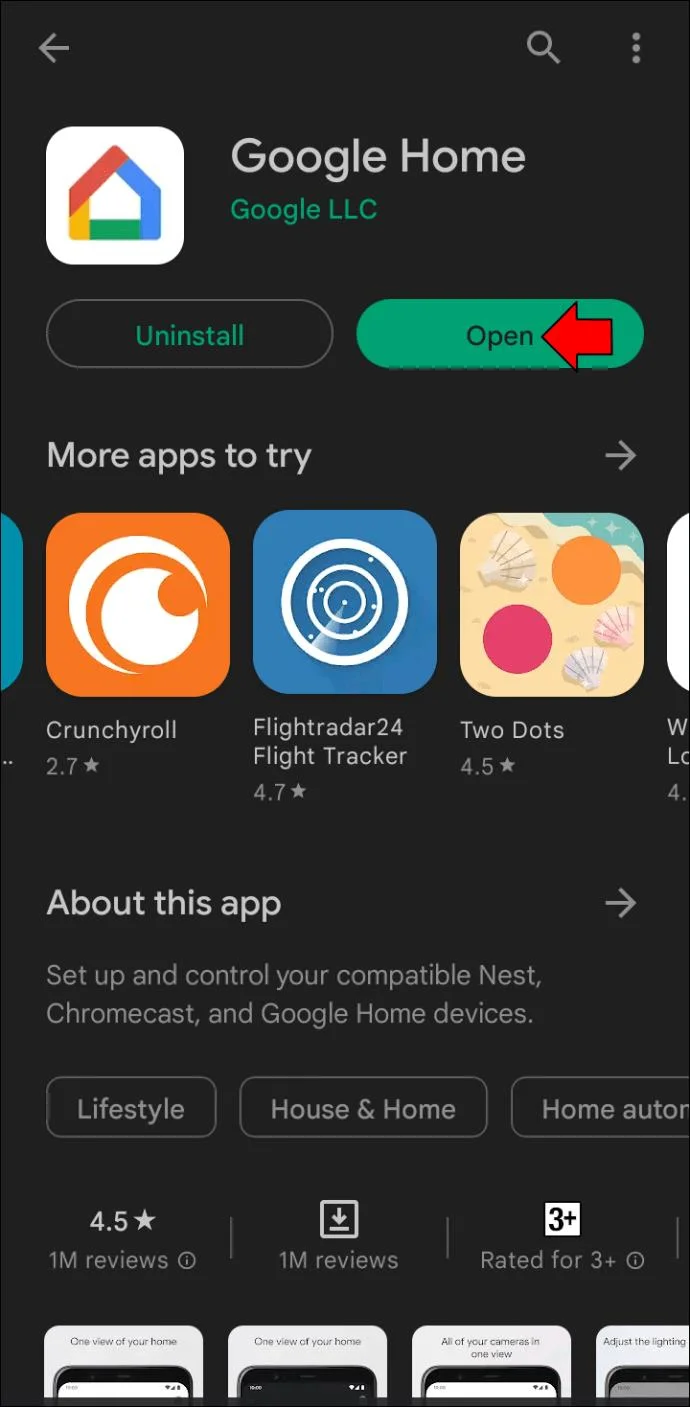
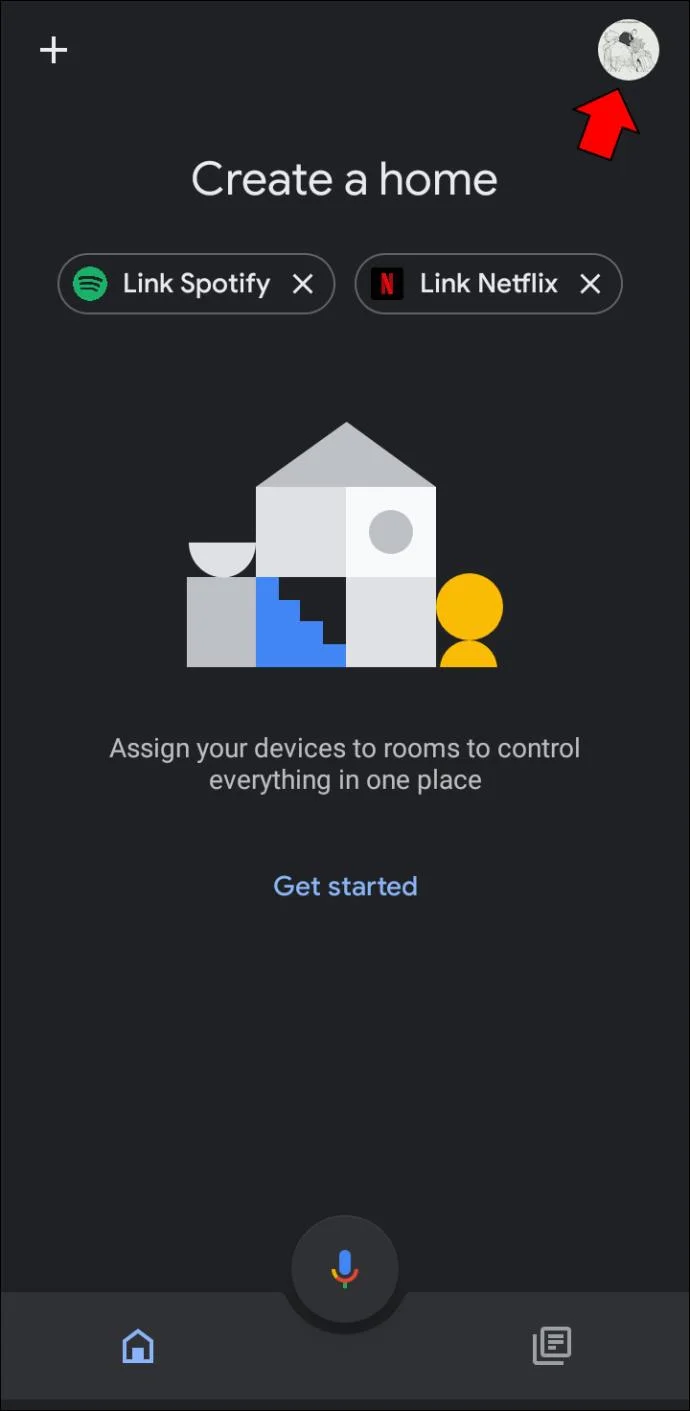
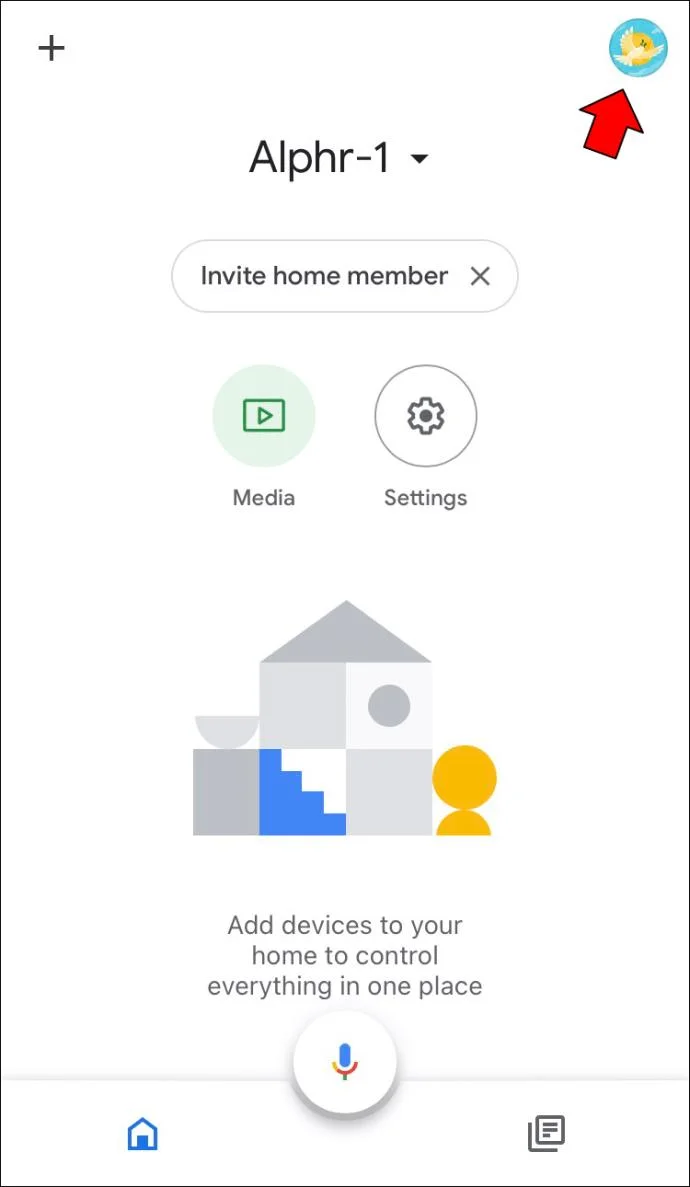
If you have an Android or iOS device, you can launch the Google Assistant settings using the Google Home app.
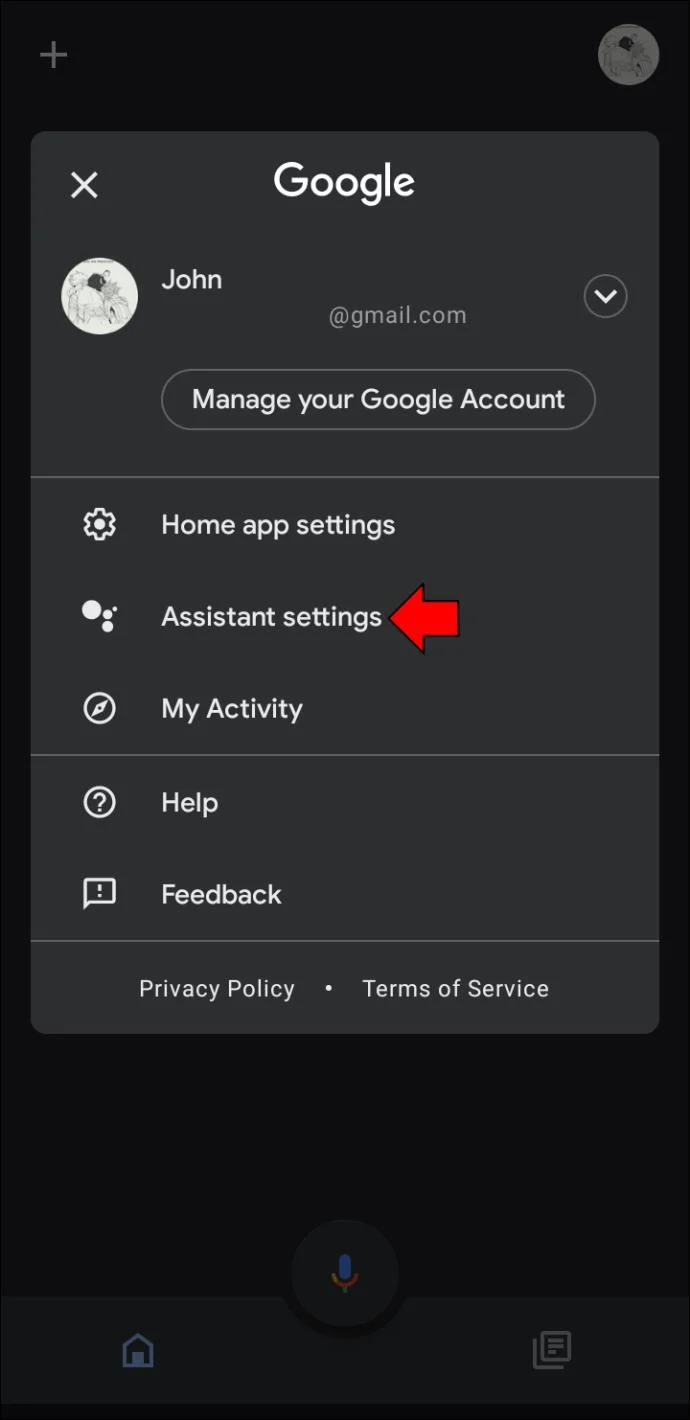
Android users should follow these steps:
You can now change the appropriate settings for your Home Mini or Google Home.
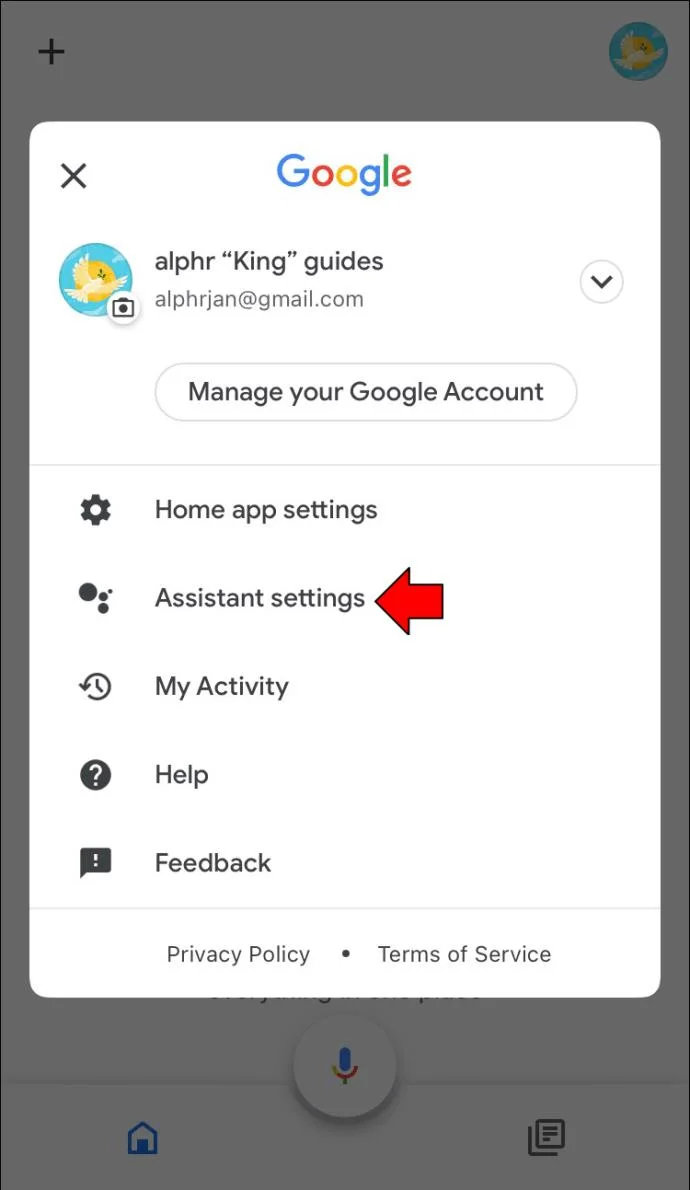
iPhone users can also use this method.
Examine the available options and see how you can best customize your Google Home or Home Mini experience.
How to Open Google Assistant Settings on an iPhone
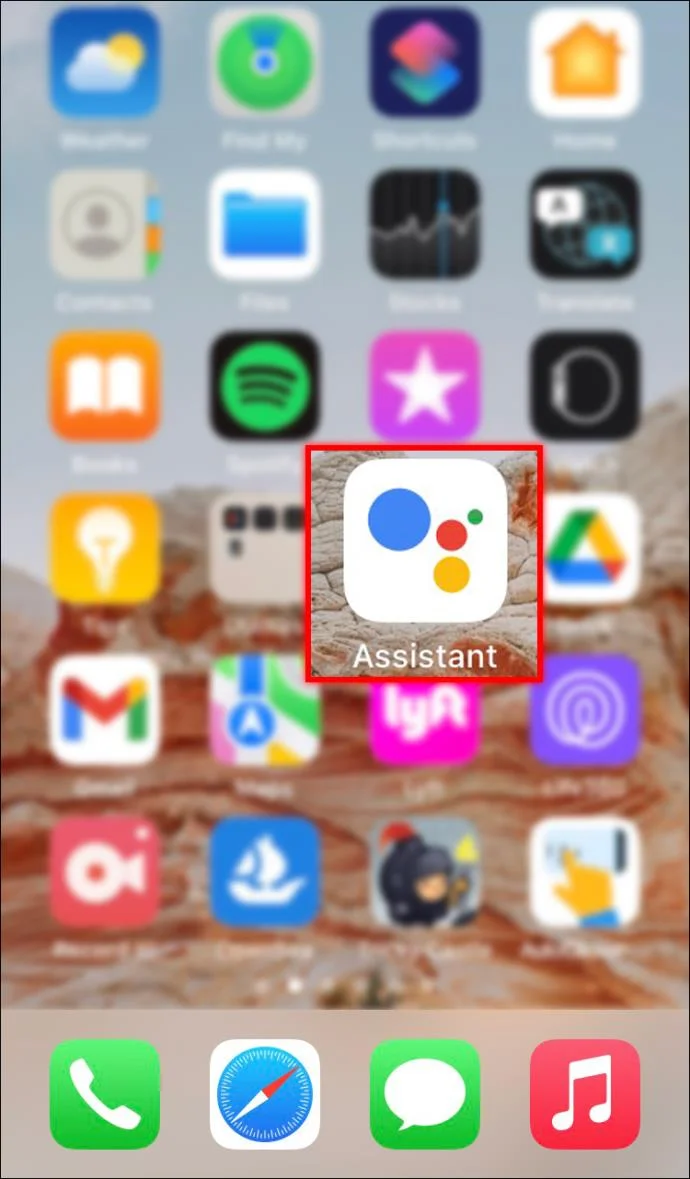
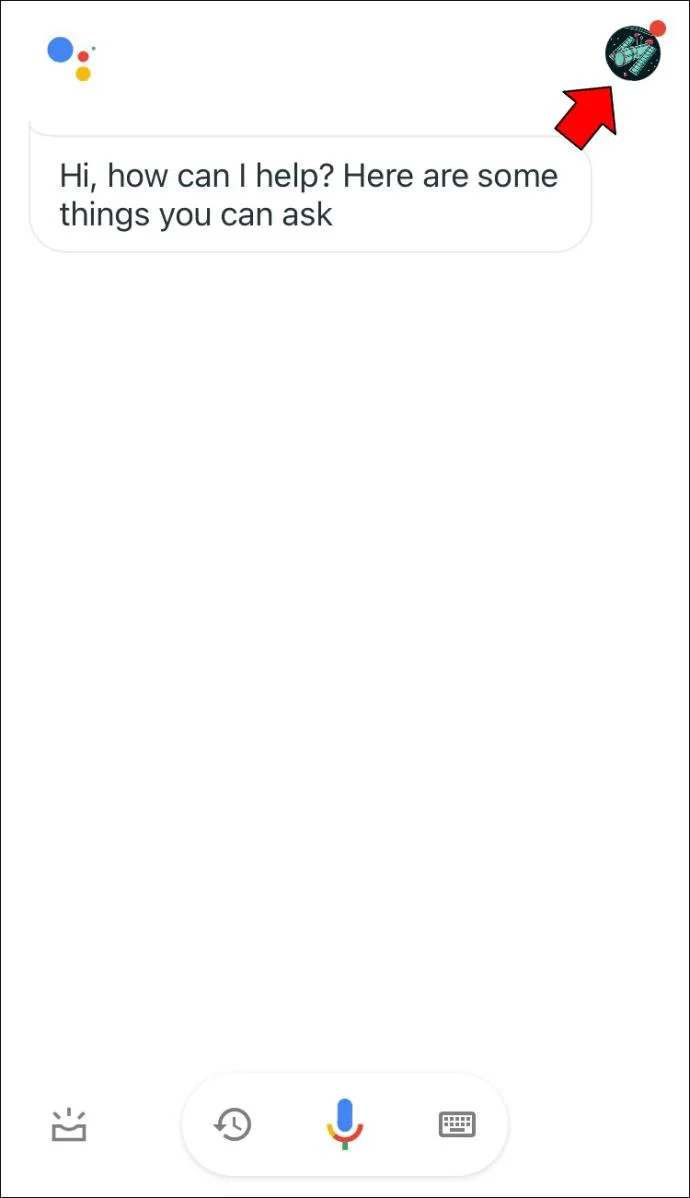
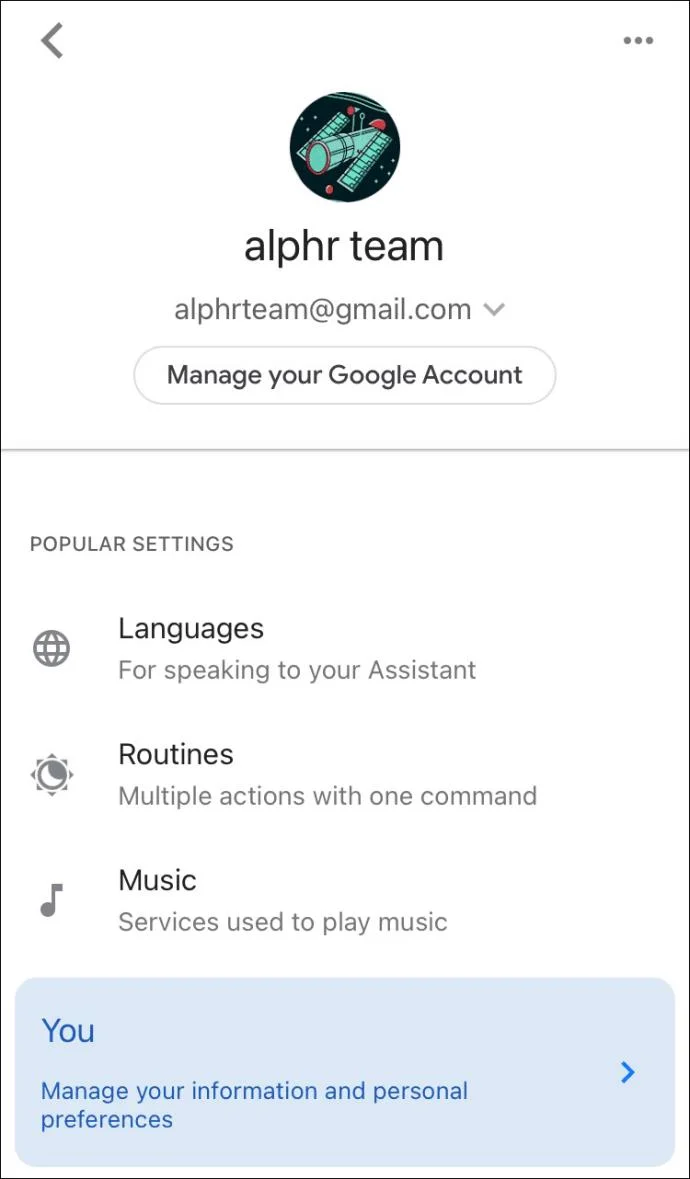
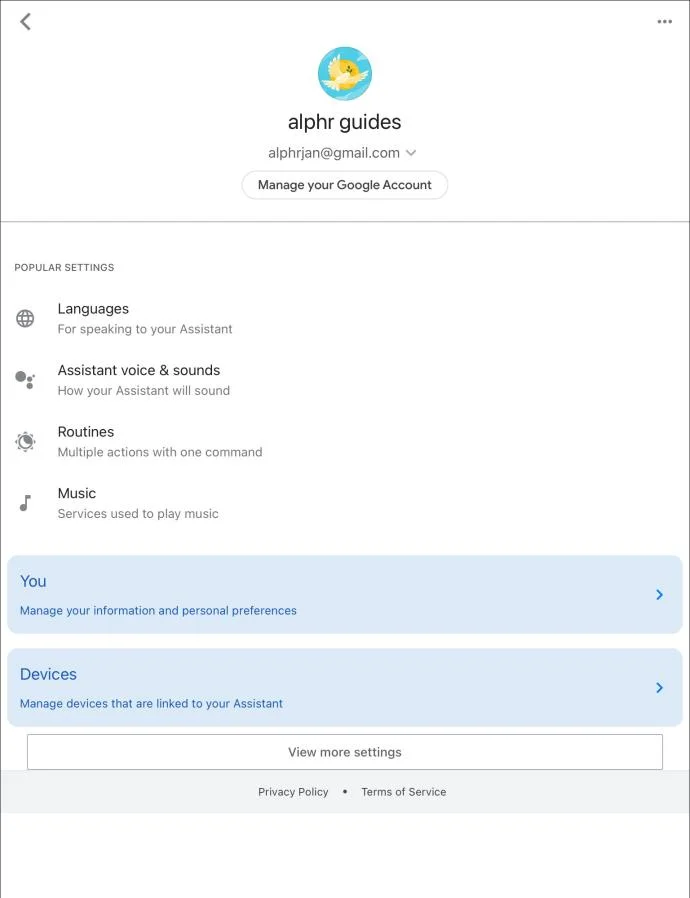
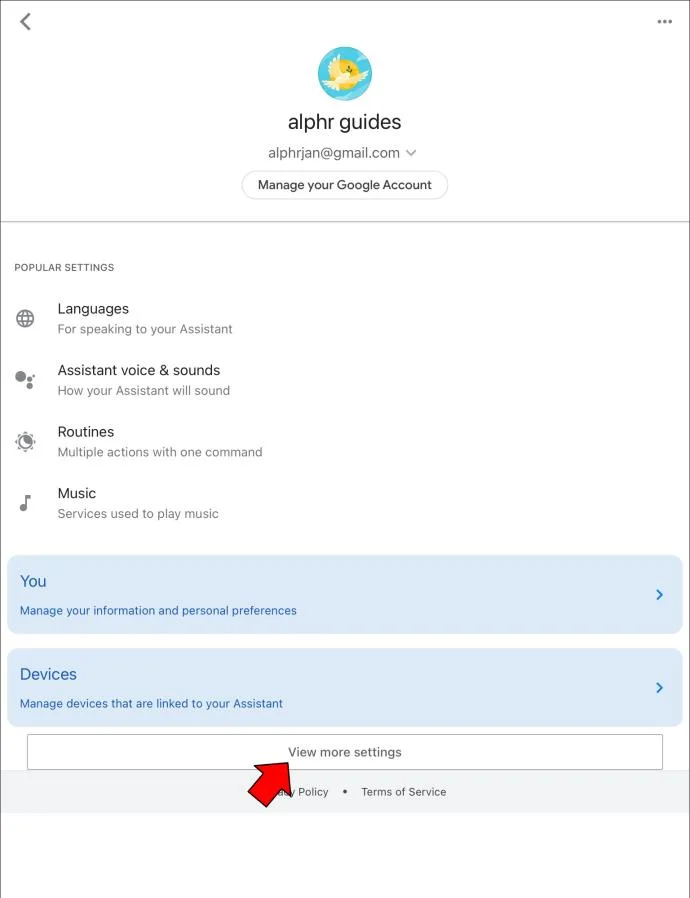
Although the Google Assistant app is preinstalled on most Android devices, it’s also compatible with iOS products. You can download the app on your iPhone and use it to launch Google Assistant settings. Here’s what you need to do:
How to Open Google Assistant Settings on an iPad
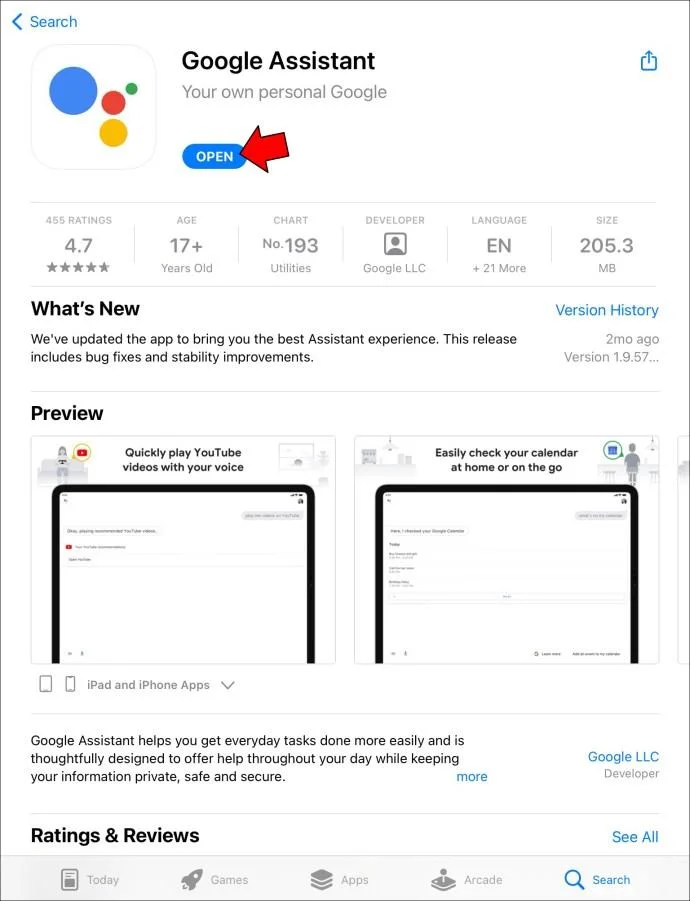
When you buy an Android device, it arrives with the Google Assistant app already installed. While iPad users can’t rely on Voice Match and voice commands to launch their Assistant settings, they can download and install the Google Assistant app. The program allows them to view and manage their Google Assistant settings.
The following instructions will help you open Google Assistant settings on your iPad:
FAQs
How can I change “Ok Google” or “Hey Google” settings?
Changing the “Hey Google” or “Ok Google” settings is relatively straightforward. Here’s what you should do:
1. Open the Assistant settings on your mobile device and navigate to the “Assistant” tab.
2. Scroll to the bottom of the app and press “Phone.”
You can use the features on this page to modify how Google Assistant responds to specific voice commands. Additionally, you can access the Voice model option and retrain Google Assistant to recognize and respond to your voice.
How can I make typing my default input mode for Google Assistant?
If you dislike using voice commands to interact with your Google Assistant, you can control its behavior by typing the commands. All you need to do is launch the Assistant app, and the program will start listening to your command. When you see four dots, select them, and press the keyboard icon.
You can also wait for a few seconds until the swaying dots disappear. The keyboard icon should appear automatically at the bottom of the screen. Select the icon to open the keyboard. Type your question or command and hit the “Enter” key.
If you want to make typing your default input mode, access the Assistant settings and choose the “Phone” option. Choose “Keyboard” under “Preferred input.”
Can I select a male voice for Google Assistant?
Like other virtual assistants, Google Assistant uses female voices. But you can select a male voice or a different female voice for your Assistant. Head to your Assistant settings and press the “Assistant” tab. Choose “Assistant voice” and tap on the available voice options to listen to a preview.
Open Settings and Customize Your Google Assistant Experience
The Google Assistant software is highly customizable, but it’s easy to get confused with so many features available. Fortunately, the program keeps all the features in its settings, which users can access using their Android or iOS mobile device. While Android users can access the settings using Voice Match, iOS users don’t have this option. Instead, they can view and manage the settings from the Google Assistant mobile app.
Have you customized your Google Assistant settings before? If so, which device did you use? Do you prefer using the app or voice commands? Let us know in the comments section below.
Learn how to update Google Chrome browser on Windows, Mac, and Android in minutes to enjoy better security, speed, and new features. Follow these clear steps.
Learn how to download old media from WhatsApp and recover photos or videos from past chats. Follow these clear steps to save files that no longer appear in your gallery.
Facebook Messenger Isn T Working on your device? Use these exact troubleshooting steps to restore chats, calls, and notifications fast on Android, iOS, or desktop.
How to See Deleted WhatsApp Messages using your phone's built-in tools. Follow these exact steps to recover messages that contacts have deleted from chats.
Learn how to clear browser history in Chrome on desktop and Android with this exact step-by-step process. Keep your browsing private and free up storage space quickly.
Master how to use CapCut with this practical walkthrough covering project setup, editing tools, effects, and export options for high-quality video results.
Get the latest WhatsApp App Update Download from official sources to access new features and security improvements. Follow these clear steps for Android and iOS devices.
Learn how to safely Download WhatsApp App for Android from the official Google Play Store. Follow our clear step-by-step instructions to install the latest version quickly and securely.
Google Download WhatsApp App safely through the Google Play Store with this clear guide. Get the official version on your Android device quickly and avoid fake downloads.
Facebook and Messenger not working can disrupt your day. Follow these targeted fixes to restore access quickly on mobile and desktop.








