If you want to take pictures with your Windows 10 PC, you’ll need to test the camera function first. Whether you just want to fire off some selfies to friends, or take pictures from the comfort of your front room or home office, this article has got you covered.
Read on to learn how to test your camera on a Windows 10 PC.
Turning On Your Camera in Windows 10
Every Windows 10 PC comes with a camera function. If you click on the Window Start button, you’ll see it featured in the sidebar. But to ensure that it’s functioning properly, it’s always best to test the feature first.
Here’s what you need to do:
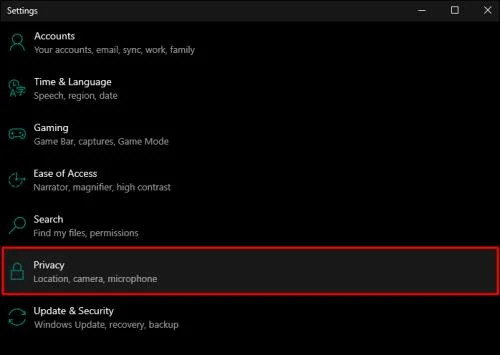
- Click on the Windows Start button, and then Settings.

- Next, locate the Privacy option and click on it.

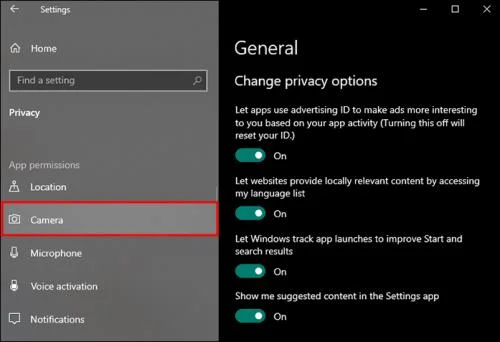
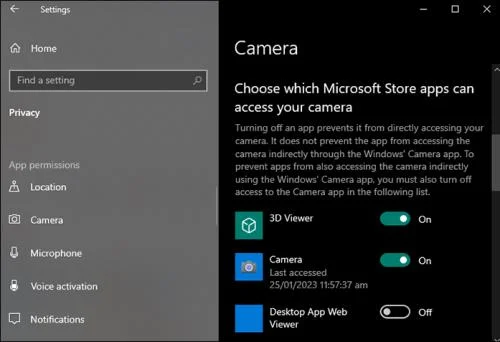
- From the left sidebar, select the Camera option. This will display a screen with a list of buttons that you can toggle on or off.

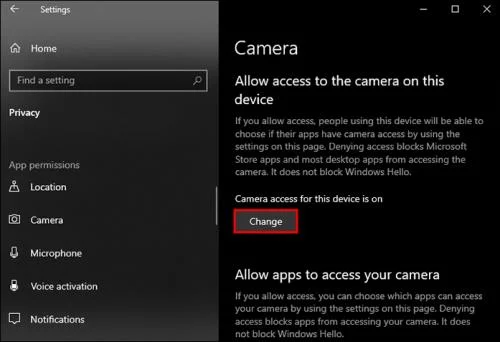
- Select Change and toggle on the displayed option.

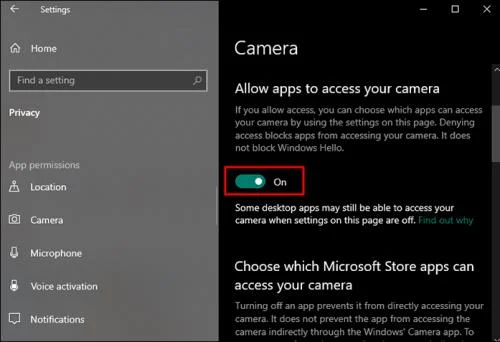
- Next, give your apps permission to access the camera. To do so, toggle on Allow Apps to Access Your Camera. This ensures that individual apps on your PC can use your camera.

- You can also allow individual apps to access the camera. Scroll down the page and toggle on the access to the specific apps you have in mind.

That’s all there is to it. You have now successfully activated your camera for use with your apps and Windows.
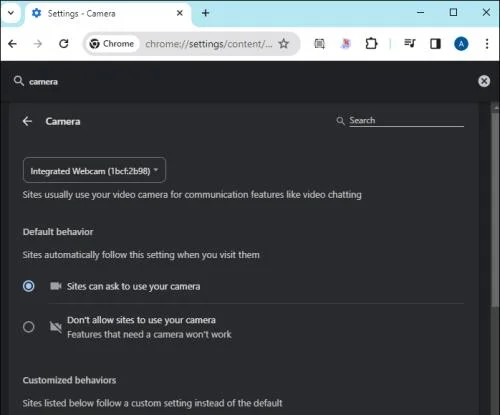
Have a Closer Look at Your Browser Privacy Settings
If you use social media or video calls from your Windows 10 PC, the sites will need access to your camera and microphone as well. Here’s what you need to do:
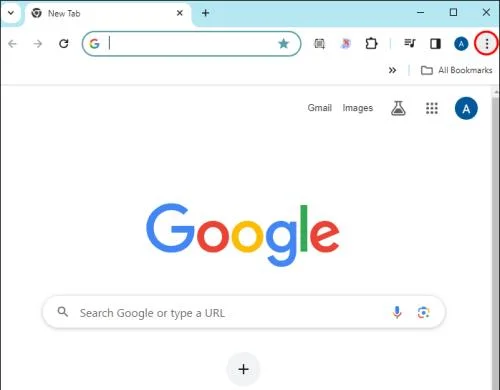
- Open your browser and click on the three dots in the top-right corner.

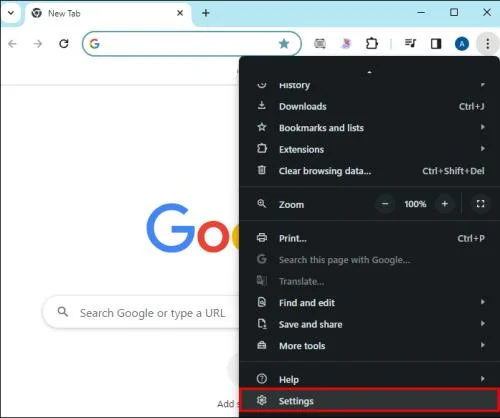
- From the dropdown menu, click Settings.

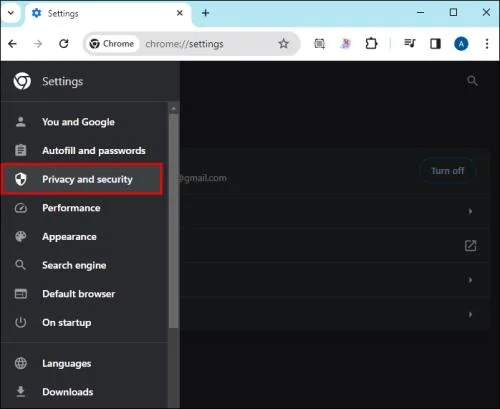
- Scan for an option called Privacy.

- Next, navigate to the Privacy menu. From there, you should be able to turn on access to the camera.

Test the Camera Online
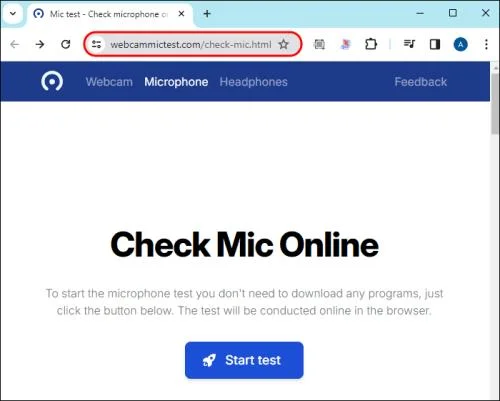
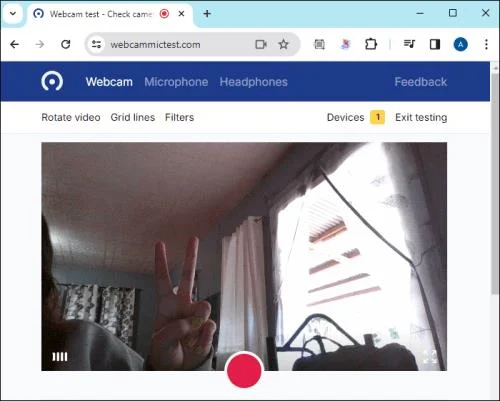
There are some useful online services that make it easy to test your camera. One of which is webcammictest.com. Here’s how to make the best use of it:
- Visit the Mic test website.

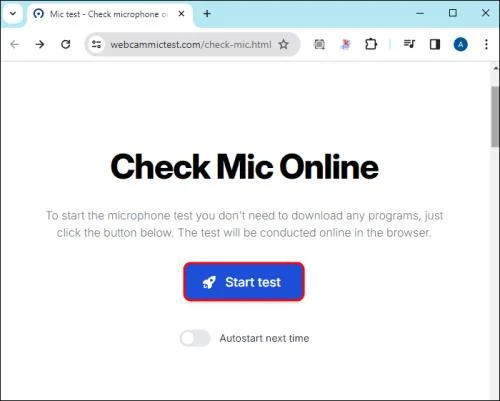
- Click on the Webcam Test button.

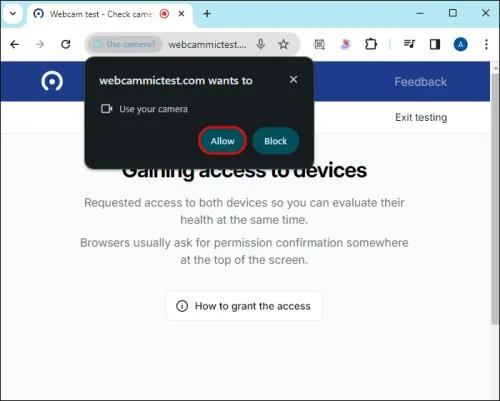
- Give the website access to the camera, if prompted.

- You’ll see what your camera’s view, i.e., a picture of yourself onscreen.

Safety Tip: Most up-to-date devices come equipped with features for added security, including a safety slider and/or a light indicator that turns on when you use the camera. The safety slider gives you an option to cover the camera when you’re not using it. Be sure to utilize the built-in safety features because their sole purpose is to protect you.
Test the Camera in Common Apps
Most team communication apps offer built-in options to test the camera. Here’s a guide to some of the most popular platforms:
Zoom: Click the gear icon, then select Video. If the camera is working, you’ll see what it sees: yourself.
Slack: Click on your profile icon, then select Preferences. Choose Audio & video from the sidebar. If your camera is set up correctly, you should be able to see yourself.
Skype: Click the menu icon, then select Settings. Choose the Audio & video option from the menu. Again, you’ll see your camera’s view.
Discord: Click Settings. Select Voice and Video, then click Test Video. If the camera is working, you’ll see a picture of yourself onscreen.
Test the Camera With the Camera App
Windows 10 has a built-in camera app, giving you everything you need to test the camera. Better still, it’s relatively easy to use:
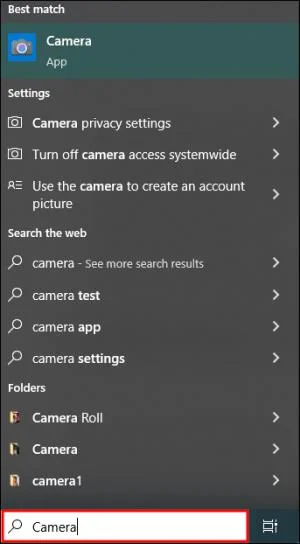
- Click the Windows Start button, type camera, and hit the Enter key. Optionally, you can sift through the alphabetical list of apps in the Start menu until you find the Camera app.

- If this is the first time you’ve accessed the camera through the camera application, you may be prompted to grant access to your location. If a message box pops up, allow the camera to access your precise location by clicking the Yes button. Please note that you can also change this later, by visiting the Settings app.
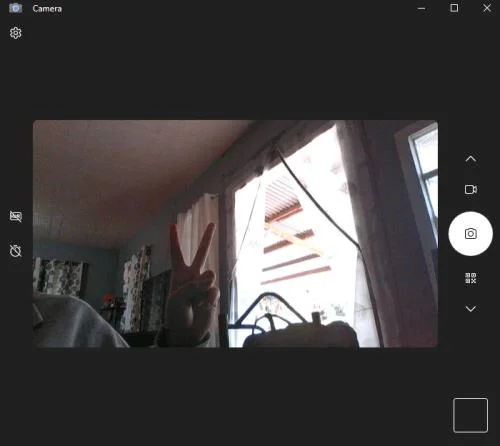
- When the camera app displays, you’ll see yourself onscreen. If you don’t, then something is wrong. Refer to the troubleshooting section below.

Troubleshooting the Camera
Camera issues are frustrating. However, you can resolve common problems in a few quick steps.
Check the Camera Connection
Cameras that connect to a computer through a USB port can become loose, or the port itself may be faulty. Make sure that you securely plugged the camera into the USB port. Alternatively, try a different USB port and see if that makes a difference.
Webcam Software
The camera you use may require software from the manufacturer to function properly. You can do a quick search for your camera model or visit the manufacturer’s website. There may be a downloadable link available for the latest version of the camera software.
Revisit Your Windows and Browser Privacy Settings
As mentioned, be sure to check your privacy settings in both Windows and your browser again. This way, you can ensure that access to the camera has been permitted.
FAQs
How will I know if the camera on my Windows 10 PC is functioning properly?
Quite simply, you’ll be able to see yourself onscreen when you enable the camera function. If not, you may have some connectivity issues. Fortunately, most will be easy to troubleshoot and get your camera back up and running.
Do you need a third-party app to test the camera on a Windows 10 PC?
No, you can test the camera yourself by simply going to the Windows Start button on your PC, accessing the camera settings, and ensuring that the camera option is toggled on.
What is the best online service to test my camera on my Windows 10 PC?
Fortunately, there are many options available. But perhaps the best option is webcammictest.com. It’s free and easy to use.
How do I test the camera on my Windows 10 PC with apps like Zoom and Slack?
Most popular apps have built-in functions to test the camera on a Windows 10 PC. All you’ll have to do is follow the onscreen instructions to ensure the camera is functioning properly for use on sites like Zoom and Slack.
One, Two Testing Your Camera on Windows 10
Like most operating systems, Windows 10 has a camera option. And while most people prefer to take pictures with their phones or other mobile devices, it’s always handy to have the option on your PC. Maybe you have some family or friends crowded around your computer and a group selfie just feels right. Or maybe, your phone is in the other room and you need to take a picture of something right away. Whatever the reason, you’ll need to make sure that the camera is functioning properly. With a simple test, you can rest assured that everything is in working order.
Have you never needed to take pictures with your Windows 10 PC? Did you use any of the tips and tricks featured in this article? Let us know in the comments section below.