Remote Mac access is easy. Apple has spent a lot of time designing to ensure anyone can log into their Mac computer & laptop from any Mac device. In addition, a range of third-party applications are also available to help you.
However, managing a remote Mac may sound too complicated for many people, from connecting to file or screen sharing to using an Apple device such as a remote mouse ... This article will provide all access tasks. and remote control Mac computers suitable for everyone.
How to access Mac from another location
You have two ways: allow Mac login from another computer or allow others to access your computer using Remote Desktop (available on the App Store).
Allow remote Mac login on other computers
For devices running on the same macOS operating system, you can enable remote device login using Secure Shell (SSH). This action allows remote access to the computer via secure file transfer protocol (SFTP).
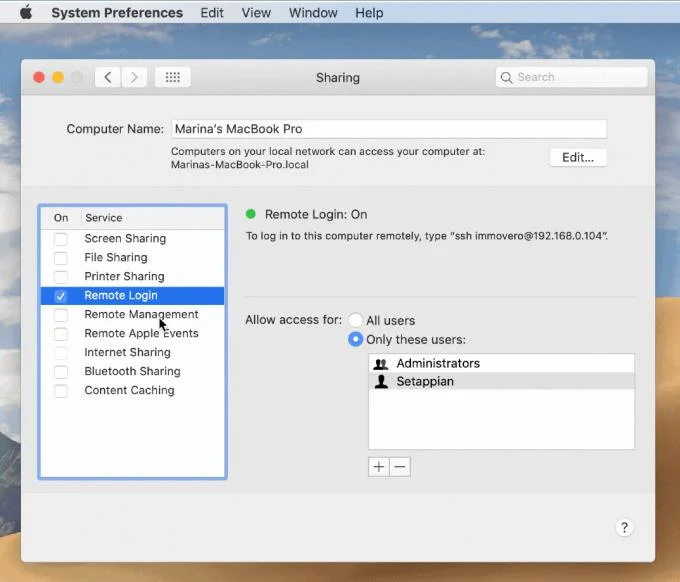
To set up remote login:
- Go to System Preferences> Sharing .
- Select Remote Login .
- Select the user who wants to grant access or control your Mac remotely.
You can select All Users - all devices on the network or Mac you own can access and connect, or click the plus sign to select exactly the desired user.

When you want to log in to your Mac remotely on another device, you need to know the username (the current name when you log in) and the computer's IP address. Make notes, then save them in a safe place because allowing remote Mac access poses a security risk, especially when you use mobile networks or public WiFi.
Accessing, controlling, or viewing information on a Mac can be done via the built-in Terminal or any SSH application using your device's username and IP address.
Allow others to access your computer with Apple Remote Desktop.
With macOS Sierra , accessing and controlling Mac remotely is even easier. To do that:
- Go to Menu> System Preferences> Sharing .
- Select Remote Management .
- You can now choose who wants to grant remote access. Select All Users if you want anyone to be able to connect to your computer or click the Add (+) button to add specific people.

If you're using a VPN or VNC viewer and want to access your Mac remotely, you need to set a password first. You can also use iOS devices like iPhones and iPads via Apple Remote Desktop on the App Store .
Screens gather everyone on the same page
Collaboration has become an extremely important part of the workplace in modern society. More and more people have to work remotely on the same screen.
Screens allow you to work remotely with any computer in any location. Whether you're on a business trip or traveling, you can access files on your home computer anytime.
This powerful screen-sharing tool for Mac supports:
- Many monitors.
- Drag and drop to share files.
- Hide the remote screen when accessing it.
- Access other computers (e.g., colleagues) as guests.
- Alternate keyboard shortcuts (useful when connecting a Mac to a computer).
- Custom actions in case of disconnection.
To start using Screen, download the application from Setapp and configure the following:
- Login and remote management as instructed above.
- Install the Connect Connect helper application and create Screen ID on any computer you want to connect in the future.
- Use Screen ID in the Screens application and it will automatically identify the computer that is ready to connect.
Share files between devices
We now have many ways to send and share files. But if you want to receive information, you can ask them to email. This is the most popular form of file sharing today. However, this method still has potential security holes and limitations.
Luckily, we have better ways!
Share files using the built-in feature on macOS
Some people know that Macs come with file sharing. Please enable it by checking File Sharing in the Sharing panel of System Preferences . If you only want to share certain folders, add them to the Shared Folders list . If you only want certain users to access the directory, add them to the Users list . If not, everyone can access it.
AirDrop
Although not the most reliable solution, AirDrop is still an application that works well in the field of file sharing between Apple devices. In Finder, select Go> AirDrop on both the sending and receiving Macs. As soon as you see the recipient's icon, drag the desired file into it to send it.
If you don't want to send files directly between Macs and want to go through cloud storage, there's no easier way than Dropshare. The application works with multiple cloud providers, from Dropbox to Google Drive and saves files for sharing by dragging them to its menu bar icon.
File Transfer Protocol (FTP)
The most professional and effective way to share files from a Mac is to use FTP. You can do this via Terminal or FTP Client. The second option is more user friendly.
You can choose some famous FTP clients. Transmit by Panic has been around for a long time and is highly appreciated in the developer community.
Yummy FTP Pro is another full-featured file transfer application for Mac. It combines speed and reliability, can handle thousands of files, schedule backups, and even transfer files automatically.
The file management application ForkLift includes not only most of the FTP features but also takes it to the next level and can replace Finder with fast search speed, instant preview, even file comparison.
Finally, when it comes to sharing the same files on different devices, apps like ChronoSync Express are extremely helpful.
ChronoSync Express is a professional file sharing and transfer tool from Mac to Mac or any Apple device. With the feature called ChronoSync Express, you can select files to automatically sync and share between devices as follows:
- Create new sync documents for each desired folder.
- Name the synchronization process.
- Change Operation to Synchronize Bidirectional .
- Select sync folders left and right.
- Experiment with Trial Sync .
Use VPN
Whether you're working directly on a Mac, logging in remotely, or sharing access with someone, make security a top priority.
In my experience, you should use a VPN when connecting to a public WiFi network because someone can log in and view the information you send easily.
With remote access - right in View Only mode - someone can see every file and document on your Mac, except the data is protected by a password. If you leave the password in a shared document, you are at risk of losing important information.
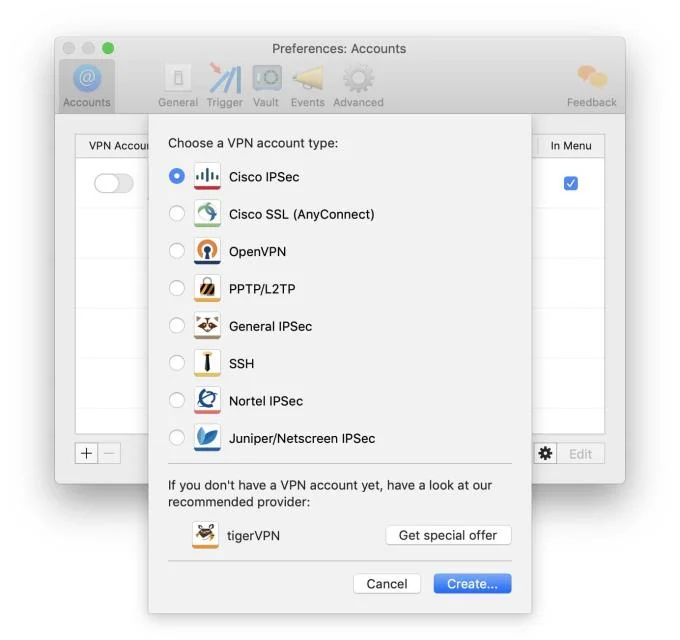
A secure VPN client for Mac like Shimo will help you block prying eyes, especially when sharing sensitive files, financial statements or customer data.

However, for added security, consider automatically enabling VPNs on all networks you don't fully understand to keep your emails, bank accounts and personal documents safe.
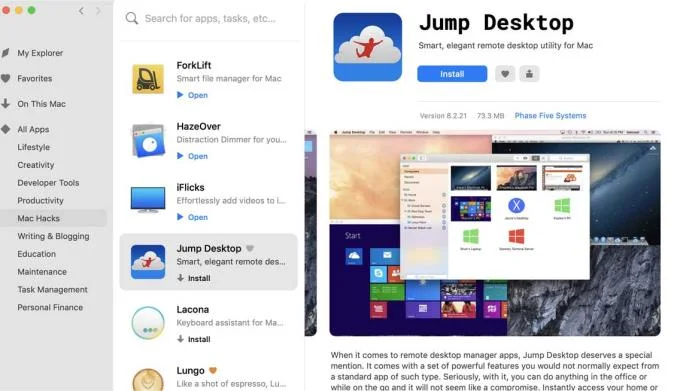
To share a Mac with someone, download the Virtual Network Computing (VNC) app as far as Jump Desktop . With full Mac access and control, your partner or yourself connected to the Mac has the same level of control as the user, except for Admin-level access because it's protected by password.

Getting started with Jump Desktop is easy: you or someone who has access to, view and control your Mac remotely, need more device details and a password.
After being granted permission, remote sharing or control of the Mac screen will be activated.
How to use an iOS device like a remote mouse
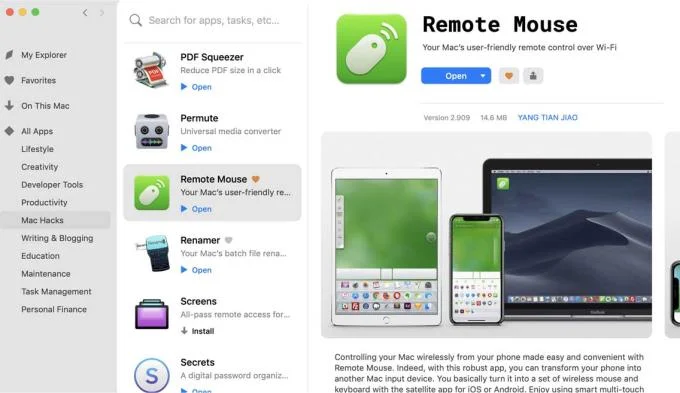
If you have to work remotely while you're abroad, you can use an Apple iOS device like an iPhone or iPad to control a Mac remotely. At that time, smartphones were like computer mice. The app does this job on VNC.
Remote Mouse is the easiest, most effective way to turn an iOS device into a wireless remote for Mac.

Although remote access via the local network is most effective because the closer you are to the device, the faster the connection will be. However, you can also do this work from around the world, providing secure, fast networks.
Set up and grant access to your iOS device the same way you want someone to access your personal Mac, except to give them a password, Remember to make sure it's different from the primary password you're using on your Mac or iOS (App Store).
These are ways to help you access, control and grant access to a remote Mac safely. Hope the article is helpful to you.