Home
» PC Tips
»
The methods and customizations in this article will help speed up your Windows 10 like the wind.
The methods and customizations in this article will help speed up your Windows 10 like the wind.
After installing Windows 10, do you find your computer running slow? If compared to previous operating systems such as Windows XP/7/8, is the speed of Windows 10 improved? So is there any way to improve the boot speed of Windows 10? Read the article below and apply it to your system!
Here are the Windows 10 speed up methods mentioned in the article:
1. Speed up Windows 10, speed up Windows 11 with third-party utilities
The way Windows handles software has never been perfect. Every time you install a program, bits of it get scattered around your system, and the end result is a slower PC.
You may have experienced this phenomenon. After a year, personal computers tend to get clogged up and slow down. The internal components aren't necessarily worn out - they're still working as well as they did when you first bought the PC - it's your software that's to blame. This even applies to programs you've uninstalled, which leave traces of themselves on your system after they're removed.
It should come as no surprise, then, that the primary method of speeding up your system is to thoroughly clean it up. But getting a clean hard drive requires a lot of work. There are many subtle tweaks that can be made to Windows itself that can lead to an unstable experience.
We have picked out some of the best tools to speed up a cluttered PC by cleaning up junk and optimizing its settings with minimal hassle. All of these programs are available in both free and premium versions. The free versions are typically lightweight, focusing on deleting temporary files and cookies, while their paid versions boast powerful additional features like malware protection and scheduled cleaning. The choice is yours.
2. Run the system cleanup utility
Run system cleanup utility
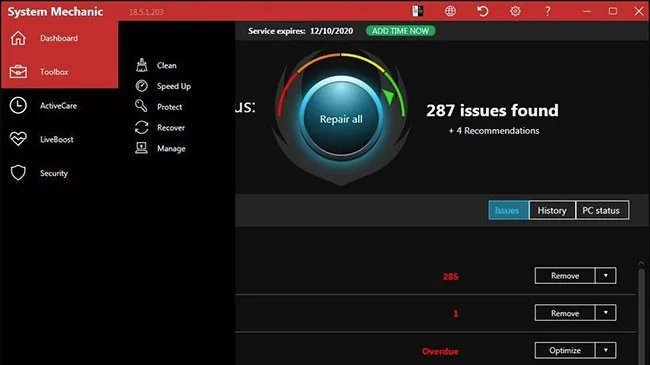
Recently, Quantrimang reviewed the best third-party system cleaning and speedup utilities for Windows 10. Most of them actually help increase PC performance, even if it's just a modest increase. Of course, be wary of malware out there that claims to speed up your PC. One of the best is Iolo System Mechanic, but other options are worth considering due to their range of features and price points.
Although things are getting better, unnecessary pre-installed software installed by PC manufacturers continues to be a problem with some new computers. A few years ago, a Lenovo PC tested came with nearly 20 so-called helper programs installed. These programs occasionally pop up and interrupt what the user is doing on the computer.
Lately, the amount of unnecessary pre-installed software has been decreasing. A new HP laptop has only 9 of these apps, while a recent Asus model has only 5. Even Microsoft isn’t immune to this, including a few King games and some software that users might not care about.
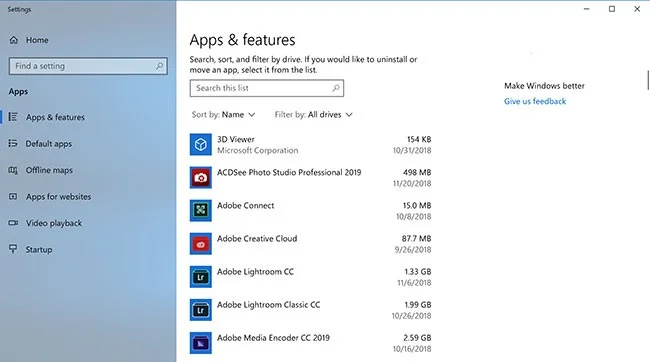
Just right-click any unwanted app tile in Start and select Uninstall . This will immediately uninstall the program. You can also right-click the Start button and select Programs and Features at the top. Or just type Programs into the Cortana search box next to the Start button.
You can usually find the culprit by sorting the list of installed apps by the name of your PC manufacturer. Other options worth considering are sorting by Recent , to see if there are any programs you didn’t know you had installed; or by Size , to get rid of very large items you don’t need. When you find the junk apps you don’t want, just select them and click Uninstall . Unfortunately, you can only remove one program at a time, so set aside half an hour or more for this project if you have a lot of bloatware .
One reason removing apps helps boost performance is that many programs load processes at startup, taking up valuable RAM and CPU cycles. While in the Programs and Features section of Control Panel , you can also click Turn Windows Features On or Off and scan the list to see if there are any you don't use.
4. Limit the startup process
Limit the startup process
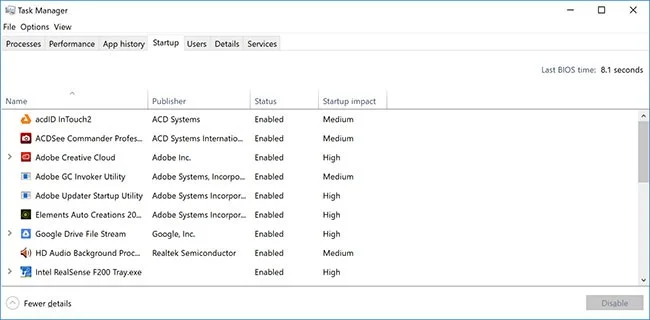
As mentioned in the previous section, a lot of programs install extra processes that run every time you start your PC, and some of those processes aren't things you need running on your system all the time. Compared to Windows 7 , where you had to run the MSCONFIG utility, Windows 10 (and Windows 8.x before that) gives you an easier way to limit what runs at startup from the updated Task Manager .
The easiest way to open Task Manager is to press Ctrl + Shift + Esc . Switch to the Startup tab and you’ll see all the programs that load when Windows starts. The dialog box even has a column that shows you what impact it has on startup. The Status column shows whether the program is enabled to run at startup or not. You can right-click on any entry to change this status. It’s usually pretty easy to see which ones you don’t want running. For example, if you never use iTunes , you probably don’t need iTunesHelper running all the time.
5. Clean up your drive
Clean up your drive
From the Start menu, type Disk Cleanup . This will open the trusty Disk Cleanup utility, which has been part of Windows for several generations of operating systems. Disk Cleanup finds unwanted junk files like temporary files, offline web pages, and installer files on your PC, and then offers to delete them all at once. However, this usually only has a noticeable speed impact if your drive is almost full.
If you don't have a regular schedule for defragmenting your drive, set it up in the Optimize Drives tool . You can find it by typing its name into the Cortana search box next to the Start button. Note that if your primary drive is an SSD, you don't need to bother with defragmenting, since there aren't any moving parts reading the disk.
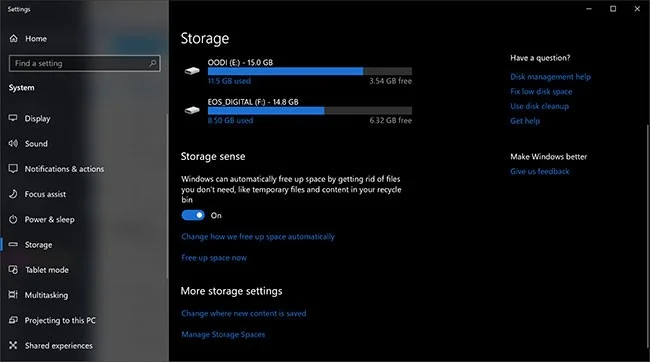
An even newer way to keep your storage usage in check is to turn on Storage Sense . This will automatically free up space by deleting temporary files and items in the Recycle Bin.
6. Add more RAM
Add more RAM
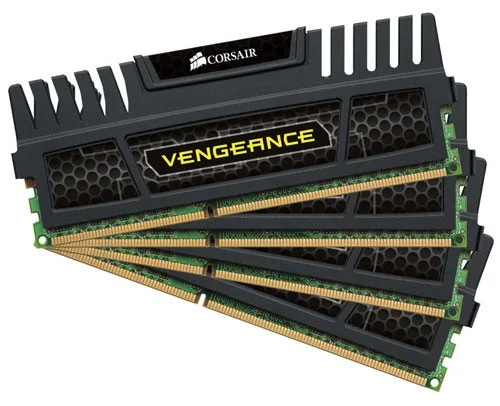
Windows 10 manages memory more efficiently than previous versions of the Windows operating system, but more memory would help speed up your PC. However, for many Windows devices today, such as the Surface Pro tablet, adding RAM isn't an option. Gaming and business laptops often still allow for RAM upgrades, but that's becoming increasingly rare. Newer, thinner, convertible Ultrabooks often come with fixed RAM.
If you’re still using a desktop, here’s how to add RAM . The websites of the major RAM manufacturers (Crucial, Kingston, Corsair) all have product finders that tell you what kind of RAM your PC uses and offer reasonably priced options. You can get 8GB of high-performance DDR4 RAM for around $60.
If that's still too high, and your computer is old, has a traditional hard drive instead of an SSD, and has little RAM, you can try using ReadyBoost with a USB. This caches data on a removable storage device to speed up memory access. Just go to the USB's File Explorer, right-click to open Properties , and then switch to the ReadyBoost tab to get started. For most new systems, this feature won't be available and won't increase performance.
7. Install SSD
Install SSD
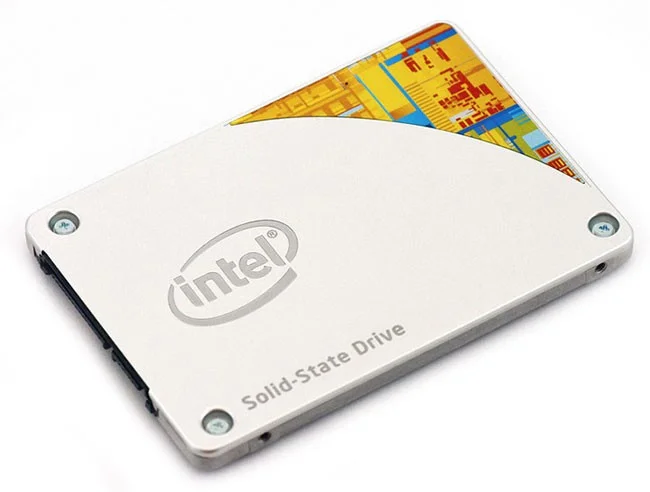
Loading and using apps like Adobe Photoshop is much faster with an SSD. Windows Store apps can even be easily moved from a spinning hard drive to an SSD in the Apps and Features page of Settings .
To speed up your system, you may want to replace your internal boot drive, and if you have a laptop, that may be an option. But an external SSD with a USB 3.0 connection can also help speed up storage-intensive applications. Check out our list of the best SSDs to find the right option.
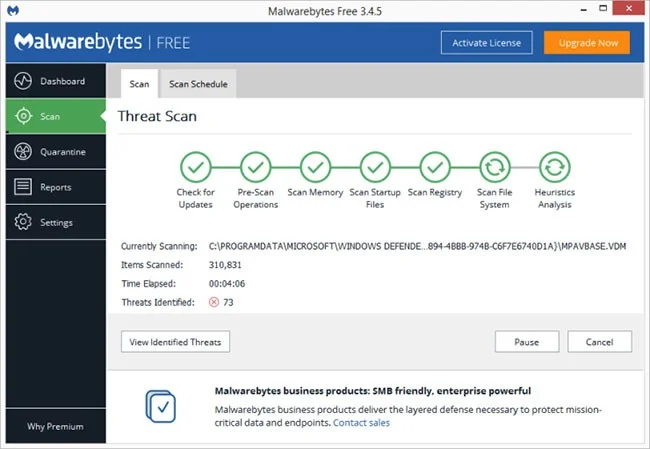
Don't forget to use ongoing anti-malware protection. Some AV products have less of an impact on system performance than others. Check out our list of the 11 best antivirus programs for Windows for more details.
9. Change power settings to High Performance to optimize speed
Change power settings to High Performance to optimize speed
Of course, this isn't a great option if you're looking to save power, but it can speed up your PC's computing speed. Head to the System > Power & sleep option in the Settings app , then click the Additional power settings link . From here, click the drop-down arrow on the right to see the "Show additional plans" option , then select High Performance .
10. Run the troubleshooter
Run the troubleshooter
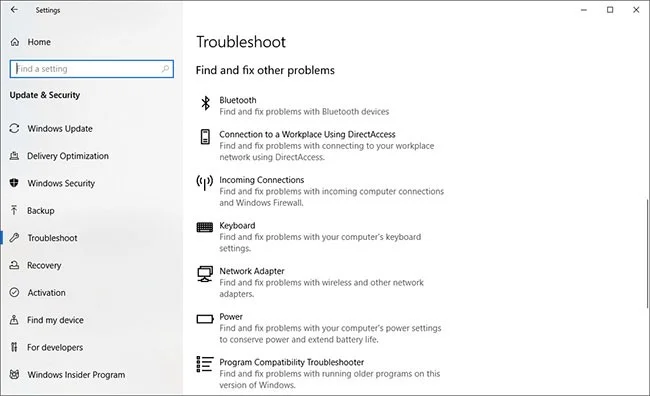
Open the Settings app and search for troubleshoot . Windows suggests troubleshooting utilities that you should run. You can choose to run them automatically or manually.
For a more accurate assessment, run other troubleshooters, including Search and Indexing, Hardware and Devices , and Windows Store Apps . Go to the System section of the Control Panel and go to the Security > Security and Maintenance page (or just type maintenance in the Start menu search box), click Maintenance , and click Start Maintenance. This happens automatically on a daily schedule (you can change the run time if you want).
If your PC still doesn't speed up, you can use the Fresh start option of the Windows Security app , but be warned that doing so may remove some installed programs, but your personal files will still be kept.
11. Change the appearance in performance options
Change the appearance in performance options
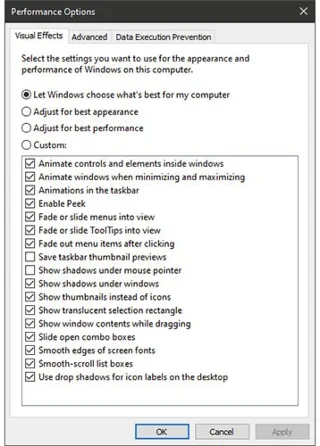
You can easily access this setting by typing adjust appearance in the Start menu search box. In the dialog box, you can use the radio button at the top labeled Adjust for best performance or select cool, but unnecessary features from the long list of checkboxes below these options.
If you choose the best overall performance option, you'll lose all visual effects. For example, you won't see the contents of a dragging window, just a rectangle representing the window's edges. It's probably better to choose the effects you like from the dialog box. You can also access this tool from the new Settings app and search for "maintenance" or "performance . "
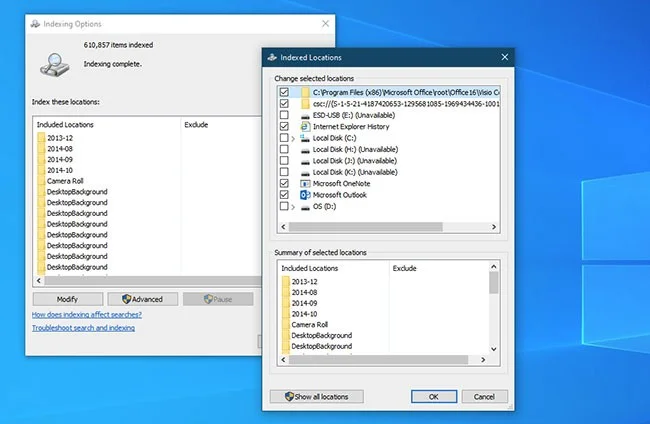
Especially on low-powered PCs, search indexing can be a drain on system resources. If you do a lot of searches, this becomes a concern, as some searches will be slower.
To turn off indexing, open the Indexing Options Control Panel window (you can also just type index into the Start menu search box to see Indexing Options at the top of the results list). Click Modify and uncheck the locations you don't want indexed. Selecting Advanced lets you decide which file types should and shouldn't be indexed.
If you leave search indexing enabled but find that it occasionally slows down your PC, you can stop the process when you need more speed. Right-click This PC on your desktop (or type Computer in the search box) and select Manage . Then double-click Services and Applications , and select Services .
Find Windows Search and double-click it. From this Properties dialog , you can select the Startup type as Manual or Disabled so that the process has no impact by default. According to Microsoft's help, Automatic (Delayed Start) is "preferred over Automatic because it reduces the impact on overall system startup performance." This option may be enabled by default.
One final option is to go to the right panel, click More options , then click Stop . You can also just hit the stop button above the center section. Don't forget to turn it back on at some point if you want to be able to search on your system.
13. Turn off Tips and Notifications
Turn off Tips and Notifications
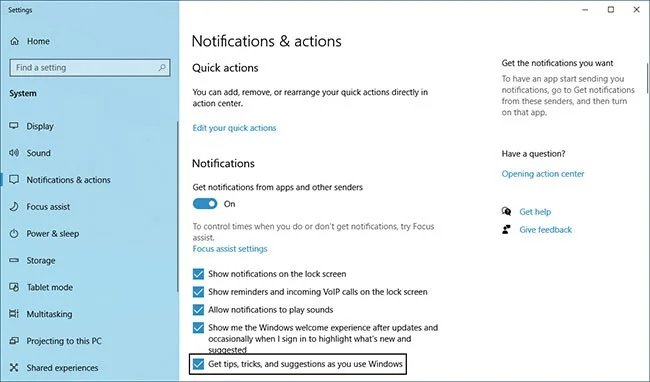
Asking you to turn off Windows 10's Tips feature may sound strange, but it can reduce the processing Windows needs to do to display relevant tips to the system. The same is true for Notifications . If Windows doesn't need to generate notifications, your computer will run faster.
Just open the Notifications & actions page of the Settings app to change your notification settings. You'll see a list of individual apps that can send notifications, and you can uncheck the ones you don't want to see notifications for.
Reducing distractions alone can help speed up your PC usage. An easy way to pause notifications is to tap the Focus Assist button in Action Center . This also makes it easy to turn notifications back on later.
14. Turn on Game Mode
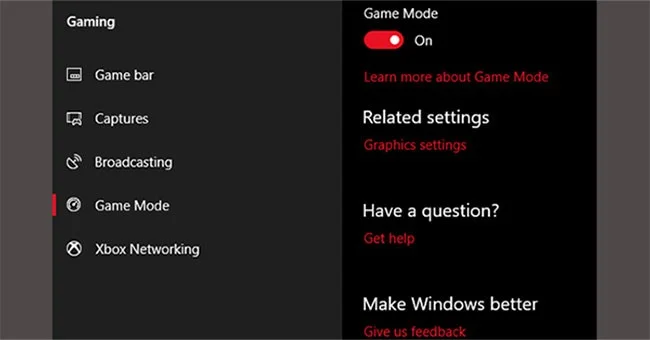
Turning on Game Mode will make Windows 10 faster
The latest version of Windows 10, the Creators Update, adds a new feature called Game Mode. Unfortunately, there’s no way to run Game Mode permanently, but you can enable it by pressing Windows key + G . However, you’ll have to enable Game Mode first .
Game Mode is only used for games, but you can enable it whenever you need a little speed boost. It's especially useful if you have a lot of background apps that are slowing down a resource-intensive program.
Unfortunately, Game Mode only improves gaming performance by a few percent.
Some users will see a performance boost more than others, though. Reducing the number of background apps can improve performance when nothing else works. In theory, Game Mode should work in any app that uses GPU acceleration. If you want to try it out in Adobe Premiere , go for it.
15. Processor acceleration
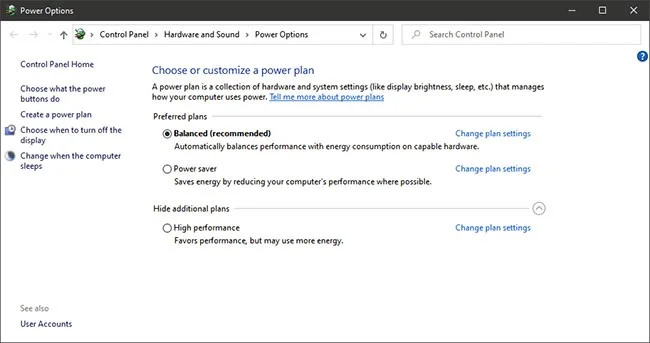
Windows has three default settings for how the processor increases its frequency. The three defaults are Balanced, High performance , and Power saver . Sometimes manufacturers include custom plans here as well.
You'll almost always get better performance from your laptop with the Balanced or Power saver plan , but High performance can make Windows faster by trading battery life for power. Since the High performance option uses the most power, it's also better suited for desktops.
You can change your settings by navigating to Power Options in Control Panel.
16. Use RAM creation software
Of all the applications that promise to improve performance, none do it better than a RAM booster. This program creates a virtual drive using physical RAM, which is very fast. The user then moves the necessary parts of the software to the RAM drive, which results in a huge speed boost.
However, the article recommends that you only use RAM generator software if you want to improve the performance of a single application. The software that benefits the most from RAM generator programs are Photoshop, browsers, and video editing software.
Let’s explore how to combine the RAM generator with the Chrome browser. First, it is recommended that you have at least 1GB of free RAM. Ideally, you should have at least 8GB of RAM for 64-bit systems and at least 4GB of RAM for 32-bit systems.
There are plenty of RAM creation software available. The most popular one is SoftPerfect RAM Disk (which is paid). However, if you're just starting out, try DataRAM's RamDisk . The free version is limited to 1GB, but if you have an AMD-based system, you'll get up to 4GB.
How to configure a RAM generator
Just download and install the software. After running the software, you need to configure the software with the following options:
Choose the maximum RAM drive size, around 1GB. You can use any size, but smaller capacities will limit the program's utility.
Check the Set Disk Label box . That way, you can identify the drive in the next step. Then select Start RAMDisk . Configure the browser to read and write cache files to and from the RAM disk.
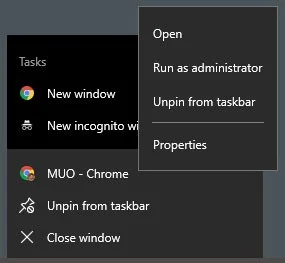
Right-click the browser shortcut and select Properties from the context menu. Windows 10 makes accessing browser shortcuts easier than ever. You can do it directly from the Taskbar.
Select Properties from the context menu
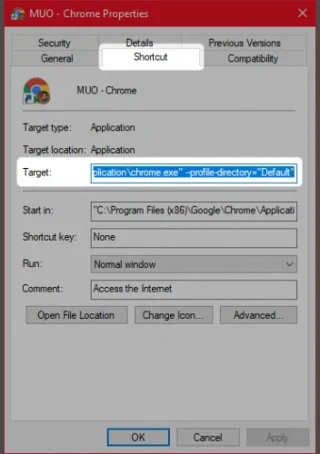
From Properties , select the Shortcut tab. Then in the Target: text input field, add the following code to the end of the text, where "R" is your RAM drive letter:
Your code may be different, depending on your Chrome configuration.
Finally, select OK and restart the browser. From now on, Chrome will read and write cache files to the RAM drive.
Chrome will read and write cache files to RAM disk
While some people think RAM generators are useless, critics give them pretty good reviews. One of the biggest drawbacks is that RAM generators can make your computer shut down more slowly. And because they run in the background, older computers may not handle them well.
17. Clean up the registry
Clean up the registry
The Windows registry contains all the settings for Windows and other programs. Installing software changes the registry. However, sometimes when a program is uninstalled, it cannot remove those changes.
Over time, thousands of registry changes slow down system performance. Registry cleaners remove those changes and other leftovers from uninstalled programs.
However, registry cleaners sometimes cause more problems than they solve. While you may see a slight performance improvement, most of the time you may find your operating system malfunctioning after running a registry cleaner.
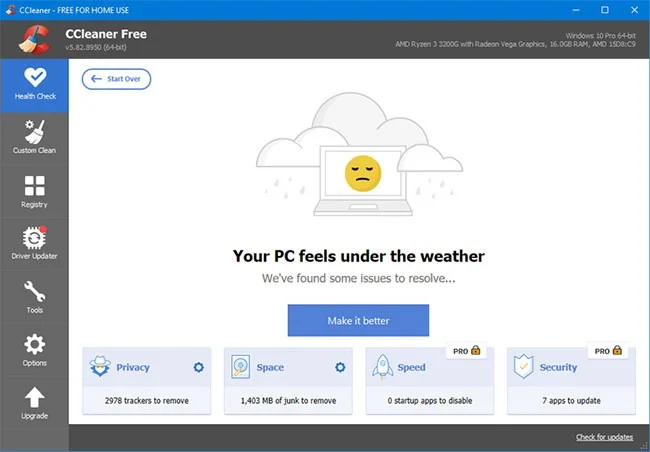
The best program available to clean your registry is CCleaner. However, Piriform, the maker of CCleaner, suffered a security flaw that allowed hackers to inject malicious code into two versions of CCleaner. Current CCleaner products are malware-free.
18. Remove quality apps included
Many people mistakenly install terrible software thinking they need it. These are often PUPs that slow down your computer.
Some of the worst options include PDF readers, music and video players, browsers, and BitTorrent software. Fortunately, there are plenty of great alternatives. The process is simple. First, uninstall the old software and install a better program.
Here are some alternatives you might consider.
Sumatra PDF Reader (PDF reader)
VLC Video Player (music and video player)
Google Chrome or Mozilla Firefox (browser)
QBittorrent (BitTorrent software)
19. Remove Windows 10 default apps
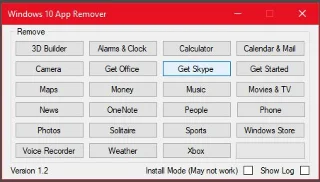
Unfortunately, an in-place upgrade will replace or restore all of Windows 10's built-in bloatware (if you've removed it). Fortunately, there are a number of apps that make debugging Windows easier than ever. One of our favorites is Windows 10 Default App Remover 1.2.
Windows 10 Default App Remover 1.2
Windows 10 Default App Remover 1.2 can uninstall default Windows 10 apps. Best of all, the publisher has provided the source code for the app.
To remove a default app from your computer, simply tap on the app you want to remove. For example, if Solitaire is giving you anxiety, just left-click on it in the user interface and you will get a prompt asking if you want to delete the app. Confirm the deletion of the app. What’s amazing is that 10AppsManager also allows users to reinstall the removed software.
The app has received clean reports from Norton Safeweb and VirusTotal, so it's unlikely to be the source of malware.
Many people's favorite speed hack is to improve browser performance through extensions.
A mobile user agent lets the server know if you’re on a fast desktop or a slow mobile device. If a server knows you’re on a desktop or laptop, it typically loads more ad code and visual effects. In other words, you get a slower version of the site.
By using the mobile user agent, you can ask the website to serve you a faster loading version of the page. This trick doesn’t work on all websites, but it often improves performance. Unfortunately, this browser extension can sometimes cause strange behavior on some websites.
Microsoft's cloud-based file storage tool OneDrive, built into Windows 10, keeps files synced and up to date across all your PCs. It's also a useful backup tool so if your PC or hard drive fails, you'll have all your files intact and ready to restore.
OneDrive does its job by constantly syncing files between your PC and cloud storage, and this can slow down your PC. That's why stopping syncing is one way to speed up your PC. However, before you permanently disable this feature, you'll want to check to see if it's actually the cause of your PC's slowdown.
Here's how to temporarily disable OneDrive sync to see if that increases system performance.
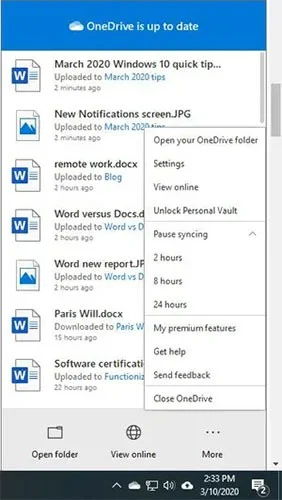
Stop syncing OneDrive
To do so, right-click the OneDrive icon (which looks like a cloud) in the notification area on the right side of your taskbar, then click the More button at the bottom of the screen. From the pop-up screen that appears, click “Pause syncing” and select 2 hours, 8 hours, or 24 hours, depending on how long you want to pause. During that time, see if you notice a noticeable increase in your computer’s speed.
And if you decide you really want to turn off sync, right-click the OneDrive icon and from the pop-up window, select Settings > Account . Click “Unlink this PC” , then from the screen that appears, click “Unlink account.” When you do that, you can still save your files to your local OneDrive folder, but they won’t sync to the cloud.
If you find that OneDrive is slowing down your PC but still want to continue using it, you can try troubleshooting OneDrive following the instructions in this WebTech360 article.
Above are all the tips and tricks that can help speed up a Windows 10 system. Hopefully with some of the above steps, your Windows 10 has started and run faster than before.
Please share with us which tips are most useful to you in the comments section below. Also, if you know any other tips, we would love to hear from you. Besides, there are many other reputable addresses that you can research and refer to yourself.
Good luck!
See also:
5 customizations on Windows 10 to help play games "smoother"