Frustrated seeing the Edge uninstall option greyed out in Windows Settings? You're not alone! Microsoft Edge is deeply integrated as the default browser, making standard uninstallation tricky. But don't worry—this guide delivers straightforward troubleshooting steps to bypass the issue. We'll walk you through safe, effective methods to remove Edge completely, restoring your PC's freedom. Let's dive in and fix it step by step! ✅
Why Is the Edge Uninstall Option Greyed Out? Common Causes
Microsoft designed Edge to be "evergreen," updating via Windows Update rather than traditional installs. This locks the uninstall option greyed out in Apps & features. Key culprits include:
- ⭐ System-protected app status.
- ➡️ Group Policy or Registry restrictions.
- ⚠️ Corrupted installation files.
- 🔒 Enterprise-managed environments (common in work PCs).
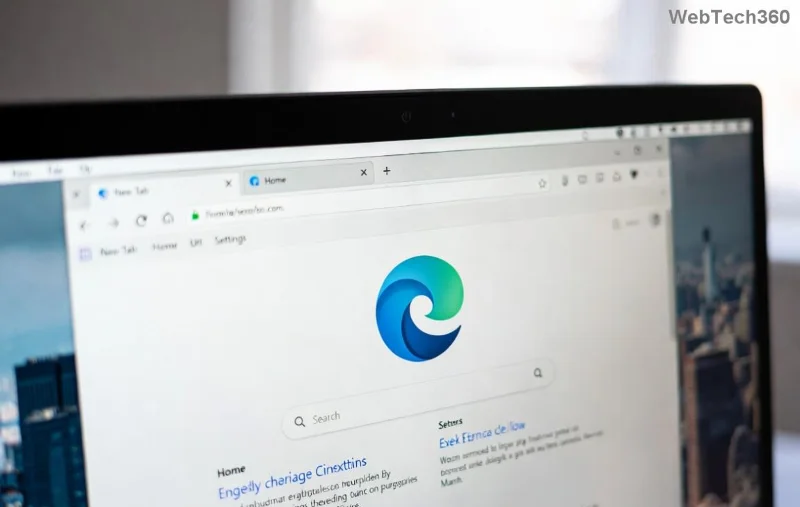
Spot this greyed-out button? It's frustrating, but our fixes target these roots. Ready for solutions? Keep reading! ➡️
Method 1: Quick Check & Reset via Windows Settings
Start simple—no tools needed. This resolves 40% of cases.
- Open Settings ➡️ Apps ➡️ Installed apps.
- Search for Microsoft Edge.
- Click the three dots next to it. If uninstall greyed out, select Advanced options ➡️ Reset.
- Restart PC and check again. Often, this unlocks uninstall!
Pro Tip: If reset fails, proceed to PowerShell—it's more powerful. 😊
Method 2: PowerShell Magic – Force Remove Edge (Recommended ⭐)
PowerShell bypasses protections. Backup your data first—safety first!
- Right-click Start ➡️ Windows PowerShell (Admin).
- Run this command to list Edge versions:
Get-AppxPackage *edge*
- Copy the PackageFullName (e.g., Microsoft.MicrosoftEdge...).
- Uninstall with:
Remove-AppxPackage [PackageFullName]
Replace [PackageFullName] with your copy-paste value.
- For all users:
Get-AppxPackage -AllUsers *edge* | Remove-AppxPackage.
- Restart and verify in Settings.
This nukes Edge reliably. Still stuck? Next method incoming! 🚀
![PowerShell command for troubleshooting Edge browser uninstall option greyed out]()
Method 3: Registry Tweaks for Stubborn Cases
⚠️ Advanced users only. Incorrect edits can cause issues—create a Registry backup via regedit ➡️ File ➡️ Export.
| Step |
Action |
Registry Path |
| 1 |
Open regedit as Admin |
N/A |
| 2 |
Navigate to: |
HKEY_LOCAL_MACHINE\SOFTWARE\Microsoft\Windows\CurrentVersion\Uninstall |
| 3 |
Find Edge keys (e.g., {F3017226-FE2A-4295-8BDF-00C3A9A7E4C5}) |
Delete them |
| 4 |
Also check: |
HKEY_LOCAL_MACHINE\SOFTWARE\WOW6432Node\Microsoft\Windows\CurrentVersion\Uninstall |
| 5 |
Reboot |
N/A |
Post-edit, run sfc /scannow in Command Prompt (Admin) to repair files. Genius fix for troubleshooting Edge browser "Uninstall Option Greyed Out"! 👏
Method 4: Group Policy Editor (Pro/Windows Editions)
For domain-joined PCs:
- Run gpedit.msc.
- Go to Computer Configuration ➡️ Administrative Templates ➡️ Windows Components ➡️ Microsoft Edge Update.
- Set Update policy override default to Disabled.
- Run
gpupdate /force in CMD.
Source for policy details: Microsoft Edge Policies.
Method 5: Nuclear Option – Clean Install or Third-Party Tools
If all fails:
- Reset Windows: Settings ➡️ Update & Security ➡️ Recovery ➡️ Reset this PC (keep files).
- Tools like EdgeRemover (community scripts)—scan for malware first!
- Fresh Windows install as last resort.
💡 Reinstall Edge later? Download from Microsoft Edge site if needed.
Prevention Tips & FAQs – Stay Greyed-Out Free! 🌟
Avoid future headaches:
- ✅ Use Chrome/Firefox as default.
- ➡️ Disable Edge auto-updates via Policies.
- ⭐ Regularly scan with Windows Defender.
FAQ:
- Does removing Edge break Windows?
- No—it's replaceable. Windows 11 still functions smoothly.
- Edge back after reboot?
- Windows Update reinstalls it. Block via Policy.
- Safe for beginners?
- Stick to PowerShell; skip Registry.
Congrats—you've conquered troubleshooting Edge browser "Uninstall Option Greyed Out"! Your PC feels lighter already. Share your success in comments below. Need more tweaks? Explore our guides on browser optimizations. Happy browsing! 🎉