Encountering frustrating Microsoft Teams Breakout Rooms license errors during important meetings? You're not alone. These errors often block hosts from creating or managing breakout rooms, disrupting collaboration. But don't worry—this guide delivers straightforward troubleshooting steps to resolve them fast. Whether you're an admin or regular user, follow along to restore seamless sessions. Let's dive in and get your Teams back on track! 🚀
⚠️ Common Causes of Microsoft Teams Breakout Rooms License Errors
Understanding the root causes is key to effective troubleshooting Microsoft Teams Breakout Rooms license errors. Breakout rooms require specific licensing, typically Microsoft Teams Premium, E3/E5 plans, or add-ons like Meetings. Here's what triggers most issues:
- Inadequate User License: Host lacks required license (e.g., free or basic plans don't support breakout rooms fully).
- License Assignment Issues: License assigned but not propagated in Microsoft Entra ID.
- Expired or Suspended Licenses: Subscriptions lapsed or user account inactive.
- Policy Restrictions: Meeting policies disable breakout rooms via Teams admin center.
- App or Cache Glitches: Outdated Teams client or corrupted cache.
- Sync Delays: Recent license changes not yet synced across services.
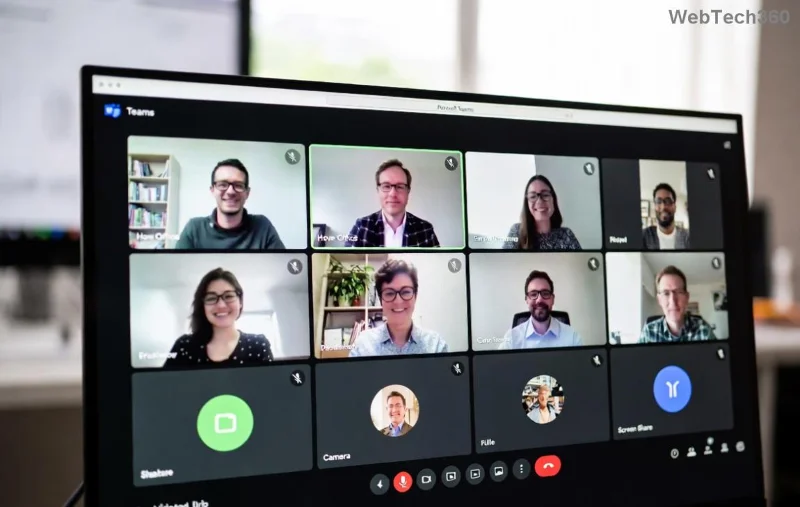
Spot that familiar error popup? It's often tied to these culprits. Next, we'll tackle fixes systematically.
✅ Step-by-Step Troubleshooting for Microsoft Teams Breakout Rooms License Errors
Start with simple checks and escalate as needed. Most users fix issues in under 10 minutes. Pro Tip: Test in a new meeting after each step. 👆
Step 1: Verify Your License in Microsoft 365 Admin Center
- Sign in to Microsoft 365 Admin Center.
- Go to Users > Active users > Select the affected user.
- Under Licenses and apps, ensure Microsoft Teams (Premium or E3/E5) is assigned.
- If missing, assign and save. Wait 15-30 minutes for sync.
Step 2: Check Meeting Policies
Policies can override licenses. In Admin Center:
- Navigate to Teams > Meetings > Meeting policies.
- Edit the policy applied to the user.
- Enable AllowMeetNowInTeams and BreakoutRooms settings.
- Save and force policy update via PowerShell if needed.
![Microsoft 365 Admin Center showing Teams license assignment]()
Step 3: Update and Reset Teams Client
- Update Teams: Click profile icon > Check for updates.
- Clear cache: Close Teams > Delete contents of
%appdata%\Microsoft\Teams folder > Relaunch.
- Switch channels: Desktop app > Web > Mobile to isolate client issues.
Step 4: Test License Propagation
Use PowerShell for admins:
Connect-MicrosoftTeams
Get-CsOnlineUser -Identity user@domain.com | Select DisplayName,AssignedLicense
Confirms license status. Reference: Microsoft Teams PowerShell Docs.
📊 Quick Reference Table: Errors and Fixes
| Error Message |
Common Cause |
Fix |
| "You don't have permission to create breakout rooms" |
No Premium/E3 license |
Assign license in Admin Center |
| "Breakout rooms license not available" |
Policy disabled |
Enable in Meeting policies |
| "License sync error" |
Propagation delay |
Wait 30 mins or PowerShell refresh |
| "Feature unavailable" |
Cache/App issue |
Clear cache & update Teams |
![Successful breakout rooms creation in Microsoft Teams after fix]()
Refer to this table during troubleshooting—it's your cheat sheet for Microsoft Teams Breakout Rooms license errors! 🎯
🔧 Advanced Fixes for Persistent Issues
If basics fail:
- Entra ID Sync: Force sync in Entra admin center under Azure AD Connect.
- License Reset: Remove & reassign license via Admin Center.
- Support Ticket: Open case at Microsoft 365 Support with error logs (F12 > Console).
- Hybrid Environments: Verify on-premises AD sync with Teams.
🛡️ Prevention Tips to Avoid Future License Errors
Stay ahead:
- Monitor licenses monthly in Admin Center reports. ⭐
- Use Teams Premium for unlimited breakout rooms.
- Automate alerts via Microsoft Graph API for expiring licenses.
- Train hosts on policy requirements before large events.
- Backup: Always have a co-host with confirmed license.
Implementing these keeps your Teams unbreakable. Ready to host flawless breakout sessions?
Final Thoughts: Conquer Teams Breakout Rooms Today
By following this troubleshooting Microsoft Teams Breakout Rooms license errors guide, you've got the tools to fix issues swiftly and prevent recurrences. From license checks to policy tweaks, every step empowers smoother collaboration. Test now in a sample meeting—what error did you fix? Share in comments below for community tips. Your perfect Teams experience awaits! 👏