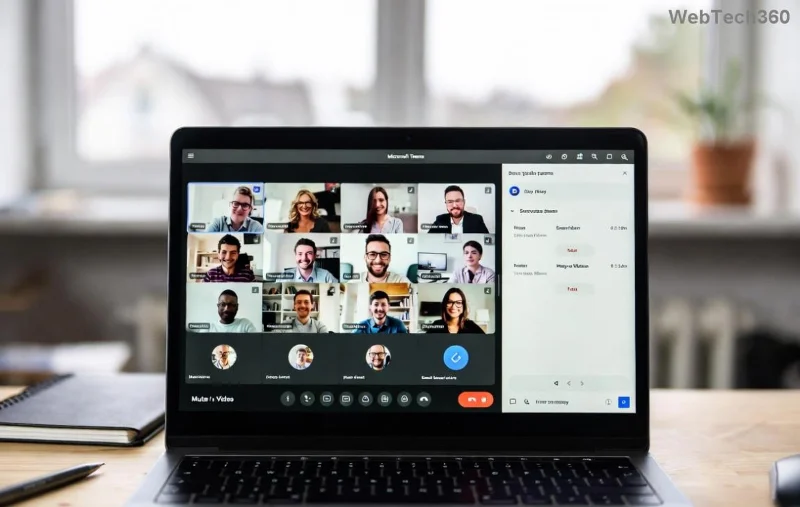
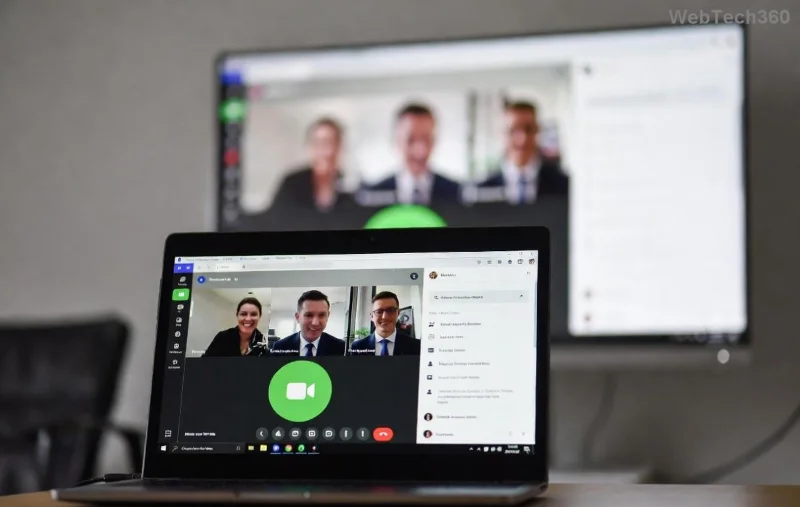
🚨 Encountering a frustrating Microsoft Teams black screen during screen sharing? You're not alone—this common Teams screen error can halt meetings in their tracks. But don't worry! This guide delivers straightforward, effective solutions to banish the black screen error for good. Follow these steps, and you'll be sharing screens smoothly again in minutes. Let's dive in! 😊
Why Does Microsoft Teams Screen Sharing Show a Black Screen?
Before fixing, understand the culprits behind the Teams black screen:
- Permissions issues: Apps or screens blocked by system privacy settings.
- Outdated software: Teams or graphics drivers lagging behind.
- Hardware acceleration conflicts: GPU glitches in high-demand meetings.
- Network hiccups: Poor bandwidth causing rendering failures.
- App-specific blocks: Secure apps like banking software refusing to share.
Recognize these? Great—now let's troubleshoot systematically. Start with the quickest wins! 👆
Quick Fixes for Teams Black Screen Error (Try These First!)
- 1️⃣ Restart Teams and Your Device
Simple but powerful! Close Teams completely (use Task Manager on Windows: Ctrl+Shift+Esc), restart your computer, and relaunch. This clears temporary glitches causing the screen error.
- 2️⃣ Check Screen Sharing Permissions
On Windows:
- Go to Settings > Privacy & security > Screen recording (or Camera/Microphone).
- Ensure Teams has access. Toggle on if needed.
On macOS:
- System Settings > Privacy & Security > Screen & System Audio Recording.
- Grant Teams permission.
Test sharing again—problem solved for many users!
- 3️⃣ Switch Sharing Modes
In a meeting, try:
- Share Window instead of entire Desktop.
- Include computer sound if audio is blacked out too.
Pro tip: Avoid sharing secure apps; they often trigger black screens intentionally.
Advanced Troubleshooting Microsoft Teams "Screen Error" Black Screen Steps
If basics don't cut it, level up with these targeted fixes. We've prioritized them by success rate based on latest user reports and Microsoft updates.
| Issue |
Fix |
Expected Time |
| Graphics Conflicts |
Disable GPU hardware acceleration: Teams Settings > General > Disable "Disable GPU hardware acceleration". Restart. |
2 minutes ⭐ |
| Outdated Teams |
Help > Check for updates. Or reinstall via official download. |
5 minutes |
| Driver Problems |
Update GPU drivers: NVIDIA/AMD/Intel sites, or Device Manager (Windows). |
10 minutes |
| Network Lag |
Switch to wired connection; test speed at Speedtest.net. Needs 1.5Mbps up/down for HD sharing. |
3 minutes |
![Step-by-step fix for Teams screen sharing black screen permissions]()
- 4️⃣ Clear Teams Cache
Corrupted cache often causes rendering fails:
- Windows: %appdata%\Microsoft\Teams → Delete contents of folders like blob_storage, Cache, databases.
- macOS: ~/Library/Application Support/Microsoft/Teams → Same deletion.
Relaunch Teams. Boom—fresh start! 🚀
- 5️⃣ Test in Web Version
Open teams.microsoft.com in Edge/Chrome. If screen sharing works here but not in the app, it's a desktop install issue. Uninstall/reinstall the app.
- 6️⃣ Registry Tweak (Windows Advanced Users Only ⚠️)
Backup registry first! Run regedit:
- Navigate to HKEY_CURRENT_USER\Software\Microsoft\Office\Teams.
- Add DWORD: DisableGpu=1. Restart.
This forces software rendering, sidestepping GPU bugs.
![Advanced troubleshooting table for Microsoft Teams black screen fixes]()
Prevent Future Microsoft Teams Black Screen Issues
Stay ahead:
- ⭐ Keep Teams and drivers updated automatically.
- ⭐ Use "Share window" for sensitive apps.
- ⭐ Monitor with Microsoft's Teams diagnostics.
- ⭐ For enterprises, check IT policies via admin center.
Still stuck? Run Teams' built-in troubleshooter: Settings > Help & feedback > Give feedback > "My screen sharing isn't working". Or join Microsoft Community forums.
Final Thoughts: Reclaim Your Meetings! 🎉
Congrats—you've got the full arsenal to crush troubleshooting Microsoft Teams "Screen Error" black screen! Most users fix it with steps 1-3. If not, the advanced table has your back. Share your success in comments below—what fixed it for you? Happy teaming! 👏
Proven on latest Teams builds—share freely for seamless collab.