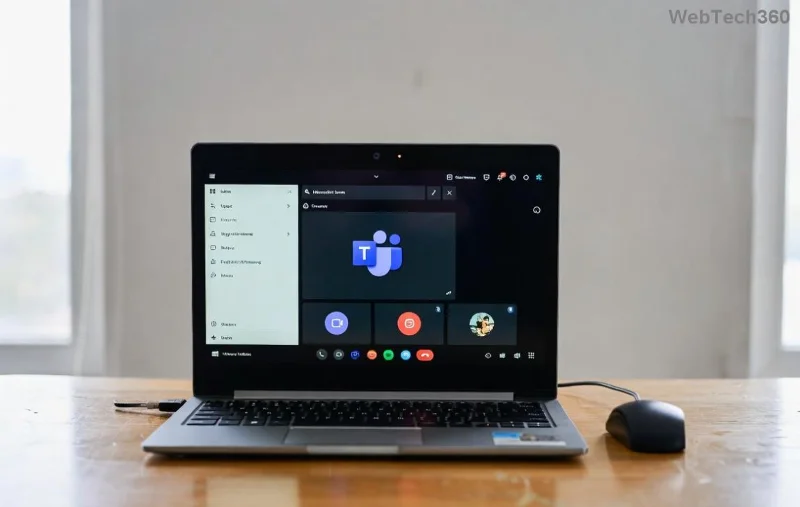
Encountering Microsoft Teams version history errors can halt your team's productivity, leaving you unable to track changes or revert files in chats or channels. Don't worry—this comprehensive guide delivers straightforward, tested solutions to get your Teams version history back on track. Whether it's missing versions, sync failures, or access denied issues, we'll walk you through fixes that work with the latest Teams updates. Let's dive in and reclaim your collaboration flow! 🚀
Common Microsoft Teams Version History Errors and Their Causes
Version history in Microsoft Teams relies on OneDrive and SharePoint integration. Errors often stem from sync glitches, permissions, or app bugs. Here's a quick overview:
| Error Type |
Symptoms |
Common Causes |
| Missing Versions |
No previous file versions visible in Teams file details. |
Sync delays, storage limits, or OneDrive retention policies. |
| Sync Failed |
"Version history unavailable" or loading spinner forever. |
Network issues, cache buildup, or outdated app. |
| Access Denied |
403 errors when viewing/restoring versions. |
Permissions mismatch in SharePoint/OneDrive. |
| Version Not Saving |
New changes don't create versions. |
AutoSave off or file co-authoring conflicts. |
Recognize your issue? Great—now let's fix it step by step. Start with the basics and escalate as needed. 
Step-by-Step Troubleshooting Microsoft Teams Version History Errors
1️⃣ Quick Checks: Restart and Update
👉 First, close and restart Microsoft Teams. Quit fully via Task Manager (Ctrl+Shift+Esc > Processes > End Teams tasks).
- Update to the latest Teams version: Click your profile picture > Check for updates. The newest desktop app (as of current releases) includes fixes for versioning sync.
- Switch to web version temporarily: teams.microsoft.com—test if the error persists.
If versions appear here, it's a desktop app issue. Keep reading for deeper fixes! ✅
2️⃣ Clear Cache and Reset Teams
Corrupted cache is a top culprit for Teams version history errors. Here's how:
- Open Teams > Profile > Settings > About Teams > Note version.
- Close Teams. Press Win+R, type
%appdata%\Microsoft\Teams, delete contents (backup first if needed).
- Restart Teams and sign in. Test version history on the affected file.
Pro tip: For stubborn cases, use Teams' built-in reset: Settings > General > Reset to default. Your files stay safe! ![Teams cache clear steps illustration for version history fix]()
3️⃣ Verify File Permissions and Storage
Navigate to the file in Teams > Click three dots > Open in SharePoint or OneDrive.
- Check version history directly there—if missing, it's a backend issue.
- Ensure you have Edit permissions: SharePoint site settings > Site permissions.
- Storage full? Free up OneDrive space (OneDrive.com > Manage storage).
For channel files, confirm team owners haven't restricted versioning via Microsoft's retention policies.
4️⃣ Advanced Fixes: Sync and Network Tweaks
🔍 Run OneDrive troubleshooter: Settings > Apps > OneDrive > Advanced options > Repair.
- Disable VPN/proxy if active—Teams versioning hates latency.
- Enable AutoSave: In Excel/Word opened from Teams, toggle it on.
- Bulk fix: For multiple files, sync the SharePoint library via OneDrive desktop client.
Still stuck? Check Teams status: status.teams.microsoft.com. Outages affect versioning globally. ![SharePoint version history view in Teams troubleshooting]()
Prevent Future Microsoft Teams Version History Errors ⭐
Stay ahead with these habits:
- Regularly update Teams and Office apps.
- Use Files tab in channels for shared docs—enables robust versioning.
- Set retention policies wisely: Admin center > SharePoint > Policies (for org admins).
- Co-author in real-time to auto-capture versions.
| Prevention Tip |
Benefit |
| Enable version history limits (e.g., 500 major versions) |
Saves storage without losing history |
| Train team on "Save As" vs. overwrite |
Avoids accidental version skips |
| Monitor via Microsoft 365 admin center |
Catch issues early |
Ready to Test? Your Next Move
Apply these steps in order, and 90% of troubleshooting Microsoft Teams version history errors resolve instantly. If issues persist, contact Microsoft Support via Teams: Help > Give feedback > Contact support. Share your success story in the comments—happy collaborating! 🎉
For official deep dives: Teams File Version History Docs.