Which is the best lightweight, free, high-quality computer screen recording software ? Let's join WebTech360 to learn about the top computer screen video recording software below!
It's not difficult to find screen video recording software on the Internet. Currently, there are many screen recording applications with many different limitations: some are free but have limited features, some offer a short trial period, some do not respond. Meet your requirements? So what to do?
The article below will summarize and give you the advantages/disadvantages of the TOP best screen video recording software . Hopefully through this list, you will choose for yourself the most suitable application.
TOP 10+ computer screen recording applications
Please refer to the article below to better understand the functions, as well as the advantages and disadvantages of the 10 best video game recording software today:
1. Bandicam
Bandicam helps users record game videos, create presentations, tutorials or record high-quality video chats, but in extremely compact capacity. You can use the pen icon while recording to draw, paint on the screen, or erase mistakenly circled parts with the eraser icon, helping to attract the user's attention to important points.
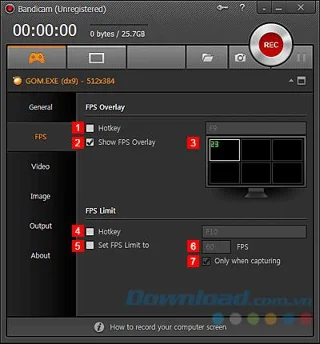
Advantage:
- Able to block maximum noise.
- Many recording modes with mouse effects to attract viewers.
- Integrate note taking and drawing features for recordings.
- Compact installation kit.
- Full HD video quality.
- User-friendly interface, easy to use.
Defect:
- When using the free version, you can record for up to 10 minutes.
- Insert the Bandicam logo into the video.
- Cannot be edited directly, but must go through Bandicut.
2. Cute Screen Recorder Free
Cute Screen Recorder Free is completely free screen recording software , trusted and used by many people. During use, you can completely set technical parameters for video files such as frame rate, video quality, channel mode...

Advantage:
- Supports many video formats such as: MP4, FLV, SWF, WMV, MKV...
- Set up the video recording area.
- Select sound quality while recording.
- Attach audio files to videos.
- No watermark inserted.
- All free.
Defect:
- Recording through external speakers, so there's a lot of noise mixed in.
3. CamStudio
CamStudio helps record all activities taking place on the computer screen, and can customize cursor effects, increase or decrease video quality to suit your needs.

Advantage:
- Handy video editing features.
- Add captions with images or audio recordings.
- All free.
- Friendly interface, very easy to use.
Defect:
- Only export to AVI and FLV formats.
4. ManyCam
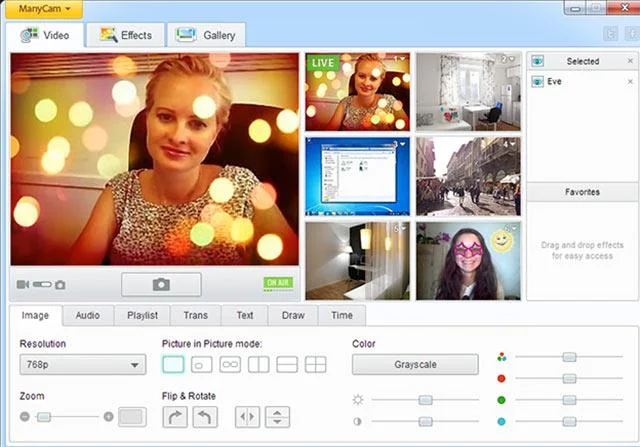
ManyCam is screen video recording software, with a series of beautiful webcam effects. Allows users to easily add text, add time, add masks, wear glasses, add beautiful frames to the webcam, and decorate with funny animations.

Advantage:
- Manage webcams with multiple videos simultaneously.
- Highlight important information, add names, locations, comments...
- Many effects: Filters, Distortions, Backgrounds, Borders, Overlays, Objects, Face Accessories, Emoticons...
- Supports 2K resolution webcam and frame rate of 60 FPS.
- Easy to install, completely free.
Defect:
- Many people see you, so be careful when using webcam chat.
5. Snagit
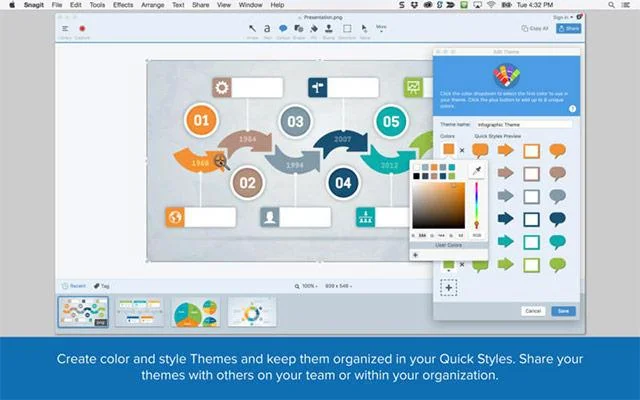
Snagit is a professional computer screen photography and video recording tool. Allows you to take photos of the entire screen, an area, a window, and the entire website or application.

Advantage:
- Capture screens in many image formats: Scroll capture, panorama capture, GIF capture.
- Capture the text content in the photo, then edit freely.
- Supports many image formats.
- Edit images after shooting.
- Supports demo film making, audio recording, and simple video recording.
- Easily add effects to photos.
Defect:
- Photos cannot be enlarged or reduced.
- When taking screenshots, do not use other working windows.
6. Action!
Action! is software for recording gaming videos, recording screens, and taking high quality screenshots. Action! Supports 3 recording modes: Record while playing games (full screen mode), Record full desktop screen and Record at specified size. It even records everything you hear on your computer including sounds and in-game noises.

Advantage:
- Record the activities taking place on the screen.
- Supports output to MP4 format.
- Record audio from multiple sources on your computer.
Defect:
- Higher frame rates should take up more memory.
- No ability to customize aspect ratio.
7. Camtasia Studio
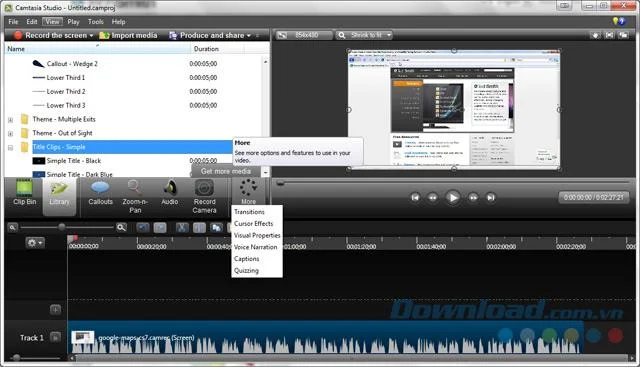
Camtasia Studio is considered professional screen video recording software. Supports users to edit as well as add instructions and notes to the video easily. After recording your screen, you can share it with friends via social network Facebook .

Advantage:
- Good video recording quality (30 frames/second).
- Professional video editing.
- Share directly to YouTube, Google Drive.
- Links can be inserted into videos.
- Supports many output formats.
- Supports video preview.
Defect:
- Editing operations must go through each dialog box, which is time-consuming.
- Video export is slow.
- Recording sound from external speakers, so noise is often mixed.
- The price is high.
8. IceCream Screen Recorder
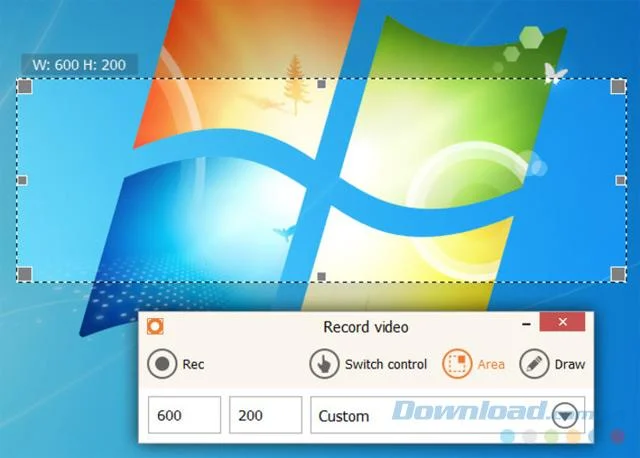
IceCream Screen Recorder is completely free screen recording software, with Full HD video quality, customizable ability to record any area on the screen.

Advantage:
- Do not insert the company's Watermark into the video.
- Full HD output video quality.
- The ability to pause, draw, and annotate while recording a video will save you a lot of time editing videos.
- User-friendly interface, easy to use.
Defect:
- The free version limits recording to a maximum of 10 minutes.
- Video cannot be edited.
- It's difficult to record the computer screen as a game guide.
9. Fraps
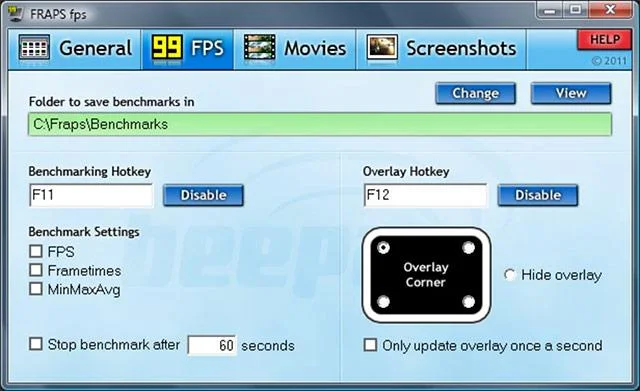
Fraps is an optimal screen capture and video recording tool for gamers. Fraps also allows real-time recording of game screens on your computer, you can customize keyboard shortcuts to start and stop videos extremely simply.

Advantage:
- Record your gameplay in HD quality.
- Displays screen benchmarks, frame rate per second.
- Automatically split video if it exceeds 4GB.
- Customize video size and frame rate.
Defect:
- Affects game processing.
- Display watermark in screen recording videos.
- Record videos up to 30 seconds long.
- Only allows saving images to bitmap format.
10. BB FlashBack Express
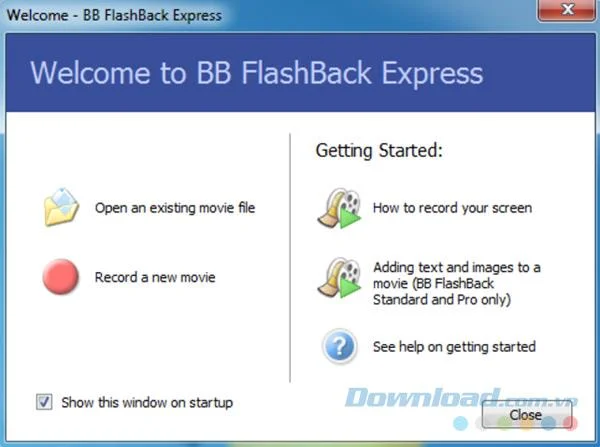
BB FlashBack Express is a completely free screen recording tool. Supports customizing output parameters such as sample rate, channel mode, volume adjustment, resolution change... to suit each user's needs. What's more, there's also the ability to record your screen and record your webcam at the same time.

Advantage:
- Output video quality is sharp.
- Supports many output formats.
- Export videos to the web easily.
- All free.
Defect:
- No built-in video editing tools.
11. Movavi Screen Recorder Studio

Movavi Screen Recorder Studio is another worthy screen recording software. It has an intuitive interface that is easy to learn for newbies. It has all the same features as the most popular computer screen recording software.
However, what makes Movavi Screen Recorder Studio stand out compared to its competitors is that it supports scheduled recording. With this tool, you can record video calls, webinars or live streams if you are not using a PC. By clicking on the clock icon, you can set the amount of time you want the application to record the screen. Thanks to that, the software will automatically stop recording after that time.
12. CloudApp

CloudApp provides intuitive screen recording instructions, creating GIFs from start to finish. Its screen recording feature is available on Mac, Win and Chrome. You'll find CloudApp many quick controls to enable full-screen, audio-only, or webcam recording. When you finish recording, you'll receive a link to share on Slack, G-Suite, Asana, Trello, or wherever you're collaborating with your colleagues.
13. Loom [Chrome]

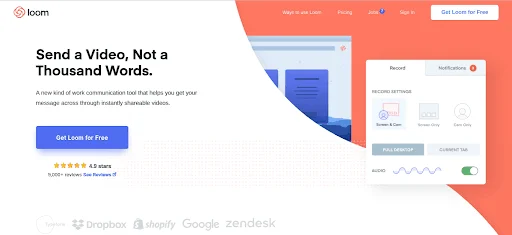
Loom has a clean control interface that is easy to navigate and use. One great thing to mention about this Loom screen recording utility is that it allows you to pause or continue recording whenever desired. This is a rare feature in many computer screen recording software .
When you finish recording your video, you can export it to Loom's cloud. Here, every user has unlimited video storage.
If you want to create a lot of customer support videos, you won't have to worry about memory limitations when using Loom.
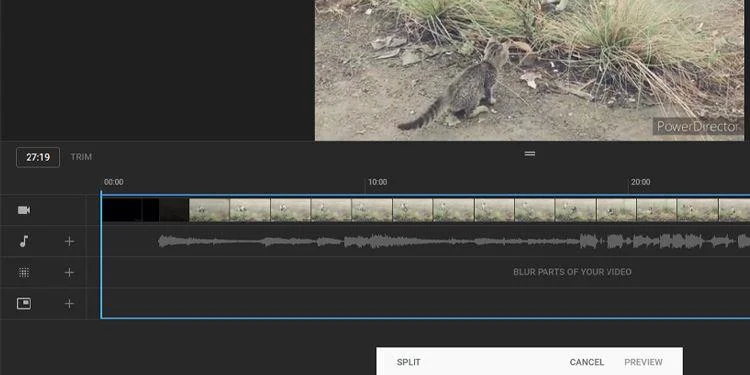
Loom also allows you to cut out unnecessary video segments at the beginning, middle, or end of the recording. Once you're done editing and recording, you'll see Loom link a feature to Slack that allows you to share video links to specific groups right on the Loom dashboard.
If you don't want to share, you can download them to your device as MP4 files.
Advantage:
- Easy to use.
- Supports unlimited storage and video sharing.
- Free of charge.
Defect:
- Account registration required.
14. Screencastify (Chrome)

Screencastify is a lightweight computer screen video recording utility. To use it, you do not need to download any software because it is an extension built into the browser.
If you are looking for a tool with a neat, easy-to-use interface, Screencastify is the perfect choice. You can set everything up in just one to 2 minutes. Screencastify will record your screen and let you record yourself via webcam. Unfortunately, Screencastify does not have as many functions as the computer screen recording software mentioned above.
Screencastify is free to record 50 videos shorter than 10 minutes per month but will include the company's blurred logo inside. For $24/year, you can record unlimited screen with Screencastify, no watermark and can export videos as MP4 or GIF.
Above we have introduced to you some of the best rated software today. Hopefully you will quickly find for yourself a screen video recording software that is stable and suitable for your needs.
Hope you quickly choose the right software for yourself!