Do You Know: What Is Virtual Ram? How to Set Virtual RAM On Windows Computer?

If your computer is running low on RAM. you do not have money to upgrade more Ram or your machine has run out of ram slots and you are afraid to replace it. So what do we have to use temporarily. The following article, WebTech360  will explain to you the concept and  how to set virtual RAM on a Windows computer . make your computer run more stable.

What Is Virtual Ram?

Before learning about how to set virtual Ram on a Windows computer. First, let's find out what is virtual RAM?

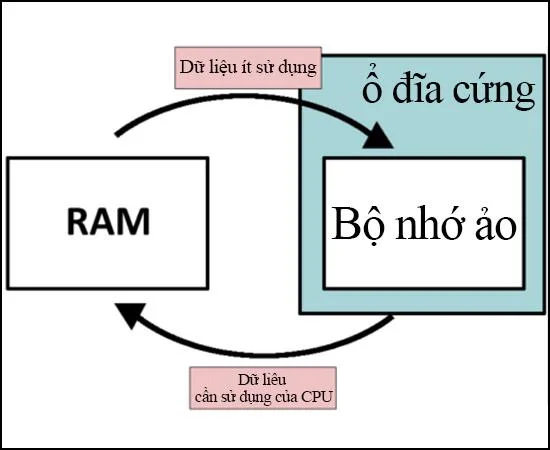
Virtual RAM is a part of the capacity located in the computer's hard drive. It is responsible for simulating physical Ram memory to help the machine run smoother, less lag, jerky when the physical RAM capacity is used up.

Setting virtual RAM on a Windows computer will help the machine work better, and the programs or game software and graphics will also run smoother and more smoothly. However, you should also not overdo this virtual Ram because it can reduce the life of your computer when you have to handle and take on too many functions.
Do You Know: What Is Virtual Ram?  How to Set Virtual RAM On Windows Computer?

What is virtual RAM?

Why Set Virtual RAM On Computer?

As mentioned above, setting virtual Ram on the computer is necessary when the amount of physical Ram has been used up. Setting virtual Ram helps the machine to work better, software and programs with heavy capacity can still run smoothly and smoothly.

With machines with a  RAM capacity of only 4GB or less, setting virtual RAM on a Windows computer is like a savior so you can experience Photoshop, games, and graphic design software without spending any money. any. However, setting virtual Ram is only a temporary measure to help you solve the immediate problem, in the long run you should upgrade the Ram memory to rest assured to use the machine without lag or jerky and can drag. prolong the life of the computer.

When Should You Set Virtual RAM On Your Computer?

The cases where you need to set virtual RAM on your computer is when you want to run an application or software with a heavy capacity but the computer's physical RAM is limited. When opening programs, the software on the computer will easily freeze, lag, or run sluggishly. At this point, you need to create a virtual Ram set to solve the above problem.

When the physical RAM memory expires, the virtual Ram will calculate and automatically take the temporary memory of any application with the longest unused time for temporary use. When you use that application again, Virtual Ram will immediately return the borrowed temporary memory of the application back to Physical Ram. That process repeats continuously until you close the application.

The advantage of this approach is to solve the problem quickly, immediately, without spending money to upgrade the Ram and still be able to use the desired programs. But the downside is that if you use virtual RAM regularly, it will lead to a decrease in the life of the machine. After knowing the concept, reason and when to set virtual Ram, now we start to learn how to set virtual Ram on Windows computer.

How to Set Virtual RAM on a Windows Computer

How to set virtual Ram on a Windows computer is very simple, you can follow these steps:

For windows 10

Step 1: Check the amount of RAM and the number of bits of Windows 10.

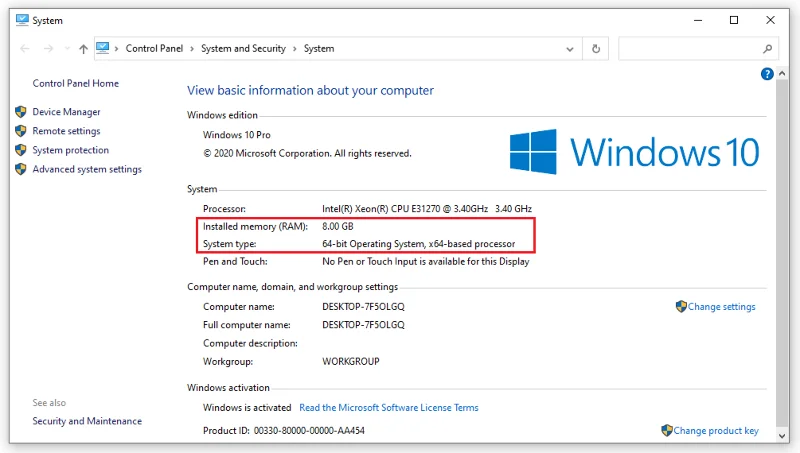
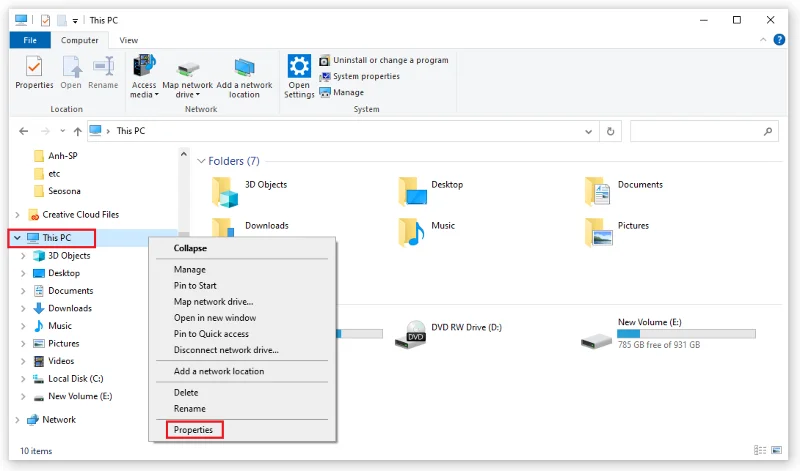
Right-click the This PC icon . Select Properties to open the System window .

Do You Know: What Is Virtual Ram?  How to Set Virtual RAM On Windows Computer?

Then you can see in the System section the following display:

- Installed memory (RAM): the current amount of RAM on your computer/laptop.

- System type: tells you whether the computer is running Windows 10 32-bit or Windows 10 64-bit.

As shown in the picture, my computer is having 16GB of physical RAM and Windows 10 64-bit.

Do You Know: What Is Virtual Ram?  How to Set Virtual RAM On Windows Computer?

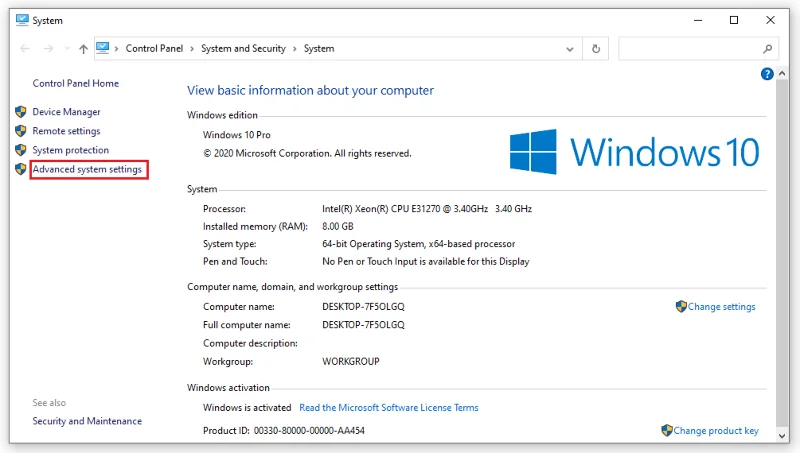
Step 2: After checking the configuration, start setting virtual ram windows 10 by clicking Advanced system settings .

Do You Know: What Is Virtual Ram?  How to Set Virtual RAM On Windows Computer?

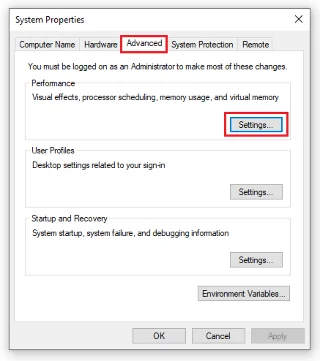
Step 3: The System Properties dialog box opens. Select the Advanced tab , click Settings .

Do You Know: What Is Virtual Ram?  How to Set Virtual RAM On Windows Computer?

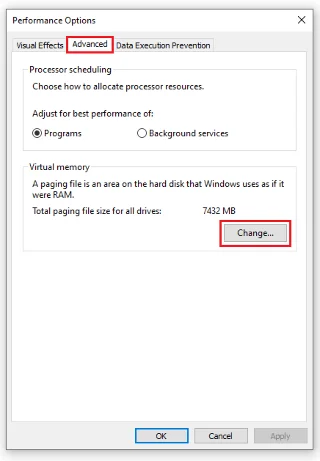
Step 4: The Performance Options dialog box opens. You also select the Advanced tab and then click Change to change the Windows 10 virtual ram settings.

Do You Know: What Is Virtual Ram?  How to Set Virtual RAM On Windows Computer?

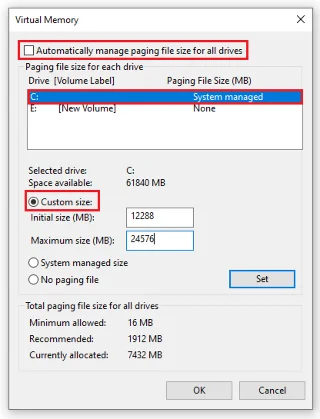
Step 5: Uncheck the box Automatically manage paging file size for all drives to turn off the feature of automatically setting virtual ram in Windows 10. Click on the drive to install Windows and then select Custom size.

Do You Know: What Is Virtual Ram?  How to Set Virtual RAM On Windows Computer?

Step 6: Enter values ​​in the Initial size and Maximum size boxes . There are 2 cases here:

Scenario 1: If you are using Win 10 32-bit + the amount of physical RAM is less than 3GB / or you are using Win 10 64-bit + the amount of physical RAM is less than 4.5GB.

► In the Initial size section, enter a number 1.5 times the amount of physical RAM, in the Maximum size section enter a number 3 times the amount of physical RAM.

For example: The computer has 8GB RAM + Windows 10 64-bit, I will set the virtual ram win 10 64bit as follows:

+ Initial size: 8G = 8192MB x 1.5 = 12288 MB

+ Maximum size: 4GB = 8192MB x 3 = 24576 MB

Case 2: If you are using Win 10 32-bit + physical RAM capacity greater than 3GB / or are using Win 10 64-bit + physical RAM capacity greater than 4.5GB.

► The Initial size and Maximum size entries are equal to half the amount of physical RAM.

Currently my computer is using Windows 10 64-bit + 8GB RAM, so I will have a way to set Windows 10 virtual ram as follows:

+ Initial size = Maximum size : 16GB = 8192MB / 2 = 4096MB.

For windows 7, 8

First, how to set virtual Ram on Windows 7,8 computer :

- On the Desktop, right-click My Computer and select Properties to make the System window appear. Here you can check your computer's current Ram number at Installed memory (RAM) and know if your computer uses 32- bit or 64-bit Windows at System type .

- After the System window displays, select Advanced system settings .

- The System Properties dialog box appears, continue to select the Advanced tab . In the Performance section, select Settings .

- After selecting Settings , the Performance Options dialog box opens, continue to select the Advanced tab , select Virtual memory and finally click Change to change the Ram settings.

- In the Virtual memory window , uncheck the checkbox in the Automatically manage paging file size for all drivers section and check the Custom size box to change memory for Ram.

- After that, you can optionally enter the amount of new Ram memory as you like. But note, the new Ram memory capacity is only up to 3 times the current Ram.

- After completing the memory import, click Set and finally select OK to complete creating virtual Ram for the computer.

Hope the explanation about  what is virtual Ram ? and how to set virtual RAM on a Windows computer  to help your machine run smoother. If you do not know how to do or need to answer questions related to Virtual Ram, please contact  WebTech360  !
Tags: #Wiki

Leave a Comment

What is 3uTools? How to install and use 3uTools in detail

What is 3uTools? How to install and use 3uTools in detail

3uTools supports users to manage utility applications more than the traditional way. Easy-to-use interface, will bring interesting experiences to you.

What is rendering?

What is rendering?

Rendering is the process of creating an image from a model into a movie scene or image using computer software.

What is CPU? What are the popular CPU types today?

What is CPU? What are the popular CPU types today?

The CPU is the data processing center, or simply understood, it is the brain that controls most of the rest of the components in a computer.

What is GPU? How does GPU affect work and play?

What is GPU? How does GPU affect work and play?

The GPU is the processor that handles graphics-related tasks for the CPU's central processor. Features on GPUs go far beyond basic graphics drivers like Intel's GPU

What is a Flyer? 3 Secrets of Best Flyer Design

What is a Flyer? 3 Secrets of Best Flyer Design

Flyer is a form of advertising, a marketing product that has existed for a long time, also known as leaflets, product marketing brochures.

What is ECC RAM? Distinguishing Non-ECC, Registered ECC and Unbuffered ECC RAM

What is ECC RAM? Distinguishing Non-ECC, Registered ECC and Unbuffered ECC RAM

ECC RAM is a type of RAM that has the ability to control the flow of data accessed in it to help automatically correct errors. ECC RAM has very high stability which helps you to reduce risk.

What is Ray Tracing? Learn how Ray Tracing works

What is Ray Tracing? Learn how Ray Tracing works

Ray Tracing is a technique that helps a computer create an image by tracing the path of light through pixels on the same image plane.

What Is Chipset? Its Tasks in the Computer System

What Is Chipset? Its Tasks in the Computer System

Chipset is a collection of chips, chipset refers to the chip on the mainboard or on the expansion card. On PC, commonly known as northbridge and southbridge.

What is Hyperthreading? Without Hyper threading, what will the CPU performance be like?

What is Hyperthreading? Without Hyper threading, what will the CPU performance be like?

Hyper threading is a hyper-threading technology and is known as Intel HT technology by globally famous technology manufacturer Intel.

What is a VRM circuit?

What is a VRM circuit?

The VRM circuit is the voltage regulator in the motherboard. With the presence of VRM, the CPU and GPU will be provided with clean power to operate stably.

What is V-Sync, FreeSync on the monitor? Are they really useful?

What is V-Sync, FreeSync on the monitor? Are they really useful?

On the quality screen, they integrate a technology called V-Sync, FreeSync. Let WebTech360 explain to you about V-Sync, what is FreeSync?

What is Anti-Aliasing? The Role of Anti-Aliasing

What is Anti-Aliasing? The Role of Anti-Aliasing

Anti-aliasing is the main adjustment mode to help objects and people become softer and not angular, the game experience will also be better.

What is Animation? 3 Simplest Ways to Create Animation

What is Animation? 3 Simplest Ways to Create Animation

Animation is an age-old method in which people make motions of images based on still images.

What is Footage Video? The Secret To Owning A Movie-like Footage

What is Footage Video? The Secret To Owning A Movie-like Footage

Footage is unedited raw footage and footage. You can understand that footage is all the components that make up a video, and footage is very diverse.

What is Storyboard? Why Do You Need Storyboards?

What is Storyboard? Why Do You Need Storyboards?

Storyboard is a storyboard, consisting of a series of illustrations and accompanied by notes about what is going on, carrying the content of the story.

How to Fix Microsoft Teams Error 657rx Update Failed

How to Fix Microsoft Teams Error 657rx Update Failed

Struggling with Microsoft Teams Error 657rx Update Failed? Discover step-by-step fixes, from quick restarts to advanced troubleshooting, to get your Teams app updated and running smoothly in minutes. No tech skills required!

Solving Microsoft Teams VDI Error Lag

Solving Microsoft Teams VDI Error Lag

Tired of Microsoft Teams "VDI Error" Lag freezing your video calls? This ultimate guide delivers step-by-step fixes for VDI environments like Citrix and VMware. Optimize performance now for lag-free collaboration!

Solving Microsoft Teams Join Meeting Error via Direct Link

Solving Microsoft Teams Join Meeting Error via Direct Link

Struggling with Microsoft Teams "Join Meeting Error"? Discover proven steps to solve it via direct links. Quick fixes for seamless joining – no tech skills needed!

How to Test Your Microsoft Teams Audio and Camera Before a Call

How to Test Your Microsoft Teams Audio and Camera Before a Call

Discover simple steps to test your Microsoft Teams audio and camera before a call. Ensure crystal-clear sound and video for professional meetings every time with our easy guide. Perfect for desktop, mobile, and web users.

How to Fix Microsoft Teams Error 53003: Access Denied

How to Fix Microsoft Teams Error 53003: Access Denied

Struggling with Microsoft Teams Error 53003 Access Denied? Discover proven, step-by-step fixes to resolve it quickly. Clear cache, update Teams, bypass proxies & more for seamless collaboration. Works on Windows, Mac & web!

Step-by-Step: Uploading Custom Backgrounds to Microsoft Teams

Step-by-Step: Uploading Custom Backgrounds to Microsoft Teams

Master uploading custom backgrounds to Microsoft Teams with this easy step-by-step guide. Personalize your meetings effortlessly on desktop, web, or mobile for a professional edge.

Troubleshooting Microsoft Teams Error on Phone (iOS/Android)

Troubleshooting Microsoft Teams Error on Phone (iOS/Android)

Struggling with Microsoft Teams "Error on Phone" on iOS or Android? Discover step-by-step fixes for calls, permissions, network issues, and more. Get back to seamless teamwork fast!

How to Fix Microsoft Teams OneDrive Error During File Sharing

How to Fix Microsoft Teams OneDrive Error During File Sharing

Tired of Microsoft Teams OneDrive error blocking file sharing? Follow our expert step-by-step guide to fix sync issues, permissions errors, and more quickly. Get back to seamless collaboration today!

Solving Microsoft Teams Error Screen Flickering

Solving Microsoft Teams Error Screen Flickering

Struggling with Microsoft Teams screen flickering? Discover step-by-step solutions to fix this annoying error, from disabling hardware acceleration to driver updates. Get smooth video calls today!

Solving Microsoft Teams Network Error on Public Wi-Fi

Solving Microsoft Teams Network Error on Public Wi-Fi

Struggling with Microsoft Teams "Network Error" on public Wi-Fi? Get instant fixes like VPN tweaks, port checks, and cache clears to restore calls and meetings seamlessly. Step-by-step guide for quick relief.

How to Fix Microsoft Teams Wheres My Team Search Error

How to Fix Microsoft Teams Wheres My Team Search Error

Tired of the frustrating Microsoft Teams "Where\

Microsoft Teams for Students: How to Join Classes in 2026

Microsoft Teams for Students: How to Join Classes in 2026

Unlock seamless learning with Microsoft Teams for Students! Step-by-step guide to joining classes in 2026, troubleshooting tips, and pro hacks for ultimate success. Perfect for students everywhere.

Solving Microsoft Teams License Error 0x80048504

Solving Microsoft Teams License Error 0x80048504

Tired of Microsoft Teams License Error 0x80048504 blocking your meetings? Get instant fixes with proven steps to resolve it permanently. Clear cache, reset licenses, and more – works every time!

How to Fix Microsoft Teams Remove Account Error

How to Fix Microsoft Teams Remove Account Error

Struggling with Microsoft Teams "Remove Account" error? Discover step-by-step fixes to resolve it quickly. Clear cache, reset app, and more for seamless account management in the latest Teams version.

How to Fix Microsoft Edge Not Working with Teams Error

How to Fix Microsoft Edge Not Working with Teams Error

Tired of the frustrating Microsoft Edge "Not Working with Teams" error? Discover step-by-step fixes to get Microsoft Teams running smoothly in Edge. Quick, reliable solutions for seamless collaboration.