How to Update Google Chrome Browser

Learn how to update Google Chrome browser on Windows, Mac, and Android in minutes to enjoy better security, speed, and new features. Follow these clear steps.
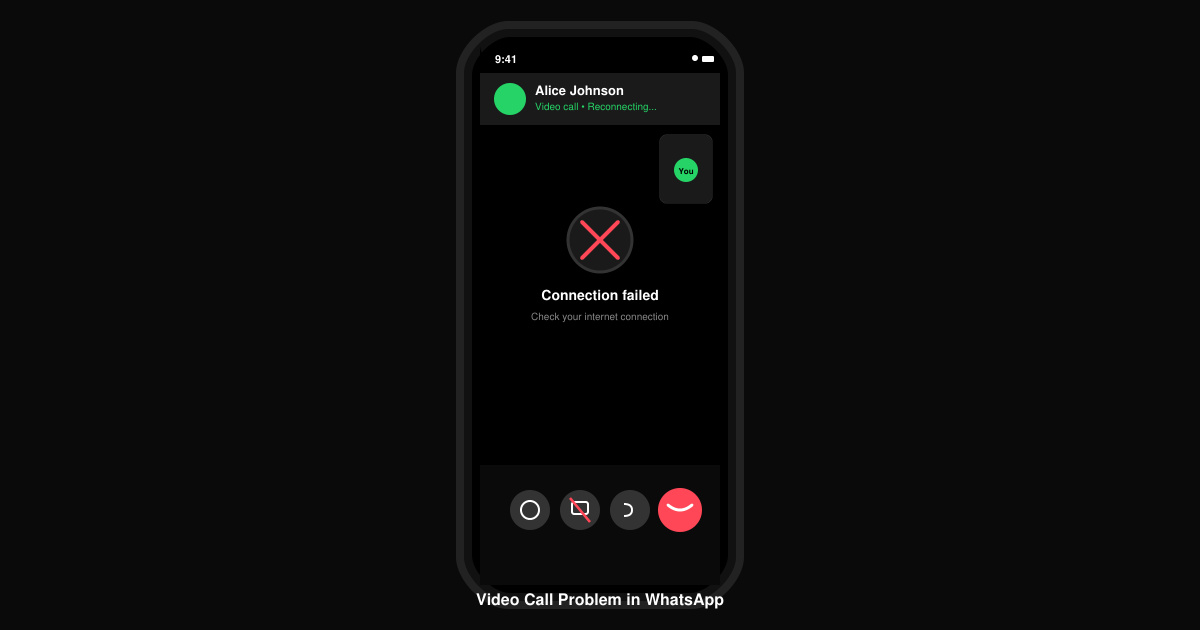
Video Call Problem in WhatsApp often stems from permission settings, outdated app versions, or network instability. This guide delivers precise fixes you can apply right away to restore video calling functionality on both Android and iOS devices.
Most Video Call Problem in WhatsApp cases trace back to missing camera or microphone access, outdated WhatsApp builds, or weak data connections. Before diving into fixes, confirm your phone meets WhatsApp's minimum requirements: Android 5.0+ or iOS 12.0+, plus a stable 4G/5G or Wi-Fi link. Close background apps that might compete for the camera hardware.
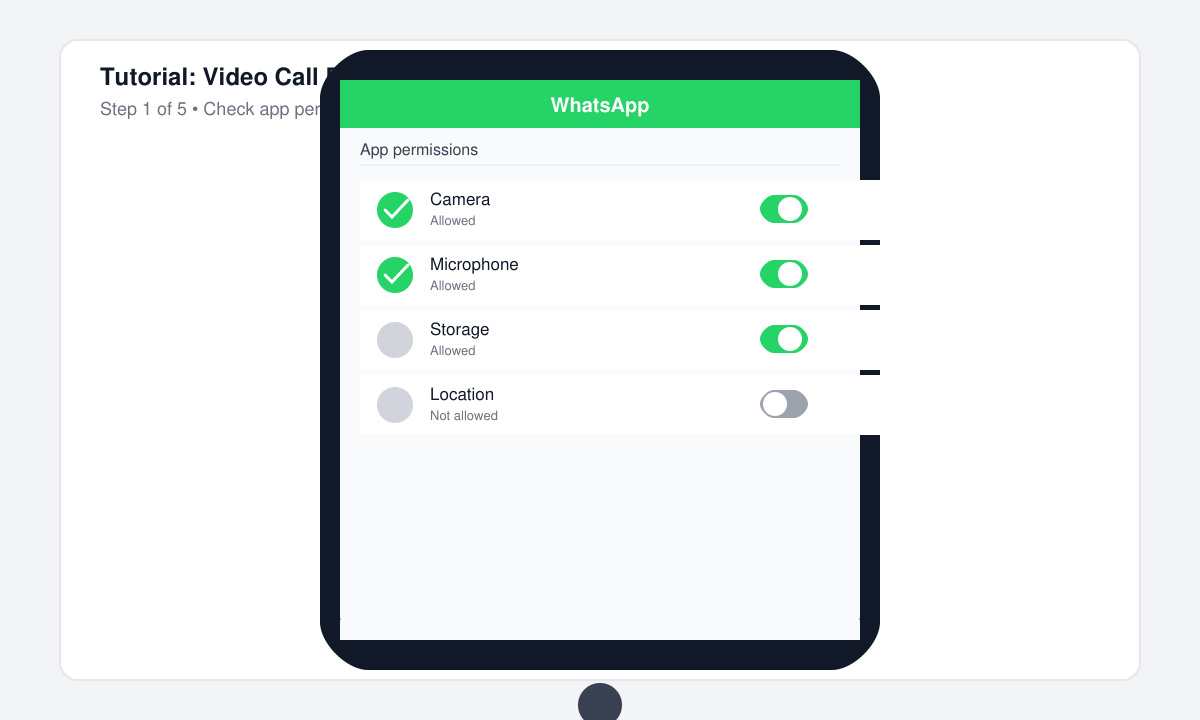
Open your phone Settings, scroll to Apps, select WhatsApp, then tap Permissions. Toggle Camera and Microphone to Allow. On iOS, go to Settings > WhatsApp and enable both toggles. Return to WhatsApp and start a test video call with a contact.
Open Google Play Store or Apple App Store, search for WhatsApp, and tap Update if available. After installation finishes, restart your device, open WhatsApp, and verify the version number in Settings > Help > App info matches the newest release.
On Android, go to Settings > Apps > WhatsApp > Storage > Clear Cache first, then test a call. If the Video Call Problem in WhatsApp persists, tap Clear Data (you will need to re-verify your number). iOS users should offload the app via Settings > General > iPhone Storage > WhatsApp > Offload App, then reinstall.
Turn off Wi-Fi and enable mobile data, or vice versa. If using Wi-Fi, restart your router by unplugging it for 30 seconds. In WhatsApp, go to Settings > Storage and Data and toggle Low Data Usage off during testing.
Back up your chats first via Settings > Chats > Chat backup. Uninstall WhatsApp, restart your phone, then reinstall from the official store. Verify your number and restore the backup before attempting another video call.
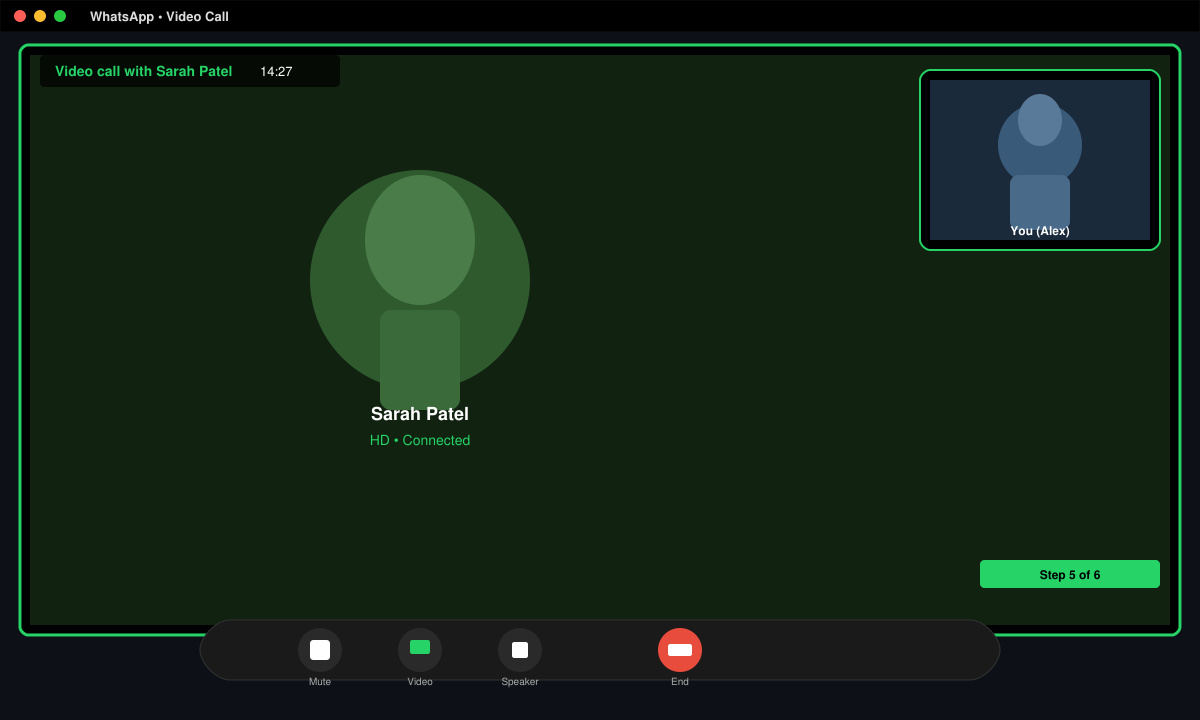
This usually means the camera permission was revoked or another app is using the camera exclusively. Re-grant permissions and force-close other camera apps.
Yes. Switch between Wi-Fi and mobile data or move closer to your router to improve upload speeds above 1 Mbps.
Only if the device runs Android 5.0 or iOS 12.0 and above. Older hardware will show connection errors regardless of fixes.
Following the permission, update, and network steps above resolves the vast majority of Video Call Problem in WhatsApp cases within five minutes.
Learn how to update Google Chrome browser on Windows, Mac, and Android in minutes to enjoy better security, speed, and new features. Follow these clear steps.
Learn how to download old media from WhatsApp and recover photos or videos from past chats. Follow these clear steps to save files that no longer appear in your gallery.
Facebook Messenger Isn T Working on your device? Use these exact troubleshooting steps to restore chats, calls, and notifications fast on Android, iOS, or desktop.
How to See Deleted WhatsApp Messages using your phone's built-in tools. Follow these exact steps to recover messages that contacts have deleted from chats.
Learn how to clear browser history in Chrome on desktop and Android with this exact step-by-step process. Keep your browsing private and free up storage space quickly.
Master how to use CapCut with this practical walkthrough covering project setup, editing tools, effects, and export options for high-quality video results.
Get the latest WhatsApp App Update Download from official sources to access new features and security improvements. Follow these clear steps for Android and iOS devices.
Learn how to safely Download WhatsApp App for Android from the official Google Play Store. Follow our clear step-by-step instructions to install the latest version quickly and securely.
Google Download WhatsApp App safely through the Google Play Store with this clear guide. Get the official version on your Android device quickly and avoid fake downloads.
Facebook and Messenger not working can disrupt your day. Follow these targeted fixes to restore access quickly on mobile and desktop.








