Stop ownCloud File Lock Timeouts with the Right Backend
Distinguish database lock contention from expired WebDAV locks, then choose and configure the right ownCloud 10 fix.
When ownCloud Web opens to a white page, first try the same URL in a private window and a current supported browser. If it still fails, open the browser developer tools and check the Console and Network panels; use the failed request to decide whether to clear browser site data, repair a missing web asset, or inspect Infinite Scale and reverse-proxy services. Avoid deleting server data or reinstalling the instance before this check.
ownCloud Web is the web interface shipped with Infinite Scale, though administrators can replace its compiled assets with a custom build. A blank page can therefore come from the browser, a missing or mismatched JavaScript asset, or a server/proxy response that prevents the interface from loading. The steps below separate those cases. The interface panels are illustrative examples; compare them with the actual browser and deployment output.
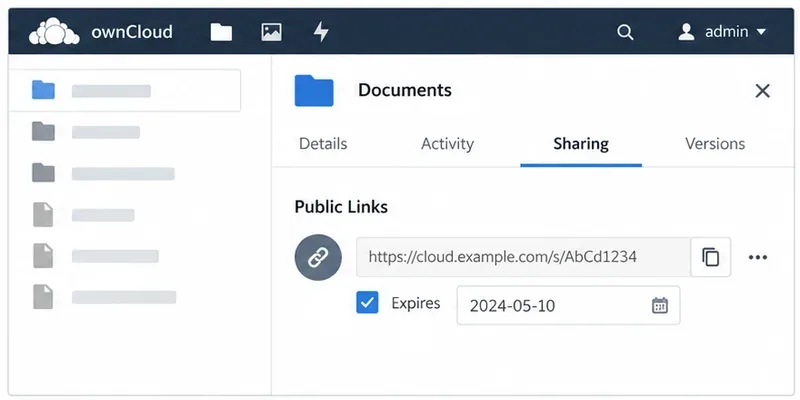
Ask one other user to open the same public URL, and try it yourself in a private window. For example, if one employee sees a blank page while a coworker can browse files, start with browser-specific causes. If everyone sees the same page, move directly to the Network and server checks.
Illustration of the symptom: a browser has reached the cloud host, but the page content area remains blank.
Open developer tools (usually F12 or Ctrl+Shift+I on Windows/Linux, or Option+Command+I on macOS). Select Console to see JavaScript errors, then select Network, reload the page, and look for failed requests. The status code and request type are more useful than the white screen alone.
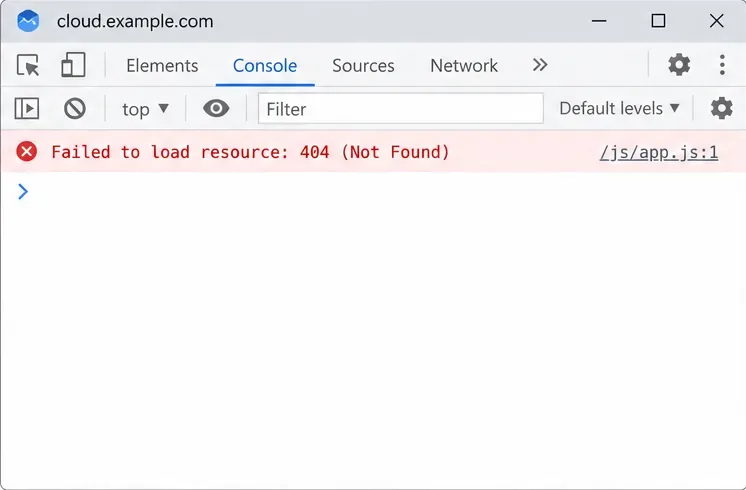
Example diagnostic illustration: a 404 for a JavaScript asset is a clue to check the asset URL and serving path, not proof of a particular cause.
If the failed request is an asset, first establish whether your instance uses the bundled ownCloud Web files or custom compiled files. The ownCloud 8.2 administrator guide says WEB_ASSET_PATH points to custom compiled web client assets. If you set it, check that the path exists inside the running deployment, contains the complete build, and is readable by the process serving the web interface. If you do not use custom assets, do not add this variable as a speculative fix.
For a Docker Compose deployment, run these commands from the directory containing the Compose file:
docker compose ps
docker compose logs --tail=100 ocis
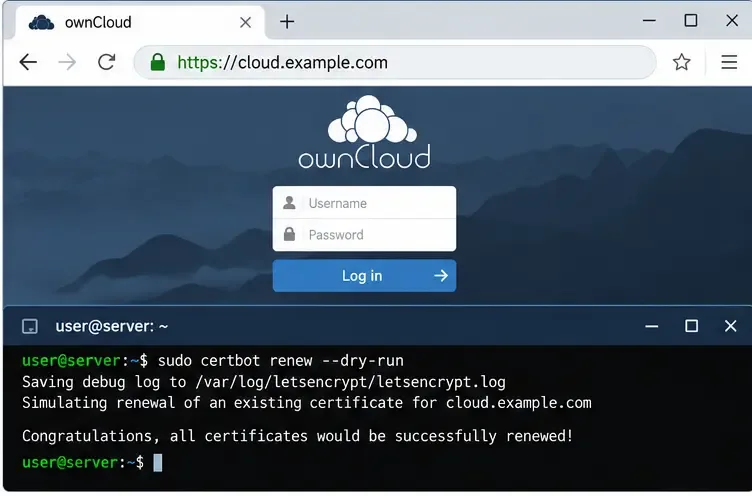
The first command shows whether services are running; the second prints recent logs for the service named ocis. If your Compose file uses a different service name or runs the frontend separately, substitute the actual service name and inspect the proxy/frontend logs too. For a manually installed or orchestrated deployment, use that platform’s service and log commands instead. Look for startup failures, asset-path errors, or upstream connection errors at the time of the failed page load.
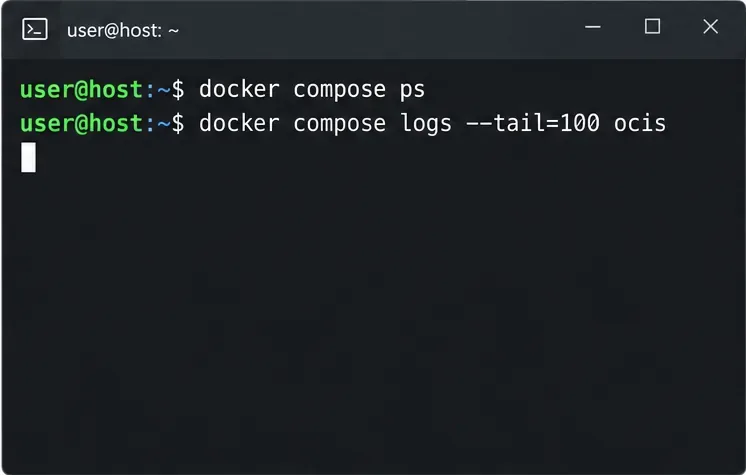
Illustration of the two Compose checks; actual service names and log messages vary by deployment.
If requests point to an old hostname, wrong scheme, or path that the proxy does not serve, check the public URL configuration and proxy rules. ownCloud documents OCIS_URL as the URL used to define how Infinite Scale is accessed. In a deployment using a reverse proxy, make sure the browser-facing HTTPS address, DNS name, and routing rules agree with the configured public URL. If the proxy or domain was changed recently, compare the current configuration with the last working version and correct only the mismatched value.
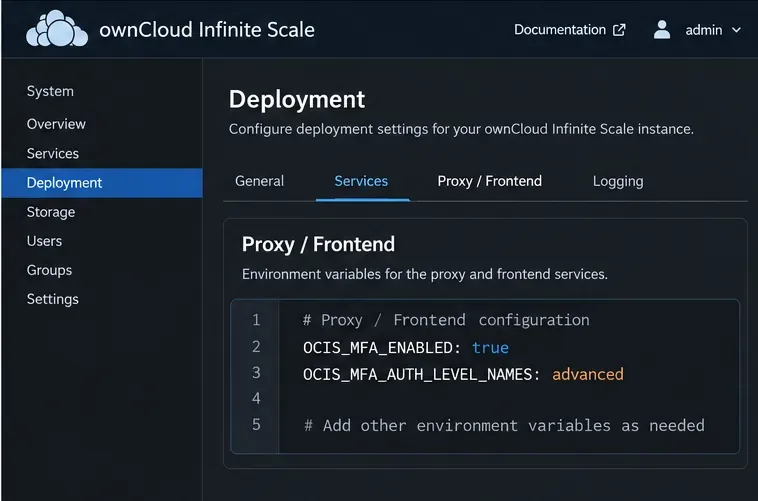
Check WEB_ASSET_PATH only if custom assets are configured. Check OCIS_URL and proxy/TLS settings when the browser is redirected to an unexpected host or requests assets from the wrong origin. These settings differ by deployment, so do not paste a generic example value into production. The official ownCloud Web custom-assets guide, proxy service documentation, and TLS guide describe these configuration areas.
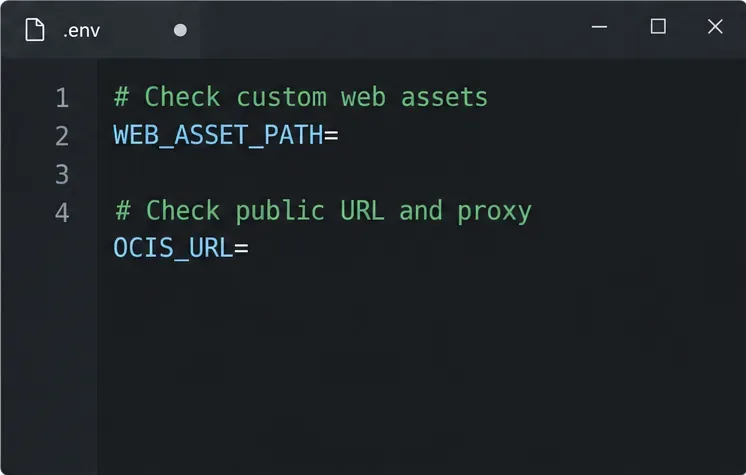
Illustration of the configuration values to inspect; the correct values depend on the public URL and whether custom assets are used.
Reload the site in a normal browser window and confirm the interface renders, the Console has no blocking JavaScript error, and required JavaScript/CSS requests no longer return 404 or 5xx responses. Ask a second user to test the same public address. If the page is still blank while assets load successfully, preserve the first console error, failed-request details, Infinite Scale version, and relevant service logs for your administrator or ownCloud support. Redact cookies, authorization headers, and tokens before sharing browser captures.
Distinguish database lock contention from expired WebDAV locks, then choose and configure the right ownCloud 10 fix.
Trace a blank ownCloud Web screen to browser cache, missing web assets, service errors, or reverse-proxy URL settings with targeted checks.
Set ownCloud’s web PHP memory limit, restart the matching service, and verify the active value without confusing it with CLI settings or upload limits.
Find out whether MySQL, PHP, socket settings, or database permissions are blocking ownCloud 10, then verify a safe fix.
Make public link expiration mandatory in ownCloud Classic, set a maximum lifetime, and check existing shares that may need separate cleanup.
Enable TOTP through Keycloak, enroll users safely, and understand when Infinite Scale’s route-level MFA settings apply.
Check whether the issue is an OC10 and 7.x compatibility break or a damaged CSync journal, then apply the right fix without deleting synced files.
Choose HTTP-01 or DNS-01, configure an ownCloud reverse proxy, and verify Certbot renews HTTPS certificates automatically.
Configure oCIS LDAP sign-in, align user and group lookups, and verify TLS and schema settings before rollout.
Add an Amazon S3 bucket to ownCloud 10, prepare compatible credentials and endpoints, and check access without confusing a mount with primary storage.