Set a Firm Expiration Limit for ownCloud Public Links
Make public link expiration mandatory in ownCloud Classic, set a maximum lifetime, and check existing shares that may need separate cleanup.
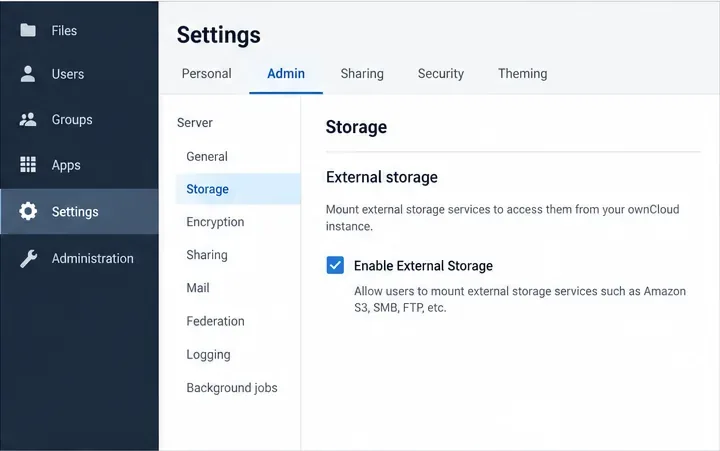
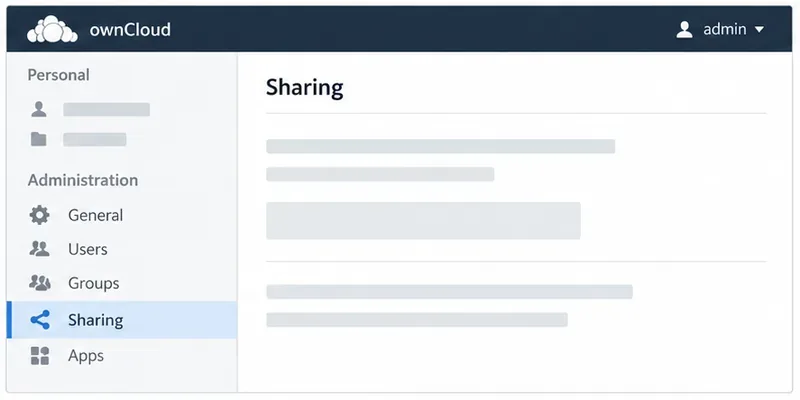
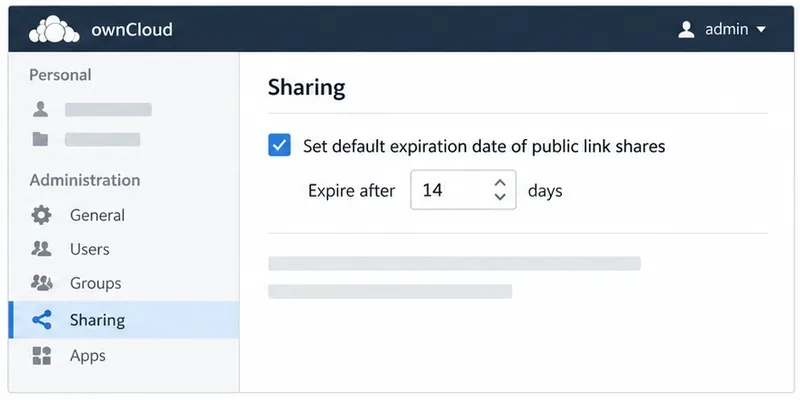
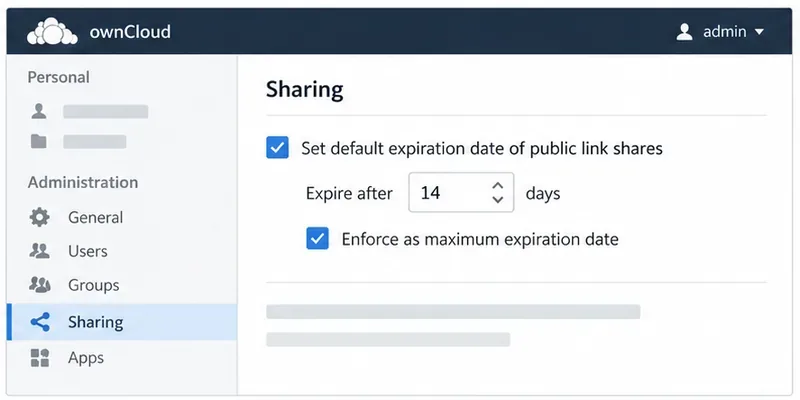
To cap how long users can leave public links active, sign in as an ownCloud administrator and open Settings > Admin > Sharing. Under the public-link settings, enable Set default expiration date of public link shares, enter the number of days, and also enable Enforce as maximum expiration date. The first option supplies the default; the second prevents users from choosing a later date. They can still choose a shorter lifetime.
This procedure applies to ownCloud Server Classic (the 10.x interface documented for Server 10.16). Menu wording and the exact layout can vary by installed version, theme, or additional sharing apps. It does not describe ownCloud Infinite Scale, whose sharing interface and administration are different.
Choose a default only if users should normally get a suggested expiry but may extend or remove it. Choose the default and enforce it as the maximum when public links must not outlive a policy limit. ownCloud’s administrator manual defines the checkbox as limiting the maximum expiration date to the default, while allowing an earlier date.
For example, if the administrator sets 14 days and enables the maximum, a user creating a public link should receive an expiry about 14 days out and must not be able to extend it to 30 days. A user can choose a shorter period for a one-time handoff. If the maximum checkbox is off, the 14-day value acts as a starting value, not an upper bound.
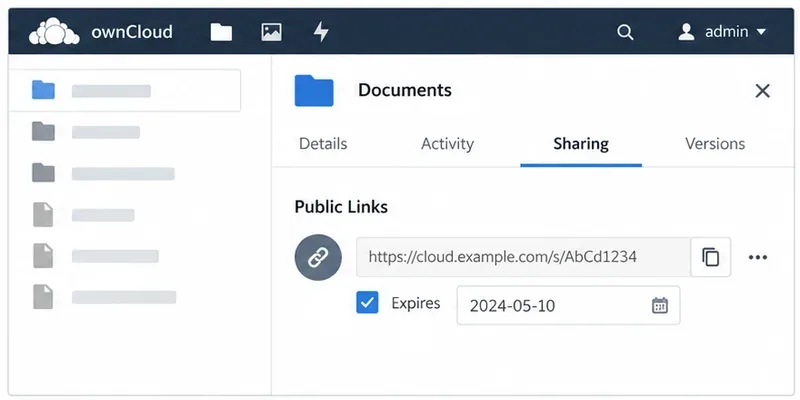
Do not assume this policy shortens every public link that was created earlier. The manual describes a default applied to public link shares and does not clearly state that changing the setting retroactively rewrites existing share records. Audit existing links separately: open the file or folder’s Sharing panel, inspect each entry under Public Links, and set a compliant date or delete a link that should no longer work. ownCloud supports multiple public links for one file or folder, so checking only one link can miss others.
A public link’s expiry is effective at the end of the specified day, according to the server’s time. This means a link does not necessarily stop working at the exact hour it was created plus the selected number of 24-hour periods. Consider the instance time zone when explaining the deadline to recipients.
First confirm that you enabled the maximum option in the public link section, not the neighboring controls for user or group shares. Then return to the admin page and confirm the checkbox persisted. Test with a non-admin account by creating a temporary link to a non-sensitive test file; never use confidential content for a policy test.
Next check whether an installed app adds expiration rules. The optional Share Link Password Policy app, for example, can define different link lifetimes depending on whether a link has a password. Enterprise classification and policy-enforcement features can also apply separate rules. These additions may affect what users see, so inspect the documentation for the exact app version installed and avoid assuming that the built-in checkbox is the only active policy. Do not edit database rows or patch ownCloud code to bypass a policy.
If the result differs, capture the ownCloud Server version and enabled sharing-policy apps before troubleshooting. The labels and behavior can vary with app versions, and a policy rule can be more specific than the global setting.
Make public link expiration mandatory in ownCloud Classic, set a maximum lifetime, and check existing shares that may need separate cleanup.
Enable TOTP through Keycloak, enroll users safely, and understand when Infinite Scale’s route-level MFA settings apply.
Check whether the issue is an OC10 and 7.x compatibility break or a damaged CSync journal, then apply the right fix without deleting synced files.
Choose HTTP-01 or DNS-01, configure an ownCloud reverse proxy, and verify Certbot renews HTTPS certificates automatically.
Configure oCIS LDAP sign-in, align user and group lookups, and verify TLS and schema settings before rollout.
Add an Amazon S3 bucket to ownCloud 10, prepare compatible credentials and endpoints, and check access without confusing a mount with primary storage.
Schedule protected MariaDB dumps for ownCloud Server, handle maintenance mode safely, and verify each backup before relying on it.
Plan an ownCloud 10 to oCIS migration with the supported app, ordered commands, identity checks, and a clear list of data that needs separate handling.
Replace ownCloud Classic 10 logos and tune web UI colors with a theme app, while avoiding upgrade and integrity-check pitfalls.
Assign byte-based storage limits to new ownCloud Infinite Scale users by role, with a proxy.yaml example and a safe verification checklist.