How to Update Google Chrome Browser

Learn how to update Google Chrome browser on Windows, Mac, and Android in minutes to enjoy better security, speed, and new features. Follow these clear steps.
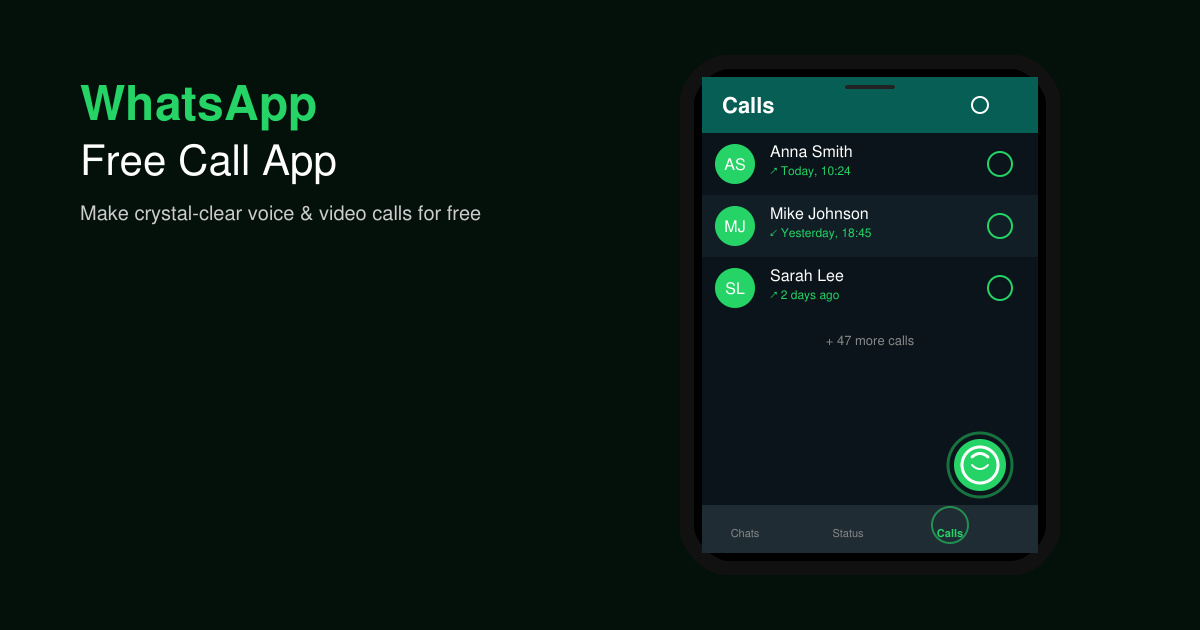
The WhatsApp Free Call App turns your smartphone into a powerful tool for making free voice and video calls over Wi-Fi or mobile data. Users avoid traditional carrier charges by connecting directly through the internet, provided both parties have the app installed. This article explains how to activate and optimize the feature on any supported device.
WhatsApp routes calls through its servers rather than phone networks, which keeps everything free as long as you have an internet connection. The app supports one-on-one voice calls, group voice calls with up to eight participants, and video calls with screen sharing on newer versions. Before starting, confirm that both you and the contact have a stable connection and the latest app version installed from the Google Play Store or Apple App Store.
Permissions for microphone and camera must be granted during the first call attempt. On Android, go to phone Settings > Apps > WhatsApp > Permissions and enable Microphone and Camera. iOS users find the same controls under Settings > WhatsApp.
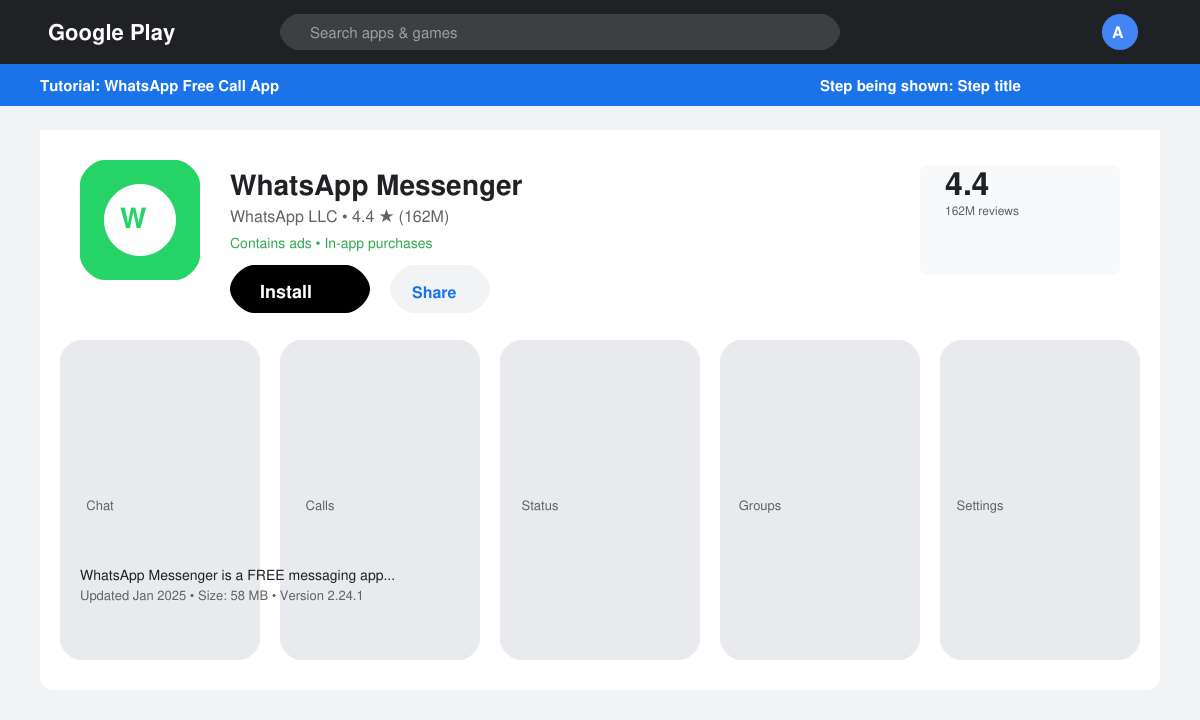
Open the Google Play Store on Android or the App Store on iPhone. Search for WhatsApp Messenger by Meta, then tap Update if a newer version appears or Install if the app is missing. After installation, verify your phone number with the six-digit SMS code.
Open WhatsApp and select an existing chat or create a new one by tapping the new message icon. Tap the phone receiver icon at the top right of the chat window. The call connects once the recipient accepts; a green bar shows call duration and data usage.
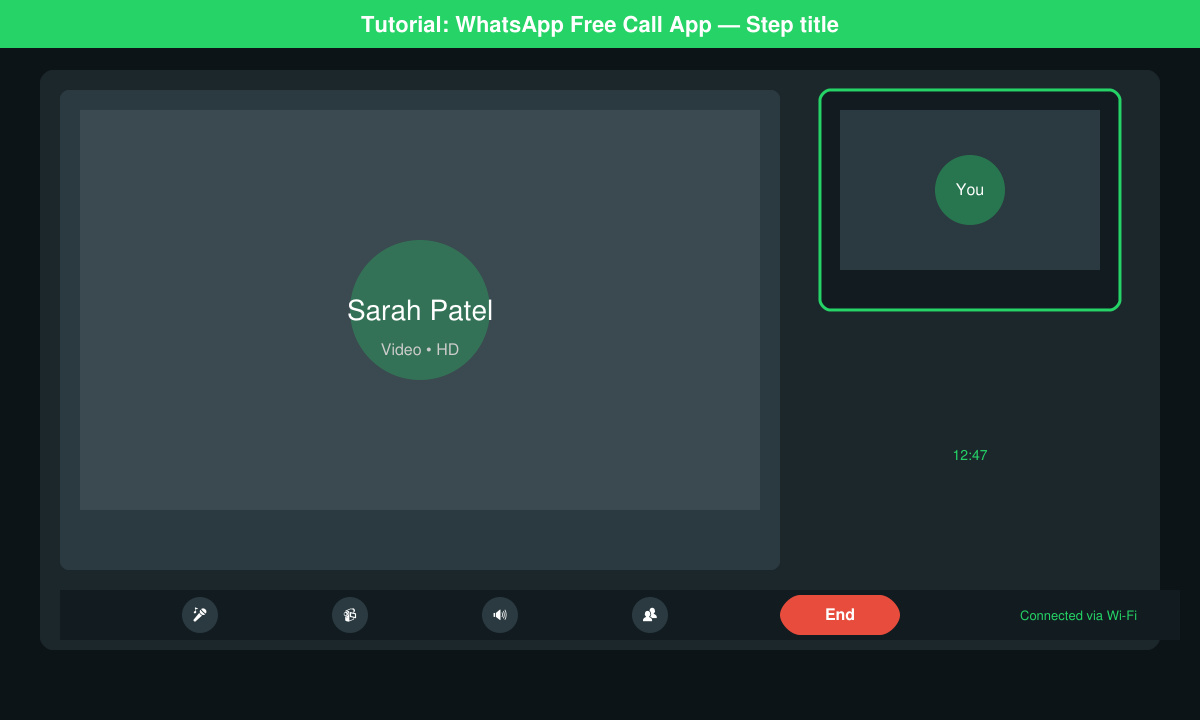
While on a voice call, tap the video camera icon that appears on the call screen. Both participants must have front or rear cameras enabled. The interface switches to split view so you can see each other while continuing the conversation.
From a group chat, tap the phone icon at the top. Select up to seven additional participants from the contact list that appears. Everyone joins the same call session and can mute or switch cameras individually.
No. The feature requires an active Wi-Fi or mobile data connection on both devices at all times.
WhatsApp does not include a built-in recording option. Third-party screen recorders may work but can violate local laws in some regions.
Yes. All voice and video calls use end-to-end encryption, so only the participants can access the content.
Mastering the WhatsApp Free Call App removes the cost barrier from staying in touch across distances while delivering reliable call quality on everyday smartphones.
Learn how to update Google Chrome browser on Windows, Mac, and Android in minutes to enjoy better security, speed, and new features. Follow these clear steps.
Learn how to download old media from WhatsApp and recover photos or videos from past chats. Follow these clear steps to save files that no longer appear in your gallery.
Facebook Messenger Isn T Working on your device? Use these exact troubleshooting steps to restore chats, calls, and notifications fast on Android, iOS, or desktop.
How to See Deleted WhatsApp Messages using your phone's built-in tools. Follow these exact steps to recover messages that contacts have deleted from chats.
Learn how to clear browser history in Chrome on desktop and Android with this exact step-by-step process. Keep your browsing private and free up storage space quickly.
Master how to use CapCut with this practical walkthrough covering project setup, editing tools, effects, and export options for high-quality video results.
Get the latest WhatsApp App Update Download from official sources to access new features and security improvements. Follow these clear steps for Android and iOS devices.
Learn how to safely Download WhatsApp App for Android from the official Google Play Store. Follow our clear step-by-step instructions to install the latest version quickly and securely.
Google Download WhatsApp App safely through the Google Play Store with this clear guide. Get the official version on your Android device quickly and avoid fake downloads.
Facebook and Messenger not working can disrupt your day. Follow these targeted fixes to restore access quickly on mobile and desktop.








