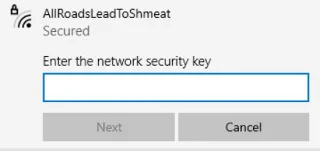
There are few things more frustrating than getting locked out of your internet network. If you haven’t written down the password, you risk losing access to valuable personal and work information. Fortunately, there are several ways to resolve this issue in Windows 11 and ensure you always have access to your Wi-Fi network.


This article will discuss multiple methods for easily recovering your Wi-Fi passes in Windows 11.
How to View Saved Wi-Fi Passwords in Windows 11
There are three methods you can use to view your saved passwords. You can use the Control Panel, PowerShell, Command Prompt, or a script file.
Use the Control Panel
The Control Panel is an excellent program to view your Wi-Fi passwords. The following steps will help you do so:
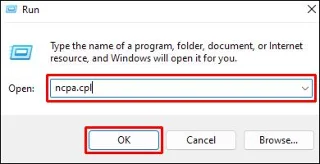
- Hold down “Window + R” to launch the Run dialogue window.

- Type “ncpa.cpl” into the appropriate field and click on “Enter.” Alternatively, press the “OK” button on the lower end of the window.

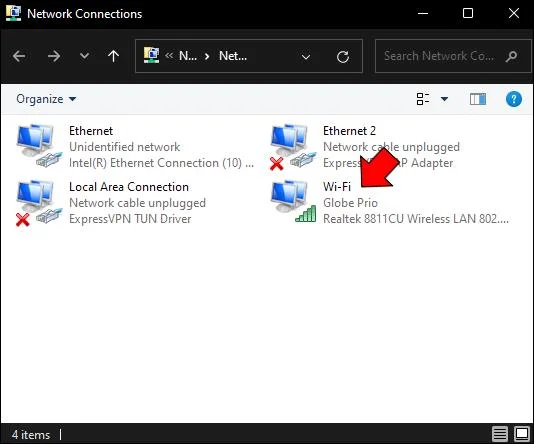
- Hover the cursor over the “Wi-Fi” option and double-click.

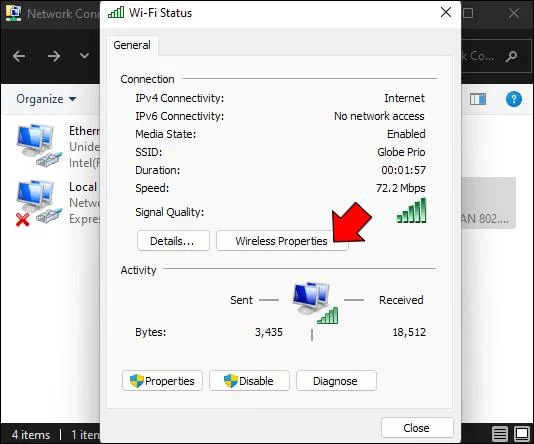
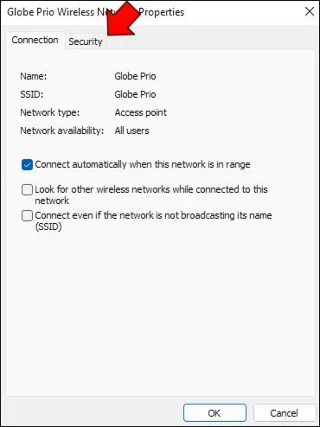
- Select “Wireless Properties.”

- Find and pick the “Security” tab. It’s located beside the “Connection” tab.

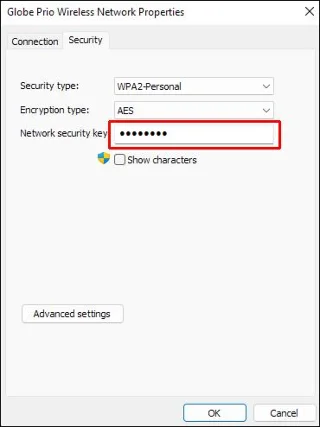
- The window will show that your Wi-Fi code is hidden.

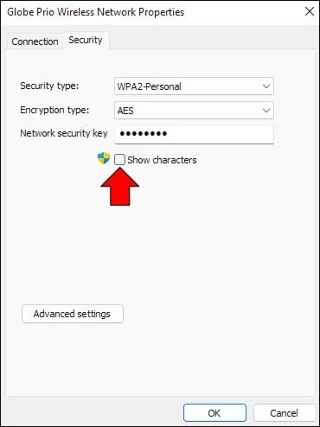
- Select the “Show characters” box beneath the “Network security key” field.

The field should now display your Wi-Fi password. Note that this process will only reveal your current password. To view previous passcodes, you’ll need to use a different method.
Use PowerShell
Another way to uncover your internet passcode is through the PowerShell program. Here’s how to use the program in Windows 11:
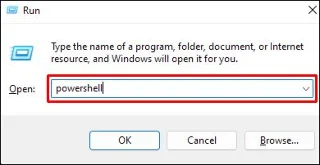
- Tap “Window + R” to open the Run dialog window.

- Type “PowerShell” into the appropriate field and click on the “OK” button.

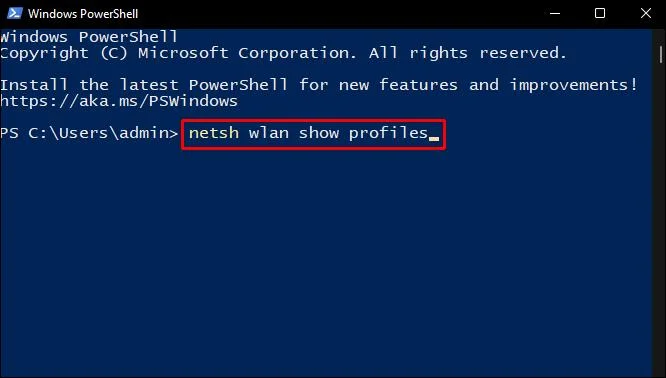
- The PowerShell window will appear. Type “netsh wlan show profiles” into the window and tap “Enter” to execute the command.

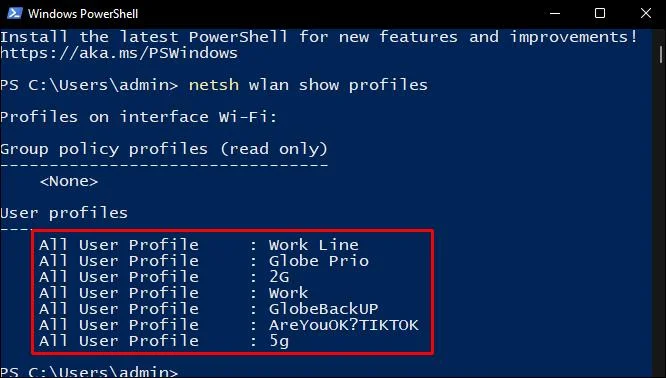
- PowerShell will compile a list of all internet user profiles saved on your computer.

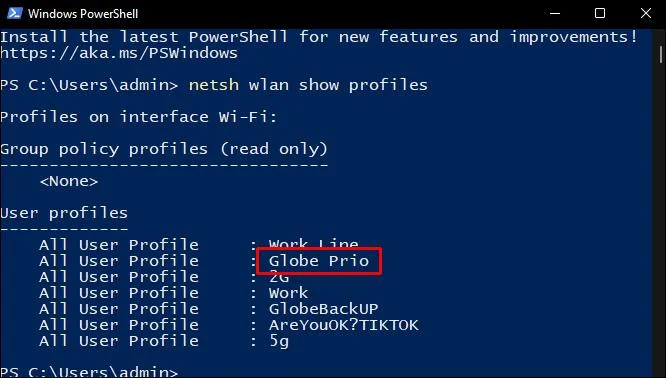
- Scroll down the list and choose the profile for which you want to view the Wi-Fi password.

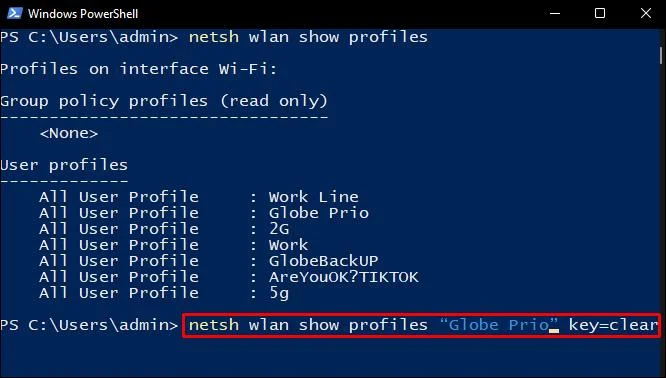
- Type “netsh wlan show profiles “Name” key=clear” into PowerShell. Instead of “Name,” enter the name of the selected user profile. Don’t delete the double quotes.

- Click on “Enter.”

PowerShell will display your password beside the “Key Content” section. You can repeat this process for every user profile on your PC to learn the associated passwords.
Use the Command Prompt
Windows 11 users can also rely on the Command Prompt to retrieve their wireless connection password. To do so:
- Hold down “Window + R” to launch the Run dialog window.

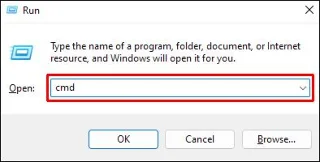
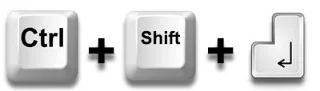
- Type “cmd” in the appropriate field and tap “Ctrl + Shift + Enter.”


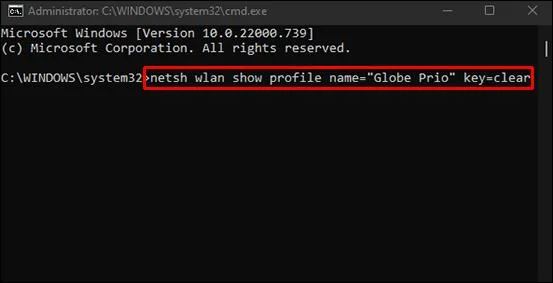
- Type “netsh wlan show profile name=“NAME” key=clear” within the command line window. Instead of “Name,” use your wireless network’s SSID (Service Set Identified).

- Click on “Enter” to execute the command.

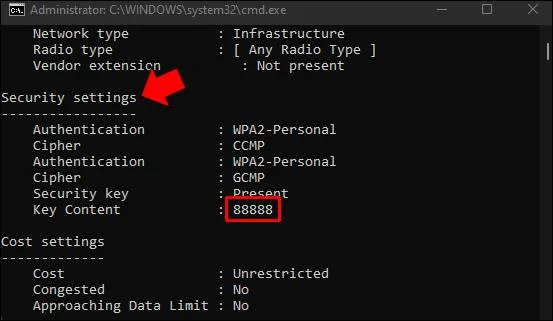
- Navigate to the “Security Settings” section to view the passcode.

The password will appear next to the “Key Content” field.
Use a Script File
Another quick method of uncovering saved Wi-Fi passwords in Widows 11 is using batch script files. Here’s how to do so:
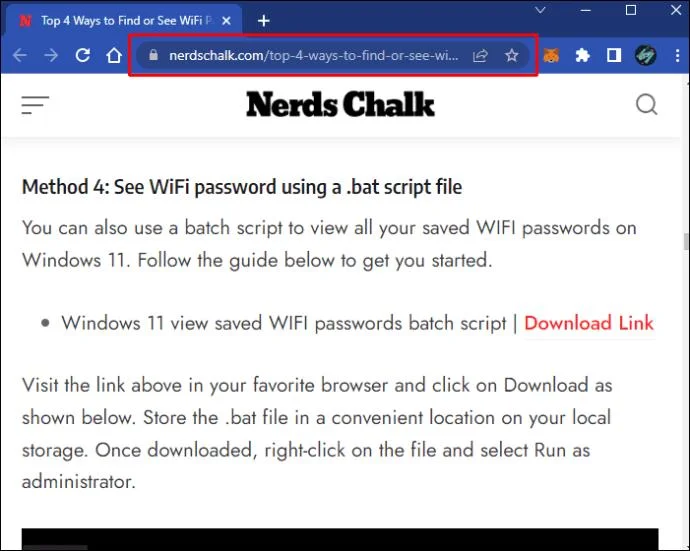
- Go to this page from your preferred web browser to download the “.bat” file.

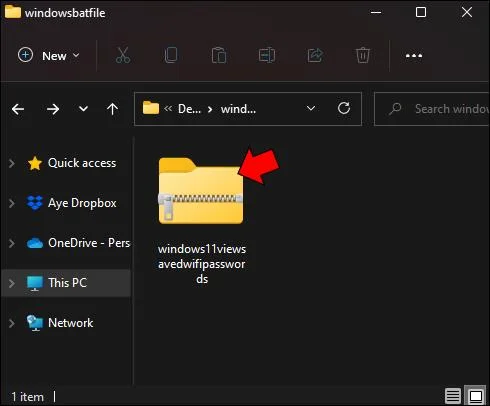
- Once your PC has downloaded the file, head to the appropriate folder in its local storage.

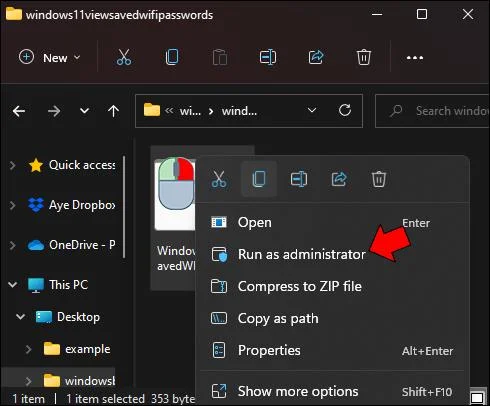
- Double-click on the “.bat” file and click on the “Run as administrator” option.

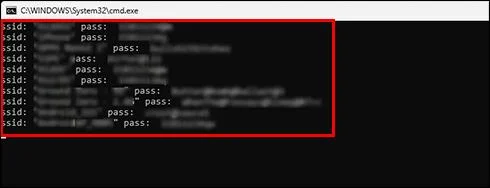
- A new window will compile a list of all saved networks on your PC and the associated passwords.

To make sure you never forget your passwords, screenshot the window and forward it to your mobile device.
Additional FAQs
Can I use third-party software to retrieve saved passwords on my Windows 11 PC?
Although many third-party programs can display wireless connection passcodes stored on your PC, it’s best not to use them. Third-party software usually gathers your personal information and sometimes even shares it with others, compromising your privacy. Also, Windows 11 is a relatively new version of the operating system, so it may be incompatible with programs designed for older versions.
Do I need to change my password regularly?
To enhance online protection, you should change your password every six months. If you share a connection with several other people, consider switching up your passcode every three months.
Never Forget Your Wi-Fi Password in Windows 11
Many People who have several user profiles on their PCs struggle to remember all of their internet passwords. Fortunately, Windows 11 users have four ways of bypassing this problem. You can use the Command Prompt, Control Panel, PowerShell, or a batch file to retrieve your passcodes without difficulty.
Have you tried to retrieve your Wi-Fi password in Windows 11 before? Which of the above methods did you use? Let us know in the comments section below.