In theory, PING here stands for Packet Internet Grouper, a utility used to determine whether a network data packet can be delivered to an address without errors. Ping is an extremely popular cmd command used to measure the latency between two devices on a network, and many online games display ping to let gamers know the current network latency. The ping command is also commonly used to test network errors, check if two devices on a network are connected, or simply communicate with each other.
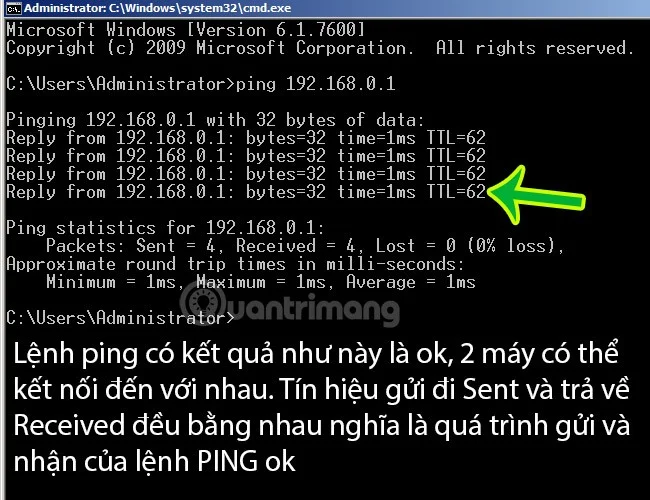
For example: To check if computers A and B can connect to each other, on computer B we type the command: Ping <ip address of computer a"> -t or vice versa, if the result returned has a signal, has a reply time, it means that the two computers can communicate with each other, connect to each other. If the result is Request time out, it means that the connection is blocked somewhere.
Example of ping command between 2 machines, 2 devices are connected, can connect to each other
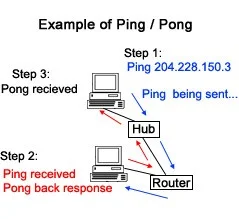
The image below illustrates what happens when a Ping command is sent. First, the user uses the Ping command to Ping the IP address 204.228.150.3, then this request is sent through the hub and router to another computer. When successfully received, the computer responds to the Ping command with a Pong. The time between these two transmissions is calculated to create the average response or latency.
Most versions of Windows and Linux operating systems support this PING command. You can visualize it simply as follows:
Step 1: Computer or device A will send a signal, a packet to the IP address of computer or device B.
Step 2: Does side B receive the signal, packet from side A?
Step 3: The response from B is returned to A and displayed as the result of the PING command (as shown in the example image above).
In the PING command structure, you can replace the IP address with a domain (for example ping google.com), computer name (ping computerA)... all are fine. In default mode (for example ping google.com, without the -t parameter behind), you can see that the PING command will send 4 packets, the time unit here is ms - millisecond, millisecond, the size, packet capacity here is 32 bytes. The time the packet runs and returns - TTL is a certain number, the smaller this number is, the faster the packet transmission speed is. If you use the -t parameter behind (for example ping google.com -t), the ping command will continuously send packets from A to B, only stopping when you close the cmd window or use the shortcut key combination Ctrl + C.
What does the Ping command do?
The ping command is a network utility tool used to test the availability of a host, usually a server or computer, locally or over the Internet.
When you use the ping command, your device periodically sends packets of data to the specified IP address (or domain name) and waits for a response from the server each time. If your device receives a response, the server is considered online. If the server does not respond, the signal is considered lost, indicating that the server has a problem.
In addition to checking whether the server is reachable, the command also tracks the time it takes for a message to be sent from the source computer to the destination server and back to the source along with a response from the destination server. This data can help you analyze the stability of your connection to the server.
Ping command syntax
The basic syntax of the ping command looks like this:
ping
The parameter specifies the hostname or IP address of the target server. It can be entered as "domain.com" or "8.8.8.8". Running the Ping command with this syntax simply pings the specified server 4 times. After that, the test stops and aggregates the results for further analysis.
Ping is more than just a performance measure. Specifically, it is a measure of the latency between your computer and a remote device. Ping tells you the time it takes for a single packet of data (called a packet) to leave your computer, reach a remote server, and then return to you.
Some common uses of the ping command
Here are some common uses of the ping command:
Domain Name Resolution : The ping command can help you resolve a domain name by translating it to its corresponding IP address. To find the IP address associated with a specific domain, type "ping" into Command Prompt or Windows PowerShell and press Enter .
Check your Internet connection : You can use the ping command to see if your device is connected to the Internet or a router. Just find the IP address of the router and ping it. If you get a response every time you ping, then your device is connected to the router.
Check connection stability : The command can help you check the stability of your Internet connection. The connection is considered stable if no packets are lost during the test, and the response time remains short and stable. If some packets are lost, the response time is high and fluctuates a lot, then your connection is unstable.
Have you ever noticed that when you click a link on a website, the new web page doesn't load immediately? This slight delay between clicking and loading the page is called “latency.”
Your computer has to request the new page and send it back to you. It takes a small amount of time for each packet of data to travel between your computer and the remote computer. Ping allows you to measure this delay.
How does ping affect online gaming?
While gaming, Ping is also known as High Ping or Low Ping, which is a measurement of the connection speed to the game server that the player is having. For example, a player with a low Ping rate, 50 ms, will have a better gaming experience than a gamer with a Ping of 250 ms.
Ping is very noticeable in online games. For example, if you are playing a game with a ping of 20ms, you will have very low latency, the actions you take will seem to happen instantly in the game. If you have a higher ping rate like 200ms, the actions you take will be significantly delayed and you will not be able to keep up with other players.
This is why some online multiplayer games show you what your ping is. It helps you understand how good your connection is and what kind of experience you should expect on the server.
Low ping means low latency and faster communication with the server.
Lower ping is always better; it means lower latency, allowing for faster communication between you and the remote server. This applies to everything you do online whether you're gaming or just browsing the web.
Games and software will sometimes refer to ping as latency (the two are the same thing). Games often color-code ping to help you understand the quality of your ping at a glance. Typically, green ping is ideal, yellow is average, and red is poor.
Some game servers only accept users with low Ping to improve server response time. Therefore, gamers when playing online games often have to speed up the network or use software to reduce lag and Ping when playing games .
Things to do before running a Ping test
Before running the test, make sure there are no temporary issues with your connection that might interrupt the test. Follow these steps to rule that out:
Restart your router once to clear the cache.
Disconnect other devices connected to the same Internet connection so your primary device can access the maximum amount of bandwidth.
Close any network-hungry tasks currently running on your primary device.
After completing the above steps, you can run a ping test.
Test Ping on Windows
Follow the steps below to run a ping test using Windows Command Prompt:
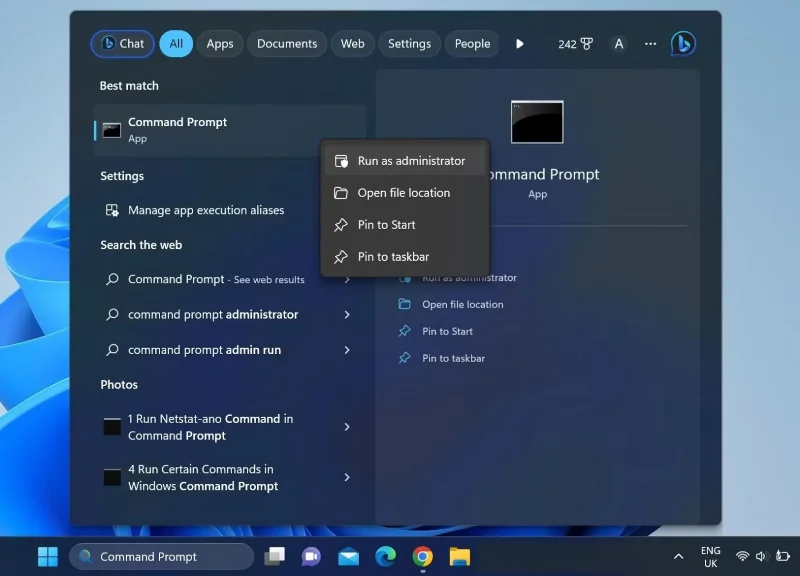
1. Type "Command Prompt" in Windows Search.
2. Right-click on the Command Prompt icon and select Run as administrator .
Run Windows Command Prompt application with admin rights
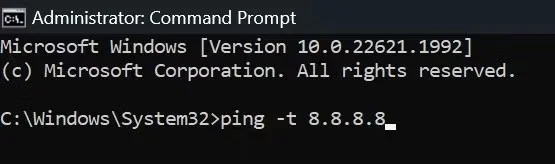
3. Type the following command and press Enter :
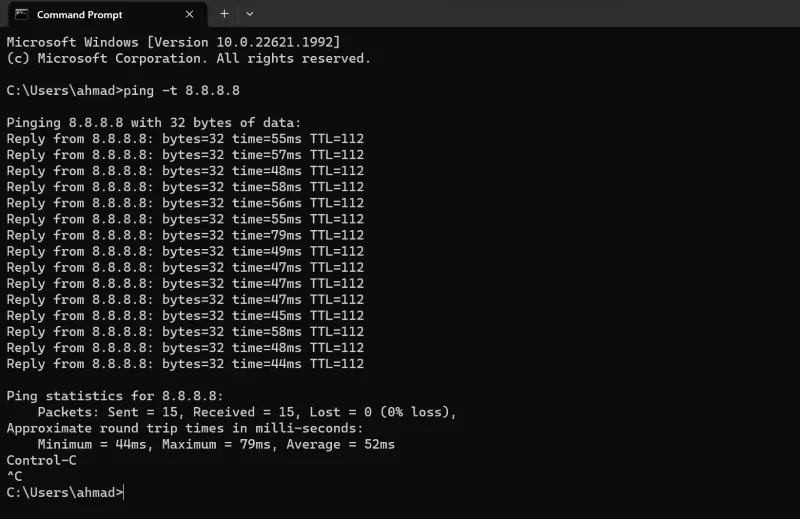
ping -t 8.8.8.8
Run Ping command in Windows Command Prompt
From the moment you press Enter , your device will ping the server every second. Once your device has pinged the server at least 15 times, press CTRL + C to stop the test and let Command Prompt compile the results.
Stop Ping test by pressing CTRL + C keys in Windows Command Prompt
Ping Test Results Interpretation
Look at the number of packets sent and received. If they are equal and no packets appear to be lost, the connection between your device and the host server is extremely smooth.
If some packets are lost, ping a different server, like Cloudflare's, and see if they are lost again. If you experience packet loss in both tests when pinging different servers, then there is something wrong with your Internet connection.
Response time fluctuations can also be a good indicator of the stability of your internet connection. If your ping response time varies a lot, your connection may be unstable and you need to investigate further.
Other ways to check the stability of your Internet connection
While a ping test will tell you how stable your Internet connection is, you can also check its stability in other ways.
1. Check the stability of your Internet connection using online tools
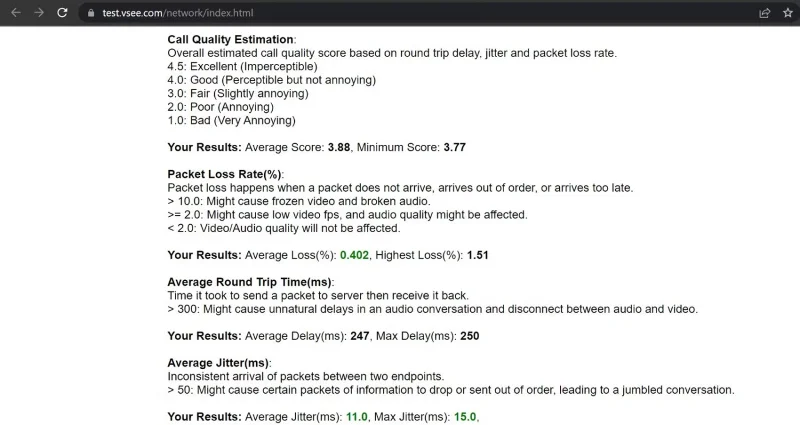
With the help of online tools like VSee, you can run a network stability test and get more in-depth information about your network performance than a ping test. To run an online network stability test, go to the official VSee website and click the Start button . After letting the tool run for a few minutes, click the Stop button .
Analyze network stability test results on VSee online tool
The tool will compile results that you can analyze to determine how stable your Internet connection is.
2. Check the stability of your Internet connection using the desktop application
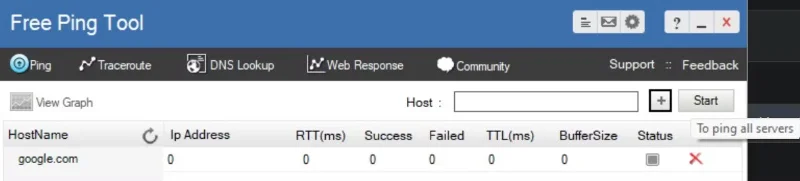
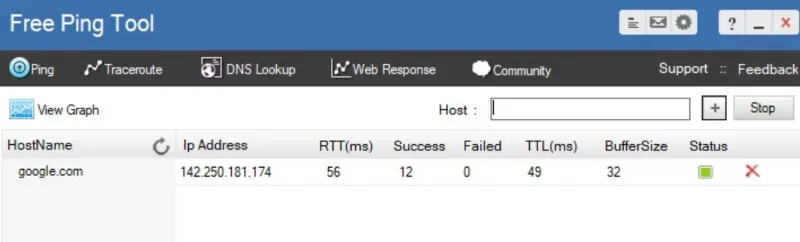
You can also test the stability of your Internet connection using a desktop application, just like you can with online tools. One such option is the Free Ping Tool, which lets you test the stability of your Internet connection just like any other method. The only difference is that you will need to ping the server manually instead of automatically.
Follow these steps to run a stability test using the Free Ping Tool software:
2. Install the tool by following the on-screen instructions.
3. Run the software after installation is complete.
4. Enter your favorite server name, which is online most of the time and click the "+" icon.
Click the + icon after adding the server host name or address in Free Ping Tool
5. Then click the Start button to ping the server and the tool will tell you whether the ping was successful or not, what the ping speed was, etc.
Run a Ping test by clicking the Start button in Free Ping Tool
6. Take note of this detail and ping the server multiple times by pressing Stop and Start quickly in succession.
Analyze the stability of your Internet connection by running multiple tests in Free Ping Tool
How to ping an IP address from a Mac
Similar to Windows 10, Mac uses the Terminal app to handle text commands.
1. Open “Finder” on your Mac.
2. Click “Applications” from the left menu. If you don’t see it, press the “Command” and “A” keys on your keyboard at the same time.
3. Next, double-click on “Utilities”.
4. Finally, launch the “Terminal” application.
5. Once you open Terminal, enter the ping command:
ping 192.168.1.1
6. Press “Enter” on the keyboard.
7. This will start a ping test between your computer and your home router.
8. To end the test, press the “Control” and “C” keys on the keyboard at the same time.
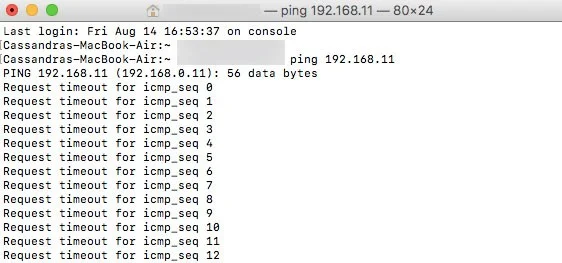
Ping IP address from Mac
Instead of an IP address, you can also enter a domain name, like “instagram.com”, “google.com” , or any other valid domain. If you want to use an external IP address to test your connection, you can use Google ’s IP address , which is 8.8.8.8 .
Once the test is complete, you’ll see the results. These tell you how many packets your computer sent and how long it took to get a response from the server you pinged. Below them, you’ll see ping statistics that tell you how many packets you sent, how many you received, and whether any packets were lost on the way back. A good connection won’t have any packets lost.
How to ping an IP address from a Chromebook
On Chrome OS, you won’t find a dedicated app for testing pings, nor will you find such a service in any menu. However, you should know that Chromebooks come with a built-in ping service. Just follow the steps below to initialize it:
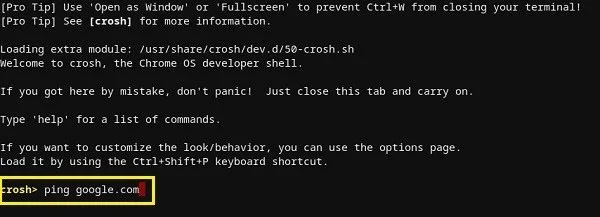
Step 1 : Press the Ctrl, Alt , and T keys on your keyboard at the same time. This will open Command Prompt .
Step 2 : Type ping google.com or ping 8.8.8.8 to check your connection to Google.
Type ping google.com or ping 8.8.8.8
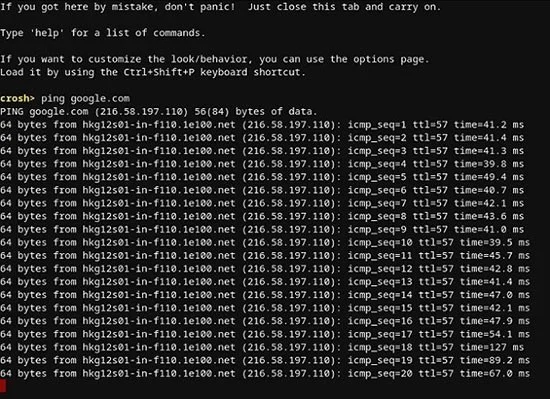
Step 3 : Press Enter on your keyboard. Your Chromebook will now begin a series of connection tests.
The Chromebook will now begin a series of connection tests.
Just like with Windows 10 and Mac, you’ll get a result that shows you whether your connection is working properly. If you have any packets lost, try checking again. If you’re still missing packets, there may be a problem with your connection. In that case, it’s best to call your ISP’s customer service. If you’re on a business network, you should contact your network or system administrator.
How to ping an IP address from iPhone
Unfortunately, iOS doesn’t have a built-in app that allows you to perform a ping test. Instead, you’ll have to install a dedicated app to test network connectivity. Some of the most popular apps are Ping – network utility , Pingify , and Network Ping Lite .
Of course, if you are having trouble with your WiFi connection , it is best to disconnect and use your mobile data network to install one of the apps. This also applies to problems with your mobile connection. In that case, you should find a working WiFi network to access the App Store.
How to ping an IP address from an Android device
Like iOS, the Android operating system doesn’t come with a way to ping routers or other servers by default. Luckily, there are plenty of apps available on the Google Play Store that allow you to do this. Some apps you can use include Ping , Ping & Net , and PingTools Network Utilities .
While Ping and Ping & Net offer basic ping options, PingTools Network Utilities is a much more advanced app. It comes with a number of useful network diagnostic tools that can provide detailed information about the connection you’re using. You can also check network usage for each app on your phone, scan network ports, check domain ownership, and more.
How to ping an IP address from an online web service
If you don’t want to use an app to test your ping, there are several websites that will allow you to do this. Note that these services only allow you to ping public servers and you won’t be able to ping your home router. Some online services you can try include:
Performing network-intensive tasks, such as online gaming, requires a stable Internet connection. Running a ping test is a great way to check the stability of your Internet connection. If your Internet is unstable, check for potential problems and take necessary actions to prevent the situation from getting worse.
If your Internet is stable, look for other factors that are limiting your ability to take advantage of your fast Internet connection.