7 Smart Ways to Use Your Monitor Without a Computer

When you think of a monitor, you probably picture it connected to a PC or laptop. However, that monitor can actually work with a variety of other devices, including smartphones, game consoles, streaming sticks , and media players—you just have to know where to start.

7. Project phone screen

7 Smart Ways to Use Your Monitor Without a Computer
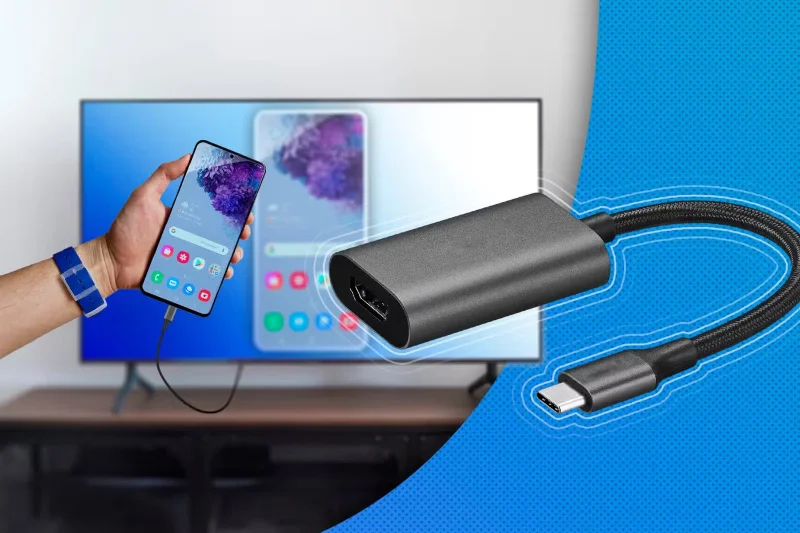
Phone connected to TV via USB-C to HDMI adapter

Smartphones are no different than computers. Just like connecting a PC or laptop to a monitor, you can do the same with an Android device or iPhone.

For most phones, all you need is a USB-C to HDMI adapter. Once plugged in, your phone’s screen will appear on the screen almost instantly. If you have an older iPhone, you can achieve a similar effect using Apple’s Lightning Digital AV adapter. This adapter plugs into your iPhone’s charging port and provides HDMI output to a display.

6. Samsung DeX

7 Smart Ways to Use Your Monitor Without a Computer
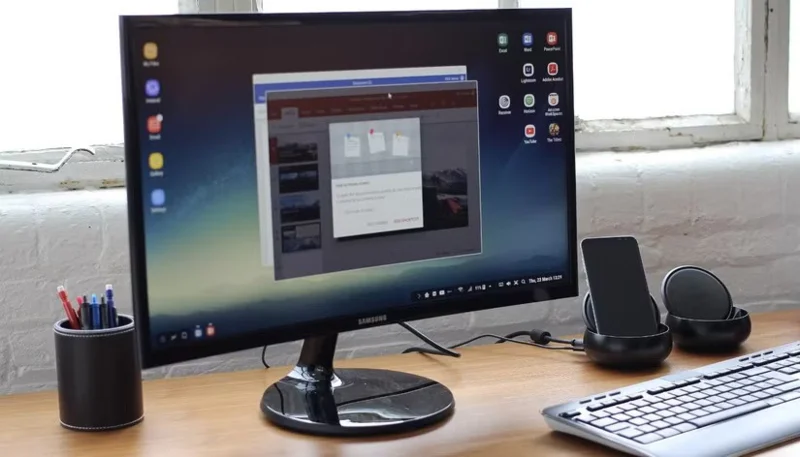
Samsung monitor placed on desk with keyboard and sound system

If you have a Samsung Galaxy phone or tablet that supports DeX, you don’t have to just mirror your screen. Samsung DeX lets you connect your device to a monitor and switch to a desktop-style interface. You get a taskbar, app shortcuts, support for dragging and dropping files, and the ability to run multiple apps in resizable windows.

The easiest way to use Samsung DeX is to use a USB-C to HDMI cable. Plug your phone into a monitor and you'll see a notification asking you to launch Samsung DeX. Tap that or enable DeX manually from the Quick Settings menu, and you're good to go. If you're using a Samsung Smart Monitor, you can skip the cable altogether and go wireless.

5. Use as live camera screen

7 Smart Ways to Use Your Monitor Without a Computer
Canon DSLR camera used as webcam

If you’re into photography or content creation, you can also use your monitor as a live camera monitor. Your camera may have a built-in monitor, but you may not always have access to it when filming. This is especially true when you’re filming alone.

Most cameras support HDMI output, allowing you to connect directly to a monitor using an HDMI cable . In most cases, you’ll need a micro or mini HDMI to HDMI adapter cable, depending on your camera’s port. Once connected, your monitor will display a real-time video feed.

4. Streaming stick

7 Smart Ways to Use Your Monitor Without a Computer
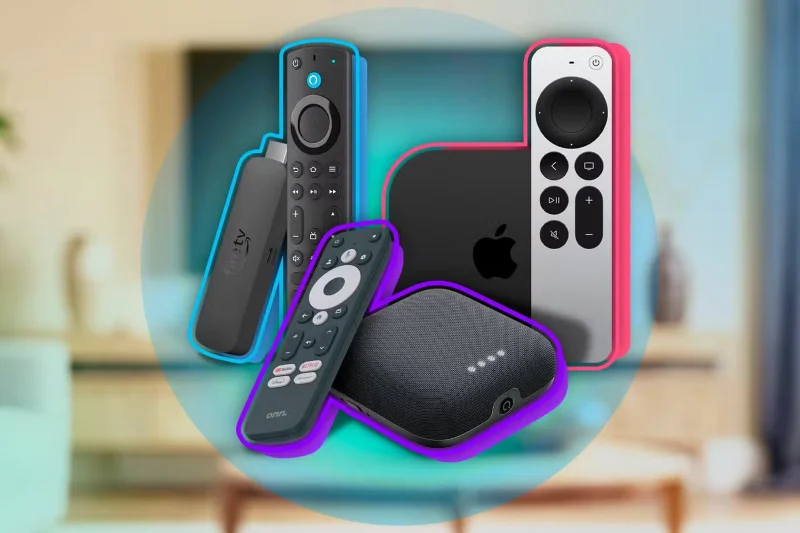
Some streaming devices

Even if you have a high-end 4K display , it won't be able to stream Netflix , YouTube , or Disney+ out of the box. That's because most displays don't have apps, tuner, or Wi-Fi built in like a Smart TV . The easiest way to get around this is to use a streaming stick.

Devices like the Amazon Fire Stick, Roku, or Apple TV are small, affordable, and incredibly easy to use. You simply plug the device into your display’s HDMI port , connect it to power (usually via USB), and connect to Wi-Fi. Instantly, your old display turns into a smart entertainment hub.

3. Game console

7 Smart Ways to Use Your Monitor Without a Computer
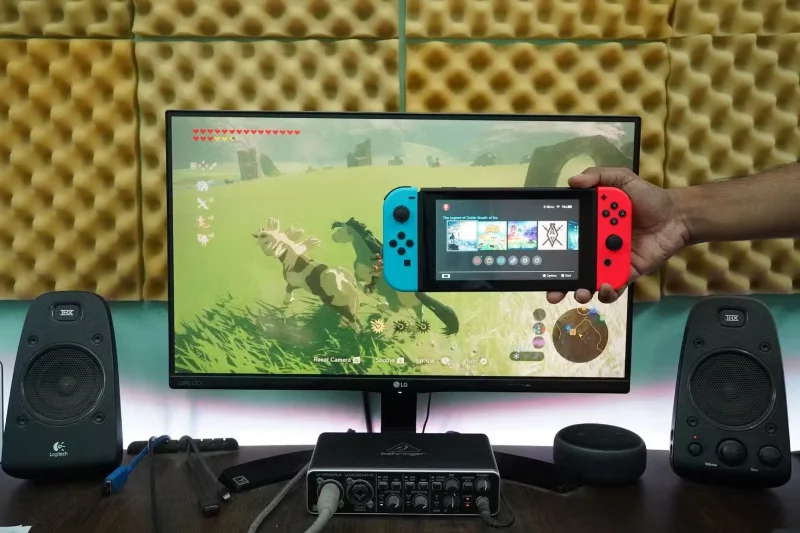
Nintendo Switch

You don't necessarily need to buy a streaming device if you already have a console like the PlayStation 5 , Xbox Series X , or even the Nintendo Switch . Sure, these devices are designed for gaming first, but they also work great as media centers.

You can stream your favorite shows and movies from Netflix, YouTube, Disney+, and other apps directly from your console. Some even offer web browsing, though the experience can be a bit clunky. If you're using a PS5, using the optional Media Remote will make it feel more like you're using a Smart TV.

Tip : If you have a portable monitor, the possibilities are even more exciting. You can place the console almost anywhere—a hotel room, a kitchen counter, or even your backyard if you want.

2. DVD or Blu-ray player

7 Smart Ways to Use Your Monitor Without a Computer
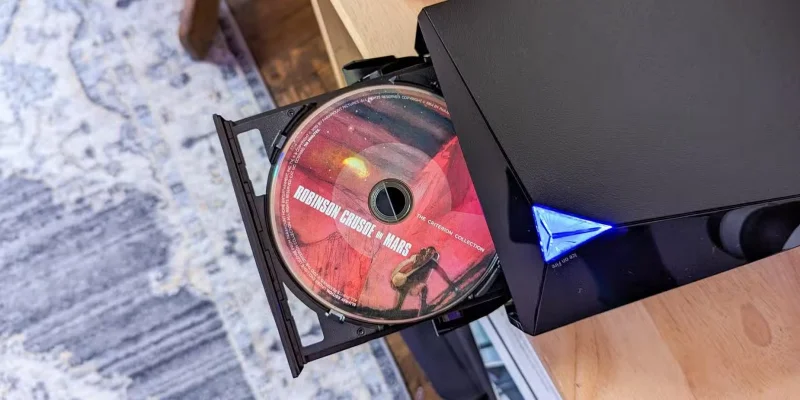
Asus DVD Player with DVD Disc

DVD or Blu-ray players aren't as common as they used to be, but if you have one, you can pair it with your monitor to create a mini home theater. Most players have HDMI outputs, so you just need an HDMI cable to connect the two.

If your monitor doesn't have built-in speakers (many don't), you should connect external speakers to your player's audio output port for the best audio experience.

1. Connect security camera or DVR system

If your monitor isn't up to the task of high-end gaming or binge-watching movies, it can still be part of a home security system. You can connect it to a security camera or DVR (Digital Video Recorder) system and turn it into a dedicated surveillance monitor. Most DVR systems have HDMI or VGA outputs, so you won't have to deal with any complicated setup.

This is especially useful for monitoring entrances, garages, or any area where you want a constant video feed without relying on a mobile app or cloud service . It’s also much more convenient than pulling out your phone and waiting for an app to load. With a direct connection to your security system, your monitor provides instant, always-on visibility.
Tags: #System
Sign up and earn $1000 a day ⋙

Leave a Comment

Fix Windows Error Code 0xc0000098: Backup ACPI.sys to Prevent Boot Failure

Fix Windows Error Code 0xc0000098: Backup ACPI.sys to Prevent Boot Failure

Error code 0xc0000098 in Windows causes a blue screen error on startup. The ACPI.sys driver is often to blame, especially on unsupported versions of Windows 11 like 23H2 or 22H2 or Windows 10.

Quickly fix Windows 10/8/7 computer error that freezes and cannot exit Safe Mode

Quickly fix Windows 10/8/7 computer error that freezes and cannot exit Safe Mode

In some cases, sometimes you start your computer in Safe Mode and the computer freezes. So how to fix the error in this case, please refer to the article below of WebTech360.

How to fix Snipping Tool keeps showing error

How to fix Snipping Tool keeps showing error

Snipping Tool is a powerful photo and video capture tool on Windows. However, this tool sometimes has some errors, such as constantly displaying on the screen.

How to get the fastest internet connection from your router

How to get the fastest internet connection from your router

Every network has a router to access the Internet, but not everyone knows how to make the router work better. In this article, we will introduce some router tips to help speed up the wireless connection in the network.

Common Mistakes When Performing Internet Speed ​​Tests

Common Mistakes When Performing Internet Speed ​​Tests

If the results seem slower than expected, don't be too quick to blame your ISP - mistakes when performing the test can skew your numbers.

What is QoS? How to use QoS for faster Internet speeds when you need it most

What is QoS? How to use QoS for faster Internet speeds when you need it most

In the article below, we will introduce and guide you to learn about the concept of QoS - Quality of Service on router devices.

Why cant this built-in Credential Manager feature in Windows replace a password manager?

Why cant this built-in Credential Manager feature in Windows replace a password manager?

Windows has a built-in Credential Manager, but it's not what you think it is—and certainly not a replacement for a password manager.

How to install free HEVC codecs on Windows 10 (for H.265 video)

How to install free HEVC codecs on Windows 10 (for H.265 video)

Microsoft charges for its official codecs and doesn't include them in Windows 10. However, you can get them for free without pulling out your credit card and spending $0.99.

Instructions to fix Access Denied error when accessing files or folders on Windows

Instructions to fix Access Denied error when accessing files or folders on Windows

While having trouble accessing files and folders can be frustrating, don't panic—with a few simple tweaks, you can regain access to your system.

How to check if USB Boot has been created successfully?

How to check if USB Boot has been created successfully?

After creating a USB boot to install Windows, users should check the USB boot's performance to see if it was created successfully or not.

4 Types of Windows Data That Are Growing in Size: How to Control Them?

4 Types of Windows Data That Are Growing in Size: How to Control Them?

Although Windows Storage Sense efficiently deletes temporary files, some types of data are permanent and continue to accumulate.

How to turn off background apps in Windows 11, reduce RAM consumption on Win 11

How to turn off background apps in Windows 11, reduce RAM consumption on Win 11

You can turn off Windows 11 background apps to optimize performance, save battery and reduce RAM consumption.

Instructions to fix the error “Network path was not found” in Windows

Instructions to fix the error “Network path was not found” in Windows

When a computer, mobile device, or printer tries to connect to a Microsoft Windows computer over a network, for example, the error message network path was not found — Error 0x80070035 may appear.

How to block Internet connection of Windows 10 software and applications

How to block Internet connection of Windows 10 software and applications

We can block Internet access for any application or software on the computer, while other programs can still access the network. The following article will guide readers on how to disable Internet access for software and applications on Windows.

How to Stay Safe on Windows 10 Until 2030

How to Stay Safe on Windows 10 Until 2030

Instead of paying $30 for a year of security updates, keep Windows 10 safe until 2030 with this simple solution.

Fix Windows Error Code 0xc0000098: Backup ACPI.sys to Prevent Boot Failure

Fix Windows Error Code 0xc0000098: Backup ACPI.sys to Prevent Boot Failure

Error code 0xc0000098 in Windows causes a blue screen error on startup. The ACPI.sys driver is often to blame, especially on unsupported versions of Windows 11 like 23H2 or 22H2 or Windows 10.

Quickly fix Windows 10/8/7 computer error that freezes and cannot exit Safe Mode

Quickly fix Windows 10/8/7 computer error that freezes and cannot exit Safe Mode

In some cases, sometimes you start your computer in Safe Mode and the computer freezes. So how to fix the error in this case, please refer to the article below of WebTech360.

How to fix Snipping Tool keeps showing error

How to fix Snipping Tool keeps showing error

Snipping Tool is a powerful photo and video capture tool on Windows. However, this tool sometimes has some errors, such as constantly displaying on the screen.

How to get the fastest internet connection from your router

How to get the fastest internet connection from your router

Every network has a router to access the Internet, but not everyone knows how to make the router work better. In this article, we will introduce some router tips to help speed up the wireless connection in the network.

Common Mistakes When Performing Internet Speed ​​Tests

Common Mistakes When Performing Internet Speed ​​Tests

If the results seem slower than expected, don't be too quick to blame your ISP - mistakes when performing the test can skew your numbers.

What is QoS? How to use QoS for faster Internet speeds when you need it most

What is QoS? How to use QoS for faster Internet speeds when you need it most

In the article below, we will introduce and guide you to learn about the concept of QoS - Quality of Service on router devices.

Why cant this built-in Credential Manager feature in Windows replace a password manager?

Why cant this built-in Credential Manager feature in Windows replace a password manager?

Windows has a built-in Credential Manager, but it's not what you think it is—and certainly not a replacement for a password manager.

How to install free HEVC codecs on Windows 10 (for H.265 video)

How to install free HEVC codecs on Windows 10 (for H.265 video)

Microsoft charges for its official codecs and doesn't include them in Windows 10. However, you can get them for free without pulling out your credit card and spending $0.99.

Instructions to fix Access Denied error when accessing files or folders on Windows

Instructions to fix Access Denied error when accessing files or folders on Windows

While having trouble accessing files and folders can be frustrating, don't panic—with a few simple tweaks, you can regain access to your system.

How to check if USB Boot has been created successfully?

How to check if USB Boot has been created successfully?

After creating a USB boot to install Windows, users should check the USB boot's performance to see if it was created successfully or not.

4 Types of Windows Data That Are Growing in Size: How to Control Them?

4 Types of Windows Data That Are Growing in Size: How to Control Them?

Although Windows Storage Sense efficiently deletes temporary files, some types of data are permanent and continue to accumulate.

How to turn off background apps in Windows 11, reduce RAM consumption on Win 11

How to turn off background apps in Windows 11, reduce RAM consumption on Win 11

You can turn off Windows 11 background apps to optimize performance, save battery and reduce RAM consumption.

Instructions to fix the error “Network path was not found” in Windows

Instructions to fix the error “Network path was not found” in Windows

When a computer, mobile device, or printer tries to connect to a Microsoft Windows computer over a network, for example, the error message network path was not found — Error 0x80070035 may appear.

How to block Internet connection of Windows 10 software and applications

How to block Internet connection of Windows 10 software and applications

We can block Internet access for any application or software on the computer, while other programs can still access the network. The following article will guide readers on how to disable Internet access for software and applications on Windows.

How to Stay Safe on Windows 10 Until 2030

How to Stay Safe on Windows 10 Until 2030

Instead of paying $30 for a year of security updates, keep Windows 10 safe until 2030 with this simple solution.