Use Regex in LibreOffice Writer to Edit Text in Batches
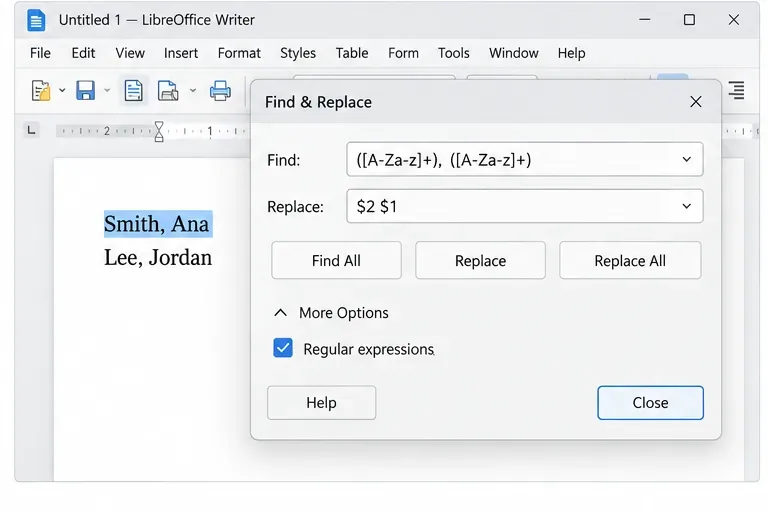
Clean spacing, find structured text, and rearrange names with Writer regex patterns you can preview before replacing.
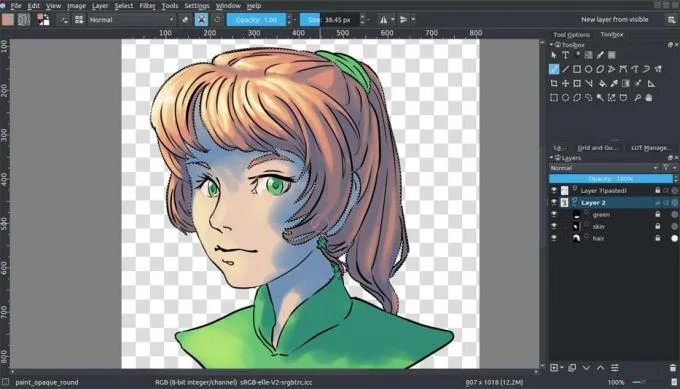
Krita is not only a great digital painting software, but also helps you paint beautiful works. This article will show you some painting techniques when using Krita.
For comfortable painting, it's best to take advantage of Krita 's Layer Stack . It is one of the features that makes digital painting super convenient.
In traditional painting, it's not uncommon to draw a scene in front of a main subject or draw a line before coloring. Drawing pictures on the computer is similar.
In programming, if you ask the computer to draw the red circle, then the smaller yellow circle, you will see the yellow one overlap the red. In return, you will no longer see the yellow circle because it is drawn before red so it will be "behind" it. This is the basic "painting order".
Like traditional art, computers first draw pictures first, so that they can drill down into details, place objects and foreground on it. Layer docker is how you control the order of drawing multiple images. For example, you can draw lines after coloring to make them easier to adjust. In addition, Layer Stack can help you blend colors of different layers through Blending mode, apply filters or masks to create transparent parts.
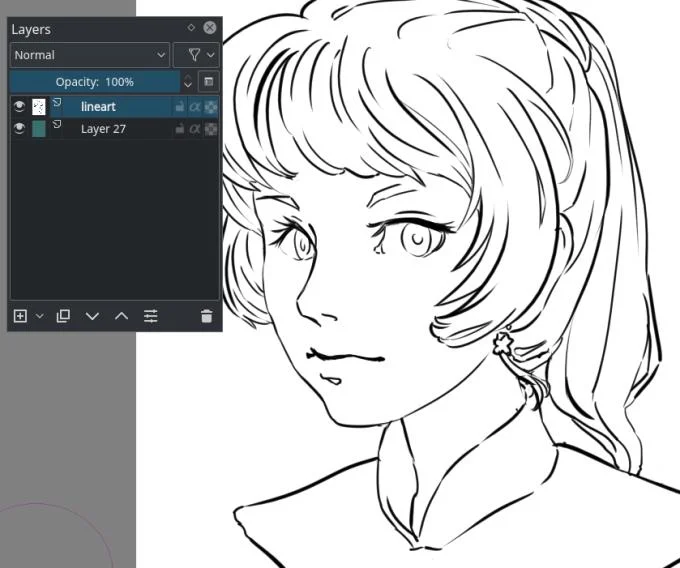
Place a new layer below the painting layer (drag & drop or use the up / down arrows), then paint on it.
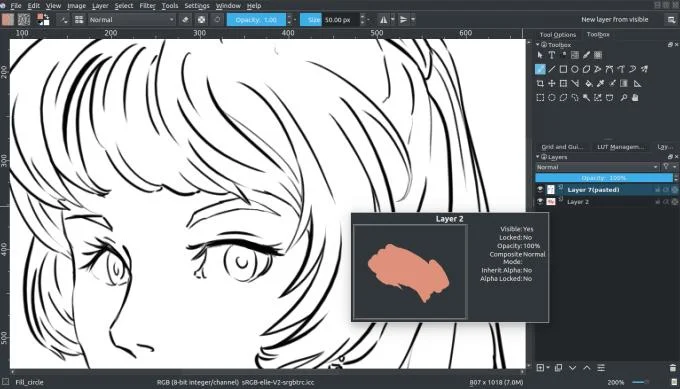
At first, you will not see any change due to the white color is not transparent. Want your work to really stand out? That's why we need to color the picture. Here are some methods of coloring pictures with Krita with different advantages and disadvantages.
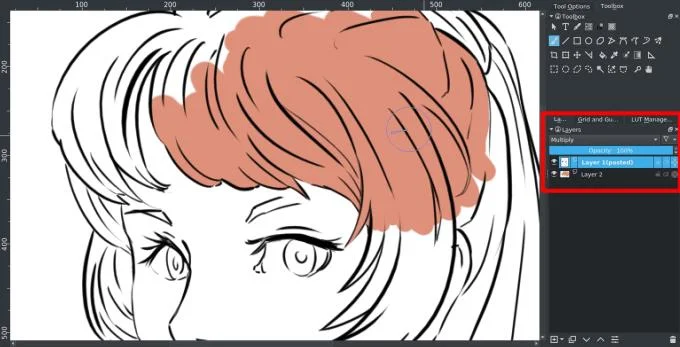
Normally, if you want to paint in black and white, you can set the layer blending mode to Multiply. Do this by selecting the layer and going to the drop down menu, clicking Normal , and then selecting Multiply .
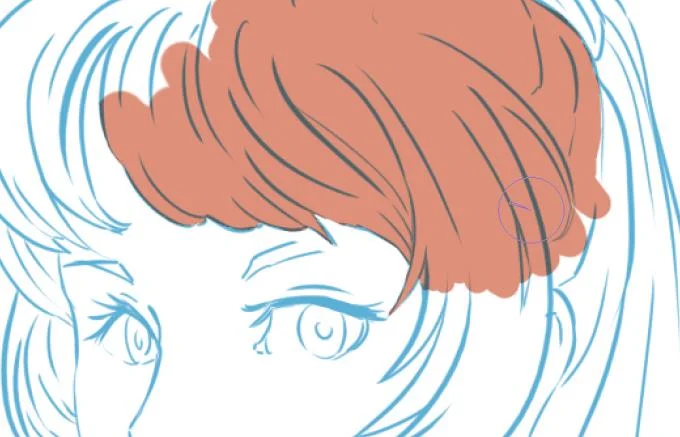
However, Multiply is not the perfect solution. For example, if you use some photo editing tools on paintings with blue strokes, you will get the following result:
This is because Krita applies true Multiply, literally "multiplying" colors.
First, it takes the RGB channel values, then divides them to the maximum. This process is called "standardization." Next, it multiplies the normalized values. Then take the result, then multiply it by 255 again to get the final value. Many artists apply this effect when they want to add a little "glow" to their colors.
| Pink | Standard pink | Green Blue | Standard blue | Standardized & multiplied | Result | |
| Red | 222 | 0.8705 | 92 | 0.3607 | 0.3139 | 80 |
| Green | 222 | 0.5647 | 176 | 0.6902 | 0.3897 | 99 |
| Green | 123 | 0.5647 | 215 | 0.8431 | 0.4066 | 103 |
Pros: Easy to implement, can be used even on colored lines by softening lines while preserving the necessary contrast.
Cons : The background is not completely transparent, only adding a bit of fun to the color lines.
The second method is to make it really transparent. In other software, you can do this via the Channel docker, but Krita doesn't allow customizing the channels. Instead, it uses Selection Masks to contain customization options.
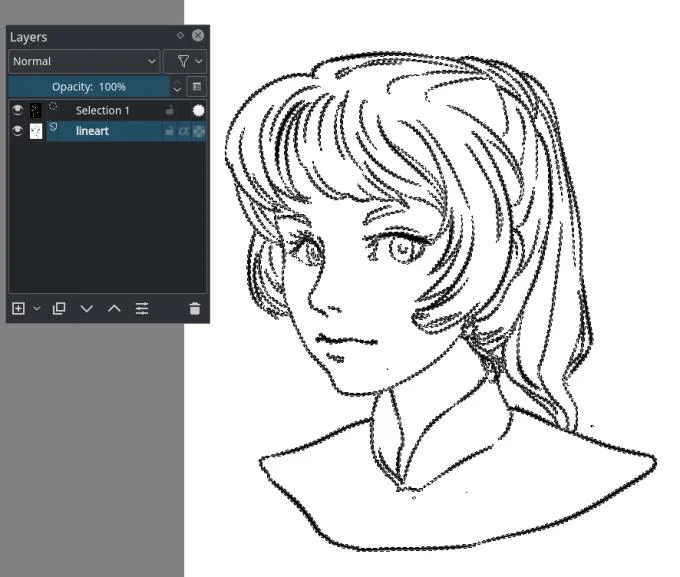
1. Duplicate the layer that contains the painting.
2. Convert the copy into a selection mask layer. Click  on the layer, then press Convert ‣ to Selection Mask .
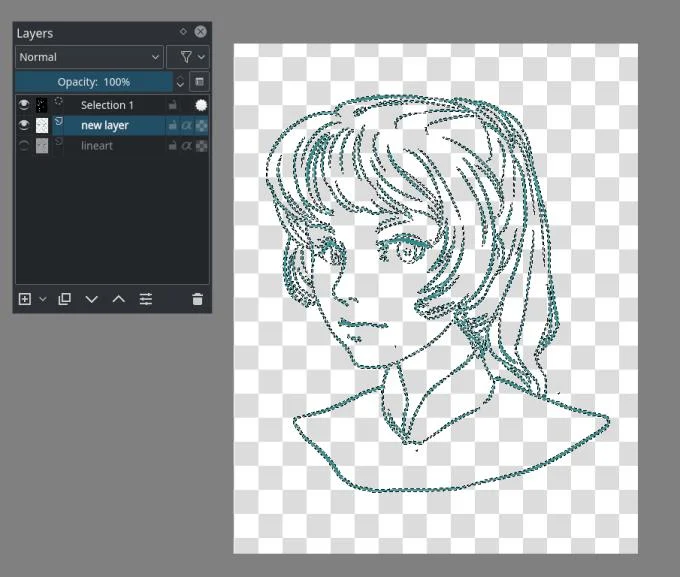
3. Invert the selection mask: Select ‣ Invert Selection .
4. Create a new layer and click Edit ‣ Fill with Foreground Color .
Pros : The background layer is really transparent.
Cons : Does not apply to colored works.
This is a simpler solution than the above.
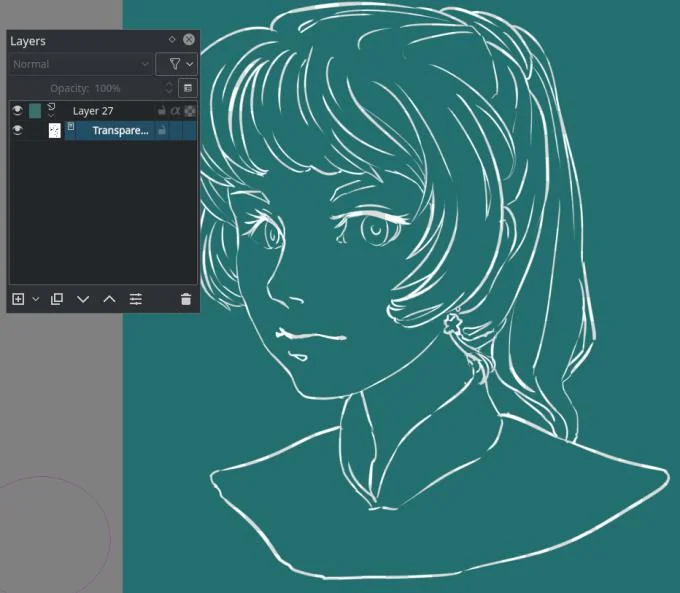
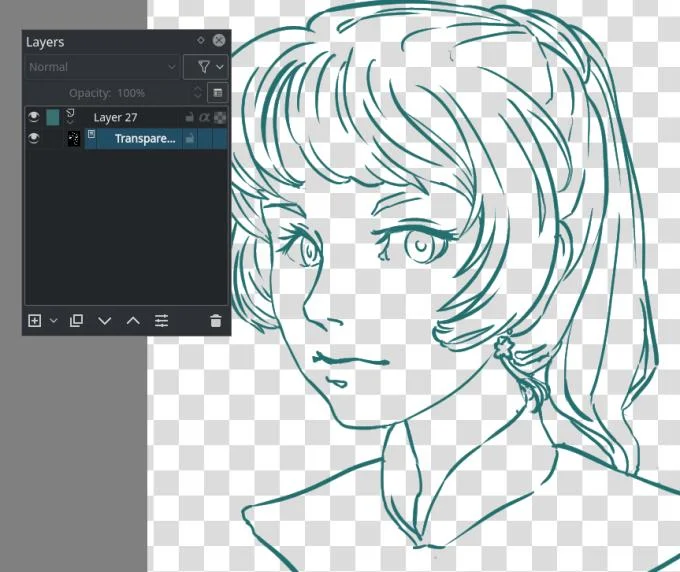
1. Create a filled layer below the layer containing the painting.
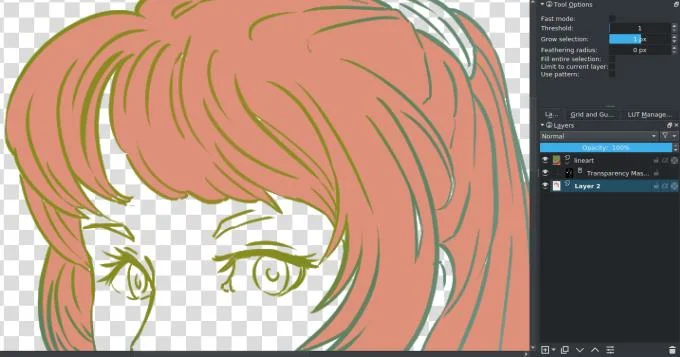
2. Convert layer containing transparent layer painting: Click layer> Convert ‣ to Transparency Mask .
3. Invert the transparent mask by going to Filter ‣ Adjust ‣ Invert .
Pros : The background layer is really transparent. You can also freely draw textures on the overlay layer without overlaying the transparency.
Cons : Not applicable on colored lines.
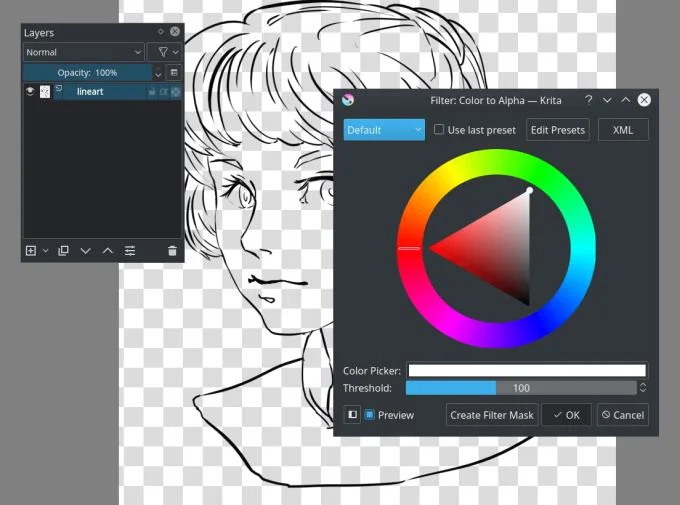
This is the fastest way to clarify lines in a picture. Select the line art layer and apply color to the alpha filter: Filter ‣ Colors ‣ Color to Alpha . The default value is consistent with the line art picture.
Pros: The background is completely transparent. Apply well to painted line art because it specializes in whitening.
Cons : You must lock the transparent layer or separate alpha by right-clicking the menu if you want to color it easily.
There are many different ways to color a layer. For example, you can color everything manually. Despite its high accuracy, this method takes a lot of work. Instead, you can choose another solution.
In most cases, the Fill Tool cannot aliasing (soften edges in line art to make it smoother when zoomed in). Using Krita, you have two options for zooming in and out.
The threshold determines when the Fill tool uses a different color pixel as a border and uses Feather to add a soft border when painting.
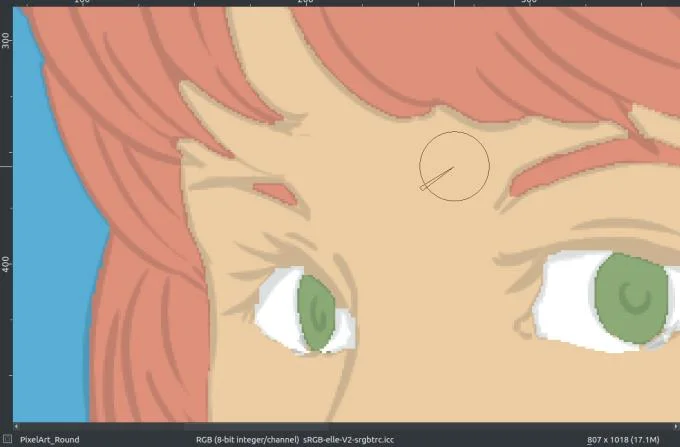
Now, if you click on the part where there is no gap in the image with the color you want (remember 1.0 for opacity), depending on the line art, you can fill it quite quickly. However, setting a low threshold may generate small details around the intersection.
However, setting a high threshold may prevent you from recognizing some light colored lines. Meanwhile, you can completely erase that small strange detail easily with a brush.
Pros : Quick performance depending on available settings.
Cons : Not suitable for rich detailed paintings.
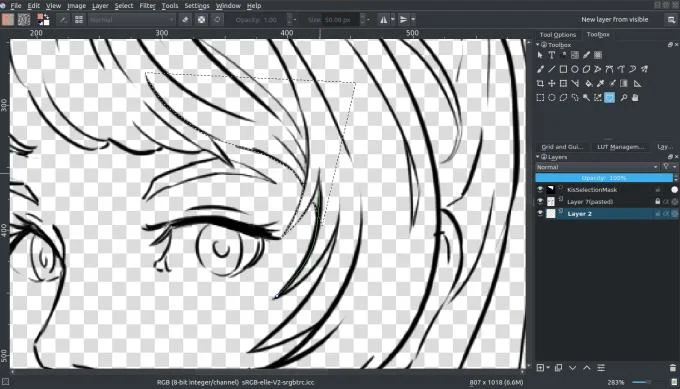
As the name implies, this way you will use the selection tool. For example, with the Path Selection Tool, you can select the curve area and with Shift+  (not +
 Shift). You can easily add to the current selection.
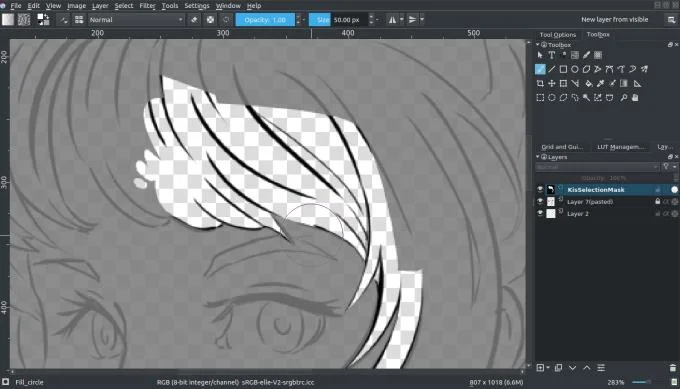
You can also edit the selection if the Select ‣ Show Global Selection Mask is enabled . Then select the whole overlay and paint over it. (The example above uses an alternate mode, enabled in the lower left corner of the status bar.)
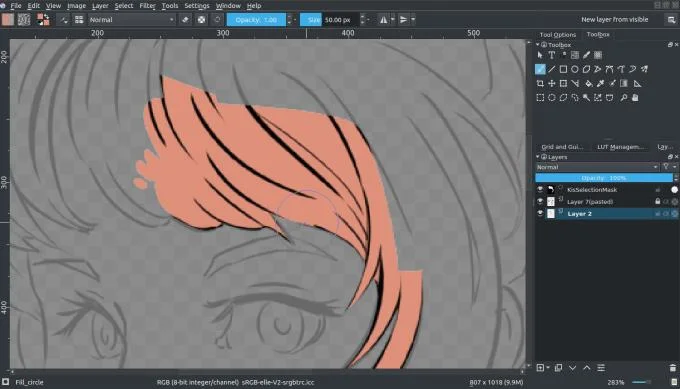
When done, select the color you want to paint and press Shift+ spacebar.
You can save selections in Selections mask layers by clicking the layer, then Add Add Local Selection . First, you need to deactivate an option by clicking on the circle before adding a new option. You can use this method to separate different parts of an image, especially useful for professional painters.
Pros: More accurate color gradation.
Cons: Color preview is not easy.
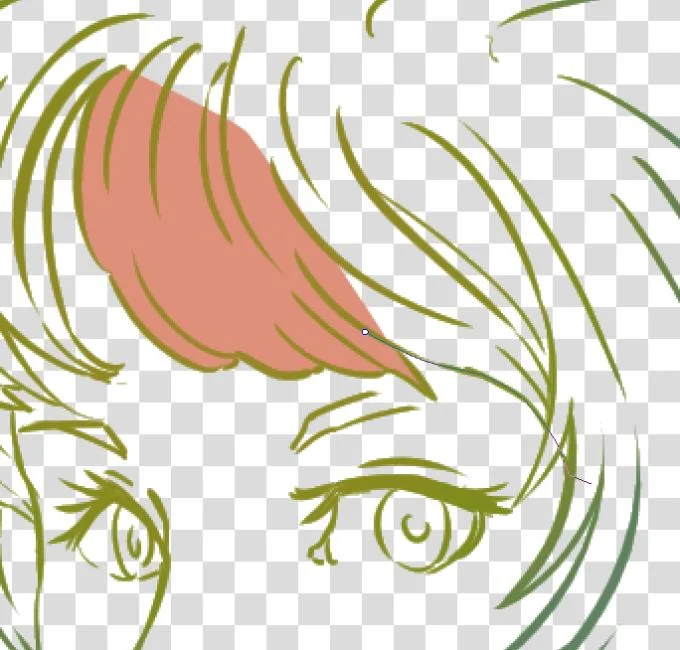
In Krita, you have a tool to create a rectangle or circle. It is a tool for bezier curves. Select the Path Tool and set the tool options to fill = foreground and outline = none. Make sure you set the opacity to 1.00 (complete blur).
By clicking and holding the mouse button, you can affect the curve drawn with the Path Tool. Use the mouse button to confirm the action, then you're free to draw the next point.
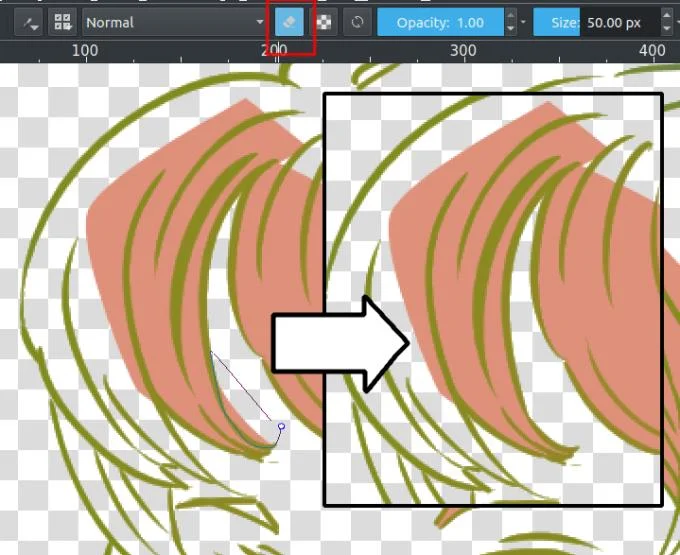
You can also use geometry tools to erase points by pressing Eor erasing button.
Pros : Faster than brushes or Selections, suitable for line art with gaps.
Cons : Not easy to fill the small details. In this case, you should use a brush to color them.
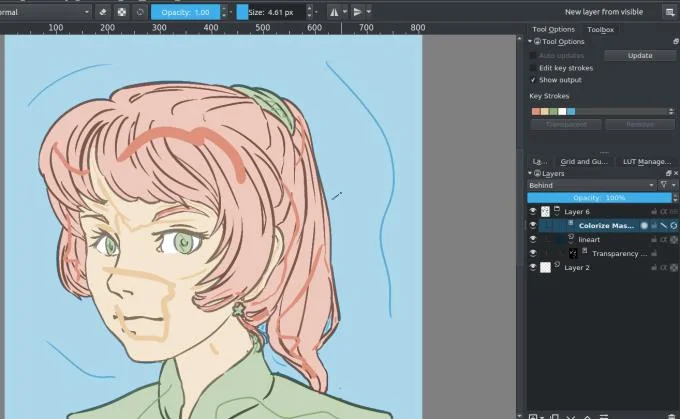
Follow these instructions to use Krita's Colorize Mask feature:
When you're satisfied, click on that color overlay and go to Convert ‣ Paint Layer . This will turn the adjustment layer mask into a layer. You can then fix the latest error by applying 1/2 transparency to the lines and filling the hole with a pixel brush.
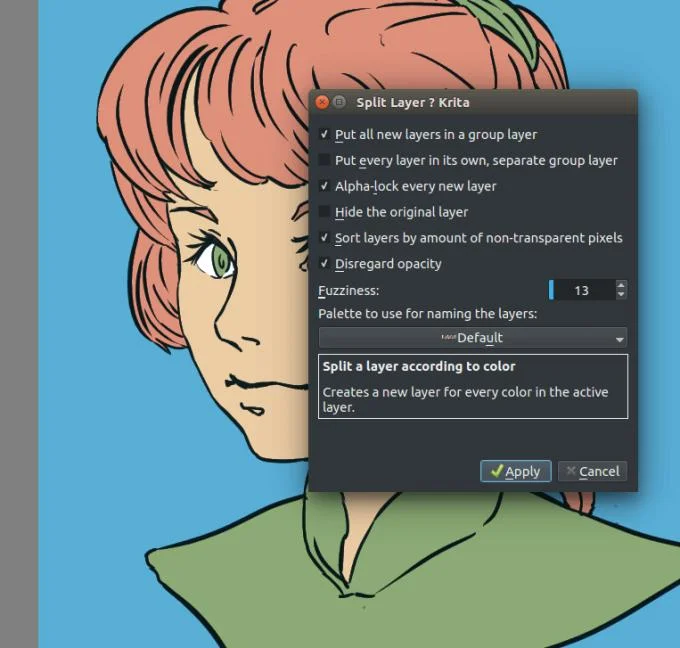
Once done, split the layer to Layer ‣ Split ‣ Split Layer. Here, Krita offers a number of options, but just do as the picture looks good.
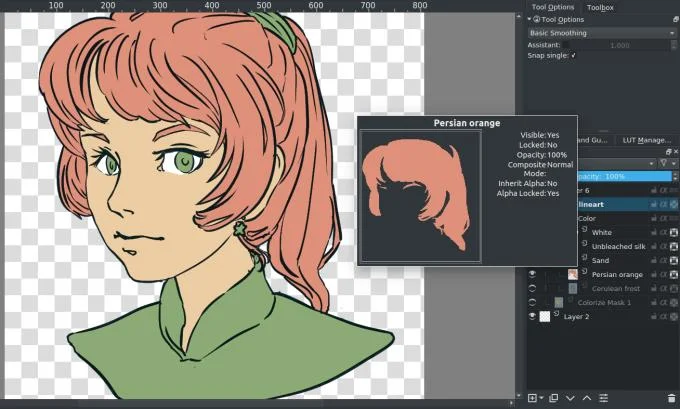
Finally, click OK . Each color applies on a different layer, named according to the palette in the menu and locked alpha. Thanks to that, you can draw immediately.
Advantages : Handling with line art works does not remove the teeth. Quickly complete basic painting jobs. Can automatically fill in gaps.
Cons : Not self-aliasing. You have to choose between getting the details right or automatically filling in the gaps.
Above is a guide to coloring pictures with Krita . Hope the article is helpful to you.
Clean spacing, find structured text, and rearrange names with Writer regex patterns you can preview before replacing.
Enable Writer’s bidirectional controls, set RTL paragraph flow, and check mixed Arabic or Hebrew text without disrupting English words and numbers.
Install metric-compatible Linux fonts or map LibreOffice fallbacks, while keeping Microsoft font licensing and layout differences in view.
Add usable text fields, check boxes, and drop-downs in Writer, then export a PDF recipients can complete and save.
Fix missing or substituted fonts in LibreOffice Writer PDFs, choose the right export profile, and verify which fonts are embedded before sharing.
Convert a folder of Word documents to PDF with LibreOffice commands, handle nested folders safely, and verify the output before sharing.
Set a custom LibreOffice Writer template as the default so new documents open with your preferred styles and page layout.
Install a compatible Java runtime, enable it in LibreOffice, and troubleshoot an empty JRE list without changing unrelated settings.
Build a small LibreOffice container, convert office documents without a GUI, and verify PDF output while limiting host-file access.
Reduce oversized LibreOffice presentation files by compressing embedded photos, choosing sensible image settings, and checking slide quality before sharing.








