Home
» PC Tips
»
Get Nextcloud iPhone Photo Uploads Running in the Background
Get Nextcloud iPhone Photo Uploads Running in the Background
If Nextcloud photos stay in the upload queue after you leave the app, first enable Background App Refresh for Nextcloud, confirm Auto Upload is active, and check that the app can see the photos you expect. iOS may suspend background apps, so this can restore photo detection without making uploads instant; for a large first backup, keep Nextcloud open on Wi-Fi and power until it finishes.
Why background uploads pause
Nextcloud’s iOS app relies on iOS to schedule background work. Apple says apps run briefly after you switch away, then may be suspended; Background App Refresh lets suspended apps check for new content, but it does not promise a continuous upload session. Apple also warns that an app manually quit from the app switcher might not run or check for content before you open it again.
The Nextcloud app’s own Auto Upload notice says Background App Refresh is needed to detect new photos or videos while the app is in the background. It also says detection may be roughly every 10 minutes depending on the device’s battery level, and transfers can be slower in the background. Treat that interval as an estimate from the app, not a deadline guaranteed by iOS. Check the current app’s on-screen notice because wording and controls can differ by release; the current wording is also reflected in the Nextcloud iOS app source strings.
1. Confirm Auto Upload and its target
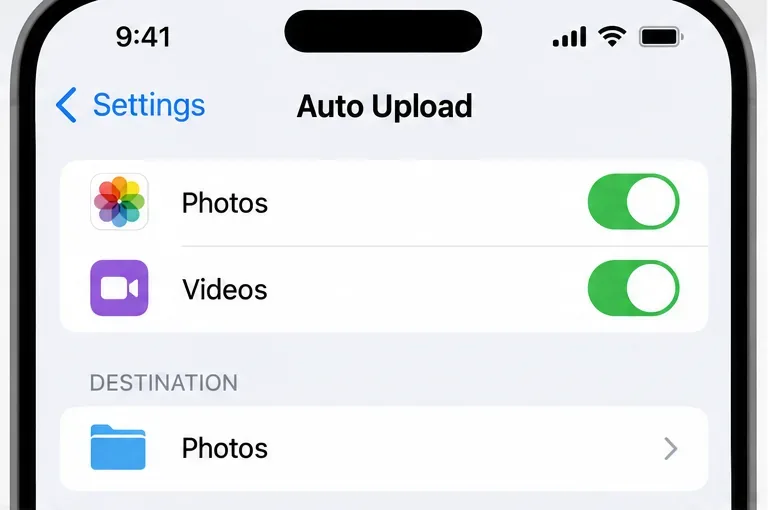
Open Nextcloud, go to More > Settings > Auto Upload (the label can vary slightly by app version), and make sure photo or video upload is turned on. Check the destination folder and whether the setting is limited to new items or includes the existing camera roll. If only videos or one album are selected, photos outside that selection will not appear in the queue.
The Auto Upload example shows both media switches on and the Photos destination; confirm these options match the items missing from your server.
For a quick test, enable only the media type you need and use a small new photo rather than immediately queuing an entire library. Avoid resetting upload history or removing the destination folder as a first fix: those actions can make the app reconsider older items or complicate an existing backup.
2. Restore iOS background and photo access
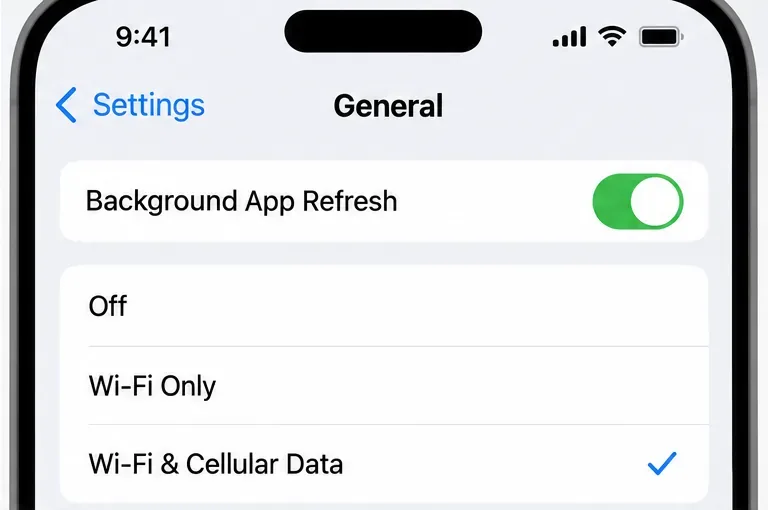
In iPhone Settings, open General > Background App Refresh. Turn the master setting on and confirm Nextcloud is allowed. If the phone is set to Wi-Fi only but you expect uploads on cellular data, choose Wi-Fi & Cellular Data; this may use your mobile plan, so keep Wi-Fi only if conserving cellular data matters more.
The iOS refresh example has Background App Refresh enabled and cellular data allowed, a useful setting when uploads must be detected away from Wi-Fi.
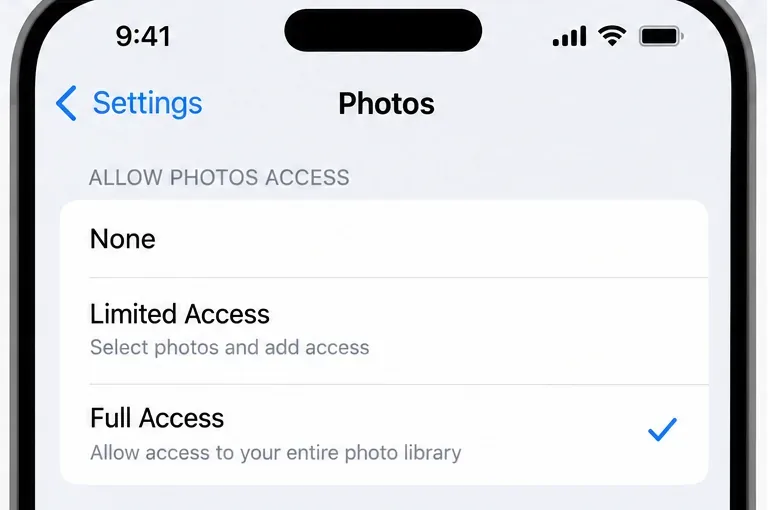
Next open Settings > Apps > Nextcloud > Photos and check access. Full Access fits a complete camera-roll backup. Limited Access is the more private choice if you want to upload only selected photos, but add any missing items to the allowed selection. Menu names can differ on older iOS versions. The Nextcloud iOS project documents this Photos permission path in its current app strings; see the official Nextcloud iOS repository.
Full Access exposes the whole library to Nextcloud; use Limited Access instead when the backup should include only a chosen set.
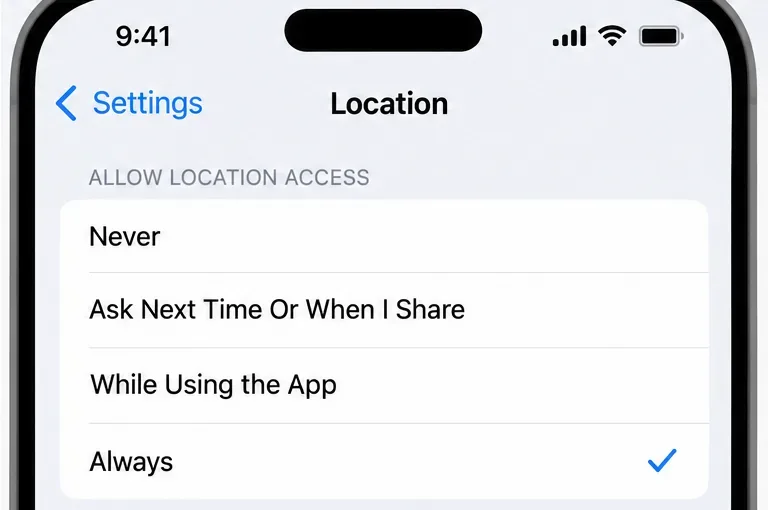
If Nextcloud itself asks for background location access to trigger checks after you move between areas, decide whether that tradeoff suits you. The app’s notice says it uses this permission to detect a new area and check for photos, and says GPS is not used and location is not stored or tracked. Allow Always only if you want that location-triggered background behavior and accept the permission; otherwise keep a narrower location setting and open the app to refresh uploads manually.
The location-permission example shows Always selected; grant it only if you want the app’s location-triggered background checks.
3. Remove battery and force-quit blockers
Turn off Low Power Mode temporarily while testing. Apple states that Low Power Mode turns off Background App Refresh, so leaving it enabled can explain why new media is not detected in the background. On recent iPhones, check Settings > Battery > Power Mode; on earlier models, the control is under Settings > Battery. Turn it back on after the test if battery life is the priority. See Apple’s current Low Power Mode guidance.
Do not swipe Nextcloud away to “keep it clean.” Apple says quitting an app can prevent background checks until it is opened again, and recommends closing apps when they are unresponsive. Leave it in the app switcher instead. Also keep the app updated from the App Store: updates can fix app-specific upload faults, though they cannot override iOS scheduling.
4. Keep a large first upload in the foreground
Background refresh is best for discovering new photos over time, not for guaranteeing a rapid first transfer of thousands of files or large videos. Connect to stable Wi-Fi, plug the phone into power, open Nextcloud, and leave the app active while its transfer list is progressing. If your version shows a focused or faster upload option, follow the in-app instructions; those modes may require keeping the app open. This costs screen time and power, but gives a backlog a better chance to complete than waiting on background refresh windows.
Use cellular data only if you are comfortable with the data cost. If an upload remains waiting while Nextcloud is open, this is no longer just a background-refresh setting: inspect the transfer’s error and confirm the server has free storage and that the account can upload to the destination. Don’t repeatedly clear app data or delete the server’s Photos folder to test; first preserve any local originals and inspect the app’s transfer status.
Verify the fix
Take one new test photo, open Nextcloud long enough to see whether it enters and leaves the transfer queue, then confirm the file appears in the selected server folder. Lock the phone and leave Nextcloud un-quit to test background detection; allow time for iOS to schedule it, and check again after reopening the app. If the foreground test succeeds but the locked-phone test is delayed, permissions are likely correct and iOS background scheduling is the remaining constraint. Apple’s Background App Refresh instructions explain how refresh works and why a manually quit app may not check again.