Turn a PDF into an Editable DOCX in ONLYOFFICE Desktop
Convert a PDF locally in ONLYOFFICE Desktop Editors, then review the DOCX for layout changes, scanned pages, and text that needs correction.
You may need to revise a contract, report, or handout that exists only as a PDF, but opening it in a PDF viewer does not give you a normal word-processing file. In ONLYOFFICE Desktop Editors, open the PDF in the PDF Editor and use File > Download as > DOCX. The conversion runs locally in the desktop app and can be done without an internet connection; afterward, open the DOCX and check the parts that matter before relying on it.
PDF is designed to preserve how pages look. It can store text as positioned fragments, vector artwork, or page images, rather than as paragraphs and styles that a word processor can rearrange. DOCX, by contrast, represents editable document structure. Conversion therefore has to infer that structure. Headings, columns, tables, footnotes, and line breaks can shift, particularly when the PDF uses unusual fonts or was created from a scan.
A PDF that looks selectable may still have complicated layout, and a scanned PDF may contain only page images. Conversion cannot reliably turn image-only text into editable words unless text recognition (OCR) is available for that file and workflow. Treat the DOCX as a working copy to review, not as a guaranteed visual duplicate of the PDF.
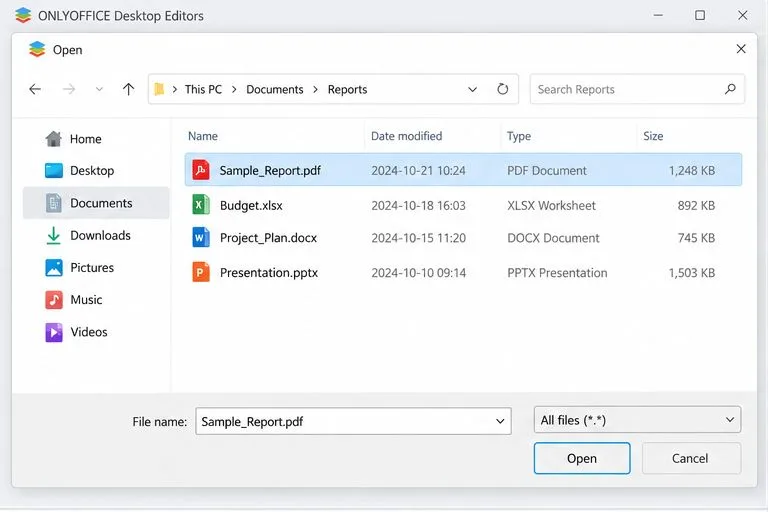
Launch ONLYOFFICE Desktop Editors and choose Open local file from the start window, or use the operating system file manager to open the PDF with ONLYOFFICE. Browse to the file, select it, and open it. If the PDF is password-protected, enter the password when prompted. ONLYOFFICE Desktop Editors 9.3 (released February 25, 2026) documents unlocking a protected PDF by switching to Editing mode and choosing Unprotect document; you still need the valid password.
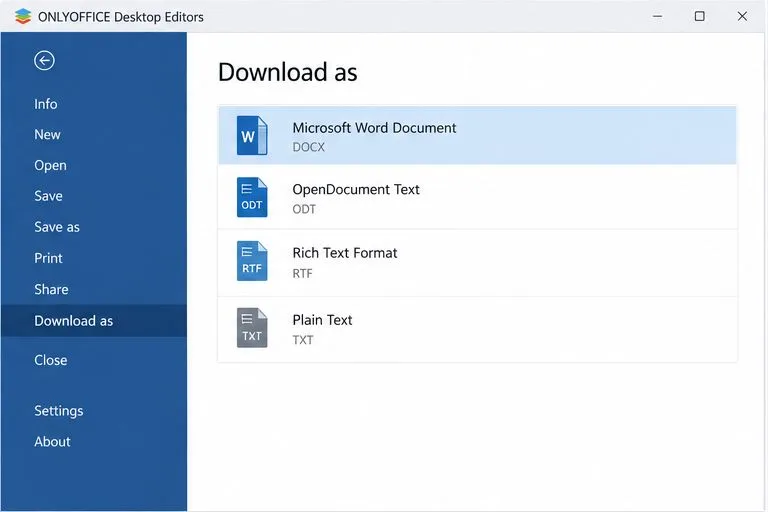
In the PDF Editor, open the File tab, then select Download as. Choose Microsoft Word Document (DOCX). When the save dialog appears, choose a destination and a new file name, then save. Keep the original PDF unchanged so you can compare it with the converted copy. The wording of the command or the panel placement can vary slightly by operating system or app release, but DOCX is a supported output format in the PDF Editor.
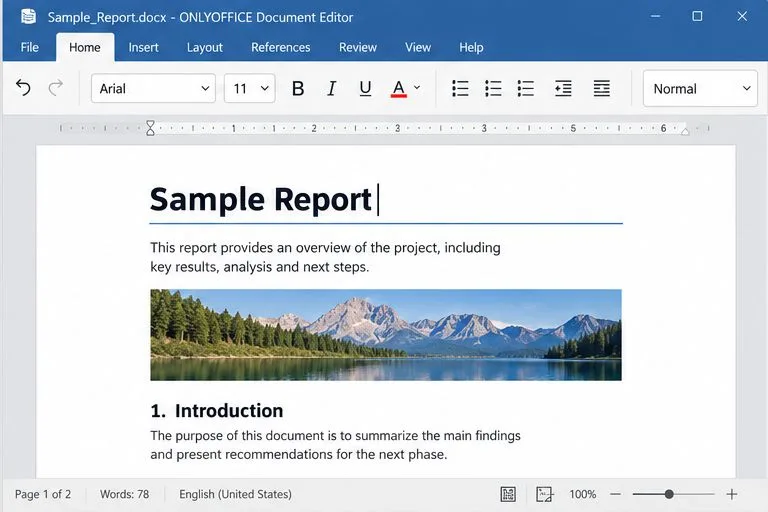
Open the saved .docx in ONLYOFFICE Document Editor. If it did not open automatically, use Open local file and browse to the destination you selected. Click in a paragraph and try selecting or editing a few words. Successful conversion should produce a document with editable text and document objects where the source PDF contained content that could be recognized as such.
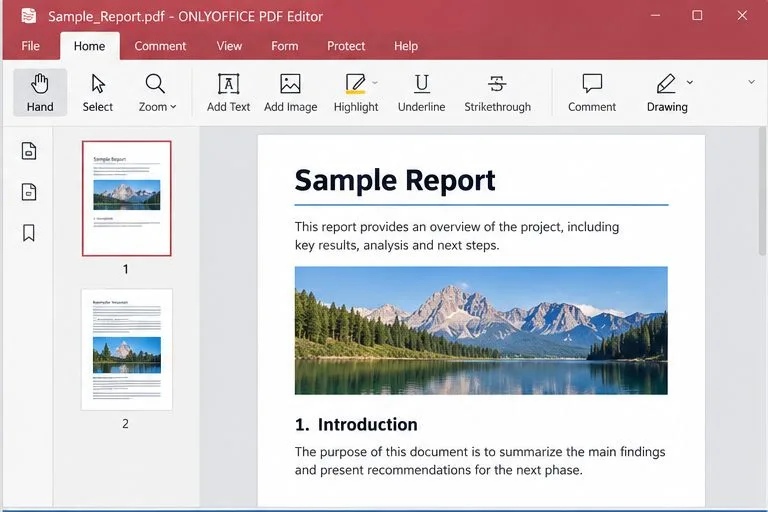
Try selecting a sentence in the source PDF before conversion. If the pointer selects a page-sized image or no text, the file may contain scanned pages rather than a text layer. In that case, the DOCX may contain images instead of editable words. OCR (optical character recognition) is the process of recognizing text inside an image. Do not assume that exporting alone performs OCR: the official PDF conversion instructions establish DOCX export, but do not promise OCR for every image-only PDF. If the PDF Editor does not provide an OCR action for your installation, use a trusted OCR workflow you are authorized to use, then proofread the recognized text carefully before making the DOCX your working copy.
Compare the DOCX with the PDF page by page. Check headings, page breaks, tables, lists, superscripts, footnotes, and text near images first. A missing font may cause line wrapping and pagination changes even when the words converted correctly. If the source uses columns or tightly positioned text, consider whether preserving the page appearance or editing the text is the priority. A converted word-processing file can be easier to revise, but it may not reproduce the PDF pixel for pixel.
Use the PDF password supplied by the owner. Version 9.3 release notes describe unlocking password-protected PDFs in Editing mode with Unprotect document. If your desktop version does not show this control, check the app version and official help for that release; do not try to bypass protection. You may also need permission from the document owner to modify or reuse its contents.
Verify the actual file at the destination, not just the export panel. Open it again and confirm that the extension is .docx, the intended pages are present, and ordinary text can be edited. Compare the first page, a page with a table or image, and the last page against the source PDF. Check page count, headers and footers, links, and any figures or special characters that must remain accurate. Save a reviewed copy under a distinct name if you make corrections.
ONLYOFFICE states in its PDF Editor FAQ that desktop conversion can be performed offline. This is useful for local files, but does not change the need to follow the PDF owner’s copyright, confidentiality, and handling rules. For official instructions, see ONLYOFFICE PDF Editor FAQ, PDF Editor saving and downloading documentation, and the ONLYOFFICE Desktop Editors 9.3 release notes.
Convert a PDF locally in ONLYOFFICE Desktop Editors, then review the DOCX for layout changes, scanned pages, and text that needs correction.
Add your ownCloud account to ONLYOFFICE Desktop Editors, understand what the connection enables, and choose between direct access, sync, and browser editing.
Use the right portal or WebDAV address, test HTTPS reachability from your phone, and distinguish private-network, TLS, and login problems.
Build and test a custom ONLYOFFICE Desktop Editors plugin, install its .plugin archive, and activate developer tools for debugging.
Make a Python function available in Calc, run it against the open spreadsheet, and troubleshoot missing macros or imports without mixing up LibreOffice and system Python.
Lock a specific passage against routine edits while keeping the rest of a Writer document usable, and learn when file encryption is the better choice.
Fix hard-to-see spreadsheet text by checking the theme, cell font color, fills, and conditional formatting in Calc.
Learn why Calc shows formula text instead of calculated values and fix display mode, Text-formatted cells, apostrophes, or stale results.
Build a reusable Writer mail merge with Calc recipient data and a shared embedded image, then preview and save the personalized letters.
Turn off LibreOffice’s optional update statistics and crash-report prompts, then check what the settings cover and how to verify them.