Limit Optional Diagnostics and Update Data in LibreOffice
Turn off LibreOffice’s optional update statistics and crash-report prompts, then check what the settings cover and how to verify them.
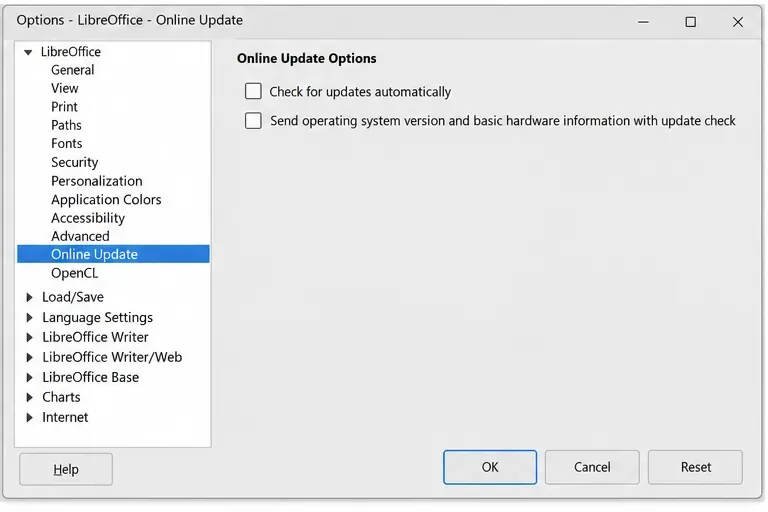
To reduce optional data sent by LibreOffice, turn off the operating-system and basic-hardware information option under Tools > Options > LibreOffice > Online Update, and clear the crash-report prompt under LibreOffice > General. On macOS, open LibreOffice > Preferences instead of Tools > Options. These controls cover update-related statistics and crash reports; they are not a single global “telemetry off” switch.
LibreOffice’s current Help describes the specific information used by these features. The Online Update page can send the operating-system version and basic hardware information when checking for updates. A crash report can include error details, memory trace information, loaded libraries, operating-system and LibreOffice versions, and hardware details. LibreOffice Help says crash reports are anonymous and do not include document content, but a memory trace is still diagnostic data. Use the settings below if you prefer not to send these optional reports.
The two checkboxes control different things. Clearing the hardware-information option stops that optional information from accompanying an update check. Clearing automatic checks stops LibreOffice from checking on its own; it does not remove the manual Help > Check for Updates command. If you keep automatic checks enabled, the separate hardware-information setting can remain off. This is often a useful middle ground: update notifications remain available, while the optional system-statistics field is not selected.
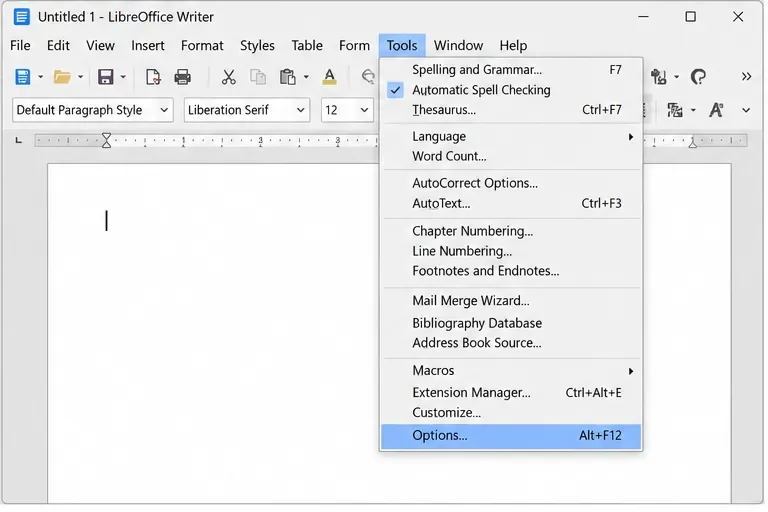
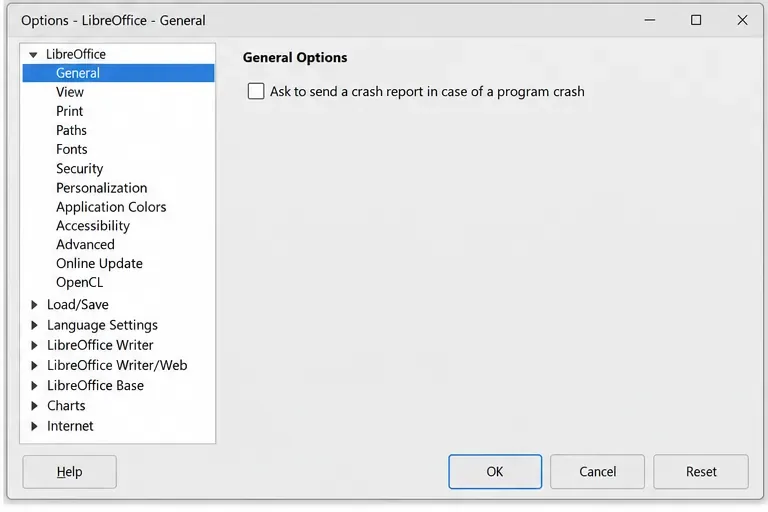
Open Tools > Options > LibreOffice > General and clear Ask to send a crash report in case of a program crash. On macOS, use LibreOffice > Preferences > LibreOffice > General. Select OK to save the preference.
This setting controls whether LibreOffice asks about sending a crash report; it does not prevent crashes or make the software stop generating local diagnostic information after a crash. If the Crash Report Tool appears, do not select Send Crash Report if you do not want to submit it. The tool’s Help page describes the report contents and says the report is anonymous and excludes document content. Because it can include a memory trace and system details, treat the report as optional diagnostic data and send it only if you choose to help investigate a failure.
If the checkbox is unavailable or resets after restart, your organization may manage LibreOffice settings centrally, or the installed package may differ from the standard build. Check with the administrator or package maintainer rather than editing advanced configuration files at random; a policy or managed profile can override local preferences.
LibreOffice has no one checkbox that blocks every network connection made by the application and its add-ons. These settings address the documented update-related hardware information and the user’s choice to submit a crash report. Extensions, macros, linked content, online help, and operating-system services can have their own network behavior. If your requirement is to prevent all outbound connections, use an approved firewall or managed network policy and test the applications and extensions you rely on. Blocking network access can also stop update checks, online resources, and extension functions.
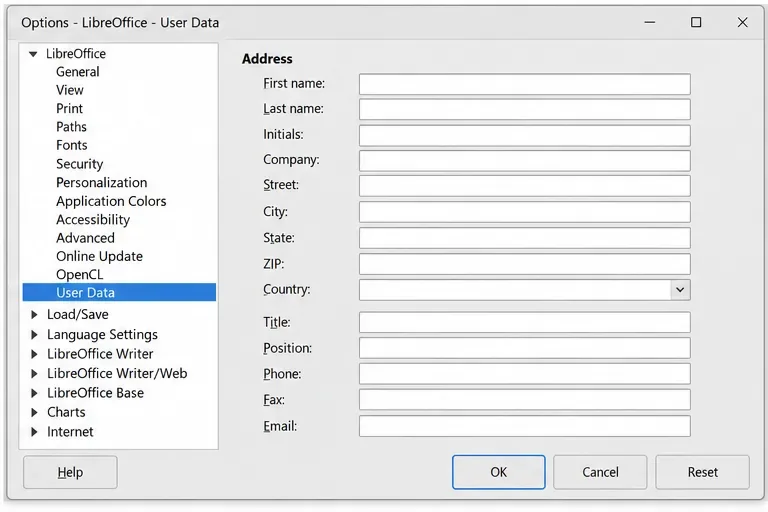
Also distinguish product diagnostics from personal information stored on your computer or inside a document. The User Data page supplies information such as name and initials that LibreOffice can place in document properties, comments, and tracked changes. It is not a telemetry control. Review it if your concern is author details in files you share, and inspect document properties or remove personal information before distribution when appropriate.
Reopen Online Update and confirm the hardware-information option is clear; if you chose to stop background checks, confirm that checkbox is also clear. Reopen General and confirm the crash-report prompt is clear. Close and reopen LibreOffice if you want to verify that the selections persisted. Then decide whether to perform an intentional manual update check: it contacts the update service, so skip it if your goal is to avoid that connection too.
These checks confirm the visible preferences in the running installation. They do not prove that every extension, operating-system component, or network tool has made no connections. For centrally managed or high-assurance environments, validate the installed build and network policy with the administrator.
Official references: LibreOffice General options; Check for Updates and Online Update settings; Crash Report Tool and report contents; User Data options.
Turn off LibreOffice’s optional update statistics and crash-report prompts, then check what the settings cover and how to verify them.
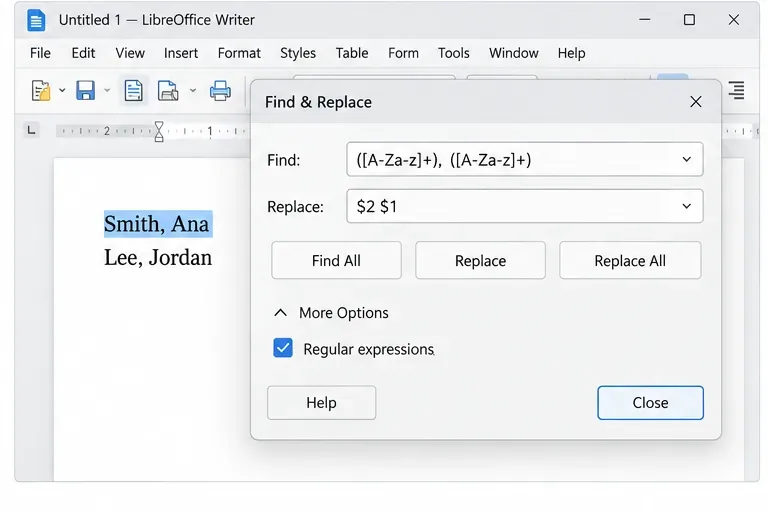
Clean spacing, find structured text, and rearrange names with Writer regex patterns you can preview before replacing.
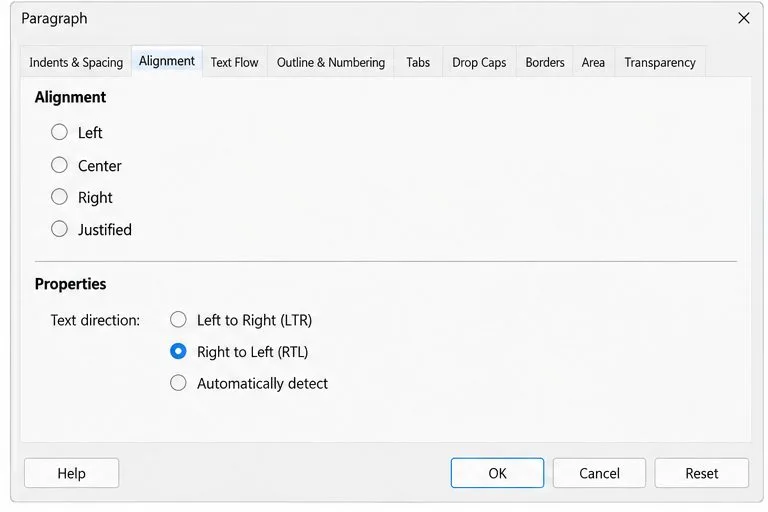
Enable Writer’s bidirectional controls, set RTL paragraph flow, and check mixed Arabic or Hebrew text without disrupting English words and numbers.
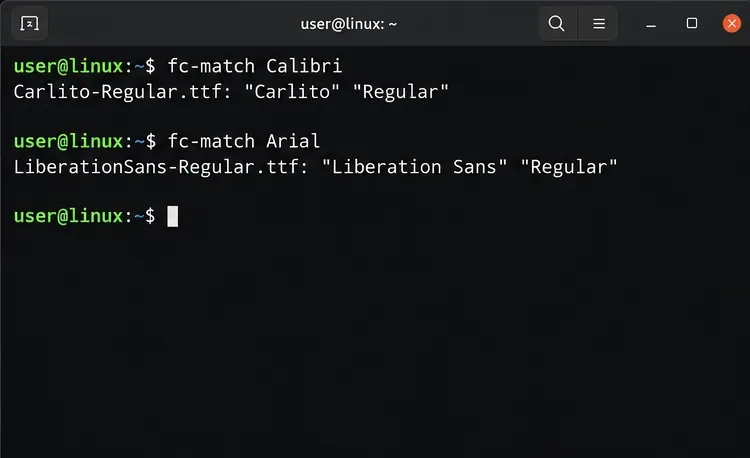
Install metric-compatible Linux fonts or map LibreOffice fallbacks, while keeping Microsoft font licensing and layout differences in view.
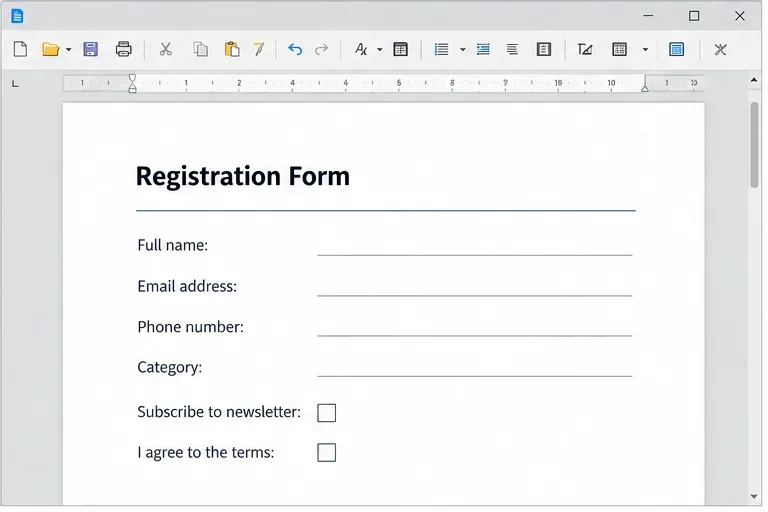
Add usable text fields, check boxes, and drop-downs in Writer, then export a PDF recipients can complete and save.
Fix missing or substituted fonts in LibreOffice Writer PDFs, choose the right export profile, and verify which fonts are embedded before sharing.
Convert a folder of Word documents to PDF with LibreOffice commands, handle nested folders safely, and verify the output before sharing.
Set a custom LibreOffice Writer template as the default so new documents open with your preferred styles and page layout.
Install a compatible Java runtime, enable it in LibreOffice, and troubleshoot an empty JRE list without changing unrelated settings.
Build a small LibreOffice container, convert office documents without a GUI, and verify PDF output while limiting host-file access.