Make Every New Writer Document Use Your Template
To change what LibreOffice Writer uses for every new text document, save a prepared document as a template and select Set as default template. If the template already exists, open Template Manager and choose Set as Default from its context menu. The setting affects new Writer documents; it does not reformat files you already created.

A template is a reusable starting document that can carry page settings, paragraph and character styles, headers, footers, and any starter text you choose to keep. A default template is the one Writer automatically uses when you create a new blank text document.

Before you change the default

Decide what should be consistent in future documents. Common choices include paper size and margins, a standard font, heading styles, page numbers, and a company or school header. Set these up before saving; otherwise, new documents will inherit whatever is in the template, including sample text or temporary formatting.

LibreOffice’s current Help (26.8) describes both the save-as-template route and the Template Manager route. The menu wording can vary slightly by platform or release, so use the equivalent item shown in your installation if capitalization differs. The illustrations below depict the documented controls and are examples of the workflow, not captured screenshots from a running installation.
Make a prepared document the default template

  1. Prepare a clean Writer document. Open a new text document or a suitable existing template. Set the page format and margins through the page-style controls, and adjust named styles such as Default Paragraph Style, Title, Heading 1, or Heading 2 rather than manually formatting every heading. Styles are saved formatting rules you can reuse and revise consistently. Remove private details and placeholder content you do not want in every new file.
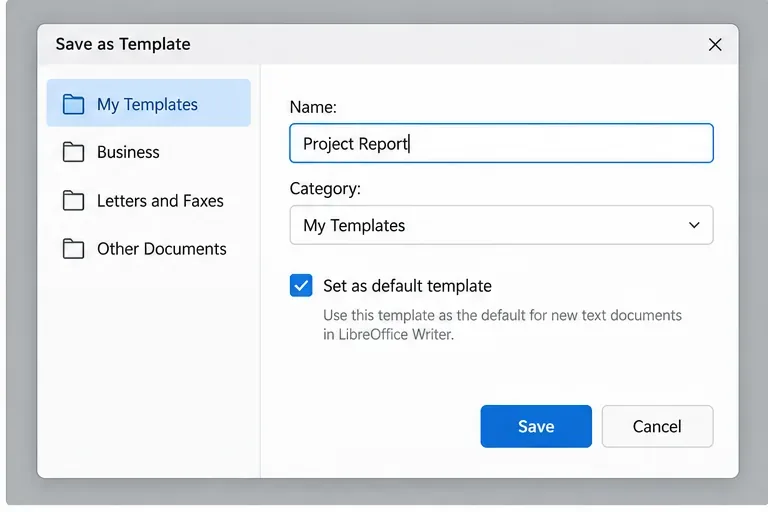
  2. Open Save as Template. In Writer, choose File > Templates > Save as Template. Enter a recognizable name, such as “Project Report,” and keep the category as My Templates unless you have a reason to organize it elsewhere.
  3. Set it as the default. In the save dialog, check Set as default template, then save. That checkbox is the key step: saving a template alone makes it available in the Template Manager, but does not necessarily make it the template used for new Writer documents.
  4. Start a fresh text document to check it. Choose File > New > Text Document. Confirm that the page settings and styles you prepared appear in the new document. Do not use an already-open file as the test; it retains the template and formatting with which it was originally created.
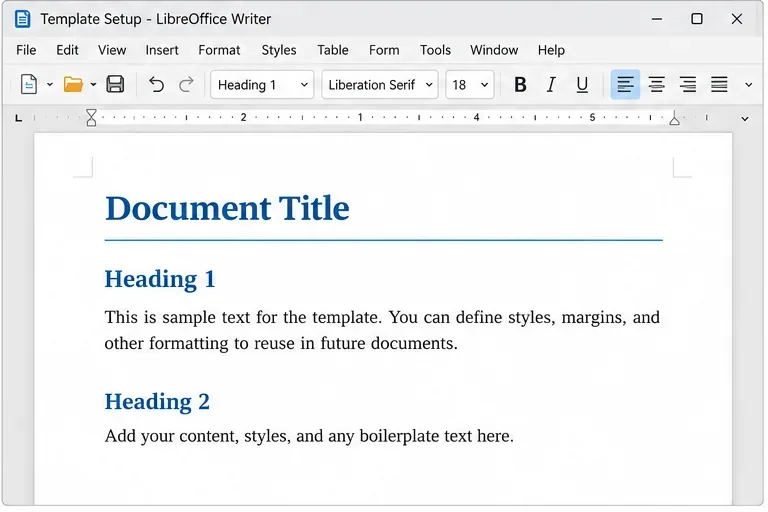
LibreOffice Writer document with a title, heading styles, and sample starter paragraphs prepared as a reusable template
A prepared Writer document can hold the page layout, styles, and reusable starter content you want new documents to inherit.
Save as Template dialog with My Templates selected and Set as default template checked
In the Save as Template dialog, give the template a clear name and check Set as default template before saving.

Set an existing template as the default

  1. Choose File > Templates > Manage Templates. LibreOffice also documents File > New > Templates as another way to open Template Manager. In the manager, select the Templates view and, if needed, use the category or filter to locate the Writer template.
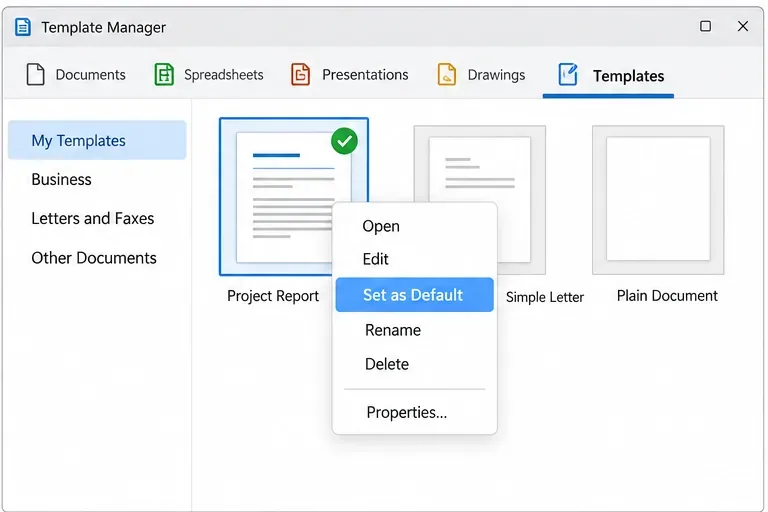
  2. Right-click the template you want Writer to use, then choose Set as Default. The default template is marked with a green check in Template Manager. This route is useful when the template has already been saved and you only need to change which template Writer starts from.
  3. Create a new text document to verify the result. Check a setting that is visibly different in the template, such as the page orientation or heading appearance.
Template Manager with a template selected, a green default check, and the Set as Default context menu item
For an existing template, use Template Manager’s context menu and confirm the green check appears beside the intended default.
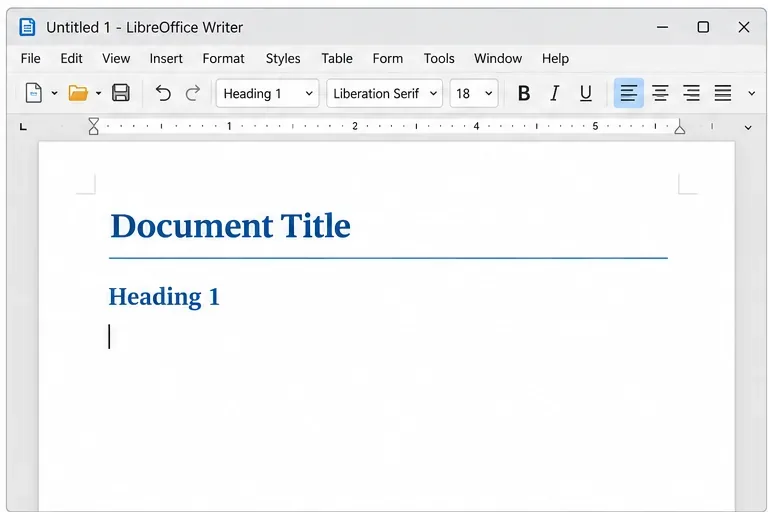
New LibreOffice Writer document showing the title and heading styles inherited from the selected template
Test by creating a new text document and checking for a distinctive style or page setting from your template.

Common mistakes and quick checks

  • The template was saved, but new documents still look unchanged. Saving it in My Templates does not by itself set it as default. Reopen Manage Templates and use Set as Default, or save again and select the default checkbox.
  • You are checking an older document. The default controls the starting point for new text documents. Open a new one from File > New > Text Document to test it.
  • The template appears to affect another LibreOffice app. LibreOffice lets you define templates separately for each application. Set a Writer template from Writer’s template workflow; a Calc or Impress template is not a substitute.
  • You modified a built-in template and cannot save over it. LibreOffice Help says built-in Writer templates cannot be edited, renamed, or deleted. Open one, make the changes, then save your version as a new template and set that copy as default.
  • You saved through the ordinary Save dialog and cannot find the template. The file must be saved in a template location to appear in Template Manager. The documented File > Templates > Save as Template command places it in the appropriate template directory.

Verify the change

Open a genuinely new Writer text document and look for the page settings or styles you changed. If they appear, the default is active. If they do not, return to Template Manager, confirm the green check is beside the intended template, and test with another new document. The exact menu labels and dialog layout can differ across LibreOffice versions and operating systems; consult the official LibreOffice Help for creating and changing default templates for the version-specific instructions.

Leave a Comment

Make Every New Writer Document Use Your Template

Make Every New Writer Document Use Your Template

Set a custom LibreOffice Writer template as the default so new documents open with your preferred styles and page layout.

Get LibreOffice to Recognize Your Java Runtime

Get LibreOffice to Recognize Your Java Runtime

Install a compatible Java runtime, enable it in LibreOffice, and troubleshoot an empty JRE list without changing unrelated settings.

Run LibreOffice Headless in Docker for PDF Conversion

Run LibreOffice Headless in Docker for PDF Conversion

Build a small LibreOffice container, convert office documents without a GUI, and verify PDF output while limiting host-file access.

Make LibreOffice Impress Files Smaller Without Blurring Images

Make LibreOffice Impress Files Smaller Without Blurring Images

Reduce oversized LibreOffice presentation files by compressing embedded photos, choosing sensible image settings, and checking slide quality before sharing.

Stop Custom-Size Prints from Cropping in LibreOffice

Stop Custom-Size Prints from Cropping in LibreOffice

Match LibreOffice’s page dimensions to your printer, check printable margins, and correct scaling before printing a custom-size document.

Speed Up Calc Macros by Reading and Writing Data in Batches

Speed Up Calc Macros by Reading and Writing Data in Batches

Replace repeated cell access with bulk range reads and writes, then benchmark the result and protect formulas in large Calc workbooks.

Organize a LibreOffice Book with Linked Master Documents

Organize a LibreOffice Book with Linked Master Documents

Split a long manuscript into chapters, assemble them in Writer, and keep styles, contents, and export checks consistent.

Connect LibreOffice Base to PostgreSQL with the Built-In Wizard

Connect LibreOffice Base to PostgreSQL with the Built-In Wizard

Use Base’s direct PostgreSQL option to enter your server details, sign in, save an ODB connection file, and troubleshoot common access errors.

Make Custom Fonts Available to LibreOffice Flatpak

Make Custom Fonts Available to LibreOffice Flatpak

Install a font in your Linux user font folder, restart LibreOffice Flatpak, and confirm it appears in Writer without weakening the app sandbox.

Stop LibreOffice Save Crashes on Sonoma: Work Locally First

Stop LibreOffice Save Crashes on Sonoma: Work Locally First

Protect your work and isolate network-drive save crashes in LibreOffice on macOS Sonoma with a local-first workflow, permission checks, and targeted tests.