Set Arabic and Hebrew Paragraphs to Right-to-Left in Writer
Enable Writer’s bidirectional controls, set RTL paragraph flow, and check mixed Arabic or Hebrew text without disrupting English words and numbers.
If Arabic or Hebrew text in Writer starts from the wrong edge, set the paragraph direction to right-to-left (RTL); right-aligning it alone does not change its text flow. First enable LibreOffice’s bi-directional controls under Tools > Options > Languages and Locales > General (on macOS, open LibreOffice Preferences), then set the affected paragraph to RTL from Format > Paragraph > Alignment.
These settings address paragraph flow and cursor behavior. They do not install missing fonts, translate text, or force English words and numbers to read backward. LibreOffice 26.8 Help documents Arabic and Hebrew as complex text layout (CTL) languages and describes the RTL command and keyboard shortcut.
LibreOffice hides some bidirectional controls until you enable the relevant interface option. Open Tools > Options, expand Languages and Locales, and select General. Turn on Show UI elements for Bi-Directional writing, then click OK. On macOS, use LibreOffice > Preferences to open the same options dialog. Menu wording or placement can vary slightly with the operating system and interface layout.
This preference makes RTL commands available. It does not automatically change the direction of every paragraph in an open document. If you use the Complex text layout language setting for proofreading, choose the appropriate Arabic or Hebrew language there as well; proofing language and paragraph direction are separate settings. LibreOffice’s Languages options reference describes the bidirectional interface option, while its CTL language guide lists Arabic and Hebrew support.
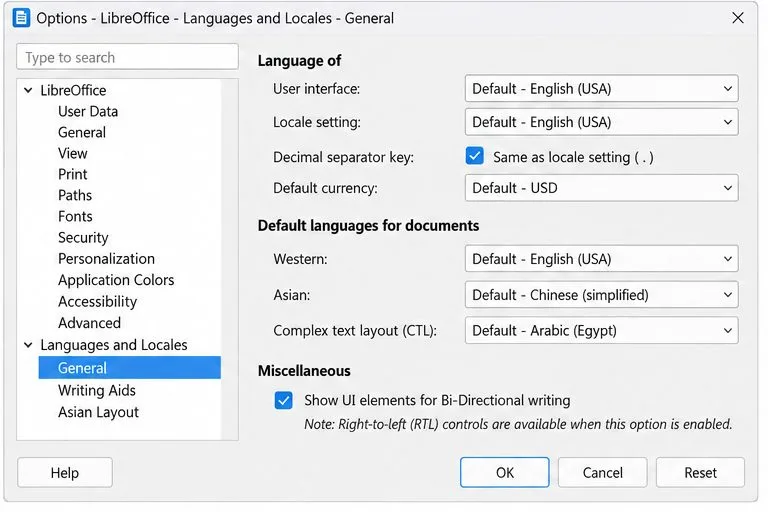 General with Show UI elements for Bi-Directional writing checked.">
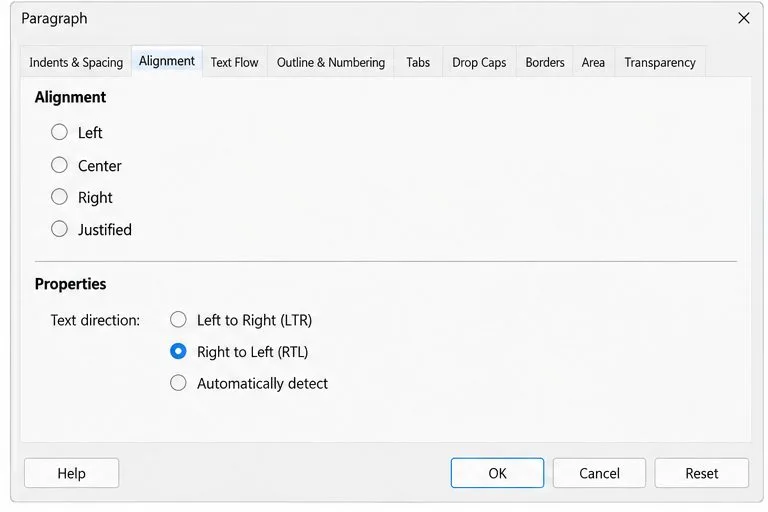
Click inside the paragraph you need to fix. If several paragraphs should run RTL, select those paragraphs first. Choose Format > Paragraph, open the Alignment tab, and under Properties choose Right to Left (RTL). Confirm with OK. This sets the paragraph’s text direction, so the insertion point and new text follow the right-to-left flow.
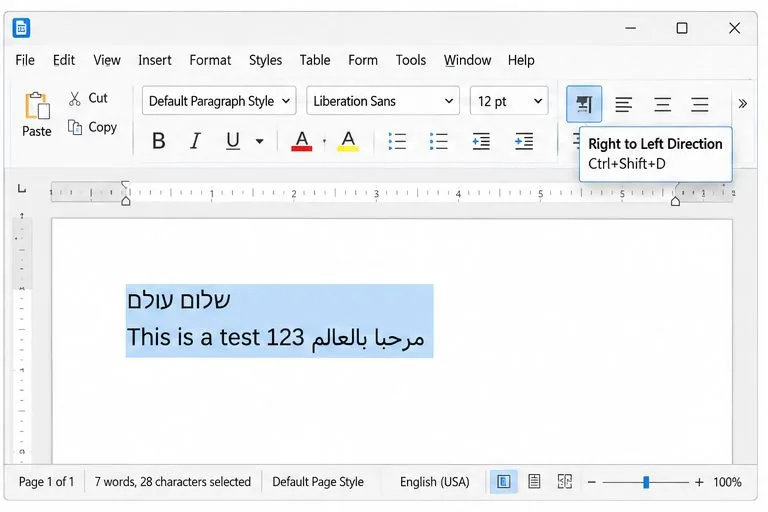
You can also use the Right to Left toolbar control or press Ctrl+Shift+D to switch the current text entry direction. In the current LibreOffice Help, the command is also available from the Home tab’s Home menu in the tabbed interface and from the Properties sidebar. To return to left-to-right entry, use Ctrl+Shift+A or choose the Left to Right control. Shortcuts may be intercepted by the operating system or another application; use the menu command if the key combination does not respond.
Do not use repeated spaces or tabs to push an RTL line to the right margin. Those characters can shift when text changes and do not set paragraph direction. Likewise, the ordinary right-alignment button only moves the paragraph’s edge; it is not a substitute for choosing RTL in the paragraph’s text direction property.
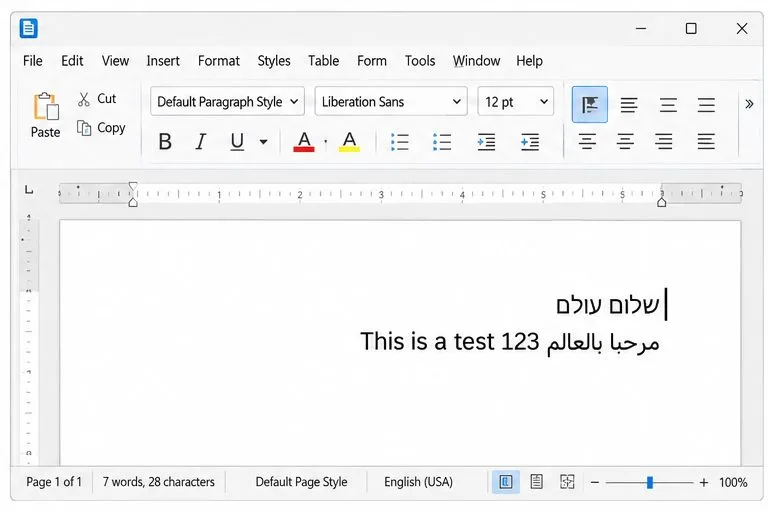
That is normally expected in a mixed-direction paragraph. Arabic or Hebrew text runs RTL, while embedded Western text such as an English name, web address, or number keeps its left-to-right order. The cursor may therefore move in a way that feels different from ordinary English typing. LibreOffice’s CTL guide explains that Western text remains LTR inside an RTL text flow and documents the logical cursor movement behavior.
Test with a short example rather than judging a dense page: type one Arabic or Hebrew phrase, add a short English phrase and digits, then enter parentheses or a colon. The paragraph should begin at the right, the Hebrew or Arabic characters should connect and read in their normal order, and the embedded Latin text should remain legible left-to-right. Punctuation can appear near a different run because its position depends on the surrounding text direction; inspect the whole line before moving marks manually.
If only one paragraph behaves incorrectly, click inside it and check its direction again. A document can contain both LTR and RTL paragraphs. Changing the insertion direction for new text does not necessarily repair paragraphs that already have a different format, so select the affected text and apply RTL directly when needed.
Separate direction problems from font problems. If the letters are visible but appear to start at the wrong side or punctuation is misplaced, recheck paragraph direction and test a new short line. If characters show as empty boxes, question marks, or disconnected symbols, RTL direction alone may not solve it. Try a font that contains the required Arabic or Hebrew glyphs and is installed on the computer. Font availability and font shaping can affect how a document displays on another machine, so check the same file in the target environment if it will be shared.
For a reliable final check, save the document, close and reopen it, then inspect the affected paragraphs. Confirm the first character appears at the right side of each RTL line, the text cursor starts in the expected position, and any embedded English words or numbers retain their normal order. Check punctuation, lists, and the paragraph boundaries around any LTR section. If the document will be exported to PDF, review the exported PDF too; correct Writer display does not guarantee that a missing font will be available on another computer.
When the direction control works for a new test paragraph but one imported passage remains wrong, apply RTL only to that passage or inspect the paragraph formatting it inherited. If the letters themselves are missing or malformed, fix font coverage or installation rather than repeatedly toggling direction.
Enable Writer’s bidirectional controls, set RTL paragraph flow, and check mixed Arabic or Hebrew text without disrupting English words and numbers.
Install metric-compatible Linux fonts or map LibreOffice fallbacks, while keeping Microsoft font licensing and layout differences in view.
Add usable text fields, check boxes, and drop-downs in Writer, then export a PDF recipients can complete and save.
Fix missing or substituted fonts in LibreOffice Writer PDFs, choose the right export profile, and verify which fonts are embedded before sharing.
Convert a folder of Word documents to PDF with LibreOffice commands, handle nested folders safely, and verify the output before sharing.
Set a custom LibreOffice Writer template as the default so new documents open with your preferred styles and page layout.
Install a compatible Java runtime, enable it in LibreOffice, and troubleshoot an empty JRE list without changing unrelated settings.
Build a small LibreOffice container, convert office documents without a GUI, and verify PDF output while limiting host-file access.
Reduce oversized LibreOffice presentation files by compressing embedded photos, choosing sensible image settings, and checking slide quality before sharing.
Match LibreOffice’s page dimensions to your printer, check printable margins, and correct scaling before printing a custom-size document.