Make LibreOffice PDFs Keep the Fonts You Used

Fix missing or substituted fonts in LibreOffice Writer PDFs, choose the right export profile, and verify which fonts are embedded before sharing.
If you have a folder of Word files, LibreOffice can convert them in one command. From the folder containing the DOCX files, create an empty output folder and run libreoffice --headless --convert-to pdf:writer_pdf_Export --outdir pdf *.docx. This uses Writer’s PDF export filter and leaves the originals in place.
Use a fresh output folder, confirm LibreOffice is installed, and check the resulting PDFs rather than treating a successful command exit as proof that every page looks right. The command line is a practical batch tool; it does not guarantee identical pagination to Microsoft Word or repair damaged documents.
In Linux, open a terminal in the directory containing the files. Create the output directory first:
mkdir -p pdf
libreoffice --headless --convert-to pdf:writer_pdf_Export --outdir pdf *.docx
--headless runs without opening the normal desktop window. --convert-to selects PDF as the destination format; writer_pdf_Export names LibreOffice’s Writer PDF export filter; and --outdir pdf sends the results into the pdf folder. The shell expands *.docx to matching files before LibreOffice starts. LibreOffice documents this conversion syntax and filter name in its command-line parameters reference and file conversion filter list.
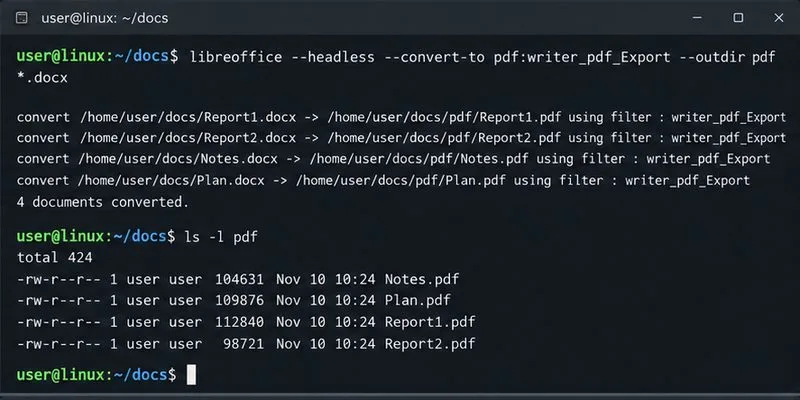
The wildcard command is best when all DOCX files are directly inside one input folder. It does not search child folders. On Linux, the pattern is also case-sensitive by default, so *.docx may skip files ending in .DOCX. If the shell reports that the pattern did not match, list the files and check their extensions before changing the command.
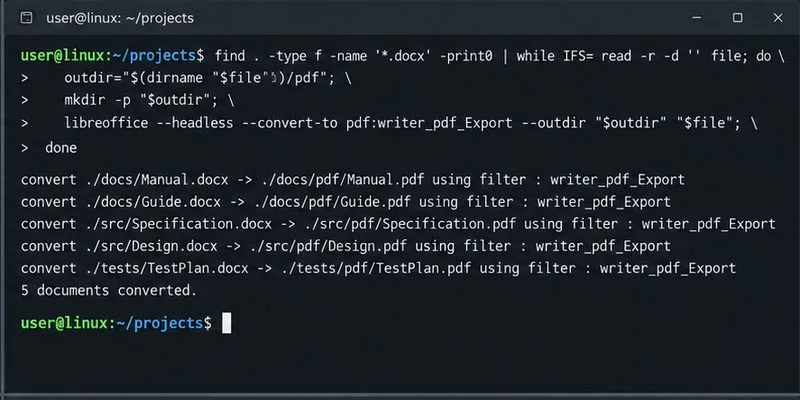
For documents nested in subfolders, a loop can preserve the directory structure and avoid collisions when two folders contain a file with the same name. Set input to the source tree and pdf to a separate destination tree:
input="$PWD/input"
output="$PWD/pdf"
profile="file:///tmp/lo-batch-profile"

find "$input" -type f -iname '*.docx' -print0 |
while IFS= read -r -d '' file; do
  rel="${file#"$input"/}"
  dest="$output/$(dirname "$rel")"
  mkdir -p "$dest"
  libreoffice --headless \
    -env:UserInstallation="$profile" \
    --convert-to pdf:writer_pdf_Export \
    --outdir "$dest" "$file"
done
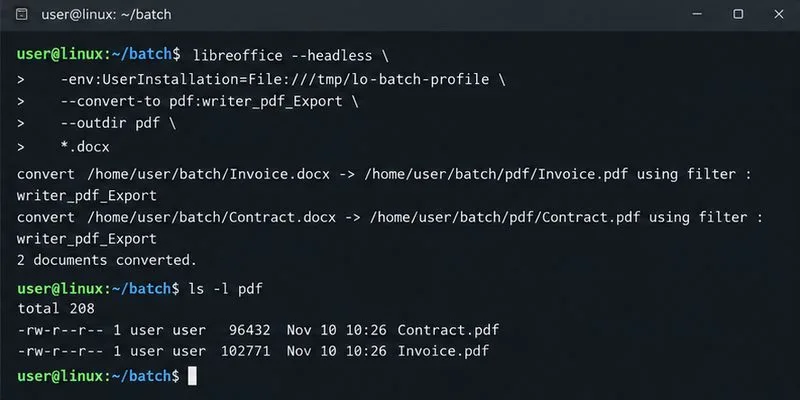
-print0 and the matching read -d '' safely handle spaces and most unusual characters in filenames. The separate profile prevents this batch job from competing with a desktop LibreOffice session using the same user profile; LibreOffice’s startup reference documents -env:UserInstallation. Use a unique profile path if two conversion jobs may run at the same time. Keep the output tree outside the input tree so the search does not wander into prior results.
A command may appear to finish without producing files or may connect to an existing LibreOffice process. A running desktop instance can hold the default user profile. Close LibreOffice and retry; for unattended jobs, the isolated -env:UserInstallation option in the recursive example is a useful safeguard. Give every concurrent job its own profile directory and wait for one job to finish before reusing that directory.
If the command says libreoffice: command not found, install LibreOffice through your operating system’s supported package source or use the executable’s full path. On Windows PowerShell, a simple nonrecursive batch can be written as:
$src = (Resolve-Path .).Path
$out = Join-Path $src 'pdf'
New-Item -ItemType Directory -Force -Path $out | Out-Null
$soffice = "$env:ProgramFiles\LibreOffice\program\soffice.exe"
Get-ChildItem -File -Filter *.docx | ForEach-Object {
  & $soffice --headless --convert-to pdf:writer_pdf_Export --outdir $out $_.FullName
}
Adjust $soffice if LibreOffice is installed elsewhere. Run the command from the source folder, and use a new output folder. PowerShell’s Get-ChildItem -File searches only that folder unless recursion is requested; recursive jobs need a loop that creates a corresponding destination folder for each source path.
PDF conversion preserves the layout LibreOffice can interpret, but Word and LibreOffice do not always paginate documents identically. Missing fonts, unsupported embedded objects, tracked changes, fields, or complex tables can shift line breaks and page counts. For consistent typography, install the fonts the documents require before conversion. Protected or password-encrypted files may need to be opened with credentials or handled manually, and a damaged DOCX may fail by itself even if other files convert.
Do not run the batch repeatedly into a folder containing valuable PDFs with matching names. Use a clean destination or back up existing output first. If one file is especially important, open it in LibreOffice Writer and inspect it before relying on the PDF. If exact Microsoft Word pagination is a contractual requirement, LibreOffice may not be the right renderer; compare a representative sample in the application that defines the required layout.
First compare the number of source files with the number of PDFs. On Linux, these commands count files in a flat folder:
find . -maxdepth 1 -type f -iname '*.docx' | wc -l
find pdf -maxdepth 1 -type f -iname '*.pdf' | wc -l
For recursive conversion, compare counts across the full input and output trees instead. A matching count is a useful screen, not a quality guarantee: a corrupted document or an overwritten duplicate may still require review. Check the terminal log for errors and confirm each expected filename appears in the destination.
Inspect representative PDFs in a PDF viewer. Check the first and last page, page count, margins, tables, headers and footers, images, and any page breaks that matter. If pdfinfo is installed, pdfinfo pdf/Report.pdf provides metadata such as page count and page size; it does not assess visual fidelity. Reconvert only after correcting a specific issue, such as installing a missing font or changing the output directory, then review the affected PDFs again.
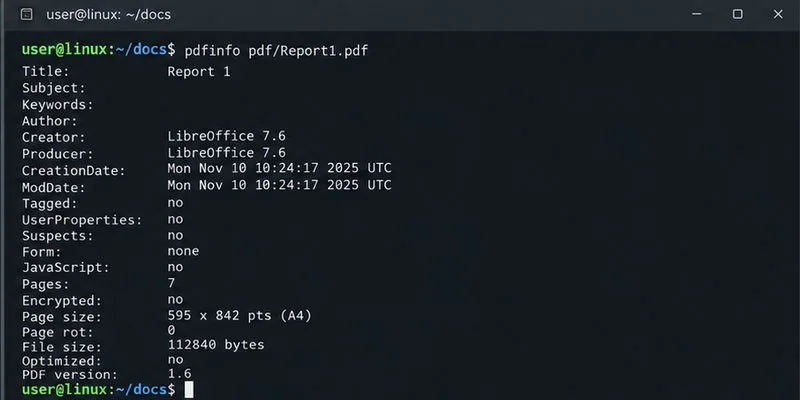
The batch is ready when every expected PDF exists, opens without an error, and the pages that matter retain the intended layout. For long archives, keep the original DOCX files and conversion logs so an individual failure can be traced and rerun without replacing unrelated output.
Fix missing or substituted fonts in LibreOffice Writer PDFs, choose the right export profile, and verify which fonts are embedded before sharing.
Convert a folder of Word documents to PDF with LibreOffice commands, handle nested folders safely, and verify the output before sharing.
Set a custom LibreOffice Writer template as the default so new documents open with your preferred styles and page layout.
Install a compatible Java runtime, enable it in LibreOffice, and troubleshoot an empty JRE list without changing unrelated settings.
Build a small LibreOffice container, convert office documents without a GUI, and verify PDF output while limiting host-file access.
Reduce oversized LibreOffice presentation files by compressing embedded photos, choosing sensible image settings, and checking slide quality before sharing.
Match LibreOffice’s page dimensions to your printer, check printable margins, and correct scaling before printing a custom-size document.
Replace repeated cell access with bulk range reads and writes, then benchmark the result and protect formulas in large Calc workbooks.
Split a long manuscript into chapters, assemble them in Writer, and keep styles, contents, and export checks consistent.
Use Base’s direct PostgreSQL option to enter your server details, sign in, save an ODB connection file, and troubleshoot common access errors.