Make LibreOffice PDFs Keep the Fonts You Used

Fix missing or substituted fonts in LibreOffice Writer PDFs, choose the right export profile, and verify which fonts are embedded before sharing.
If LibreOffice Writer reports a font embedding problem, or the exported PDF changes typefaces on another computer, first make sure the intended font is installed and usable on the computer doing the export. Then export again using a PDF/A profile when the recipient requires embedded fonts, and inspect the resulting PDF. Embedding a font in the Writer document is a separate setting; it does not by itself guarantee that the PDF export contains that font.
LibreOffice Help currently documents PDF export options and font controls separately. Its PDF filter option named EmbedStandardFonts applies only to the 14 standard PDF fonts; it is not a switch that embeds every font used in a Writer document. The Help page is for LibreOffice 26.8 at the time of review. That distinction explains why changing a document’s font-embedding preferences may not fix a PDF whose fonts are missing.
Open the source document and note the font names used in the affected text. If Writer shows a substitute font, a blank glyph, or unexpectedly different line wrapping, the font may be missing, disabled, or unavailable to the account running LibreOffice. Install a properly licensed copy of the required font through your operating system’s normal font settings. On Linux, refresh or reopen the desktop session if the font manager requires it. Then close and restart LibreOffice so it can reload the system font list.
Do not copy a font from another computer unless its license allows that use. Some fonts restrict embedding or redistribution. If the font is restricted, use a licensed font with comparable metrics and glyph coverage, then review the document layout before exporting again. A PDF export cannot embed a font that the system cannot provide, and LibreOffice cannot override the font’s embedding permissions.
LibreOffice’s PDF export dialog and available profile labels can vary by release and platform. Follow the labels shown in your installed version. PDF/A is an archival conformance profile, not an instruction to embed every installed font regardless of licensing, nor a substitute for checking the file.
First identify which font is at fault. If only one family fails, replace it with a font that is installed, licensed for embedding, and supports the characters in the document. A font substitution can change text width and pagination, so review each affected page after replacement. If several fonts fail, confirm that LibreOffice is running under the same user account in which you installed them. A desktop installation and a service, container, or remote session may use different font directories.
Next, export a small test copy containing a few lines in the affected typeface. Use the same PDF/A profile and the same computer account. If the test succeeds, the original document may contain another font, object, or text run that triggers the failure. Check headers, footers, tables, text boxes, and pasted content, where a separate font can be easy to overlook. If the test fails too, test a known embeddable font in a new document. This separates a font-specific restriction or installation issue from a broader export problem.
Update LibreOffice through the normal trusted channel for your operating system if you are using an older build, then retry with a copy of the document. Record the LibreOffice version, operating system, font family, PDF profile, and exact error text before reporting a reproducible issue to the LibreOffice project. Do not treat an error message that mentions font embedding as proof that every font in the document failed; verify the actual PDF.
Visual inspection is necessary, but it cannot show whether a font is embedded: a viewer may silently substitute a locally installed font. In many PDF readers, open the document’s Properties and look for a Fonts tab or section. Each font used in the file should be identified as embedded or embedded subset if embedding is required. A subset contains only the glyphs needed by the document and is a normal way to reduce PDF size.
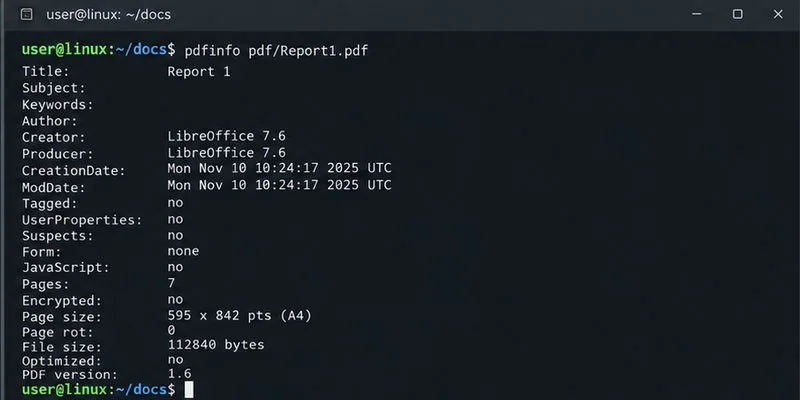
If Poppler’s pdffonts utility is available, run:
pdffonts "your-file.pdf"Review the emb column: yes indicates that the listed font is embedded. The sub column indicates a subset. A no entry means that font is not embedded; determine whether it is one of the fonts that must travel with the document. The utility checks the PDF’s font records, while a separate PDF/A validator is needed if you must certify full archival conformance.
pdffonts; verify the required font entries show embedded status.These checks establish that the fonts are present and that the pages look correct in the tested viewer. They do not certify compliance with every archive, printer, or submission requirement; use the recipient’s required PDF/A validator or preflight procedure when one is specified.
Official references: LibreOffice PDF Export General Help; LibreOffice PDF CLI Parameters; LibreOffice Font Embedding Help; Poppler FontInfo reference.
Fix missing or substituted fonts in LibreOffice Writer PDFs, choose the right export profile, and verify which fonts are embedded before sharing.
Convert a folder of Word documents to PDF with LibreOffice commands, handle nested folders safely, and verify the output before sharing.
Set a custom LibreOffice Writer template as the default so new documents open with your preferred styles and page layout.
Install a compatible Java runtime, enable it in LibreOffice, and troubleshoot an empty JRE list without changing unrelated settings.
Build a small LibreOffice container, convert office documents without a GUI, and verify PDF output while limiting host-file access.
Reduce oversized LibreOffice presentation files by compressing embedded photos, choosing sensible image settings, and checking slide quality before sharing.
Match LibreOffice’s page dimensions to your printer, check printable margins, and correct scaling before printing a custom-size document.
Replace repeated cell access with bulk range reads and writes, then benchmark the result and protect formulas in large Calc workbooks.
Split a long manuscript into chapters, assemble them in Writer, and keep styles, contents, and export checks consistent.
Use Base’s direct PostgreSQL option to enter your server details, sign in, save an ODB connection file, and troubleshoot common access errors.