Create Fillable PDFs from Forms in LibreOffice Writer
Add usable text fields, check boxes, and drop-downs in Writer, then export a PDF recipients can complete and save.
To make a fillable PDF in LibreOffice Writer, add form controls to your document, then export it as a PDF with Create PDF form enabled. Save the editable Writer file as your master; the PDF is the version recipients fill in.
Use Writer’s form controls when people need to type into text fields, check boxes, or choose from a list in a PDF. This is different from drawing blank lines or square symbols on a page: those only look like fields and will not accept input. LibreOffice’s Form Controls help documents the available controls and how to insert and edit them.
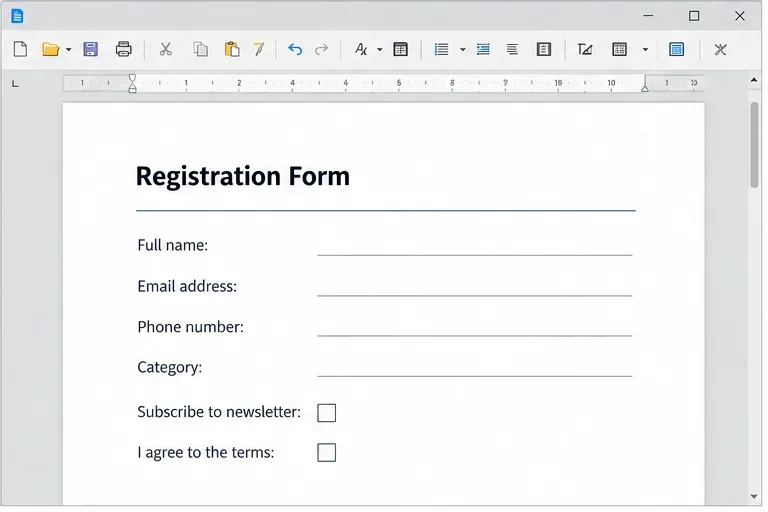
Plan the page first. A one-page registration form, for example, might ask for a name, email address, category, and consent. Use short prompts, leave enough space for answers, and group related choices together. A simple table can help align labels and controls; remove or soften table borders if they should not appear in the printed form.
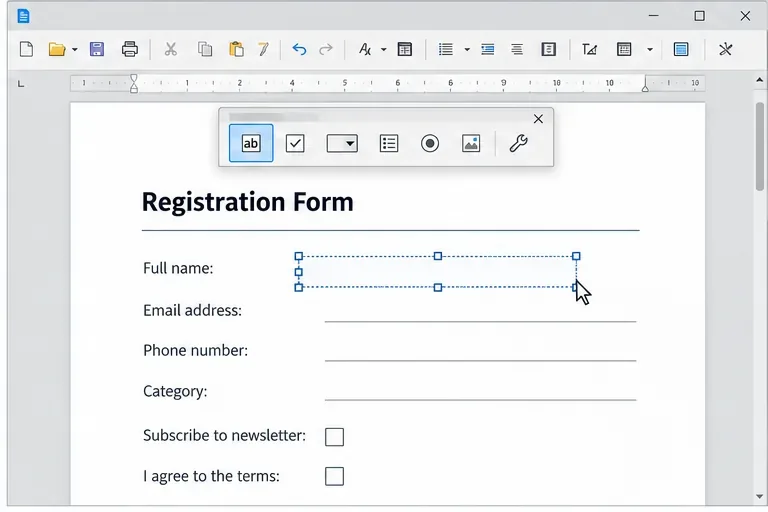
Right-click a control and choose Control Properties to edit its settings. Give each field a useful, unique name, such as full_name or email_address. Names make fields easier to identify if responses are later collected or processed. Add a visible label or explanatory text on the page; do not rely on a technical field name to explain what a recipient should enter.
For a drop-down, enter clear choices and decide whether users may type a value outside the list. LibreOffice’s Combo Box can allow typed entries unless its read-only property is set. Use a List Box when the user should choose from listed entries. For one-of-many choices, use Option Buttons and give buttons in the same group the same Name property; separate groups should use different names.
Check the tab sequence as well as the page layout. Choose Form > Activation Order to review or change the order in which controls receive focus when the user presses Tab. A logical sequence usually follows the reading order: top to bottom, then left to right. Turn off Design Mode and click through the controls in Writer to check that they respond as expected. Turn Design Mode back on if you need to make changes.
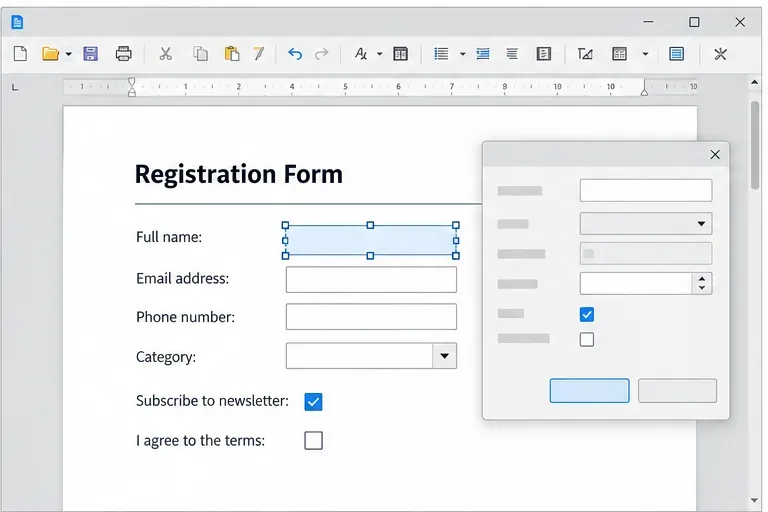
See LibreOffice’s current PDF Export General documentation for the Create PDF form and Submit format options. Its Writer Form menu reference also lists Design Mode and Activation Order.
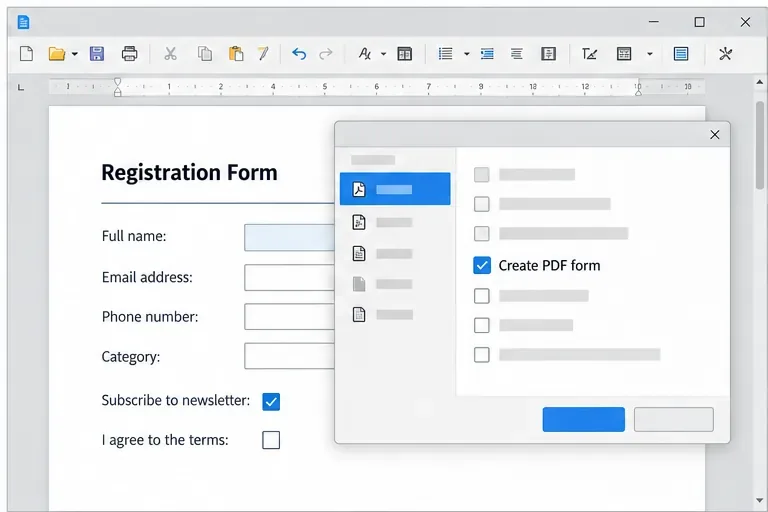
PDF viewers do not all handle every form feature identically, so test the PDF in the software your recipients are likely to use. If a field is missing or not interactive, return to the .odt file, confirm the control exists and Design Mode is off before export, then export again with Create PDF form selected.
Add usable text fields, check boxes, and drop-downs in Writer, then export a PDF recipients can complete and save.
Fix missing or substituted fonts in LibreOffice Writer PDFs, choose the right export profile, and verify which fonts are embedded before sharing.
Convert a folder of Word documents to PDF with LibreOffice commands, handle nested folders safely, and verify the output before sharing.
Set a custom LibreOffice Writer template as the default so new documents open with your preferred styles and page layout.
Install a compatible Java runtime, enable it in LibreOffice, and troubleshoot an empty JRE list without changing unrelated settings.
Build a small LibreOffice container, convert office documents without a GUI, and verify PDF output while limiting host-file access.
Reduce oversized LibreOffice presentation files by compressing embedded photos, choosing sensible image settings, and checking slide quality before sharing.
Match LibreOffice’s page dimensions to your printer, check printable margins, and correct scaling before printing a custom-size document.
Replace repeated cell access with bulk range reads and writes, then benchmark the result and protect formulas in large Calc workbooks.
Split a long manuscript into chapters, assemble them in Writer, and keep styles, contents, and export checks consistent.