Home
» PC Tips
»
Merge Writer Letters with a Logo and Spreadsheet Fields
Merge Writer Letters with a Logo and Spreadsheet Fields
You can create personalized Writer letters with the same logo in every copy by connecting a Calc spreadsheet, adding text merge fields to a Writer template, and running Tools > Mail Merge Wizard. Insert the shared graphic once; Writer repeats it as it replaces text fields per record. LibreOffice’s standard mail-merge help does not document a field that changes the image for each recipient, so this workflow uses one fixed image.
LibreOffice 26.8 Help documents the Mail Merge Wizard and saving merged letters as one or separate files. The saved template and data source make later batches repeatable: update the spreadsheet, preview records, and merge again. This is a repeatable, user-started workflow; it does not watch the spreadsheet and regenerate letters in the background. Keep the workbook and template together for repeat runs.
1. Prepare the recipient spreadsheet
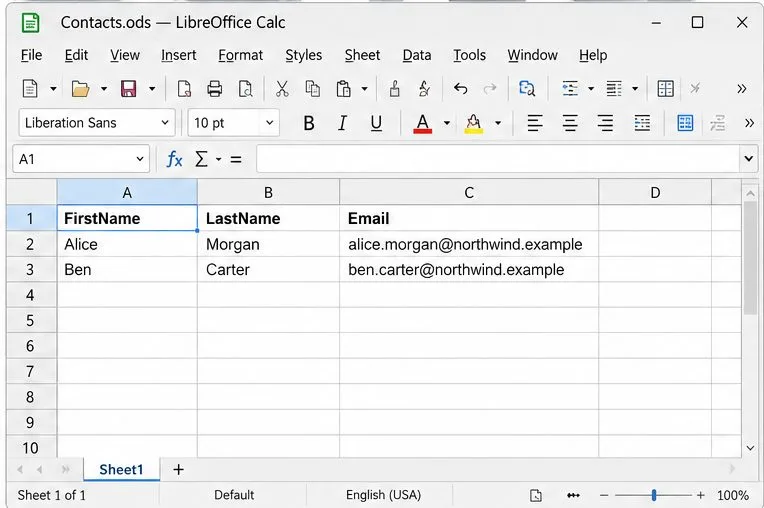
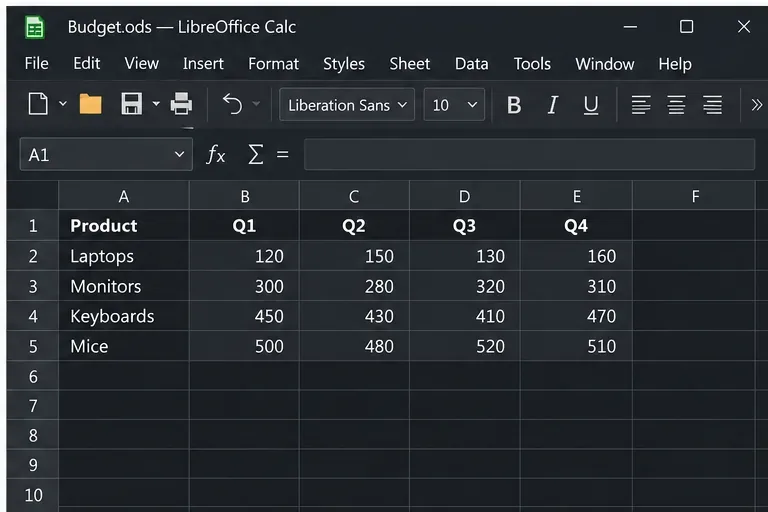
In Calc, put one recipient in each row and clear field names in the first row, such as FirstName, LastName, Email, and Company. Avoid blank headings and keep each column consistent. A column named ImagePath will not automatically turn into a picture in the standard merge.
Build with two or three test records first. Check names, punctuation, and optional fields, then save the spreadsheet in a stable location. If Writer does not show it as a data source, select the list in the Wizard and match its headings when prompted.
If you want to process only part of the list, set the record range in the final merge step instead of deleting rows from the source. Keep an untouched copy of the spreadsheet before sorting or editing recipient data.
Example Calc sheet: field names in row one, one fictional recipient per row.
2. Connect the data source and build the Writer template
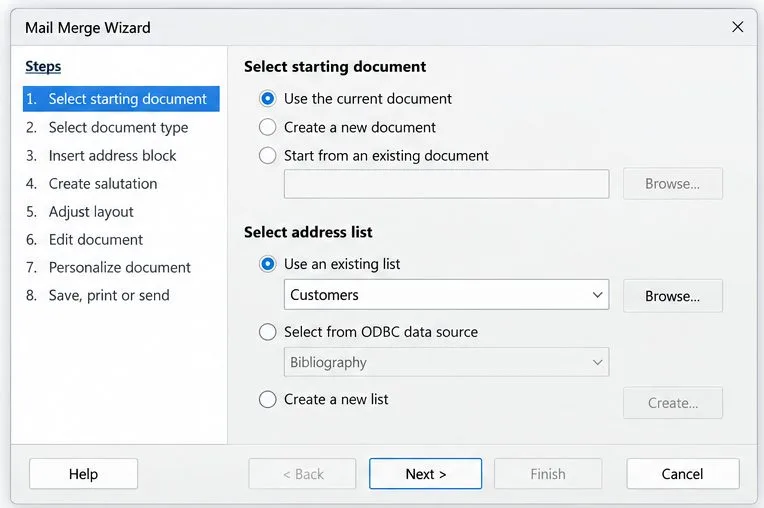
Open a Writer document and choose Tools > Mail Merge Wizard. Use the current document or an existing template, then select the spreadsheet and its sheet in the address step. Match spreadsheet headings to address fields if prompted. See LibreOffice’s Creating a Form Letter help for the Wizard flow.
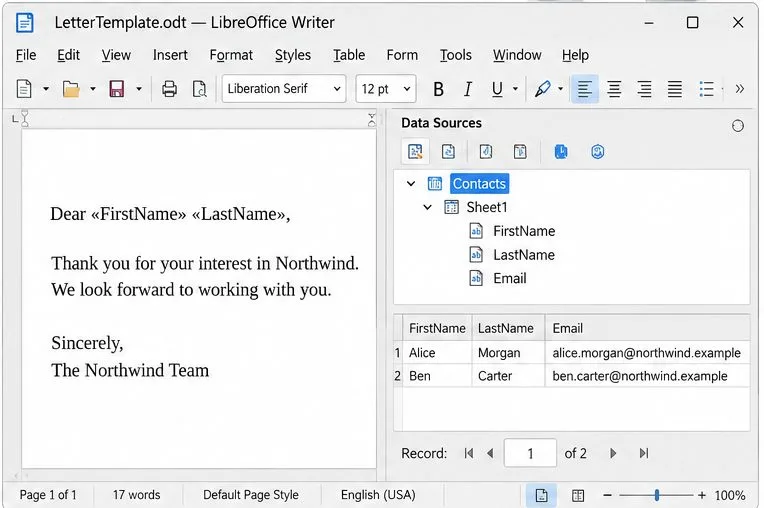
To personalize the body, drag a data-source column heading such as FirstName into the greeting, or use Insert > Field > More Fields > Database. Type spaces and punctuation around each field. The template may show a placeholder; the preview should show the selected record’s value. When dragging a heading from the data source pane, drag the column heading itself rather than copying a visible sample value; that inserts the field placeholder.
Writer template with recipient merge fields and the data source pane open.
3. Insert and position the image that every letter will share
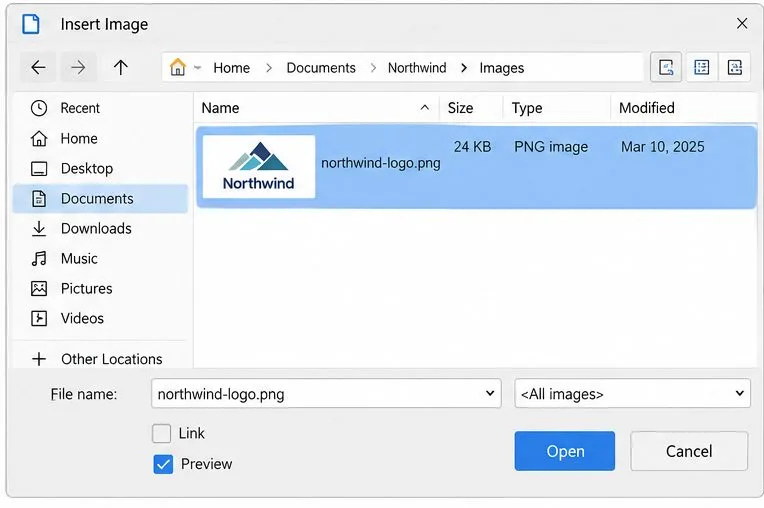
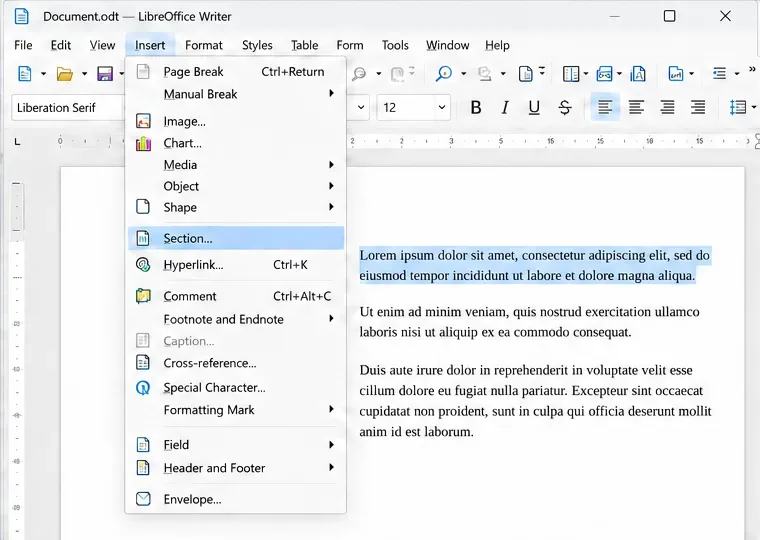
Click where the logo should appear and choose Insert > Image. Select the file and leave Link unchecked to store the image in the document. A linked image reloads from its original path and can go missing if that file is moved. LibreOffice explains this in its graphic insertion help.
Resize from a corner to preserve proportions. For a logo aligned with text, choose Format > Anchor > As Character; it then moves with the text line. Save the Writer template after positioning the graphic. For a logo line, anchoring as a character keeps the image in the paragraph flow. Avoid placing the shared logo inside a text selection that may be replaced while editing merge fields.
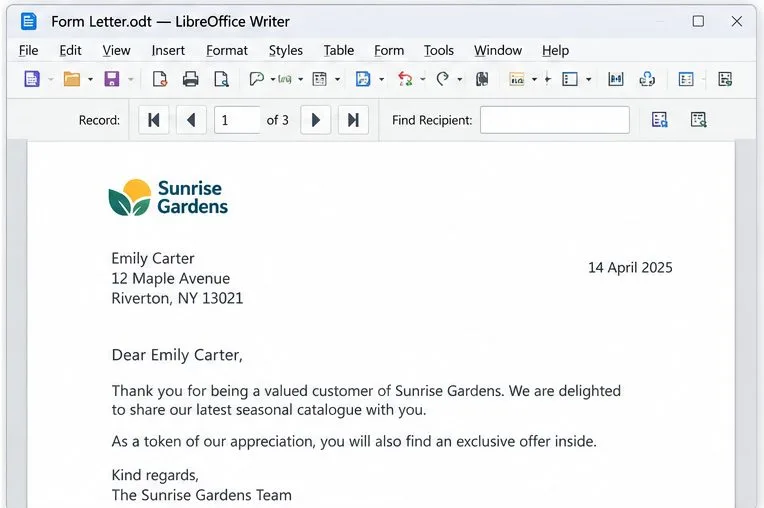
Place the image in an area shared by every letter, such as above the greeting. A common logo or banner stays consistent without a record-specific image link.
Insert the shared logo with Link unchecked to keep it inside the template.A fixed logo sits above the personalized greeting in the Writer letter.
4. Preview records before you generate the batch
Continue to the preview or document-editing step and browse several records, including one with a long name or blank optional field. Confirm each value appears in the right place and the shared logo remains visible. Browse the first, a middle, and the last record when practical; long addresses and blank optional fields reveal spacing problems that a short first record can hide.
If the logo is missing, confirm it is visible in the saved template and was embedded rather than linked to a moved file. If a field name remains instead of a value, reconnect the data source and check its field mapping.
Choose the recipient list and data source in the Mail Merge Wizard.Preview a recipient to check merged text and the repeated logo.
When you need a different image for each recipient
For different photos per recipient, do not assume an image-path column is enough. LibreOffice’s database field reference describes mail-merge fields as database placeholders, but does not document automatic per-record image substitution. Use a document-generation workflow that explicitly supports variable images and test a small sample.
If you plan to email letters, test image delivery separately. LibreOffice notes that embedded or linked images in an HTML document are not sent with the email in its form-letter help. Saving and reviewing files first lets you verify each image before delivery.
5. Save the merged output and verify it
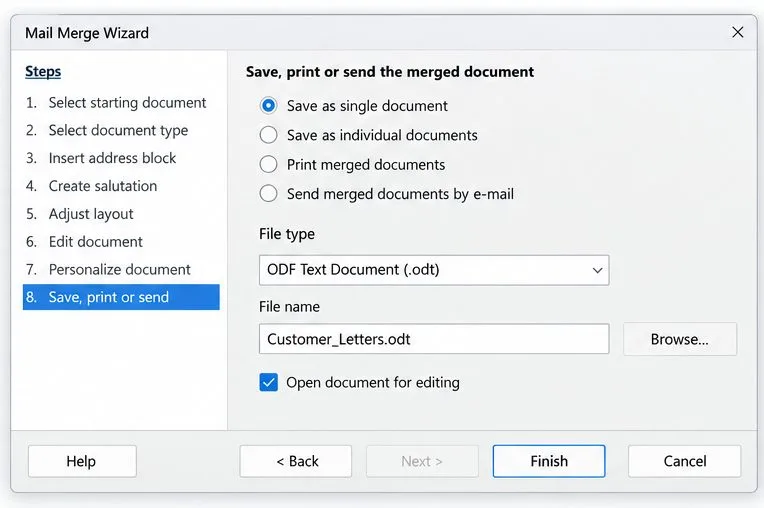
Choose to save the merged output to a file. Select Save as individual documents for one editable letter per recipient, or Save as single document for one file containing all records. Use a new output folder and a clear filename. The Mail Merge reference documents these output choices.
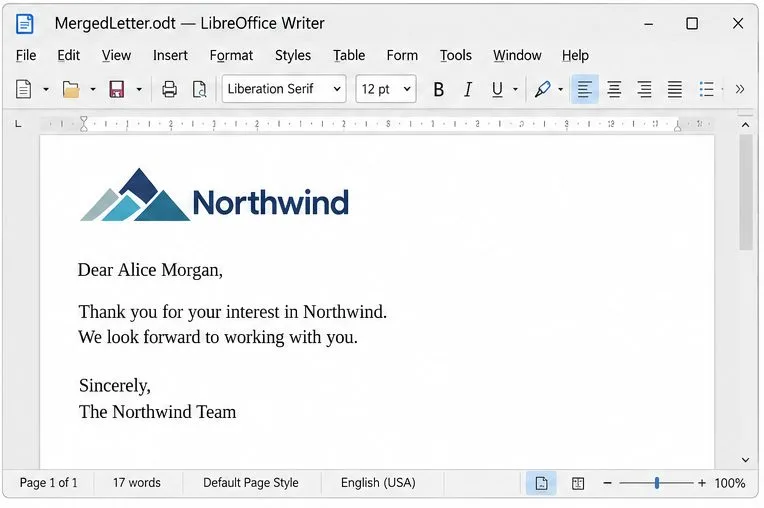
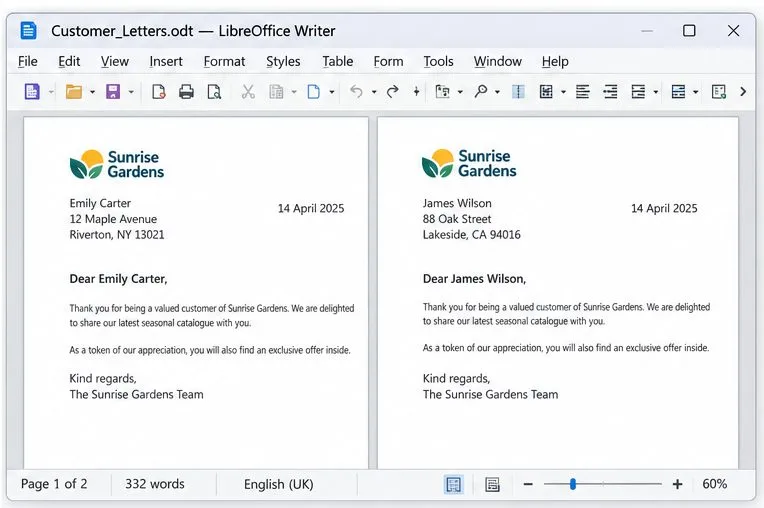
Open the combined file or sample individual files. Check that names and addresses change by record while the logo stays sharp and positioned correctly. Review the first and last letters and any record with unusually long text.
Save the batch as one combined file or individual recipient documents.Two merged pages show different recipient details and the same shared logo.