Protect Selected Writer Text with a Section Password
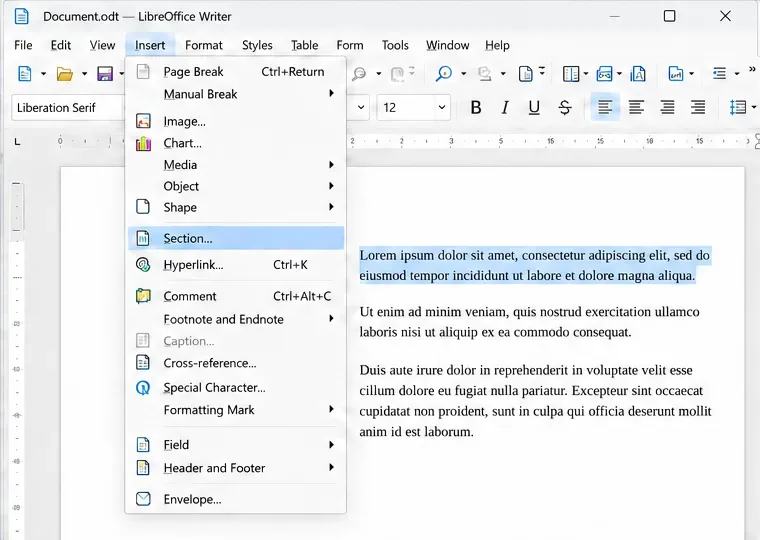
Lock a specific passage against routine edits while keeping the rest of a Writer document usable, and learn when file encryption is the better choice.
If a Python script runs from your terminal but cannot read or change the spreadsheet open in Calc, it is probably running outside LibreOffice. A Calc Python macro needs to run inside the LibreOffice process, where LibreOffice supplies the active document context. Save the script as a module in your user Python scripts folder, export its function with g_exportedScripts, and launch it from Calc’s macro dialog.
This is the simplest path for a small automation tied to the open workbook. LibreOffice’s current Python scripting help describes both in-process macros and separately connected Python scripts; the steps below use the in-process method.
LibreOffice exposes the current document to a running Python macro through the global XSCRIPTCONTEXT. A script launched with your regular python command is a separate process, so that global is not automatically available. It can still communicate with LibreOffice, but that requires setting up a UNO connection to an already running office process. For a first macro, run the function inside LibreOffice instead.
A Python macro is a function in a .py module. The module’s g_exportedScripts tuple tells LibreOffice which functions to show in its macro list. These details are documented in LibreOffice’s Python programming reference.
Use the personal My Macros location if you want a script that can run from any open LibreOffice document for your user account. LibreOffice documents the folder as %APPDATA%\LibreOffice\4\user\Scripts\python on Windows and $HOME/.config/libreoffice/4/user/Scripts/python on Linux and macOS. If the Scripts/python folders do not exist yet, create them. The script locations reference also explains the other macro containers: Application Macros and macros embedded in a document.
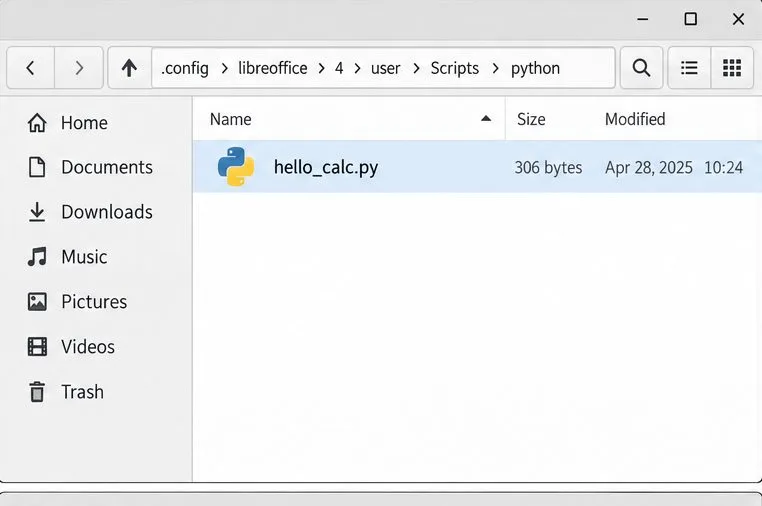
Document macros are stored inside a particular file and are only accessible while that document is open. For a reusable personal utility, My Macros is usually easier to maintain. Avoid modifying LibreOffice’s application-wide macro folder, which may require administrator access.
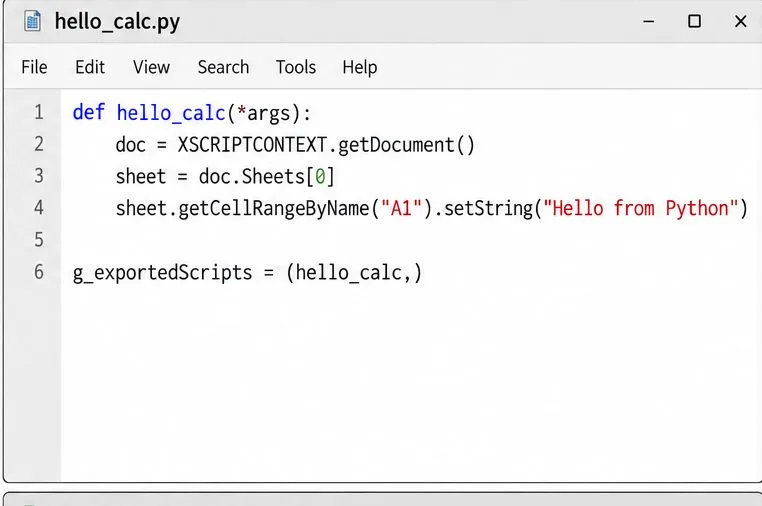
Open a plain-text editor, create hello_calc.py in the folder above, and add:
def hello_calc(*args):
    doc = XSCRIPTCONTEXT.getDocument()
    sheet = doc.Sheets[0]
    sheet.getCellRangeByName("A1").setString("Hello from Python")

g_exportedScripts = (hello_calc,)
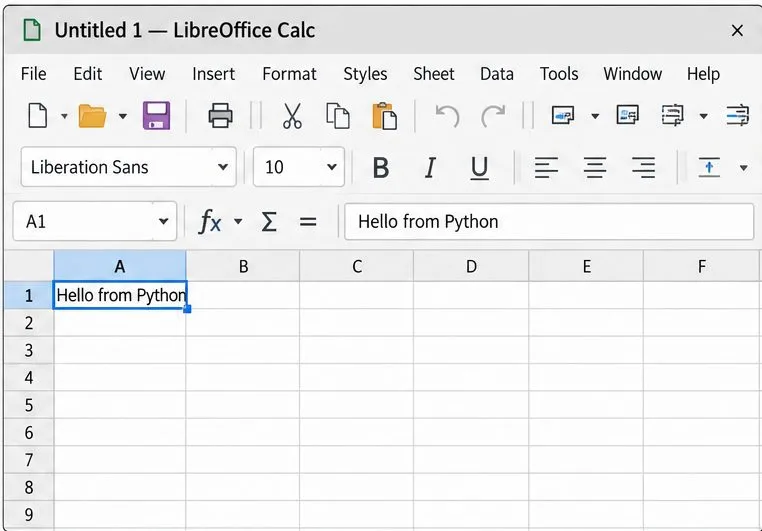
The function gets the document currently connected to the macro call, selects its first sheet, and writes a harmless test string in A1. The final line is important: without the exported tuple, the function may not appear as a runnable macro. Save the file as plain text with the .py extension, not as a rich-text document or a file ending in .py.txt.
LibreOffice supplies XSCRIPTCONTEXT to the macro module. It does not automatically pass that variable to modules imported by your code, so keep the first test self-contained. If you later split reusable functions into other modules, follow LibreOffice’s Python module import guidance.
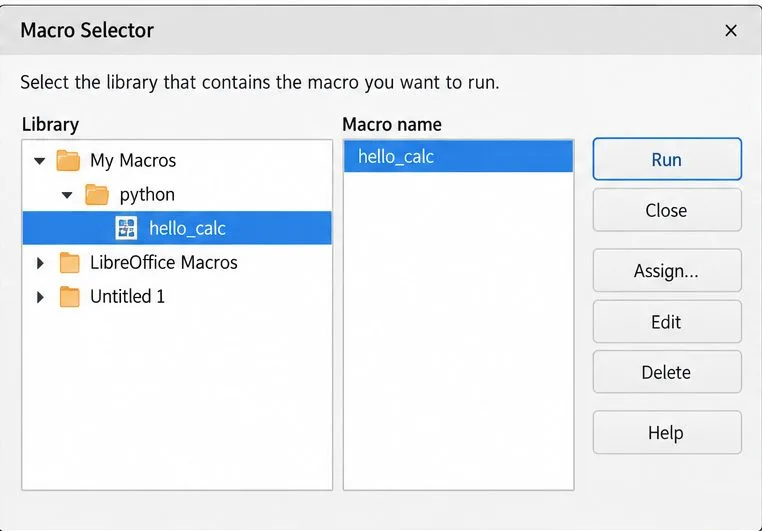
hello_calc from the macro names.The same function can be started from the APSO extension, which LibreOffice recommends for in-process Python scripting and also provides a Python shell. You do not need APSO for the basic Run Macro flow described here.
Work through these checks in order rather than changing broad security settings:
Scripts/python path, has a .py suffix, and contains a correctly spelled g_exportedScripts tuple. Reopen the macro dialog; if LibreOffice still does not list a newly added file, close and restart LibreOffice, then check again.(hello_calc,). The comma makes this a one-item Python tuple.print() is not available when Python macros run from the standard macro dialog. The test above writes into A1 so the result is visible in the sheet. For interactive debugging, APSO’s shell displays output.Choose the external-process approach only when your automation must start from a terminal, scheduler, or another application. LibreOffice requires you to start the office process with a pipe or socket and connect through its UNO bridge; an ordinary standalone script is not equivalent to an in-process Calc macro.
After clicking Run, look at cell A1 on the first sheet. It should contain Hello from Python, and the formula bar should show the same text when A1 is selected. If the cell remains unchanged, confirm that the intended workbook was active and that the macro was selected from My Macros. Once this minimal test succeeds, replace the test write with your real calculation and test it on a copy of the workbook before using it on important data.
Lock a specific passage against routine edits while keeping the rest of a Writer document usable, and learn when file encryption is the better choice.
Fix hard-to-see spreadsheet text by checking the theme, cell font color, fills, and conditional formatting in Calc.
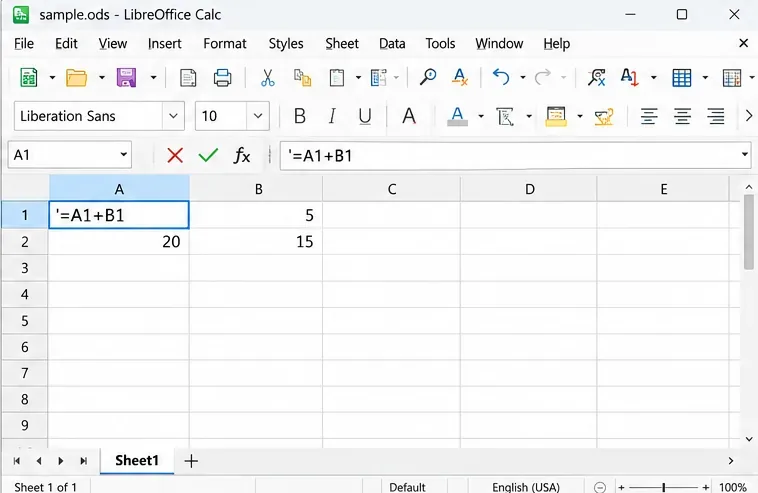
Learn why Calc shows formula text instead of calculated values and fix display mode, Text-formatted cells, apostrophes, or stale results.
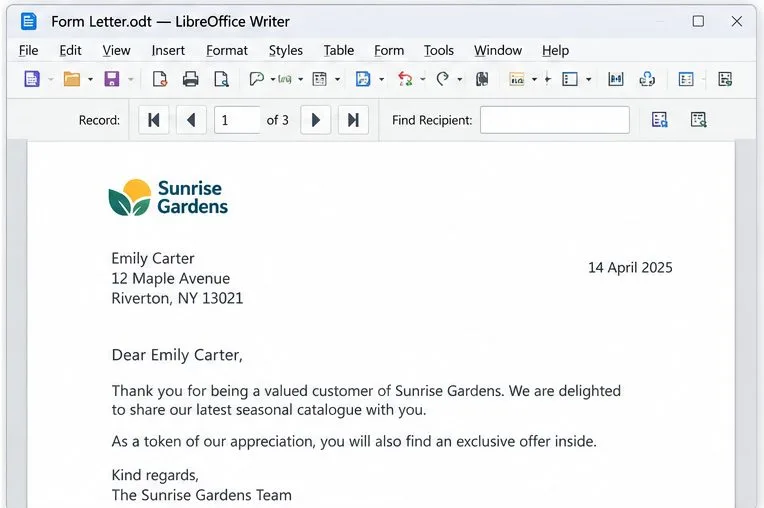
Build a reusable Writer mail merge with Calc recipient data and a shared embedded image, then preview and save the personalized letters.
Turn off LibreOffice’s optional update statistics and crash-report prompts, then check what the settings cover and how to verify them.
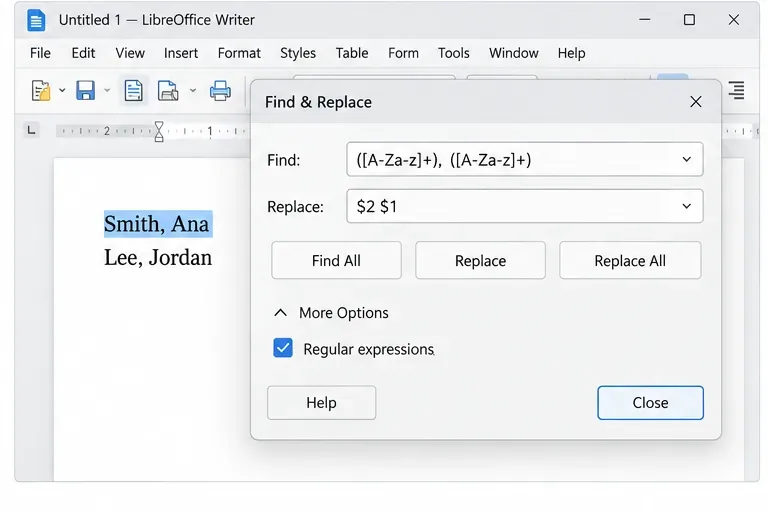
Clean spacing, find structured text, and rearrange names with Writer regex patterns you can preview before replacing.
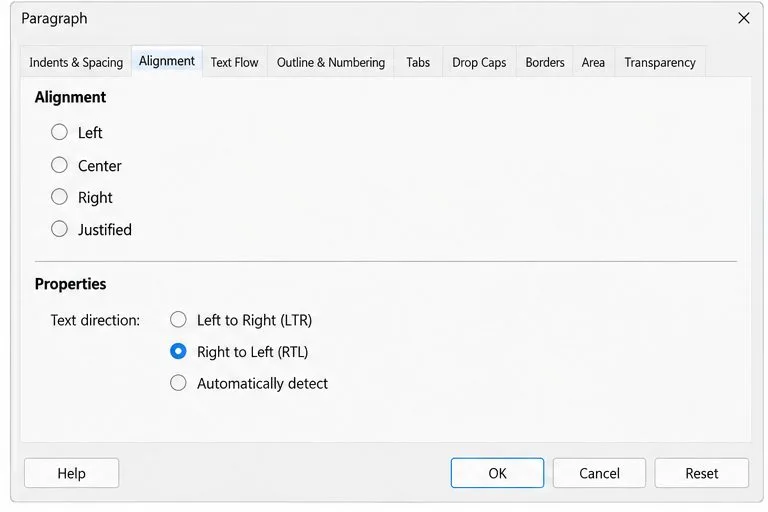
Enable Writer’s bidirectional controls, set RTL paragraph flow, and check mixed Arabic or Hebrew text without disrupting English words and numbers.
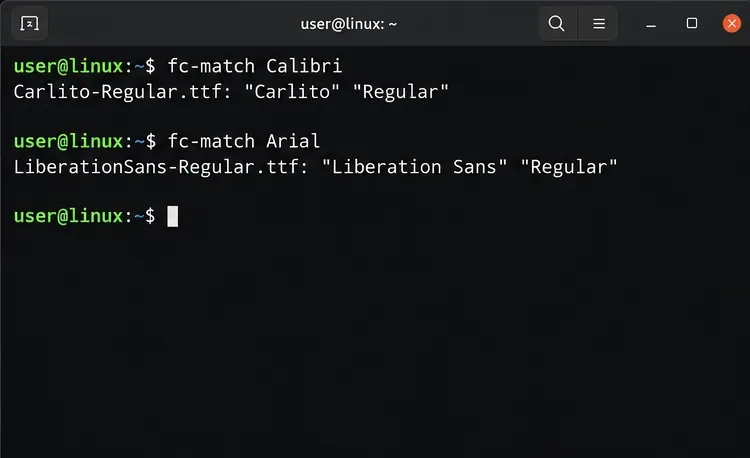
Install metric-compatible Linux fonts or map LibreOffice fallbacks, while keeping Microsoft font licensing and layout differences in view.
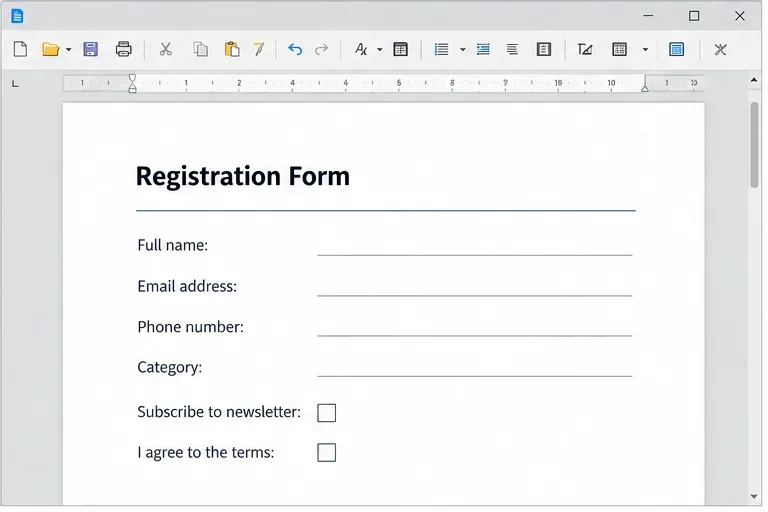
Add usable text fields, check boxes, and drop-downs in Writer, then export a PDF recipients can complete and save.
Fix missing or substituted fonts in LibreOffice Writer PDFs, choose the right export profile, and verify which fonts are embedded before sharing.