Protect Selected Writer Text with a Section Password
Lock a specific passage against routine edits while keeping the rest of a Writer document usable, and learn when file encryption is the better choice.
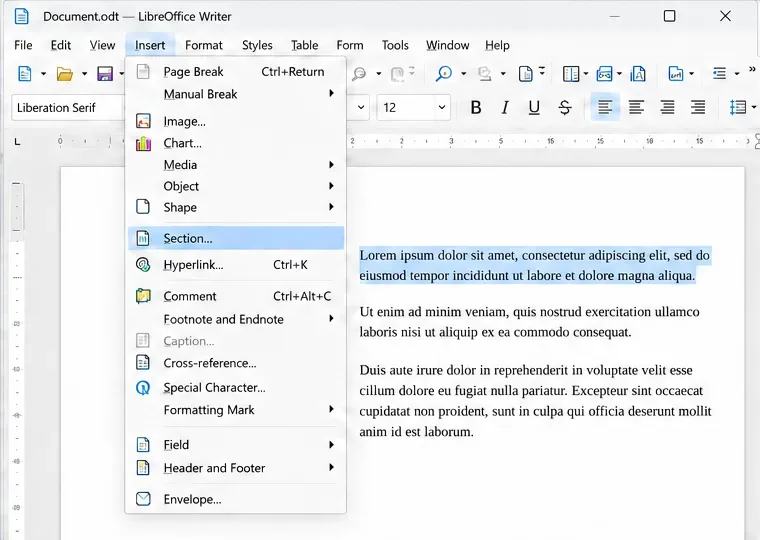
Use a protected section when you want a specific part of a Writer document to be read-only unless someone knows its password. Select or create a section around that text, enable both Protected and With password, and store the password safely; this prevents ordinary edits, but it does not encrypt the document or hide its contents.
A section is a named region of text inside a Writer document. Section protection makes that region resistant to editing and requires the password to remove its protection or change protected settings. It is useful for keeping approved wording, instructions, or a finalized clause from being changed by accident while leaving the rest of the document editable.
It is not a confidentiality feature. The LibreOffice Help page explicitly describes section protection as a switch against accidental changes, not information security. Readers may still see the text. If you need to stop people from opening or reading the file, use document encryption instead: for an OpenDocument file, choose File > Save As and select Save with password. These are different controls with different jobs. Review LibreOffice’s Writer protection guidance and its document-password help before choosing.
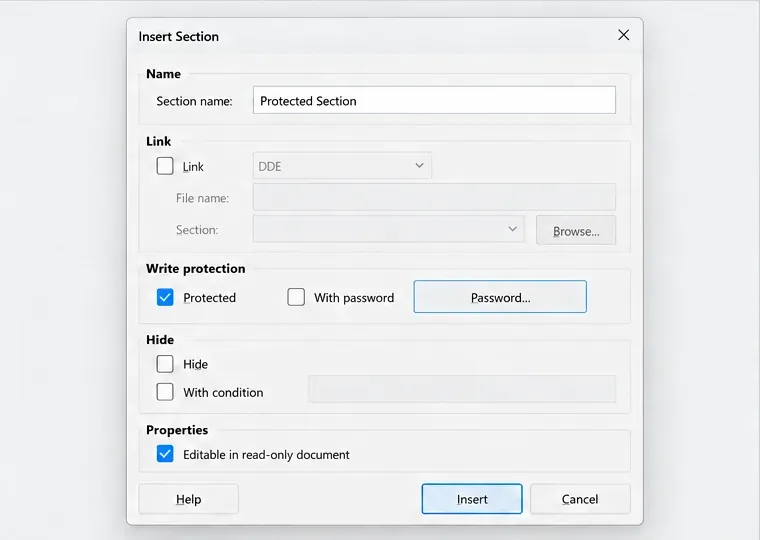
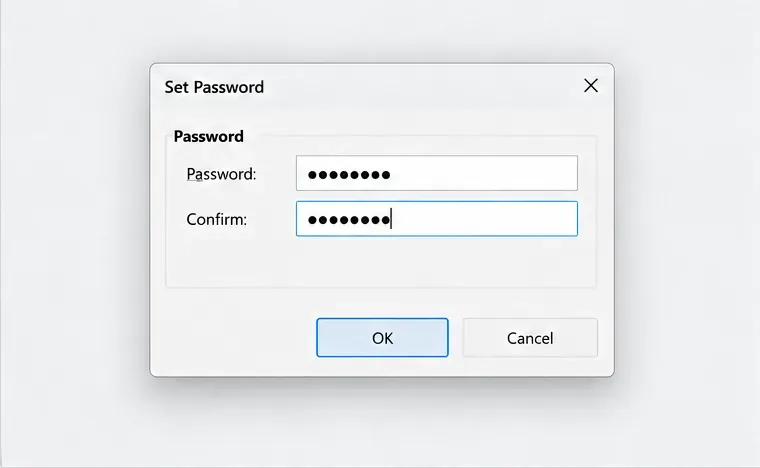
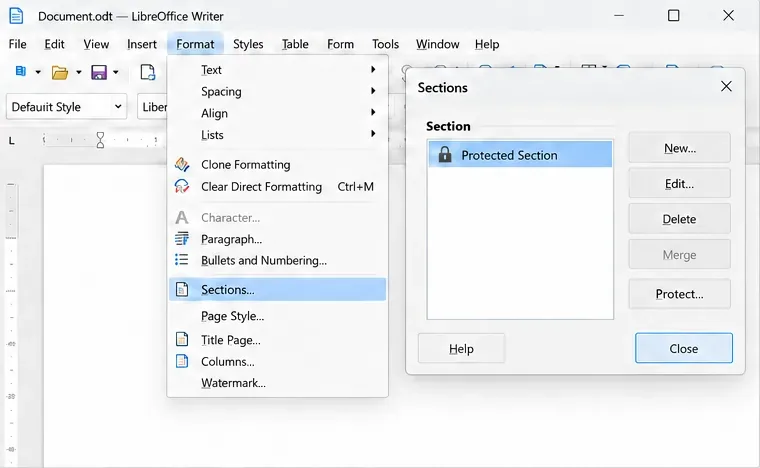
If the text is already a section, you do not need to create another one. Choose Format > Sections, select the section by its name, and enable Protected and With password under Write protection. Click Password…, enter and confirm the password, then apply the change. The official Editing Sections instructions describe selecting a section from this dialog and changing its protection.
Afterward, reopen Format > Sections and check the section list. LibreOffice shows a closed lock beside a protected section. If you do not see the section, check that you selected the intended name and that the text was actually made into a section rather than merely highlighted.
Save the file, click inside the protected text, and try to make a harmless change. Writer should prevent the edit or show a warning. Then try editing a paragraph outside the section; that text should remain editable. This two-part check catches both a section that was never protected and a selection that accidentally included too much of the document.
To make a later change, choose Format > Sections, select the locked section, clear Protected, and enter the correct password when prompted. Apply the change, edit the text, and restore protection afterward if the section should remain locked. To change the password without removing the section, use the same dialog’s Password… control and enter the current password followed by the new one as prompted. Do not remove or recreate the section unless you intend to change its structure.
As of October 9, 2026, the current LibreOffice Help documents section passwords, the five-character minimum, the closed-lock indicator, and the separate Save with password option. Menu wording can vary slightly by version or operating system, but the reliable outcome is the same: only the named section is protected, the rest remains usable, and a password is required to turn that protection off.
Lock a specific passage against routine edits while keeping the rest of a Writer document usable, and learn when file encryption is the better choice.
Fix hard-to-see spreadsheet text by checking the theme, cell font color, fills, and conditional formatting in Calc.
Learn why Calc shows formula text instead of calculated values and fix display mode, Text-formatted cells, apostrophes, or stale results.
Build a reusable Writer mail merge with Calc recipient data and a shared embedded image, then preview and save the personalized letters.
Turn off LibreOffice’s optional update statistics and crash-report prompts, then check what the settings cover and how to verify them.
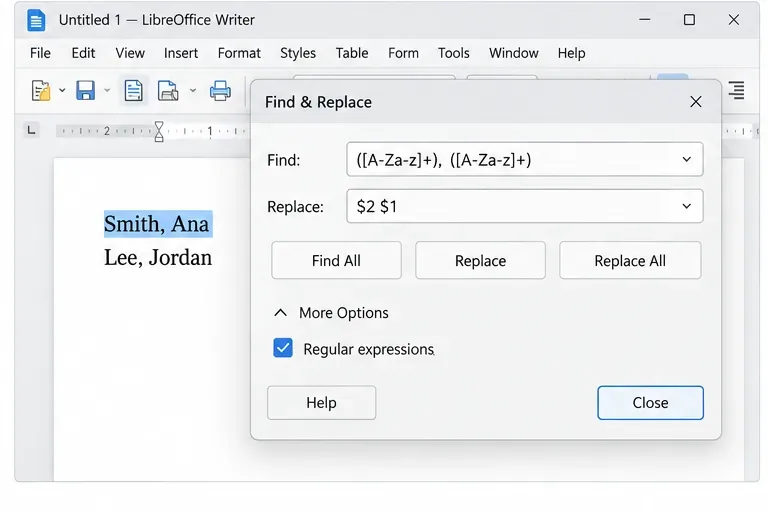
Clean spacing, find structured text, and rearrange names with Writer regex patterns you can preview before replacing.
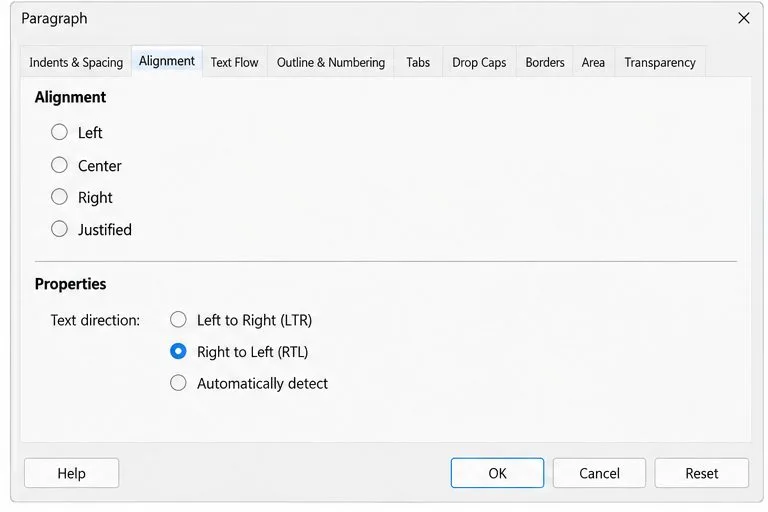
Enable Writer’s bidirectional controls, set RTL paragraph flow, and check mixed Arabic or Hebrew text without disrupting English words and numbers.
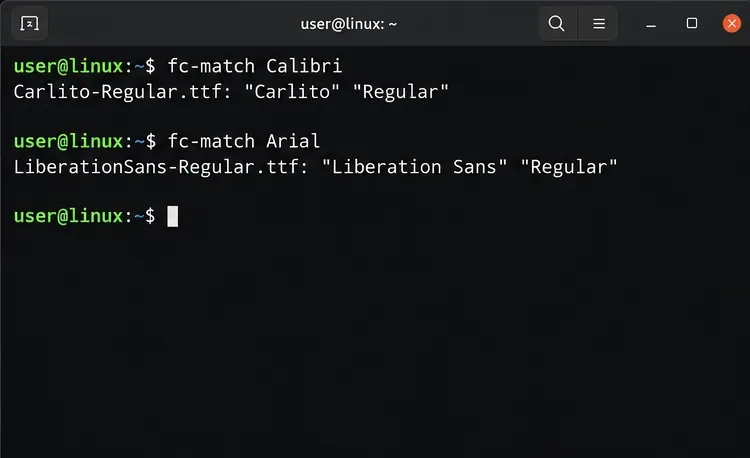
Install metric-compatible Linux fonts or map LibreOffice fallbacks, while keeping Microsoft font licensing and layout differences in view.
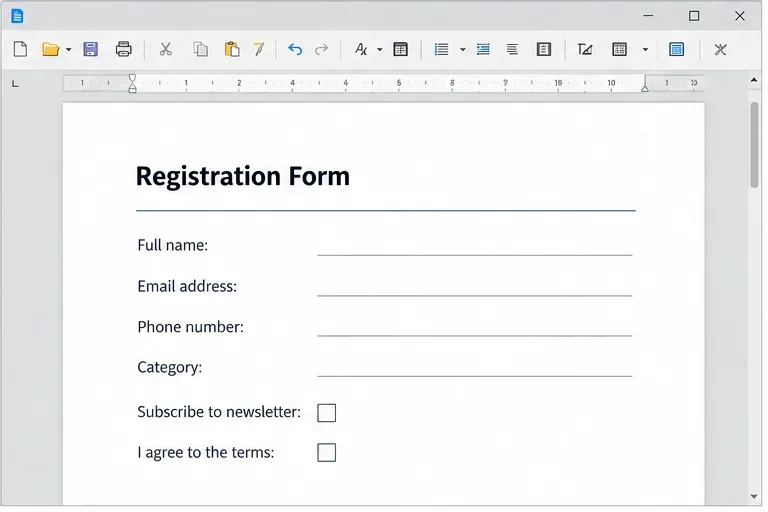
Add usable text fields, check boxes, and drop-downs in Writer, then export a PDF recipients can complete and save.
Fix missing or substituted fonts in LibreOffice Writer PDFs, choose the right export profile, and verify which fonts are embedded before sharing.