Make Spreadsheet Text Readable in LibreOffice Calc Dark Mode
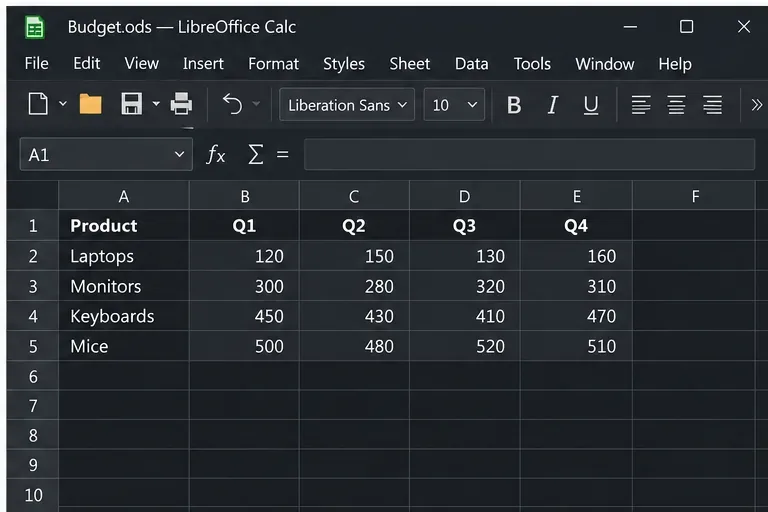
Fix hard-to-see spreadsheet text by checking the theme, cell font color, fills, and conditional formatting in Calc.
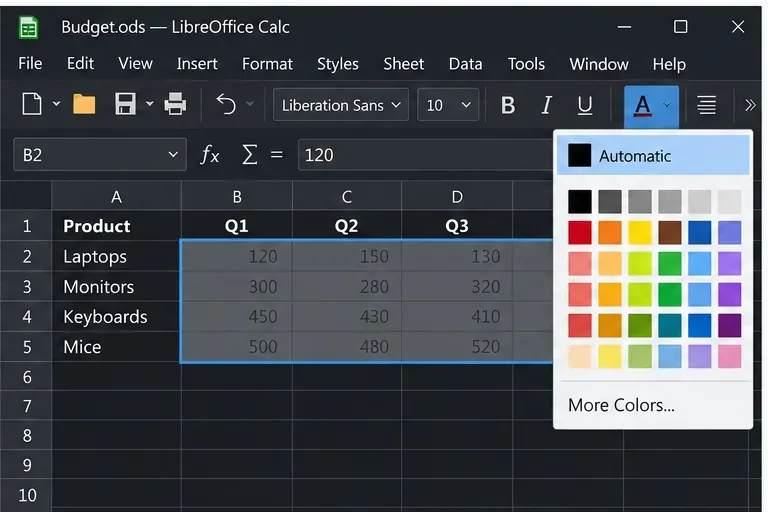
If text disappears when LibreOffice Calc is in dark mode, first check whether the problem affects the whole sheet or only cells with custom formatting. The application theme controls Calc’s interface and document canvas; a cell can still have a fixed font color or fill saved in the spreadsheet. For a quick cell-level fix, select the affected range and set Font Color to Automatic, which LibreOffice documents as black on light backgrounds and white on dark backgrounds.
The menu paths below match LibreOffice 26.8 Help. Names and menu placement can vary slightly by operating system or interface layout.
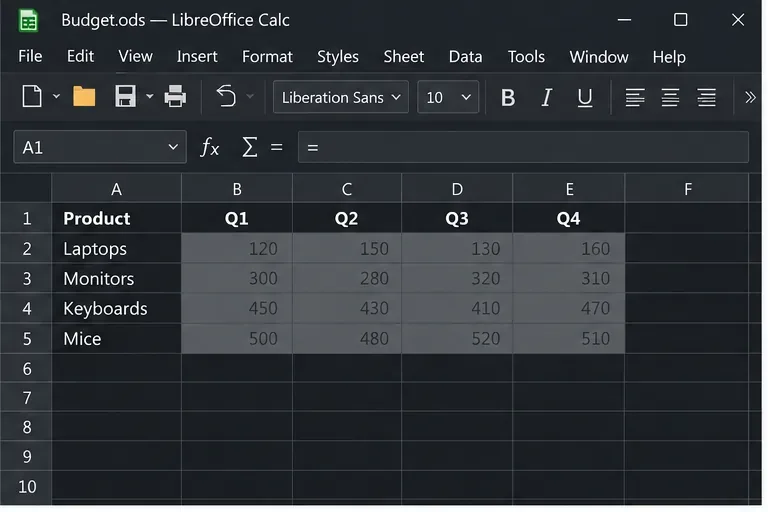
Look at the sheet and the cells separately. The worksheet canvas is the area behind cells that have no fill. A cell fill is a background color stored as part of that cell’s formatting. Font color is the color stored for the cell’s contents. These settings can interact: dark text on a dark cell fill is difficult to read even when menus and toolbars look correct.
| What you see | Likely cause | Start here |
|---|---|---|
| Menus and sheet canvas are both dark in every file | LibreOffice Appearance theme | Review the application theme and white document background option. |
| Only a few cells or one workbook have invisible text | Cell font color, fill, style, or conditional formatting | Test a small affected range with Automatic font color. |
| Cells change color when values change | Conditional formatting rule | Inspect the rules and their cell styles. |
If the workbook is important, save a copy before changing many cells. Start with a small range so you can see whether the fix affects only the intended cells.
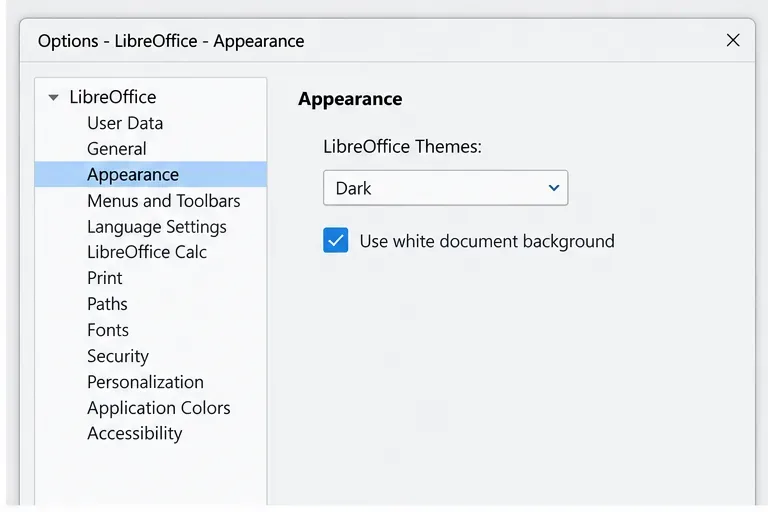
To change LibreOffice’s overall appearance, open Tools > Options > LibreOffice > Appearance on Windows or Linux. On macOS, open LibreOffice > Preferences > LibreOffice > Appearance. In the LibreOffice Themes list, choose Automatic, Light, or Dark. Automatic follows the desktop environment’s theme; Light and Dark select the corresponding LibreOffice appearance.
To keep the dark menus but use a white sheet canvas, select Use white document background. LibreOffice describes this setting as overriding the theme’s document background color and setting it to white. It does not recolor the font or fill in cells that already have their own formatting. If a dark-filled cell still has dark text after changing this option, correct the cell formatting in Calc.
B2:F20.LibreOffice documents Automatic font color as black against light backgrounds and white against dark backgrounds. A fixed color may be appropriate for a carefully designed template, but it will not adapt as well if users change cell fills or switch between light and dark backgrounds.
If the text becomes unreadable again when a value changes, a conditional format may be applying a cell style. Conditional formatting is a rule that changes a cell’s style when its contents meet a condition; LibreOffice says the resulting style overrides formatting applied manually through the toolbar or Styles sidebar.
Select an affected cell and choose Format > Conditional > Manage. Review the rules covering that cell, then edit the rule or its associated cell style so both the font and fill have adequate contrast. If the same issue affects every cell using one named style, edit that cell style through Styles > Manage Styles rather than changing each cell individually.
Use Format > Clear Direct Formatting only when the cell’s manual formatting is accidental and can be removed. This command clears direct formatting, which may include more than the font color; it can also remove intentional emphasis or other cell formatting. If you need to preserve the fill, number format, or borders, set the font color directly instead.
For the current options and formatting details, see LibreOffice’s Appearance settings help, Calc Formatting bar documentation, and Manage Conditional Formatting help.
Fix hard-to-see spreadsheet text by checking the theme, cell font color, fills, and conditional formatting in Calc.
Learn why Calc shows formula text instead of calculated values and fix display mode, Text-formatted cells, apostrophes, or stale results.
Build a reusable Writer mail merge with Calc recipient data and a shared embedded image, then preview and save the personalized letters.
Turn off LibreOffice’s optional update statistics and crash-report prompts, then check what the settings cover and how to verify them.
Clean spacing, find structured text, and rearrange names with Writer regex patterns you can preview before replacing.
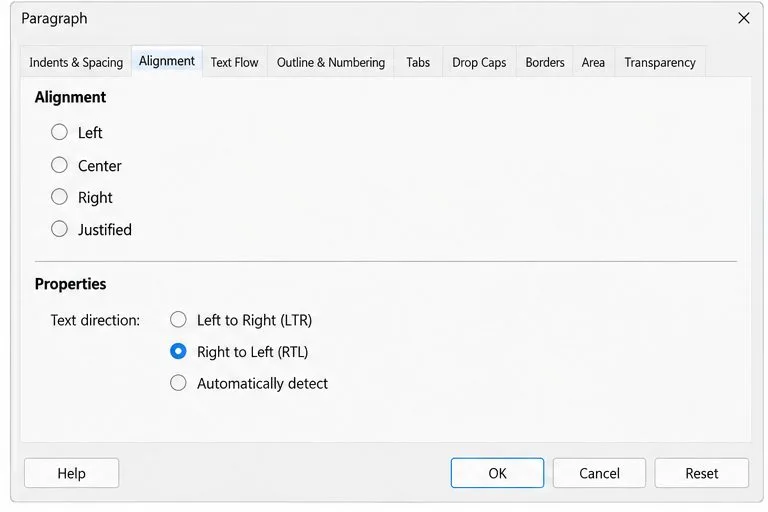
Enable Writer’s bidirectional controls, set RTL paragraph flow, and check mixed Arabic or Hebrew text without disrupting English words and numbers.
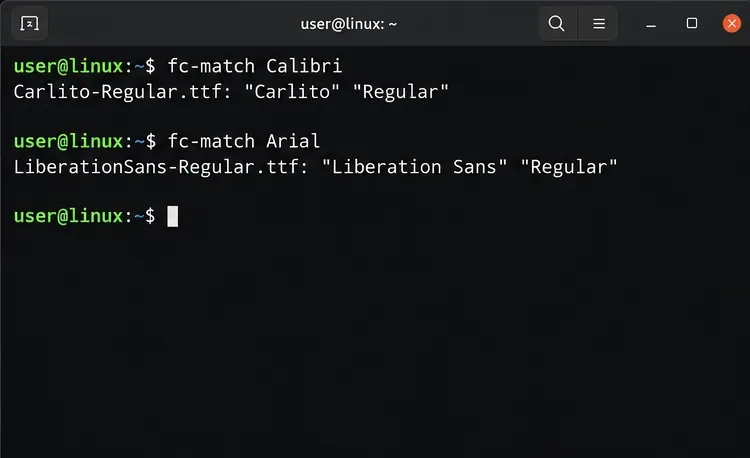
Install metric-compatible Linux fonts or map LibreOffice fallbacks, while keeping Microsoft font licensing and layout differences in view.
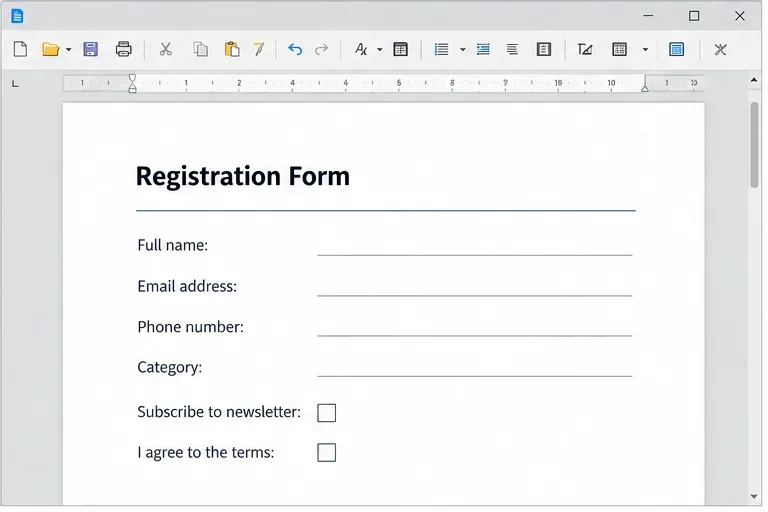
Add usable text fields, check boxes, and drop-downs in Writer, then export a PDF recipients can complete and save.
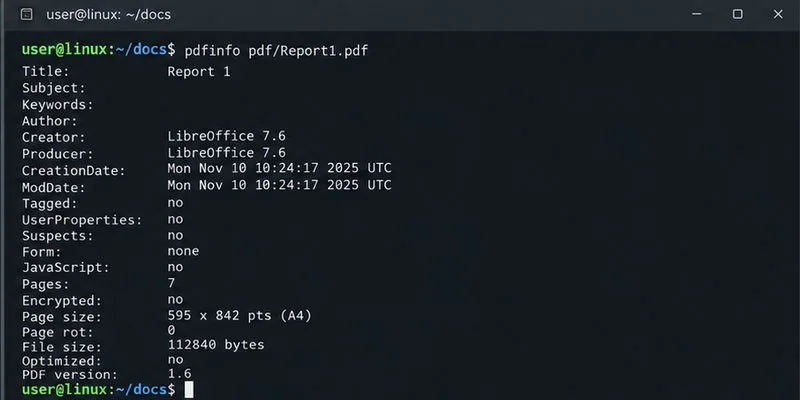
Fix missing or substituted fonts in LibreOffice Writer PDFs, choose the right export profile, and verify which fonts are embedded before sharing.
Convert a folder of Word documents to PDF with LibreOffice commands, handle nested folders safely, and verify the output before sharing.