Home
» PC Tips
»
LibreOffice Calc Shows Formulas as Text? Restore the Results
LibreOffice Calc Shows Formulas as Text? Restore the Results
When LibreOffice Calc displays =A1+B1 instead of a number, first open View > Show Formulas and make sure that setting is off. If only a few cells show formulas as text, change their format from Text to Number and re-enter the formula. These two checks solve the most common display-versus-entry problems without changing the rest of your spreadsheet.
Formula display and formula calculation are different problems. Back up important workbooks before changing an imported range. The menu names below follow the English-language LibreOffice 26.2 online Help; labels may differ in other versions or user-interface layouts.
1. Turn off Show Formulas if the whole sheet displays expressions
If many cells suddenly contain visible expressions such as =SUM(A1:A5), the spreadsheet may be in a formula-display mode. Calc can still store and calculate the formula while deliberately displaying its expression in the cell.
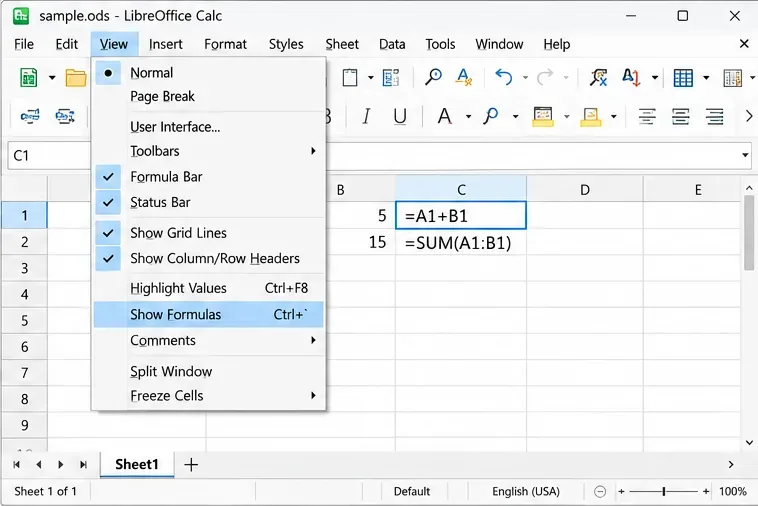
Open the affected spreadsheet and choose View > Show Formulas.
If the command is enabled, select it to turn it off.
Check whether the formula cells now show numbers or other calculated values.
You can also inspect Tools > Options > LibreOffice Calc > View on Windows or Linux and leave Formulas unchecked in the Display settings. The official help describes both the Show Formulas command and the Calc View option.
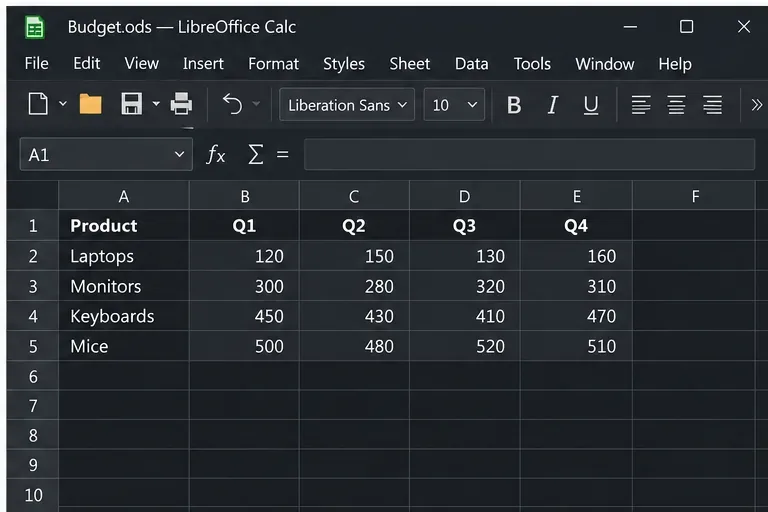
The input line normally shows the formula even when its cell displays a calculated result.
The View menu contains Show Formulas, which switches a spreadsheet between formula expressions and calculated results.
2. Change cells from Text to Number, then re-enter the formula
If one column or a handful of pasted cells show literal formulas while nearby cells calculate normally, inspect the cell format. Calc treats newly entered content as text when the destination cell has the Text category. This can happen with templates or imported data.
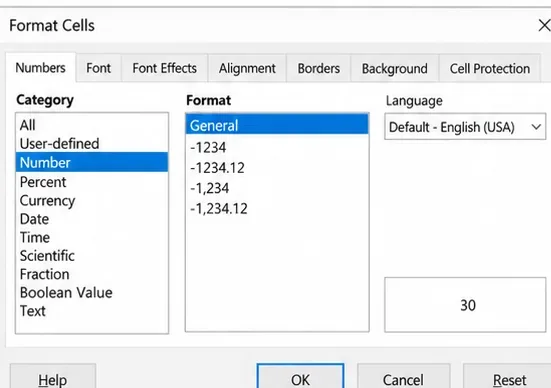
Select one affected cell. Right-click it and choose Format Cells.
Open the Numbers tab and inspect Category.
If it is Text, select Number, choose a general-purpose format such as General, and confirm with OK.
Edit the formula again, using F2 or the input line, and press Enter. The entry must begin with a normal equals sign, for example =A2+B2.
Changing the format alone may not convert existing text. Re-enter the expression so Calc can parse it as a formula.
For a large imported range, test one cell before modifying the full column. Do not apply number conversion indiscriminately to account numbers, postal codes, or other identifiers whose leading zeros must remain intact. See the official Formatting Numbers as Text documentation for the difference between existing entries and newly entered text-formatted values.
On the Numbers tab, choose the Number category and a General format before entering the formula again.
3. Remove an apostrophe or other characters before the equals sign
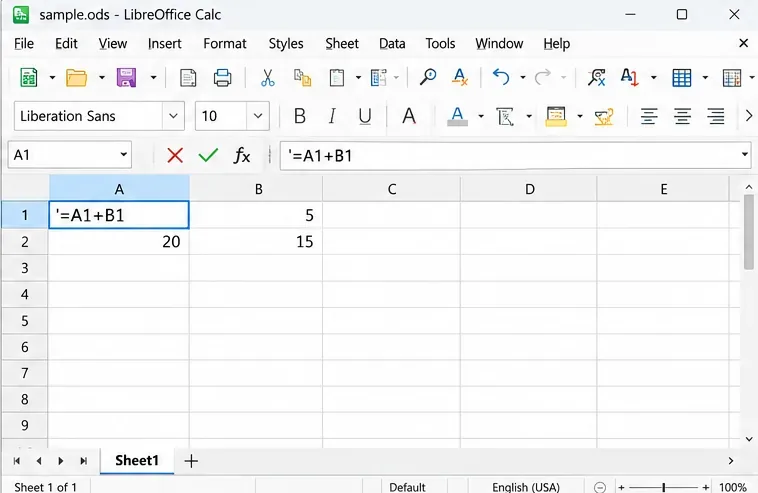
Calc lets you force an entry to remain text by starting it with an apostrophe. For example, '=A2+B2 is intended as literal content; =A2+B2 is a formula. The apostrophe may not be obvious in the cell, so examine the input line or enter edit mode before deciding the formula is malformed.
Select the affected cell and inspect its content in the input line.
Delete a leading apostrophe, extra quotation mark, or unintended characters before =.
If the cell was formatted as Text, first change it as described above.
Commit the corrected expression with Enter.
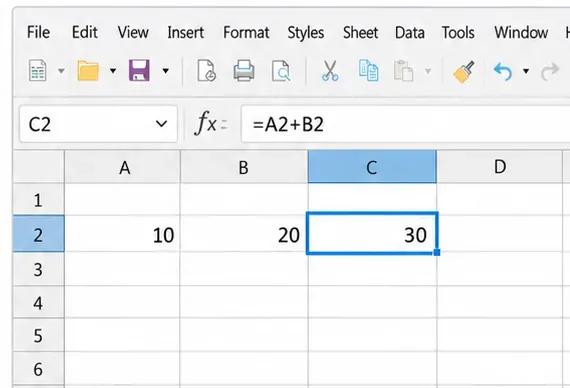
For instance, with 10 in A2 and 20 in B2, entering =A2+B2 into C2 should display 30. A typed apostrophe is different from a quotation mark inside a formula, such as ="Ready", which legitimately produces a text result. The apostrophe's role as a text-entry marker is documented in LibreOffice Help.
A leading apostrophe before the equals sign makes the entered expression text rather than a formula.
4. Check AutoCalculate when the result is frozen, not when the formula is literal text
If a cell shows an old numeric result after its inputs change, the formula may be valid but AutoCalculate may be disabled.
Choose Data > Calculate > AutoCalculate and make sure the option is on.
Change a harmless test input and see whether its dependent formula updates.
If needed, choose Data > Calculate > Recalculate or press F9. For a full refresh, use Data > Calculate > Recalculate Hard, or Ctrl+Shift+F9 on Windows and Linux.
AutoCalculate recalculates formulas after cells change, while Recalculate Hard forces a broader recalculation. Neither command turns a literal text string into a formula. If you still see =A2+B2 directly in one affected cell after these commands, go back to its number format and entry. The AutoCalculate help and Recalculate Hard reference explain the separate behaviors.
5. Check CSV import options if formulas became text during import
When the issue begins after opening a CSV file or splitting pasted text into columns, the import settings may have instructed Calc to preserve formula-like strings. CSV is a text-based format, so its fields can be interpreted in different ways during import.
Reopen the original trusted CSV through File > Open and inspect the Text Import dialog.
Select the affected column in the preview. Avoid forcing its column type to Text if it is supposed to contain formulas; choose Standard when appropriate.
If you intentionally want expressions starting with = to become active formulas, enable Evaluate formulas.
Confirm the import, then inspect a sample cell before saving a new spreadsheet copy.
Only enable formula evaluation for files you trust. An unfamiliar CSV may contain expressions that should remain literal data. If you need to preserve imported formula strings safely, leave that option disabled. The official Text Import documentation explicitly distinguishes formula evaluation from importing expressions as text.
Verify that Calc now displays and updates the result
Create a small test in a blank area of your workbook: type 10 into A2, 20 into B2, and =A2+B2 into C2, or use equivalent empty cells. The answer should be 30 in C2, while selecting C2 should reveal =A2+B2 in the input line. Change B2 to 25; with AutoCalculate on, C2 should change to 35.
If the new test works but an imported cell does not, the issue is local to the original cell's contents or format. If the entire sheet still shows expressions, recheck Show Formulas. Save the corrected document in ODS format if you need to retain working formulas and editable spreadsheet behavior, then reopen it and repeat the test.
After the formula is recognized, the cell shows 30 while the input line retains =A2+B2.