Fix ONLYOFFICE Mobile Timeouts by Checking the Server URL
Use the right portal or WebDAV address, test HTTPS reachability from your phone, and distinguish private-network, TLS, and login problems.
Use a phone-reachable HTTPS address and the correct connection type. ONLYOFFICE Documents connects to a supported portal account or to self-hosted Nextcloud/ownCloud through Clouds and its WebDAV URL; a bare ONLYOFFICE Docs editor endpoint is not a storage account. If it works on Wi-Fi but times out on cellular data, fix public routing or use a VPN for a private server.
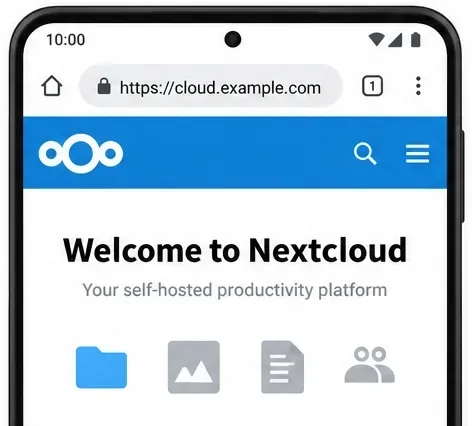
Hypothetical example: Alex opens https://cloud.example.com at home, but ONLYOFFICE Documents times out on a phone. This is an illustration, not a real test. The checks below separate address, network, TLS, and service-type problems.
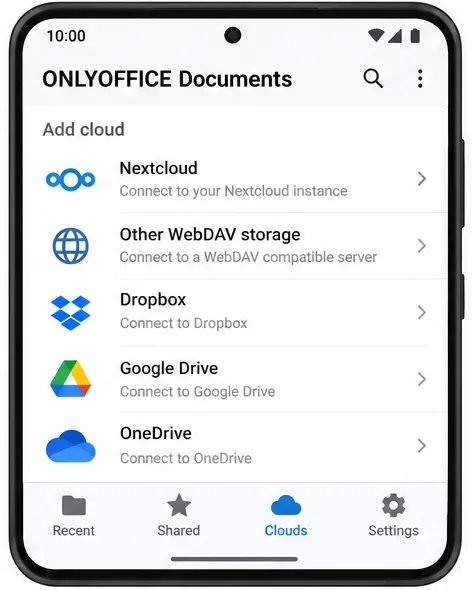
In ONLYOFFICE Documents, use Clouds to add Nextcloud or ownCloud as a third-party storage. Choose that provider, or choose Other WebDAV storage for a compatible service. The app then asks for a server or connection URL and account credentials.
For an ONLYOFFICE DocSpace or supported Workspace account, use its portal address and sign-in flow. Do not enter an ONLYOFFICE Docs (Document Server) URL in a portal or WebDAV field; Docs provides the editors, not a user storage account.
Check the edition too: ONLYOFFICE’s Windows troubleshooting page says the legacy Windows “server solution” has no mobile access. If that is your product, changing the URL will not enable the app.
For Alex’s case, first open the public Nextcloud address in the phone’s browser while connected to cellular data. Repeat on Wi-Fi if needed. A private address such as 192.168.x.x, a hostname that exists only on the home LAN, or localhost will work only from a device that can reach that network. A phone on cellular data cannot reach a home server through a private IP unless a VPN or other private route is configured.
If the hostname does not resolve, check DNS. If the browser times out, check firewall rules, public routing, and the reverse proxy’s HTTPS listener (typically port 443). For a private server, use its VPN address rather than exposing it publicly just for the app.
A browser opening the sign-in page confirms basic host and TLS reachability, not WebDAV access or credentials.
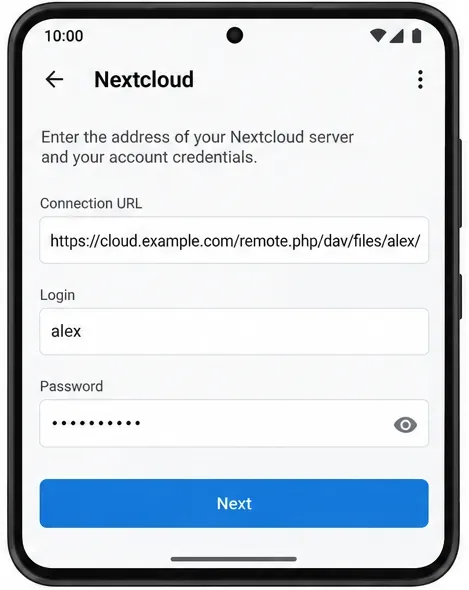
In Nextcloud, find the WebDAV address shown in the account’s Files settings and copy it exactly. Current Nextcloud documentation shows a file URL in this form:
https://cloud.example.com/remote.php/dav/files/USERNAME/Replace the host and USERNAME with your own values. Include any Nextcloud subdirectory and copy the complete URL, including https://, from your instance rather than guessing the path.
Use the Nextcloud login name and password. With two-factor authentication enabled, Nextcloud requires an app password for client authentication; create one in personal security settings. A quick authentication error points to credentials, while a timeout points first to reachability.
On iOS, the connection form may label the address field Server; the Android guide calls it Connection URL. Follow the field shown by your installed app, and keep the WebDAV URL separate from the portal login URL.
If the address loads but the app times out, confirm the certificate matches the hostname and is trusted by the phone. For public access, use a certificate trusted by mobile devices; do not disable certificate checks.
With a reverse proxy, confirm it forwards the public hostname to Nextcloud and preserves the WebDAV path. Check its access log during one phone attempt: no request suggests DNS or network routing; 401/403 suggests credentials or access policy; 404 suggests a wrong path; 5xx points to the proxy or upstream.
WebDAV uses methods beyond ordinary browser navigation, so a browser response is not a complete test. Match the app’s attempt time to the server log to locate the failing layer.
Retry on the failing network. A successful connection opens the cloud’s file list; open a small document, then test another network if intended. If only Wi-Fi works, fix external routing or use a VPN for a private service.
If the app still times out, record its version, phone OS, service type, URL with private details redacted, timestamp, and matching logs. Never share passwords, app passwords, cookies, or signed links. The exact fix depends on the server edition and network topology.
Product behavior and connection steps were checked against official documentation on October 9, 2026. Menu names and supported account types may differ by mobile platform, app release, and server edition.
Use the right portal or WebDAV address, test HTTPS reachability from your phone, and distinguish private-network, TLS, and login problems.
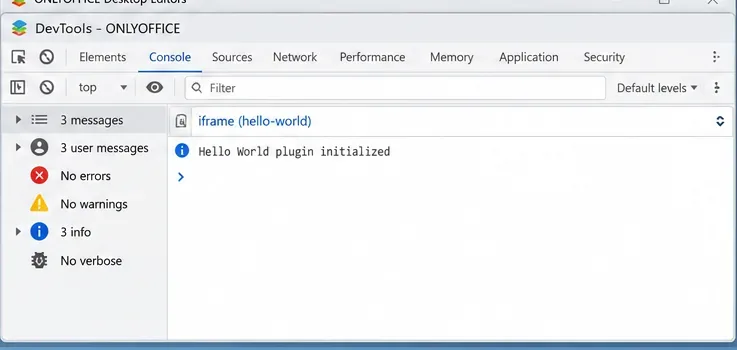
Build and test a custom ONLYOFFICE Desktop Editors plugin, install its .plugin archive, and activate developer tools for debugging.
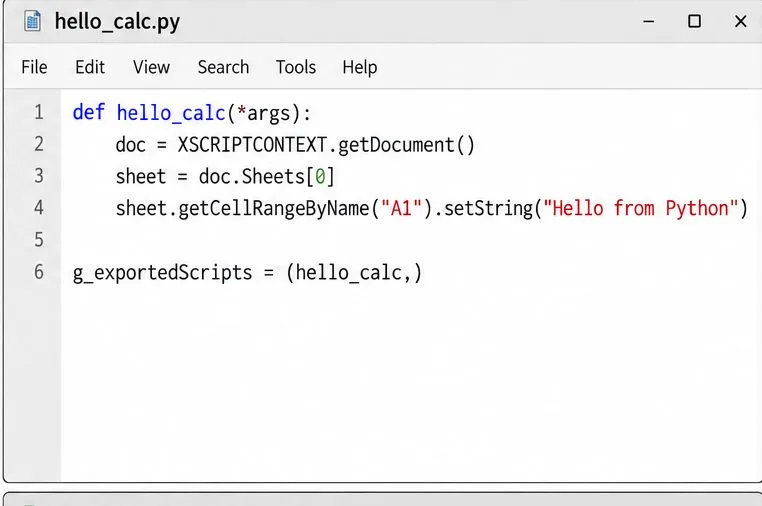
Make a Python function available in Calc, run it against the open spreadsheet, and troubleshoot missing macros or imports without mixing up LibreOffice and system Python.
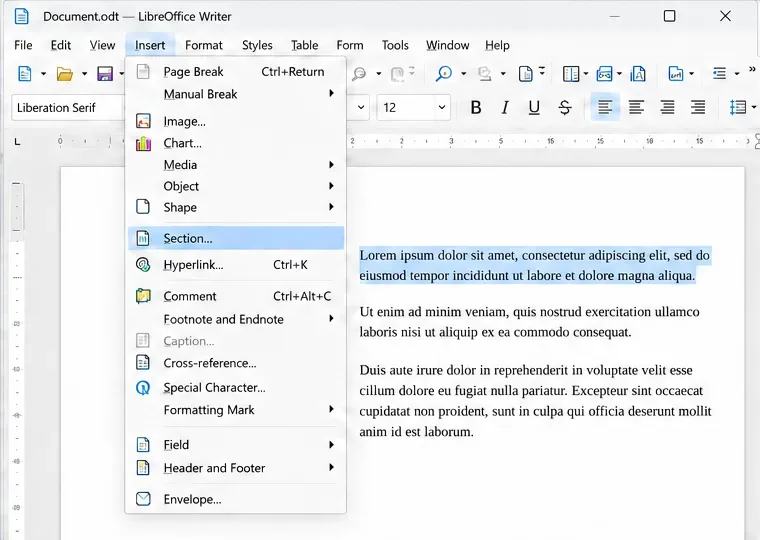
Lock a specific passage against routine edits while keeping the rest of a Writer document usable, and learn when file encryption is the better choice.
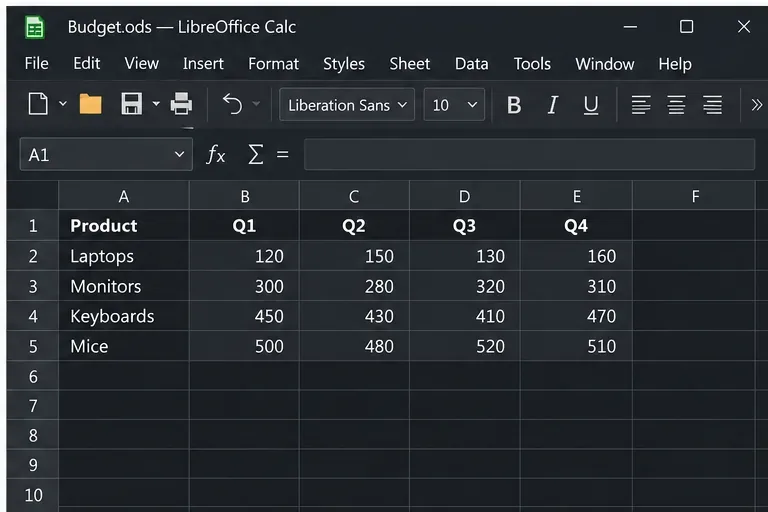
Fix hard-to-see spreadsheet text by checking the theme, cell font color, fills, and conditional formatting in Calc.
Learn why Calc shows formula text instead of calculated values and fix display mode, Text-formatted cells, apostrophes, or stale results.
Build a reusable Writer mail merge with Calc recipient data and a shared embedded image, then preview and save the personalized letters.
Turn off LibreOffice’s optional update statistics and crash-report prompts, then check what the settings cover and how to verify them.
Clean spacing, find structured text, and rearrange names with Writer regex patterns you can preview before replacing.
Enable Writer’s bidirectional controls, set RTL paragraph flow, and check mixed Arabic or Hebrew text without disrupting English words and numbers.