Enable ONLYOFFICE Desktop Plugin Development and Debugging
Build and test a custom ONLYOFFICE Desktop Editors plugin, install its .plugin archive, and activate developer tools for debugging.
You do not need to turn on a separate plugin-development switch in ONLYOFFICE Desktop Editors. Create a plugin, install its .plugin package through Plugin Manager, and launch the desktop app with --ascdesktop-support-debug-info when you need debugging tools. The desktop and web editors use different loading procedures, so start with the desktop-specific workflow below.
These instructions apply to ONLYOFFICE Desktop Editors on Windows, macOS, and Linux. Use an up-to-date desktop installation and a code editor for plain-text files. The official documentation treats manual plugin installation and developer debugging as separate features; the Plugin Marketplace is not required to develop and test a local plugin. A Hello World example is a useful first check because it isolates plugin loading from more complex services.
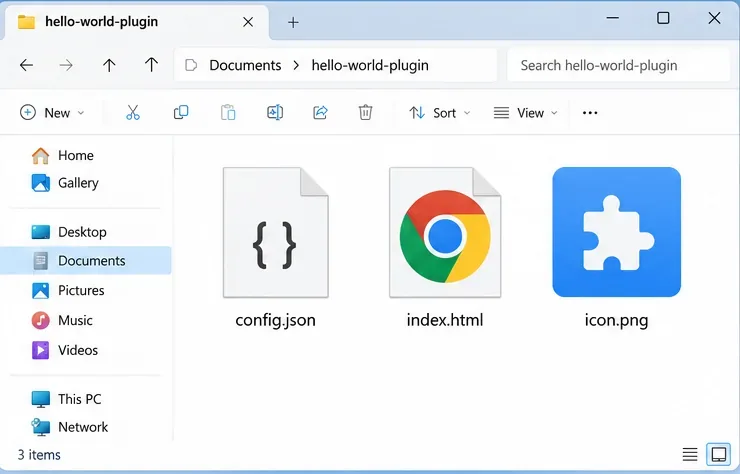
Make a folder named hello-world-plugin. Add a config.json manifest and an index.html entry point. Optionally add an icon.png image if your manifest references one. Keep the folder outside the installed application directory so software updates do not overwrite your working files.
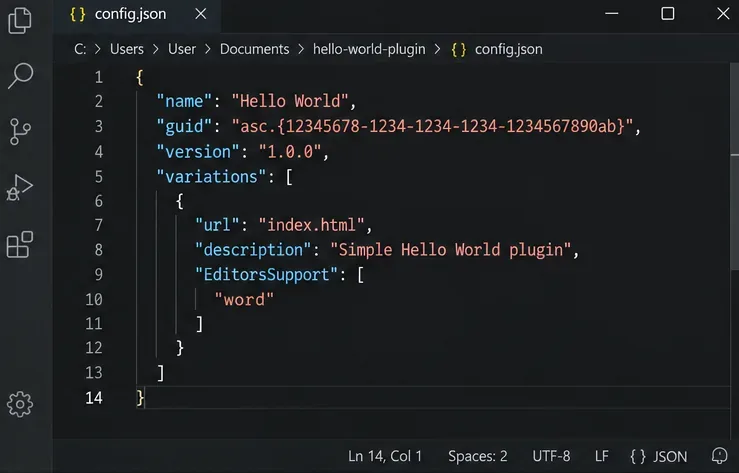
The manifest tells ONLYOFFICE which HTML file to load and which editors may run the plugin. The following example supports the document editor. Replace the sample GUID with a newly generated UUID before installation: run New-Guid in Windows PowerShell or uuidgen on macOS or Linux, then format the value as asc.{YOUR-UUID}. Each distinct plugin needs its own identifier.
{
  "name": "Hello World",
  "guid": "asc.{12345678-1234-1234-1234-1234567890AB}",
  "version": "1.0.0",
  "variations": [{
    "url": "index.html",
    "icons": ["icon.png"],
    "isViewer": false,
    "EditorsSupport": ["word"]
  }]
}
Use valid JSON: no trailing commas, matching braces, and a real file for every referenced entry point or icon. For a spreadsheet or presentation plugin, use the appropriate values in EditorsSupport instead of assuming a document-only plugin appears everywhere. Compare the structure with the official Hello World quick start.
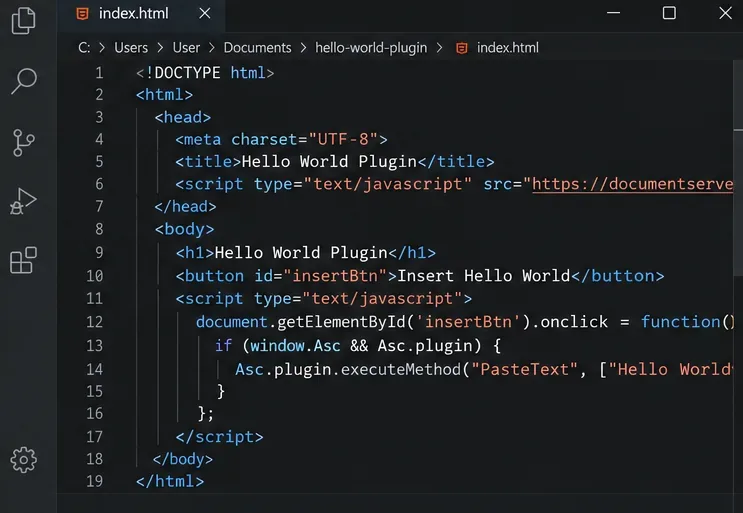
In index.html, load the ONLYOFFICE plugin API library, add a button, and have the button call window.Asc.plugin.executeMethod("PasteText", ["Hello World!"]). The manufacturer’s quick-start example provides the complete working HTML and library URL; copying that example is safer than guessing the initialization or API syntax. Save the file as UTF-8. If you plan to work offline, remember that a page which imports its plugin library or other assets from an online URL still needs those resources to load.
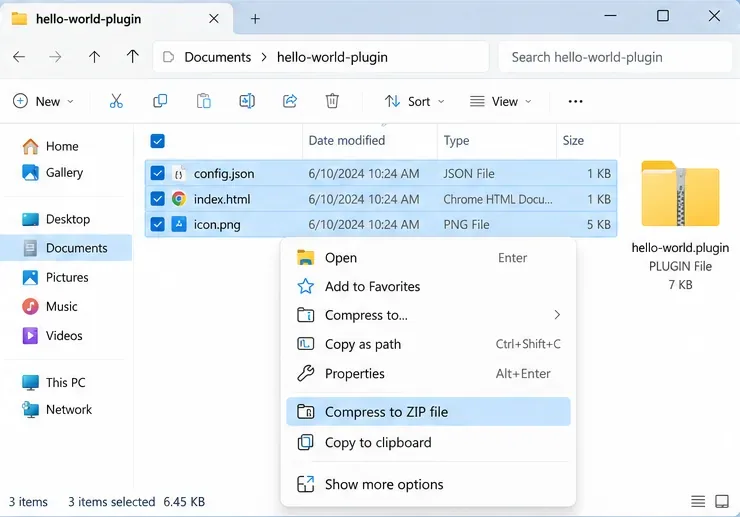
Select the files inside the source folder, compress them into a ZIP archive, and rename the ZIP extension from .zip to .plugin. The archive root should contain config.json and index.html, not a second enclosing hello-world-plugin directory. On Windows, enable file-name extensions in File Explorer so you do not accidentally create hello-world.plugin.zip. The official Desktop Editors installation instructions explicitly support manual installation without a Marketplace connection.
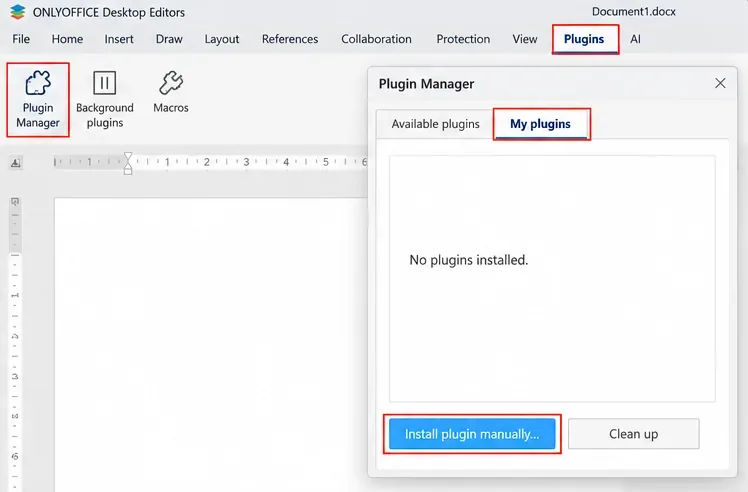
Open an editable document in ONLYOFFICE Desktop Editors. Choose Plugins > Plugin Manager > My plugins > Install plugin manually. The manager’s exact appearance may differ by release, but this action is the documented manual-install path. It is not the Marketplace’s separate developer-URL setting.
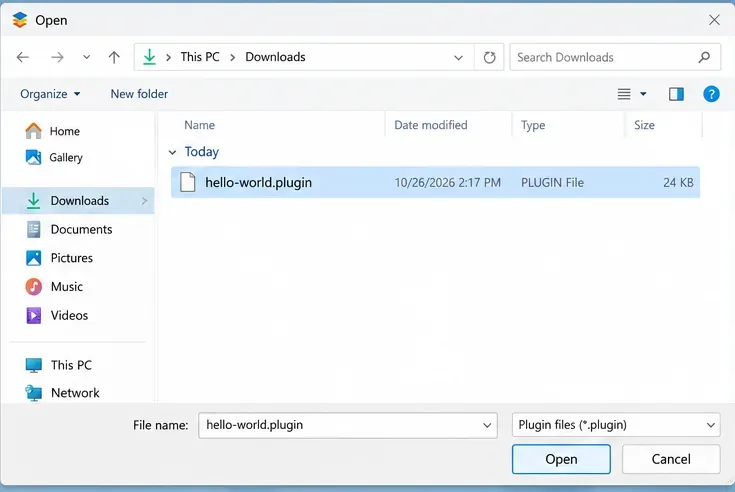
Select your hello-world.plugin archive in the file dialog and open it. The installed plugin should become available under the Plugins tab. If it is missing, inspect the manifest, GUID, supported editor type, and archive root before changing application settings. Try reopening a document after installation if the menu does not refresh immediately.
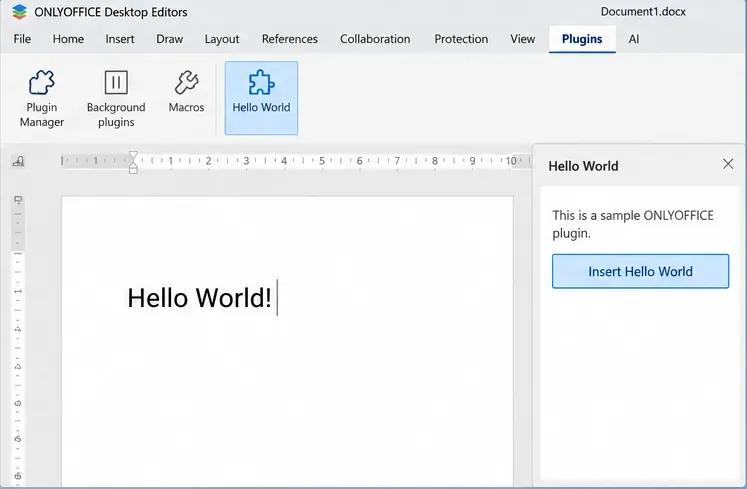
Open a blank test document, launch Hello World from the Plugins tab, and use its button. Confirm that the words Hello World! appear in the document. That checks more than installation alone: it confirms that the plugin interface loaded and its editor API call reached the document. Do not test content-changing plugins on an irreplaceable file.
Fully close ONLYOFFICE Desktop Editors, then start the application from a terminal with the official debug flag. Use the command for your operating system and installation location:
"%ProgramFiles%\ONLYOFFICE\DesktopEditors\DesktopEditors" --ascdesktop-support-debug-info"/opt/onlyoffice/desktopeditors/DesktopEditors" --ascdesktop-support-debug-info"/Applications/ONLYOFFICE.app/Contents/MacOS/ONLYOFFICE" --ascdesktop-support-debug-infoThe Windows command above uses Command Prompt variable expansion, not PowerShell syntax; in PowerShell, call the executable with its resolved full path. If your app was installed in a nonstandard location, substitute the actual executable path. You can also append the flag to a Windows desktop shortcut’s Target field. See ONLYOFFICE’s desktop debug-mode commands for platform details.
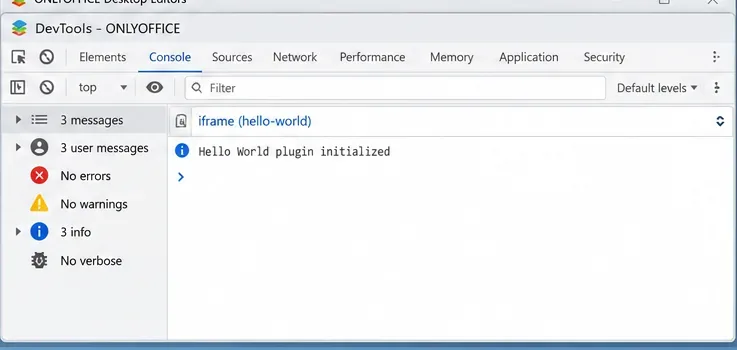
Once the document is open, click in its editing area and press F1, or right-click an editable toolbar field and choose Inspect Element. In DevTools, choose the plugin iframe to inspect plugin interface code and logs. Code passed to callCommand runs in the frameEditor context instead, so switch frames when necessary. The plugin debugging reference explains this distinction and how to use breakpoints. Debugging can expose document content and runtime details; do not share raw logs without checking them.
After manual installation, ONLYOFFICE copies a plugin into a GUID-named directory under your user profile. The documented locations are %LOCALAPPDATA%\ONLYOFFICE\DesktopEditors\data\sdkjs-plugins\ on Windows, ~/Library/Application Support/asc.onlyoffice.ONLYOFFICE/data/sdkjs-plugins/ on macOS, and ~/.local/share/onlyoffice/desktopeditors/sdkjs-plugins/ on Linux. The GUID-named folder omits the leading asc. used in the manifest.
To avoid creating a new archive for each change, developers can close the app, replace their own installed plugin folder with a symbolic link to the working source folder, and reopen the document after editing. This is optional, and exact link commands differ by operating system. Follow the official desktop development instructions before doing it. Do not replace bundled/default plugin folders or modify the macOS app package: the vendor warns that removing default plugins can break package integrity and cause crashes.
Three checks indicate that the workflow is ready: the custom plugin appears under Plugins, the Hello World test inserts text in a new document, and DevTools opens after launching with the debug flag. If the interface is blank or installation fails, confirm the manifest parses as JSON, the GUID begins with asc., index.html exists at the declared relative path, and all required resources are present. The official plugin error guide covers these common failures. An installed plugin is not proof that every feature it implements works; repeat the same check after each code change.
Build and test a custom ONLYOFFICE Desktop Editors plugin, install its .plugin archive, and activate developer tools for debugging.
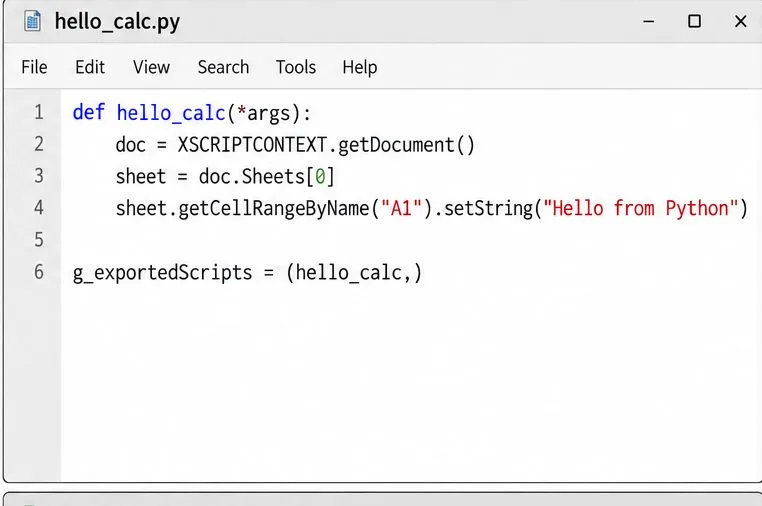
Make a Python function available in Calc, run it against the open spreadsheet, and troubleshoot missing macros or imports without mixing up LibreOffice and system Python.
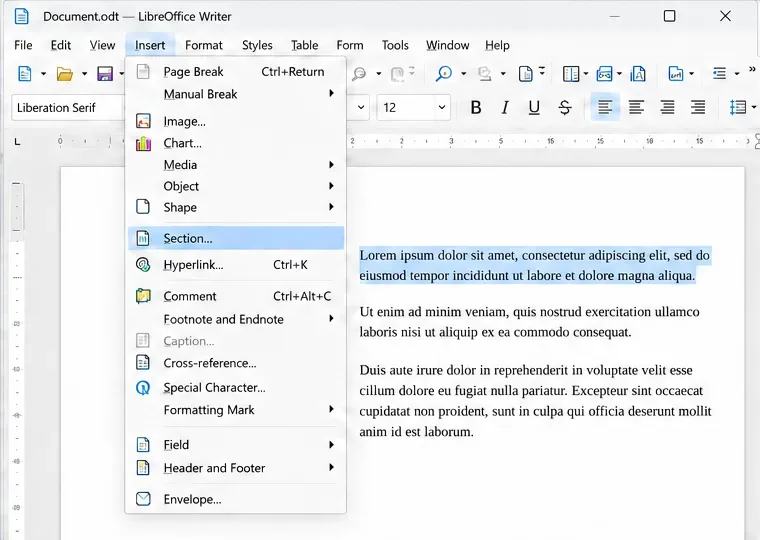
Lock a specific passage against routine edits while keeping the rest of a Writer document usable, and learn when file encryption is the better choice.
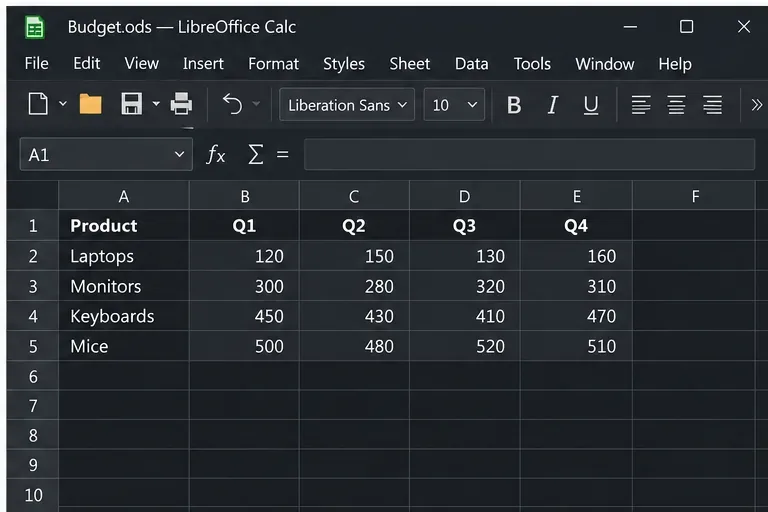
Fix hard-to-see spreadsheet text by checking the theme, cell font color, fills, and conditional formatting in Calc.
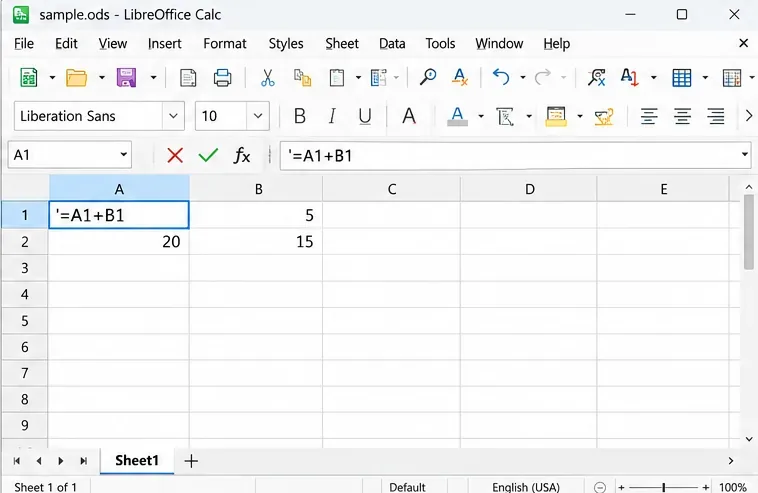
Learn why Calc shows formula text instead of calculated values and fix display mode, Text-formatted cells, apostrophes, or stale results.
Build a reusable Writer mail merge with Calc recipient data and a shared embedded image, then preview and save the personalized letters.
Turn off LibreOffice’s optional update statistics and crash-report prompts, then check what the settings cover and how to verify them.
Clean spacing, find structured text, and rearrange names with Writer regex patterns you can preview before replacing.
Enable Writer’s bidirectional controls, set RTL paragraph flow, and check mixed Arabic or Hebrew text without disrupting English words and numbers.
Install metric-compatible Linux fonts or map LibreOffice fallbacks, while keeping Microsoft font licensing and layout differences in view.