Turn a PDF into an Editable DOCX in ONLYOFFICE Desktop
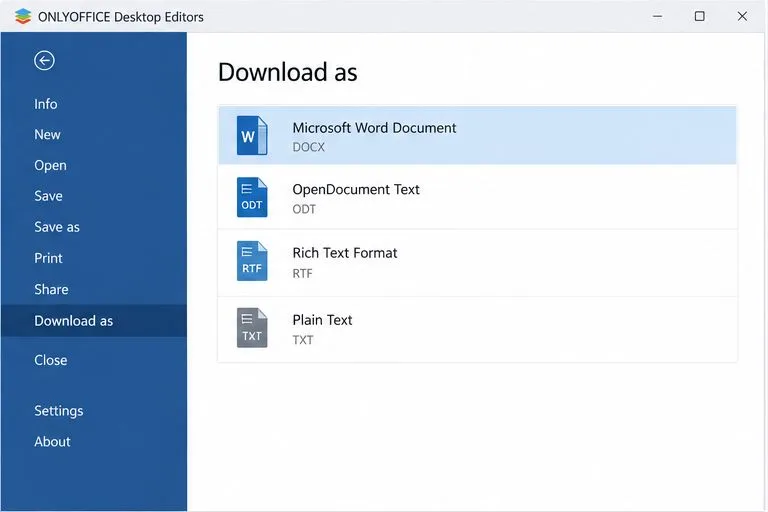
Convert a PDF locally in ONLYOFFICE Desktop Editors, then review the DOCX for layout changes, scanned pages, and text that needs correction.
If text looks soft in ONLYOFFICE Desktop Editors on Linux, first compare the editor’s Font Hinting modes at a normal zoom level; do not start by changing system-wide font settings. ONLYOFFICE documents three modes—As Windows, As OS X, and Native—and their effect depends on how fonts are hinted and rendered. If only one typeface looks wrong, check whether Linux and the editor can see the intended font before adjusting rendering.
Open the same document in another application and inspect the same text at a similar zoom. If text is blurry across your desktop, the issue is more likely tied to display scaling, the desktop environment, or graphics rendering than to an ONLYOFFICE preference. If the softness appears only in ONLYOFFICE, test its font hinting and zoom settings first.
Also distinguish a blurry typeface from a substituted one. Substitution often changes letter shapes, spacing, or line breaks; blur makes the expected letters look soft at their edges. ONLYOFFICE notes that documents may use a closest font substitute when the requested font is absent. A substitute can change layout, so check the font family name in the document toolbar before treating every visual difference as a rendering defect.
Change one setting at a time and use Apply if the dialog provides it. Close and reopen the document if the rendering does not refresh immediately. Avoid changing the editor’s font cache mode as a first fix: ONLYOFFICE describes it as a specialized setting and says it is not recommended to switch it without a reason.
If only a particular family is affected, confirm that font is installed and readable. ONLYOFFICE lists /usr/share/fonts/ for fonts shared by all users and ~/.local/share/fonts or ~/.fonts for fonts installed for the current user. Its Desktop Editors font installation instructions say font files must have 644 permissions (-rw-r--r--); global installation under /usr/local/share/fonts requires root access.
For a user-level install, copy a legitimate font file into ~/.local/share/fonts, then refresh the fontconfig cache if the command is available:
mkdir -p ~/.local/share/fonts
cp /path/to/font-file.ttf ~/.local/share/fonts/
chmod 644 ~/.local/share/fonts/font-file.ttf
fc-cache -f ~/.local/share/fonts
Replace the example path and filename with the actual font file. The fontconfig fc-cache manual explains that the command scans font directories and rebuilds font information caches. You can check whether the system resolves a family with fc-match "Font Family Name". Then fully quit and relaunch ONLYOFFICE so it can refresh its available font list. Use fonts from a source whose license permits your intended use; do not install a random font file to test blurry rendering.
If fc-match resolves the expected family but ONLYOFFICE still uses a visibly different face, note how Desktop Editors was installed. ONLYOFFICE supports Linux packages as well as AppImage, Flatpak, and Snap builds; behavior can vary by packaging environment. As a diagnostic, compare with another supported installation method only if the font is visible to the host but not to the editor. This is a comparison test, not a guaranteed fix.
Reopen the same document and compare the same short paragraph at the same zoom. A useful result has distinct letter edges, consistent character spacing, and unchanged line wrapping where the font family is supposed to remain the same. Confirm the selected font name in the toolbar and check whether other applications remain clear.
fc-match resolves it and that ONLYOFFICE displays that family after restart.These checks can isolate common causes, but they cannot make every font look identical across Linux desktops, monitors, and application builds. Judge the change by legibility in your normal workflow and preserve the document’s intended font and layout.
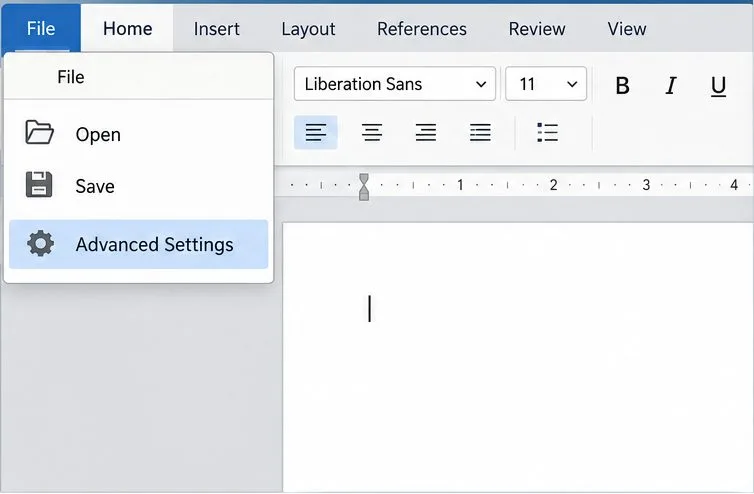
Open Advanced Settings from the File menu to reach the editor’s appearance controls.
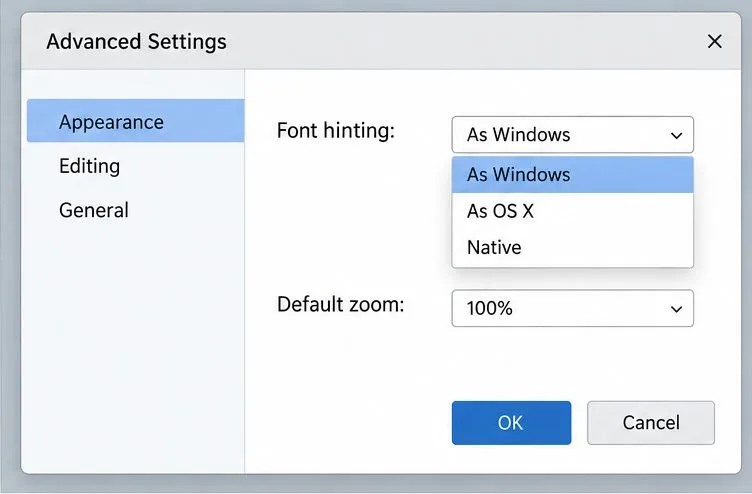
Compare the documented Font Hinting modes on the same text and at the same zoom.
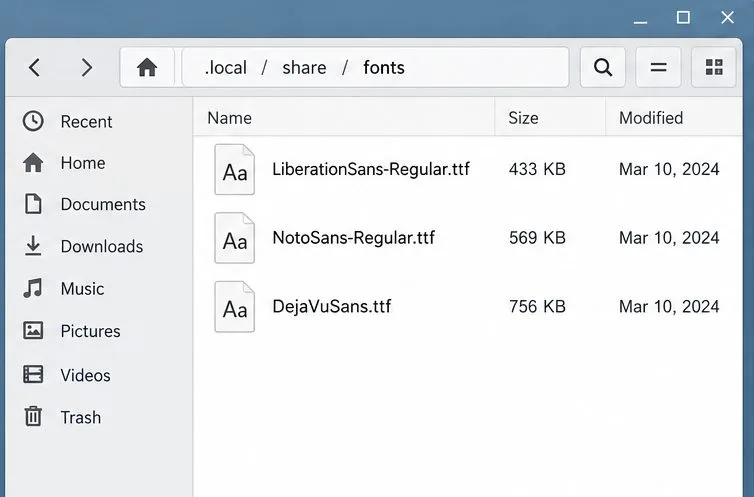
A font placed in a supported Linux font directory should be readable and discoverable by the system.
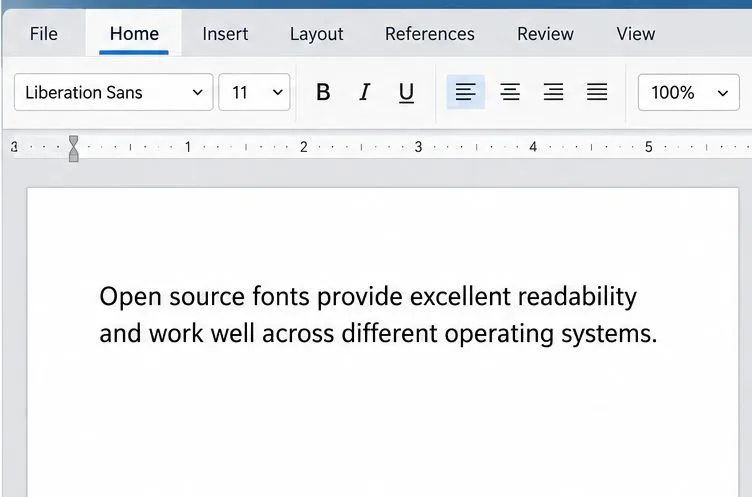
Use the same paragraph and zoom as a visual check after changing a rendering preference.
Convert a PDF locally in ONLYOFFICE Desktop Editors, then review the DOCX for layout changes, scanned pages, and text that needs correction.
Add your ownCloud account to ONLYOFFICE Desktop Editors, understand what the connection enables, and choose between direct access, sync, and browser editing.
Use the right portal or WebDAV address, test HTTPS reachability from your phone, and distinguish private-network, TLS, and login problems.
Build and test a custom ONLYOFFICE Desktop Editors plugin, install its .plugin archive, and activate developer tools for debugging.
Make a Python function available in Calc, run it against the open spreadsheet, and troubleshoot missing macros or imports without mixing up LibreOffice and system Python.
Lock a specific passage against routine edits while keeping the rest of a Writer document usable, and learn when file encryption is the better choice.
Fix hard-to-see spreadsheet text by checking the theme, cell font color, fills, and conditional formatting in Calc.
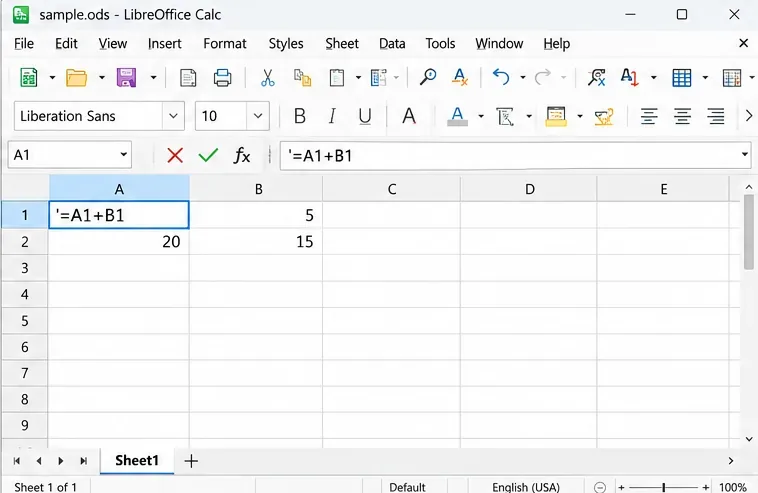
Learn why Calc shows formula text instead of calculated values and fix display mode, Text-formatted cells, apostrophes, or stale results.
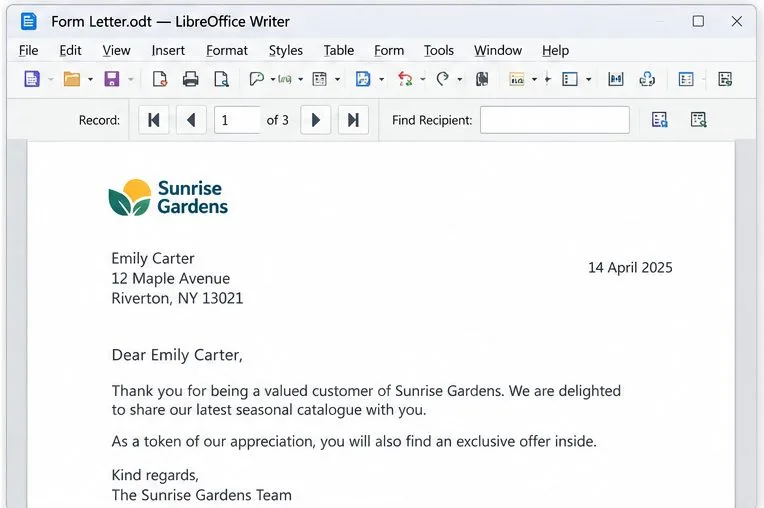
Build a reusable Writer mail merge with Calc recipient data and a shared embedded image, then preview and save the personalized letters.
Turn off LibreOffice’s optional update statistics and crash-report prompts, then check what the settings cover and how to verify them.