
How to Fix Ubuntu 24.04 Wi-Fi Disconnecting After Suspend

Fix Ubuntu 24.04 Wi-Fi drops after suspend with checks for NetworkManager, radio blocks, updates, power saving, and drivers—then verify each resume.
Windows has a lot of settings hidden between layers of menus that you touch all the time. However, Windows isn't set up to be secure by default, which means there are some default settings you'll need to change.
10. Telemetry
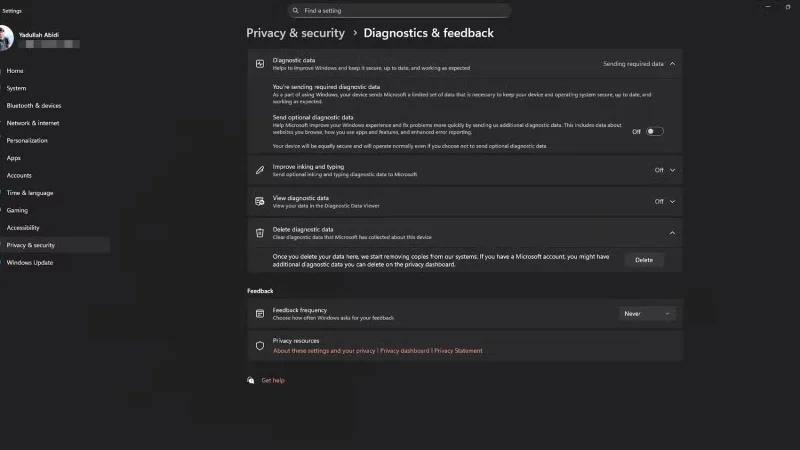
Windows Telemetry is how Microsoft collects data about how you use your system. They claim to do this to improve the overall user experience, but it's not a good idea to have your computer constantly sending data about your app usage, system performance, and hardware configuration to Microsoft.
Luckily, turning this feature off is pretty simple. Just follow these steps:
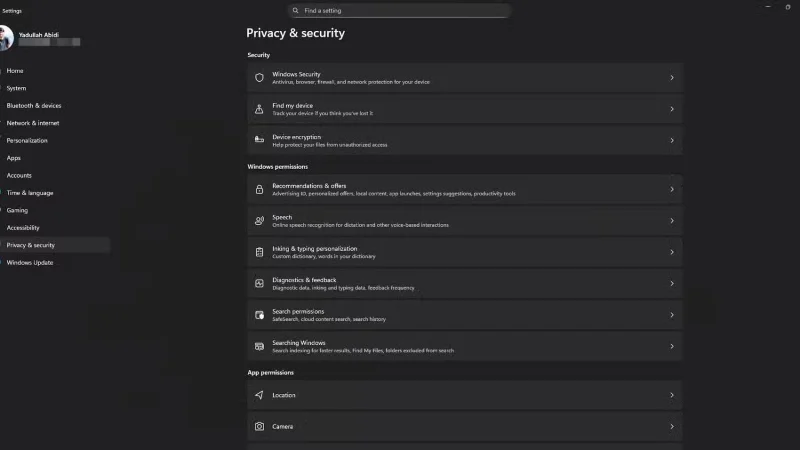
9. Advertising ID
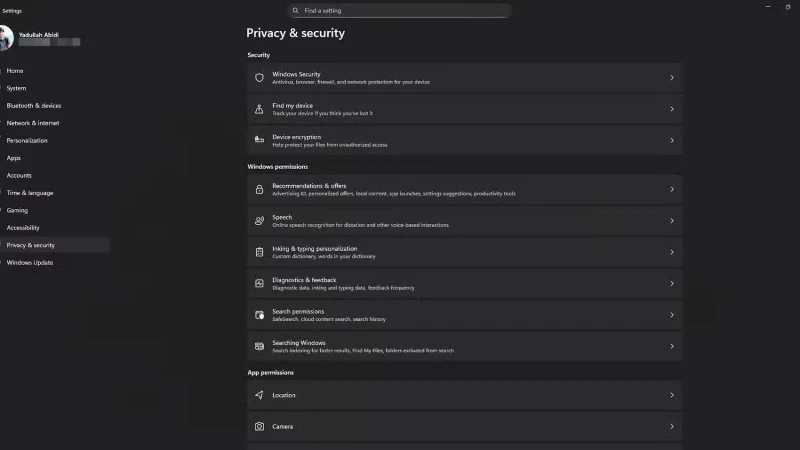
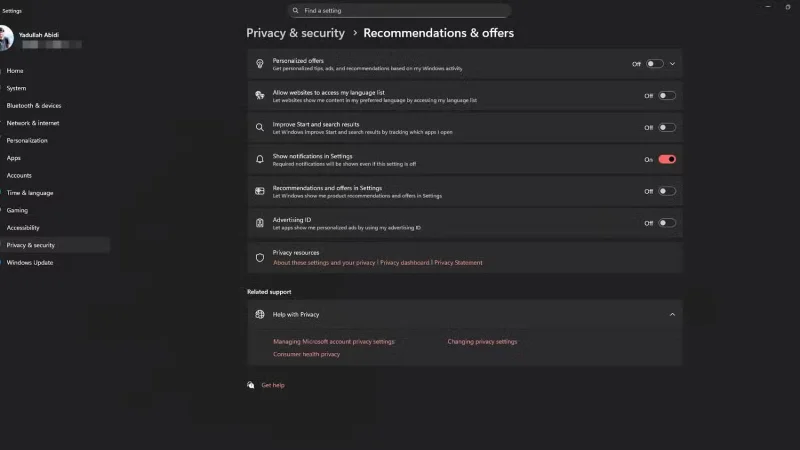
Windows creates a unique advertising ID for each user, which app developers and ad networks use to track you across apps. This works much like a browser cookie , allowing advertisers to serve you personalized ads based on your browsing history or app usage.
Follow these steps to turn off this feature:
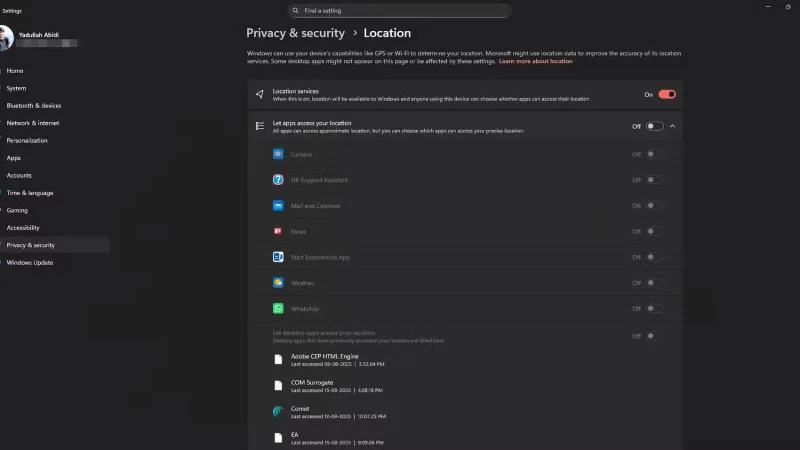
8. Location Services
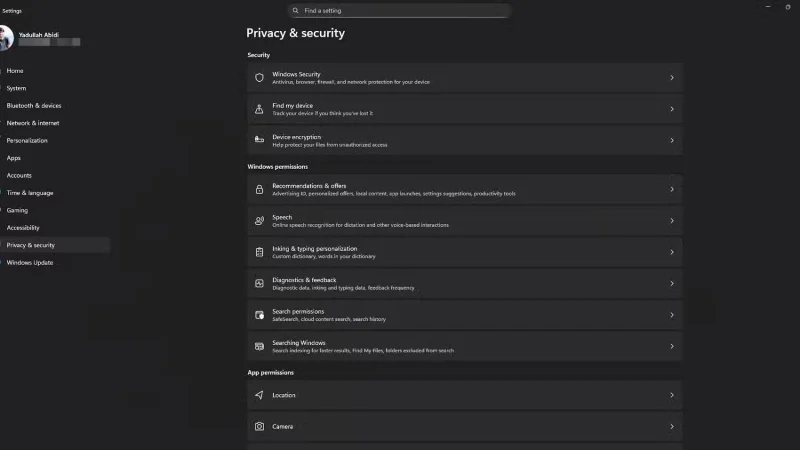
Location services on your computer aren't as accurate as those on your phone, but they serve the same purpose. This setting is turned on by default and can reveal sensitive information about your daily habits and activities.
Here's how to turn off location services on Windows:
Remember that location services are not the same as GPS. Even the NSA recommends turning it off on your device to limit the risk of location exposure.
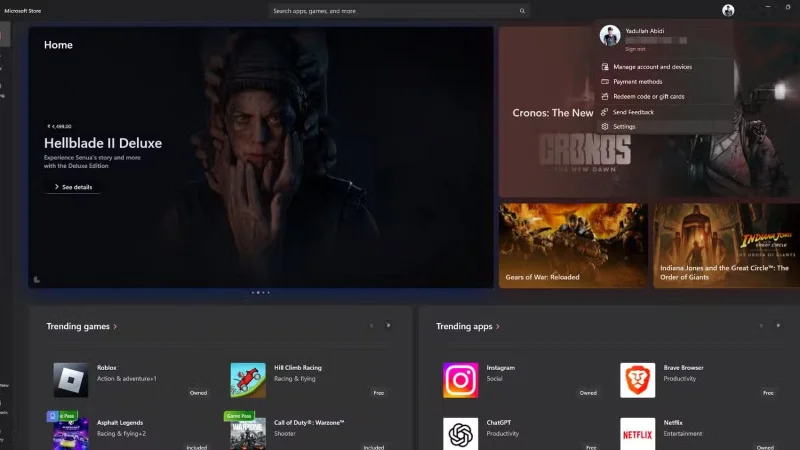
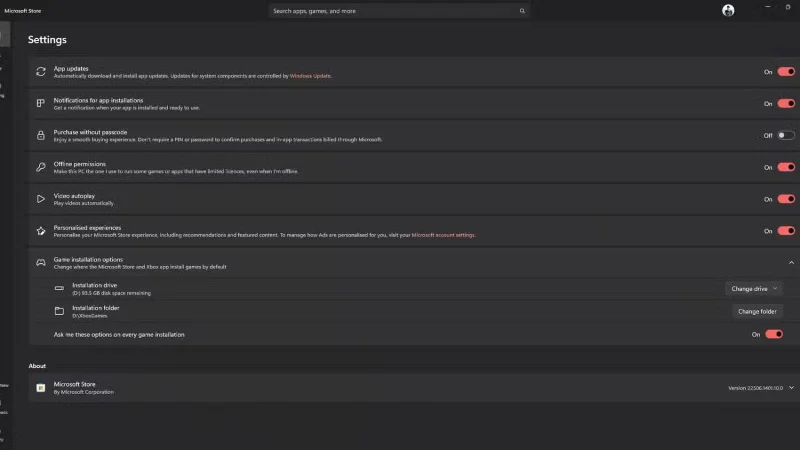
7. Automatic app updates in Microsoft Store
Microsoft has permanently disabled automatic updates for apps and Windows. Now, you can only pause them for up to 5 weeks. Here's how you can take back control:
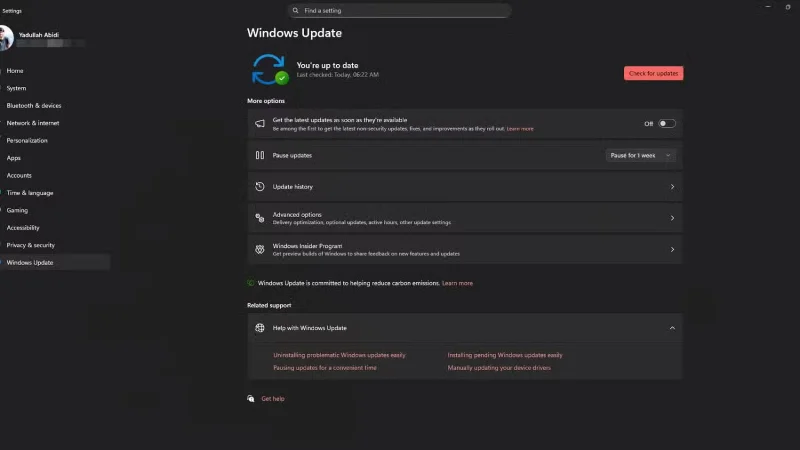
6. Windows Update Active Hours and Restart options
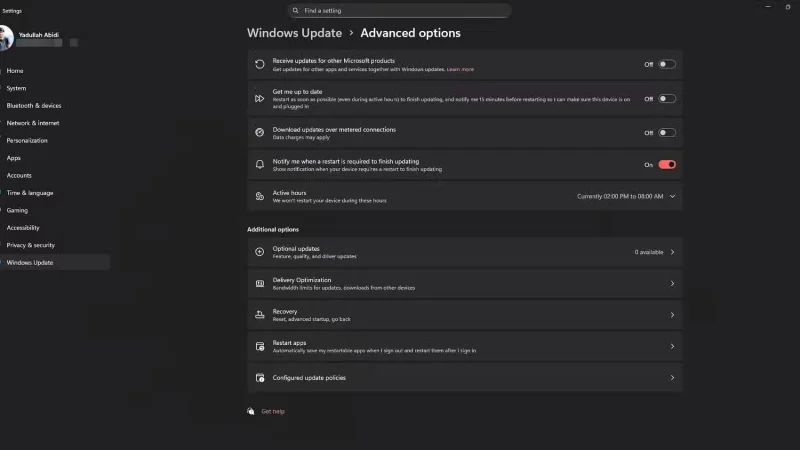
There's nothing more frustrating than Windows deciding to reboot to install an update in the middle of your workday. The default active hours are 8am to 5pm, which doesn't really fit with many people's actual usage habits.
How to change:
5. Untrusted font installation
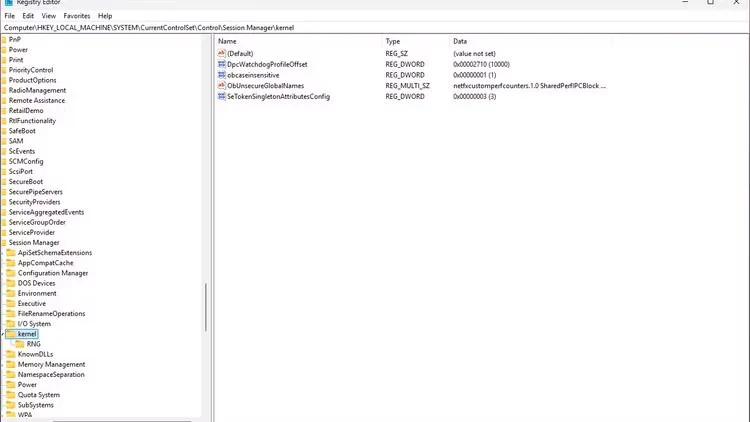
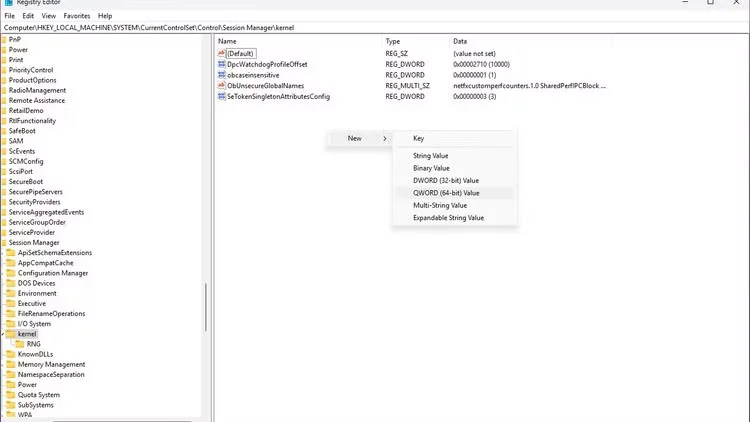
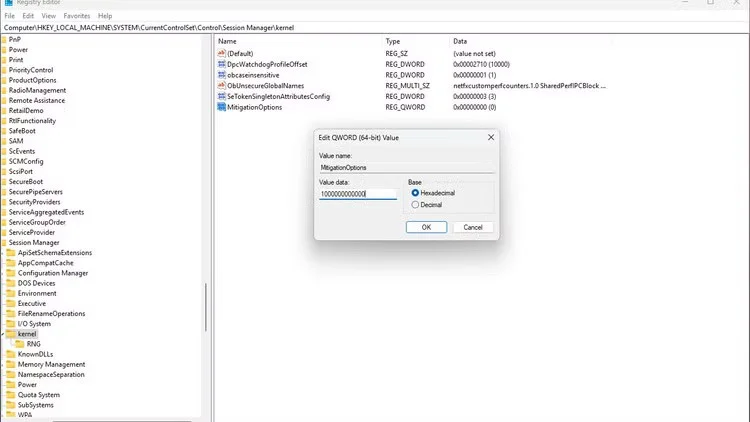
Unfortunately, changing this setting requires the Group Policy editor. If you are not using Windows Pro or Enterprise, you can modify the registry to change this setting.
4. Share files and printers over a public network
Unless you know how network sharing works on Windows and have it enabled by default, you should never enable file and printer sharing on a public network.
Here's how to turn off file and printer sharing over a public network:
3. Automatically connect to suggested open hotspots
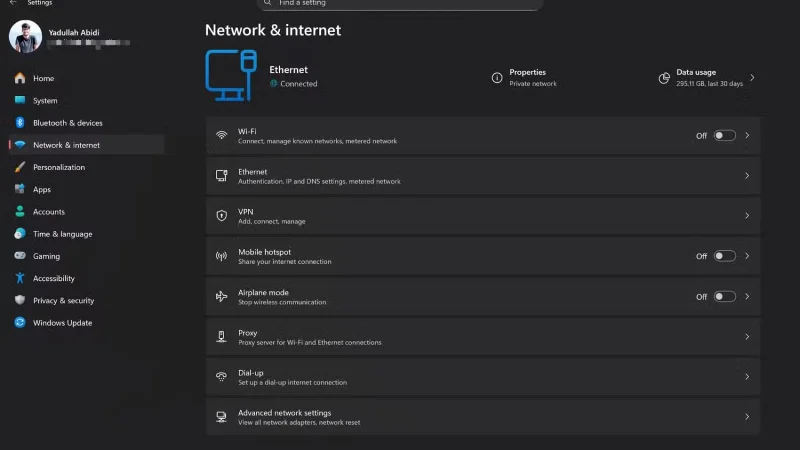
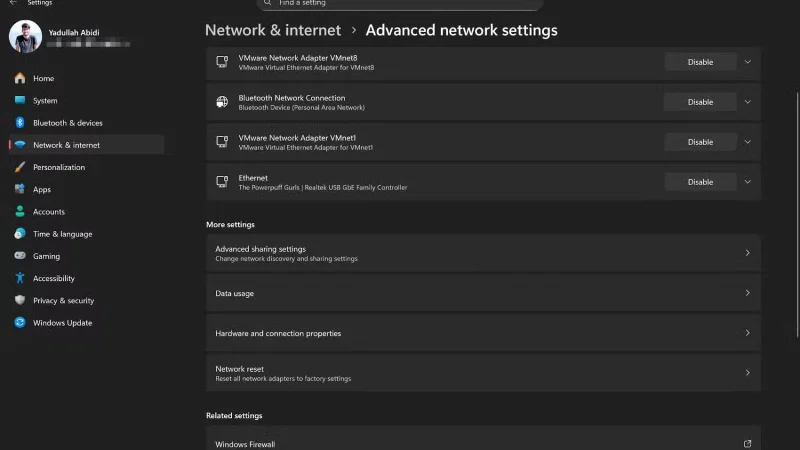
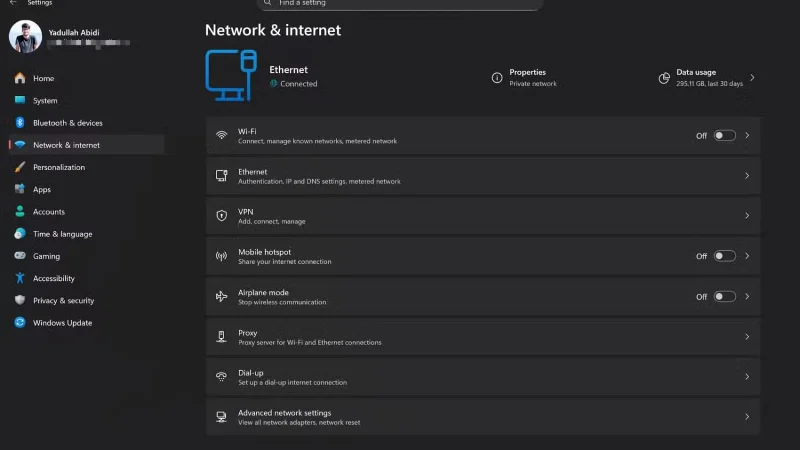
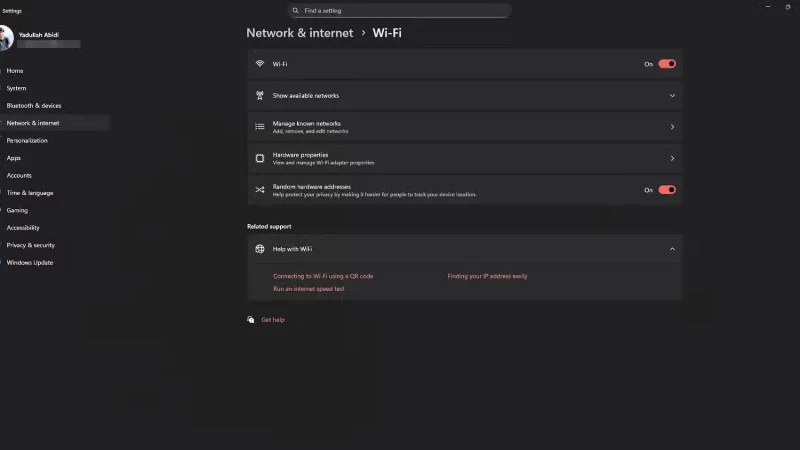
Even though Wi-Fi Sense has been discontinued in Windows 11 , it can still occasionally connect to random open Wi-Fi networks. You can't completely prevent this without modifying the registry, but you can protect your device by using random hardware addresses. Here's how:
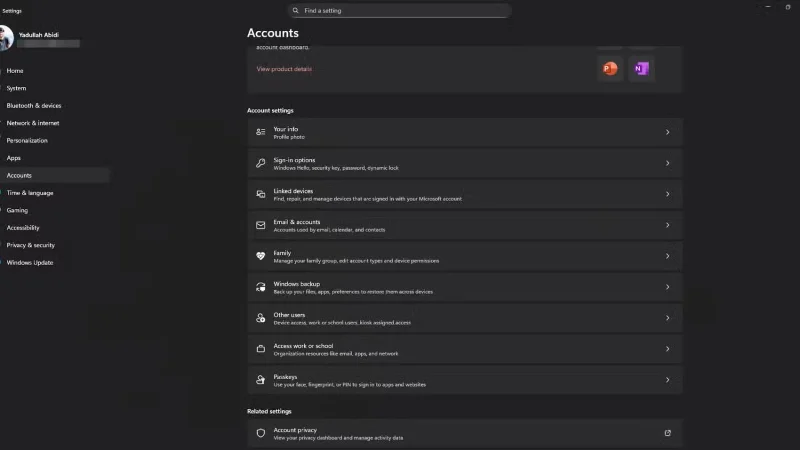
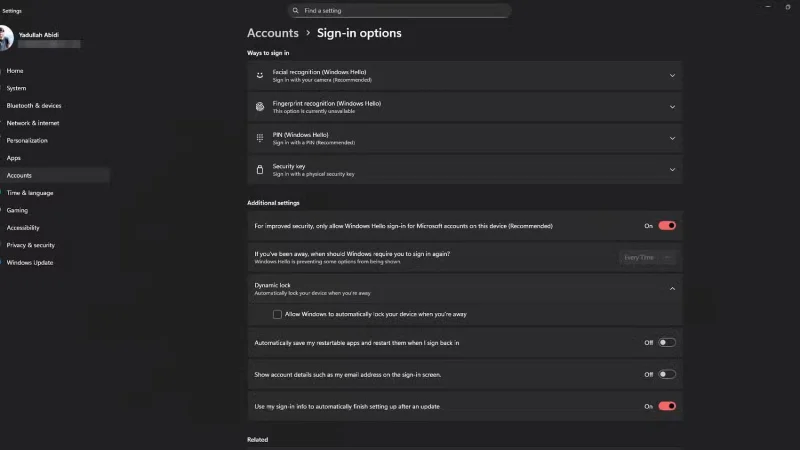
2. Dynamic Lock
Dynamic Lock uses Bluetooth to detect when your paired phone moves away and automatically locks your computer. It's great, but only if you have reliable Bluetooth—a feature that, in my experience, is only available on high-end Windows laptops.
How to turn this feature off:
1. OneDrive Backup
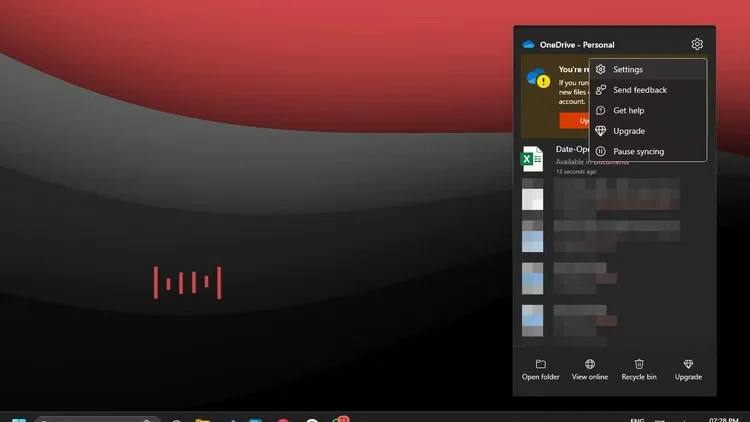
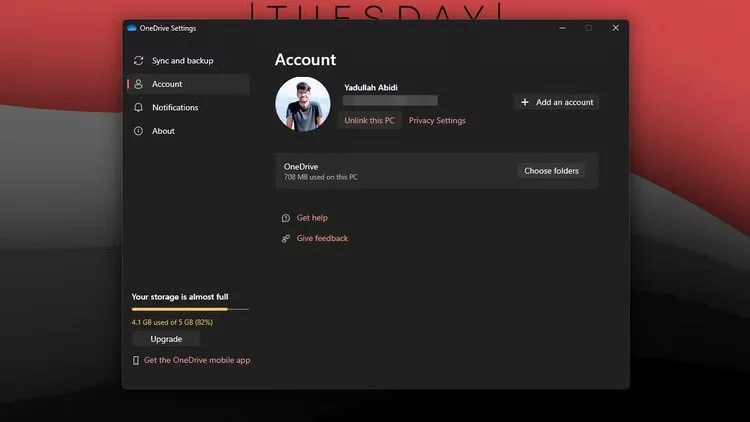
Windows automatically turns on cloud backup to your OneDrive account during setup. This means your Desktop, Documents, Pictures, Music, and Videos folders are automatically backed up to OneDrive. However, you only get 5GB of free space—and it runs out faster than you think.
Turning this feature off is simple, just unlink OneDrive on your computer. Here's how:
Fix Ubuntu 24.04 Wi-Fi drops after suspend with checks for NetworkManager, radio blocks, updates, power saving, and drivers—then verify each resume.
Learn why tracker-miner-fs-3 uses high CPU in Ubuntu GNOME and how to check indexing, exclude folders, update Ubuntu, or safely rebuild the search index.
Fix Debian’s UEFI boot error by checking boot mode, the EFI System Partition, GRUB files, and firmware boot order—without reinstalling Debian first.
The Outlook Inbox Repair Tool fixes corrupted PST files quickly so you can recover emails and restore normal Outlook function. Follow these exact steps to run scanpst.exe without data loss.
Get the Adobe PDF Installer Offline to install Acrobat Reader on any PC without needing internet during setup. Follow these exact steps for the full standalone package.
Learn how to Chromecast from laptop to TV with this step-by-step guide. Stream browser tabs, videos, or your full screen from Windows or Mac to your TV in minutes.
Learn how to edit an Adobe PDF file in Adobe Acrobat with precise steps for text, images, and layout changes. Make professional edits quickly and save time.
Get your Free Foxit Reader Free Download from the official source with this step-by-step guide that ensures a safe and quick installation for viewing PDFs.
Learn how to get help in Windows 11 with built-in tools like the Get Help app and Quick Assist for fast, official support without third-party downloads.
Learn how to retract an Outlook email in Microsoft Outlook when you need to correct a mistake before the recipient opens it. Follow these precise steps for Exchange accounts.








