7 steps to take when your phone is stolen

Thousands of tourists lose their phones every year. Here's what you need to do immediately after your phone is stolen.

1. Mark iPhone as Lost on iCloud

It's possible that the thief took your phone in an unlocked state, giving them full access to all of your data. Even if the phone isn't unlocked, the thief who stole it may still have the technical know-how to unlock it without a PIN.

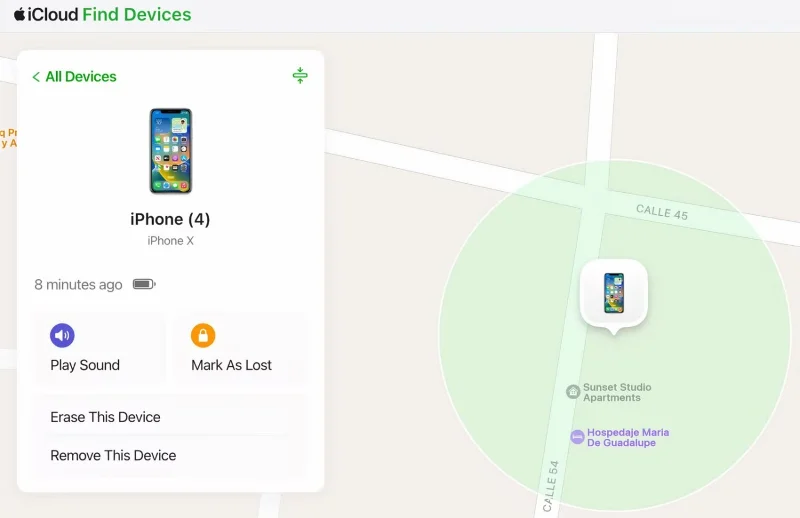
The first thing to do after your phone is stolen is to sign in to iCloud and mark your phone as lost. Doing so will lock your phone and suspend Apple Pay.

7 steps to take when your phone is stolen

2. Try to find your phone again

Check to see if your phone was lost and not stolen. Sign in to iCloud Find Devices and see if you can find your phone in the hotel you're staying at or the restaurant you just visited.

When you don't know if your phone is stolen or simply lost, you should be extremely cautious if you choose to track it directly.

3. Remotely erase device

If you've determined that you'll never get your phone back, it's time to erase its data. To do so, sign in to iCloud Find Devices and click Erase This Device .

No need to worry about deleting priceless photos or videos of your trip if everything you need is in the cloud. Erasing all sensitive data on your phone gives you peace of mind, knowing that a thief won't be able to access your personal and financial information.

4. Contact the police

Contact the police to report the theft! Petty thefts are rarely reported, but the information may prompt the police to increase their presence in the area where your phone was stolen so that future travelers are better protected.

5. Contact your phone carrier

After you lose your phone, contact your carrier to report it. There are two reasons to do this.

First, you can find out if your stolen phone is covered by your insurance plan. If your phone is covered, your carrier will provide you with a new phone. If it is not covered, buy a new phone immediately.

The second reason is to disable the account so that the phone cannot make calls, send texts, or use any data. Disabling the account will also prevent cybercriminals from using SMS for two-factor authentication and accessing financial accounts.

7 steps to take when your phone is stolen

6. Change your Apple ID and other passwords

Now that your most important accounts are protected, take another step toward securing your data by changing your Apple ID password and the passwords used for your financial accounts. If you use a password manager, it’s relatively easy to log in to your accounts and make changes from your computer.

7. Connect with loved ones and friends

Now it’s time to protect your loved ones and friends. Text your loved ones and post on IG that you lost your phone. If anyone you’ve contacted in the past few hours with a strange request or message containing a link, ignore it.

Having your phone stolen is like having your arm cut off. You feel numb and lost without your device. However, it’s important to have a plan in place if your device is stolen. Hopefully your device never gets stolen, but if it does, follow the steps outlined above to minimize the consequences.

Leave a Comment

Solving Microsoft Teams Background Error Transparency

Solving Microsoft Teams Background Error Transparency

Struggling with Microsoft Teams Background Error Transparency? Discover proven step-by-step fixes for blurry, glitchy virtual backgrounds. Restore perfect transparency in Teams meetings effortlessly. Updated with the latest solutions.

How to Fix Microsoft Teams Đăng nhập Error (Login)

How to Fix Microsoft Teams Đăng nhập Error (Login)

Struggling with Microsoft Teams "Đăng nhập" login error? Discover step-by-step fixes for smooth sign-in. Clear cache, update app, and more – no tech skills needed! Works on Windows, Mac, and web.

Solving Microsoft Teams Web Error 503 Service Unavailable

Solving Microsoft Teams Web Error 503 Service Unavailable

Tired of Microsoft Teams Web Error 503 Service Unavailable blocking your meetings? Discover quick, step-by-step fixes to resolve the 503 error fast – no tech skills needed! Clear cache, check status, and get back to collaborating seamlessly.

Troubleshooting Microsoft Teams Update Error 0x80070002

Troubleshooting Microsoft Teams Update Error 0x80070002

Stuck with Microsoft Teams Update Error 0x80070002? Discover proven troubleshooting steps to resolve this frustrating issue quickly and get your Teams app updated seamlessly for uninterrupted collaboration.

Solving Microsoft Teams Error AADSTS50020: User Account Conflict

Solving Microsoft Teams Error AADSTS50020: User Account Conflict

Tired of Microsoft Teams Error AADSTS50020 blocking your sign-in? Discover step-by-step fixes for user account conflicts, backed by the latest Azure AD solutions. Get back to work fast!

How to Fix Microsoft Teams Microphone Error No Sound

How to Fix Microsoft Teams Microphone Error No Sound

Tired of Microsoft Teams microphone error with no sound? Discover quick, step-by-step fixes for Teams mic not working on Windows, Mac, and more. Restore crystal-clear audio in minutes!

How to Fix Microsoft Teams Task Management Error

How to Fix Microsoft Teams Task Management Error

Tired of the Microsoft Teams "Task Management" Error disrupting your workflow? Discover proven fixes like clearing cache, updating Teams, and troubleshooting permissions to get back to seamless collaboration in minutes. Updated with the latest solutions.

How to Fix Microsoft Teams How to Teams Help Error

How to Fix Microsoft Teams How to Teams Help Error

Frustrated by the Microsoft Teams 'How to Teams' Help Error? Discover proven, step-by-step solutions to fix it quickly and restore smooth help access. Latest 2026 updates included for seamless teamwork.

Solving Microsoft Teams Room Error Syncing

Solving Microsoft Teams Room Error Syncing

Struggling with Microsoft Teams "Room Error" Syncing? This ultimate guide provides step-by-step fixes for Microsoft Teams Room Error Syncing issues, ensuring seamless meetings and quick resolutions. Updated with the latest tips.

Troubleshooting Microsoft Teams Workflows Power Automate

Troubleshooting Microsoft Teams Workflows Power Automate

Master troubleshooting Microsoft Teams Workflows Power Automate issues with step-by-step fixes for common errors. Get your automations running smoothly – no more frustration! Proven solutions for triggers, permissions, and more.

Solving Microsoft Teams Restart Error (2026)

Solving Microsoft Teams Restart Error (2026)

Struggling with Microsoft Teams "Restart Error" in 2026? Discover proven, step-by-step fixes to resolve the endless restart loop quickly. Clear cache, reset app, and more for seamless collaboration. Get back online fast!

How to Create Breakout Rooms in Microsoft Teams Before a Meeting

How to Create Breakout Rooms in Microsoft Teams Before a Meeting

Master how to create breakout rooms in Microsoft Teams before a meeting with this easy guide. Pre-assign participants, boost collaboration, and elevate your virtual sessions effortlessly.

How to Fix Microsoft Teams Layout Error: Sidebar Missing

How to Fix Microsoft Teams Layout Error: Sidebar Missing

Tired of Microsoft Teams sidebar missing? Get instant fixes for layout errors. Step-by-step guide with latest tips to restore your Teams sidebar fast and frustration-free.

Solving Microsoft Teams Download Error for Macbook

Solving Microsoft Teams Download Error for Macbook

Struggling with Microsoft Teams Download Error on MacBook? Get step-by-step fixes for smooth installation on the latest macOS. Solve download failed issues quickly and easily.

Solving Microsoft Teams Error J Accounts

Solving Microsoft Teams Error J Accounts

Tired of Microsoft Teams Error J blocking your accounts? Get instant fixes for Error J in Teams with step-by-step guides, cache clears, and account resets. Regain access fast—no tech skills needed!









