NoxPlayer (or former name Nox App Player, NOX) is one of the Android emulators that is being used quite a lot to play games. Therefore, copying data from a computer to Nox App Player is also something that computer users do when they want to exchange data between the emulator and a PC during use.
This article will guide you how to copy data from a computer to NoxPlayer to use the available data in the machine without searching or reloading again on the emulator but not sure that it has been effective as desire.
Enable copy data between computer and simulator
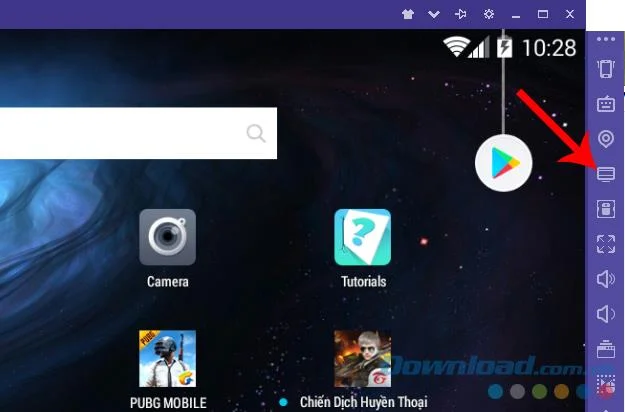
Step 1: You have downloaded and installed the Nox emulator on the computer, the interface will appear as below. Left click the My Computer icon to start setup for the emulator to receive data from the computer. However, if this is the first time, the emulator will display a message asking you to Root again.
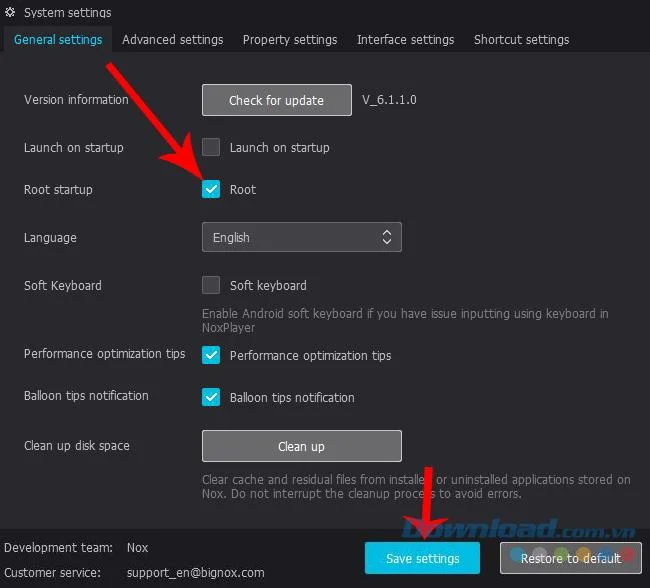
Step 2: System Settings interface appears, select General settings and then tick the Root tab , then Save settings to save changes.

Root Nox App Player before copying data
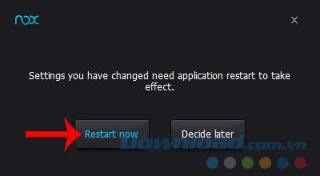
Step 3: Notification requires a restart of the emulator to make this change. Select Restart now to agree.

Step 4: Wait a few minutes for Nox App Player to restart, then you can start to proceed with copying data from the computer to this emulator in a simple way.
How to copy photos, music, videos from your computer to the simulator
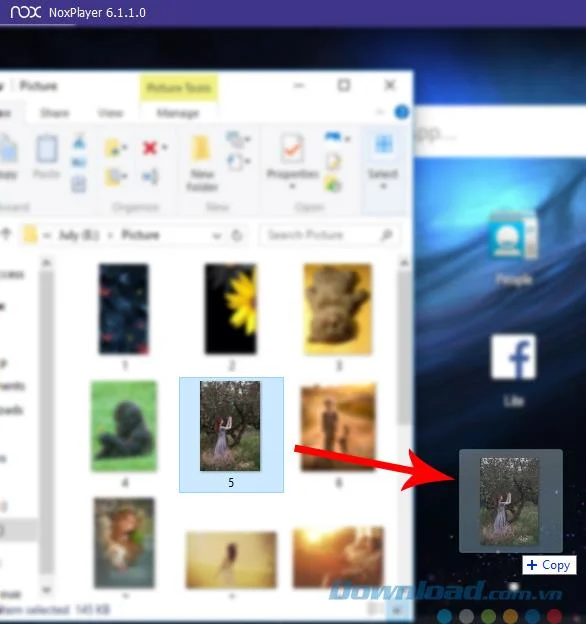
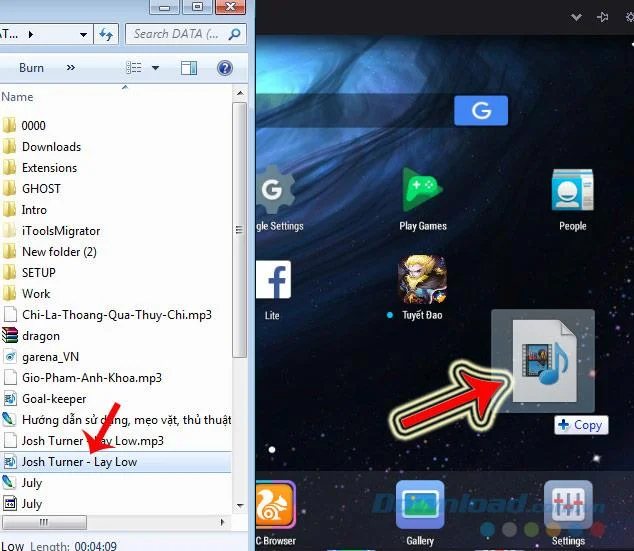
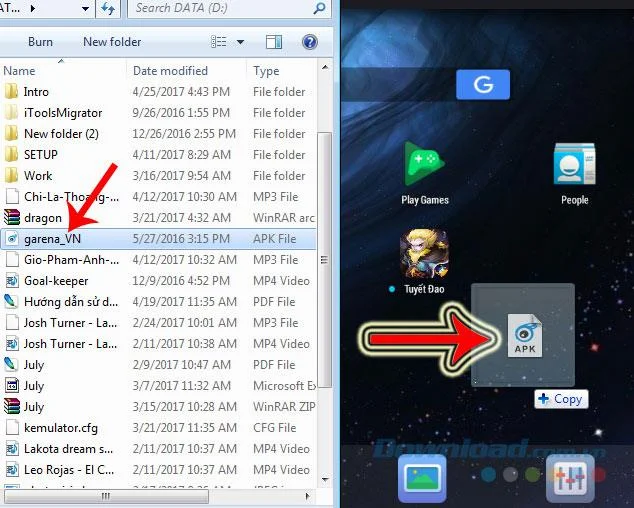
Open the Windows interface containing the data to copy, left-click, hold and drag it to the interface of NOX and release.

Drag the data to copy the image of Windows window into the simulator to perform
This is a common practice for copying data between a computer and an emulator .

Whether the media data (photos, music, videos ...) or other installation files ( APK files ) can be used in this way.

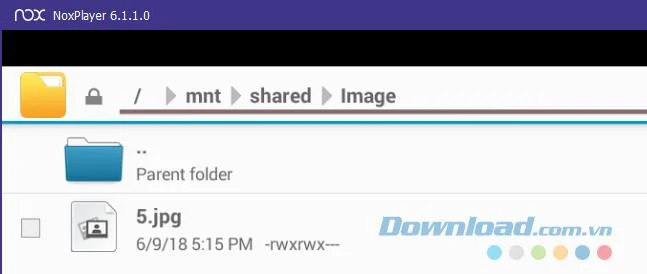
Folders stored on Nox App Player
Want to check if the data we have moved into the simulator successfully or not? Just left-click on the My Computer icon (step 1). Or you can use the shortcut CTRL + 4 , where 4 is the ordinal number indicating the location of the My Computer icon on the submenu (from the top).

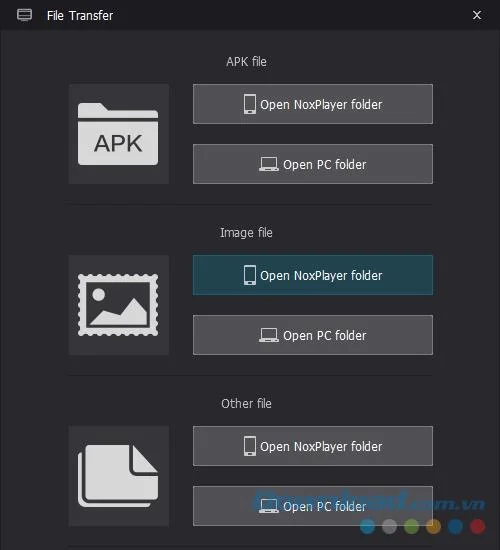
However, the special thing here is, not all data is stored in the same location. Nox default divides data into 3 main types: Photos - Other data - APK .
Each data you successfully copy into the simulator will be saved in a corresponding folder.

For example:
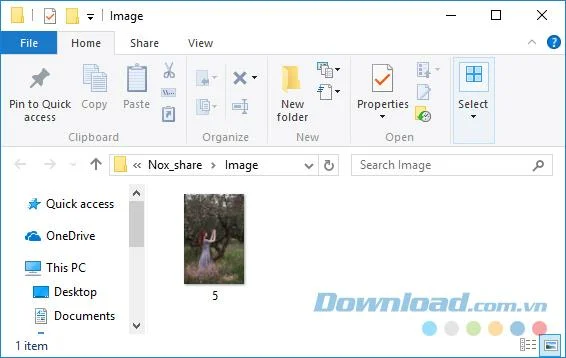
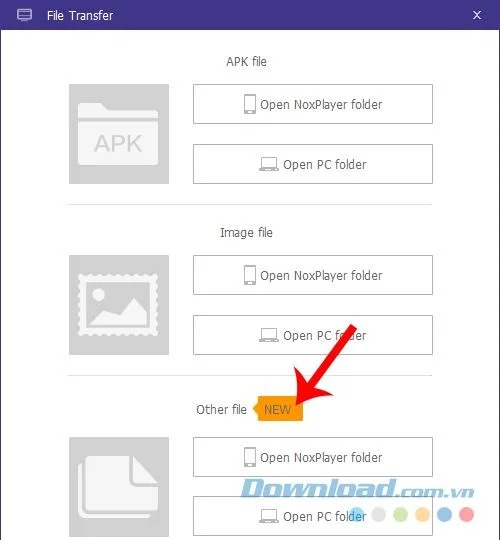
The image will be saved in the Image folder and you can left click on the Open NoxPlayer folder of Image file to go to the image storage location on the emulator.

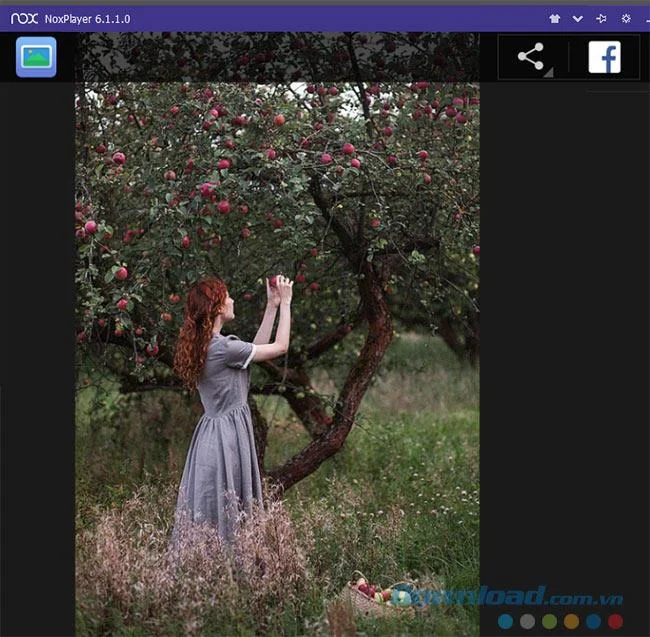
Left click on any image to display it, and use the options icons available there to manipulate.

You can also remember and find the link:
C: \ / User / Computer Name / Nox_share / Image

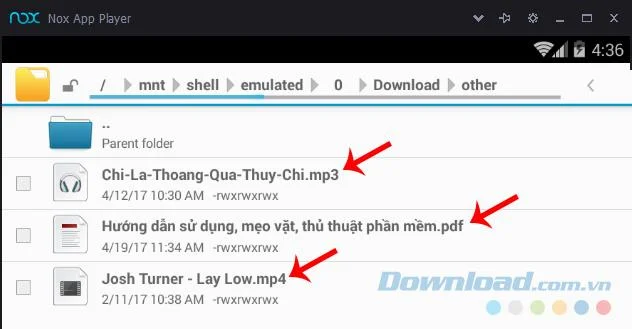
In addition to photos, all other data such as videos, text, movies, music ... are stored in the Other folder together.

Select the Open NoxPlayer folder of the corresponding folder to view them on the emulator.

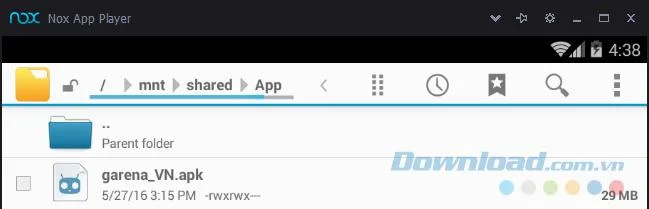
But in particular, the APK file when moved to the emulator in this way will be just like a normal data, not installed as when we installed the APK file for the Nox App Player emulator before.

On the computer will also create similar folders on Nox (3 separate folders) to store this data. Specifically:
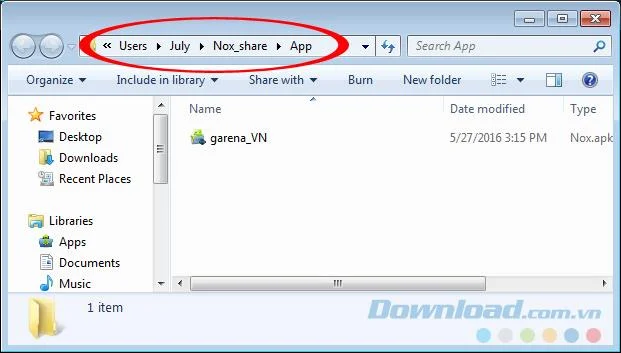
- Other data storage directory ( other than images): C: \ / User / Computer name / Nox_share / Other
- APK file storage directory : C: \ / User / Computer name / Nox_share / APK
- Image storage folder : C: \ / User / Computer name / Nox_share / image

Hopefully, with the above detailed instructions, you can copy the data from your computer to Nox yourself to serve the work as well as have a better experience during using the Nox App emulator. This player . In addition to NoxPlayer, there are also some other popular Android emulation software such as BlueStacks , Droid4X or KOPLAYER that you can also experience.
Copy data between the computer and NOX
I wish you successful implementation!