Why You Need a Disk Clone Tool?
Disk cloning proves highly beneficial in various scenarios, with two prevalent use cases:
Upgrade or Replace Aging Disks: Over time, prolonged usage leads to a reduction in computer capacity and speed. To enhance computer performance, a common practice involves executing a free disk-to-disk clone when upgrading or replacing a hard drive.
Create HDD/SSD Duplicates for Backup: While conventional methods involve backing up folders to external drives, such as USB drives, they may fall short during unexpected disasters. Performing a disk-to-disk copy ensures the preservation of all data and information, guarding against data loss, system reinstalls, and configuration resets. In the event of a machine crash, this method facilitates comprehensive data recovery.
So next I'm going to introduce you to the best free disk cloning tool for 2024, so please read carefully!
What Is The Best Disk Clone Tool of 2024?
Is there a built-in cloning tool in Windows 10? Unfortunately, Windows lacks native cloning software for free disk-to-disk cloning. Therefore, users seeking to copy from one disk to another, whether in Windows 10 or other systems, must turn to third-party solutions. The duration of disk-to-disk copying varies based on the size of the copying disk, yet it significantly outpaces the time-consuming process of installing each machine separately, particularly when dealing with numerous applications.
Among the premier disk-to-disk cloning software options, AOMEI Backupper Standard stands out. This software boasts a Disk Clone feature for seamless hard drive migration to another HDD or SSD. Additionally, it offers Partition Clone, allowing the cloning of specific partitions rather than the entire disk. Compatible with Windows 11/10/8.1/8/7/XP/Vista, AOMEI Backupper Standard simplifies disk-to-disk cloning with its robust features.
Key Features Include:
☁ Intelligent Clone: Utilizing the fastest cloning method, it selectively duplicates used sectors while bypassing bad sectors from the source, facilitating cloning to smaller SSDs.
☁ Sector By Sector Clone: This option enables the copying of all sectors from the source drive to the destination disk, preserving the original disk layout for data recovery.
☁ SSD Alignment: Recognizing the distinct structures of HDDs and SSDs, this feature ensures optimal SSD performance by aligning partitions along the SSD block boundaries during the cloning process.
How to Clone Disk via Best Free Disk Clone Software
AOMEI Backupper liberates you from the laborious task of transferring data, configuration settings, installed applications, and programs to a new drive. In the upcoming section, we will guide you through the process of utilizing AOMEI Backupper's free disk cloning software for cloning HDD to SSD, HDD to HDD, or SSD to SSD.
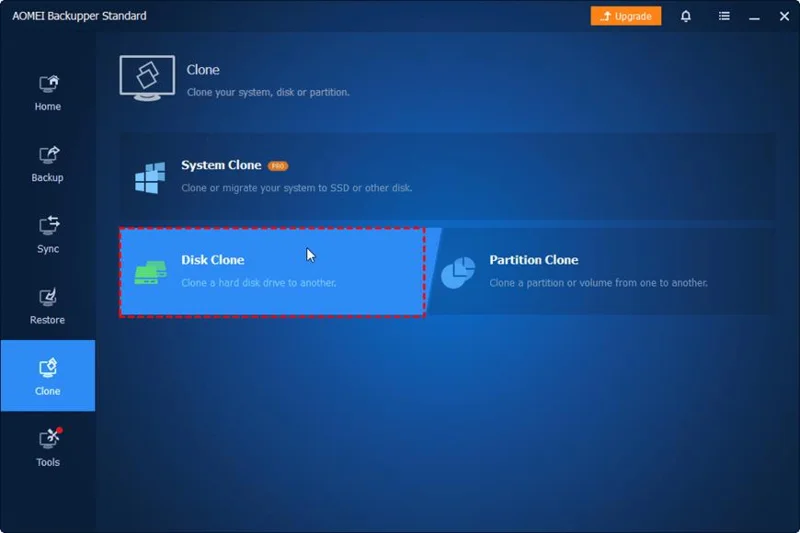
Step 1. Attach the target disk to your PC. Proceed to download the AOMEI Backupper free hard drive cloning software, run the application, and navigate to the Clone section. Select Disk Clone to initiate the process.
![IMG_256]()
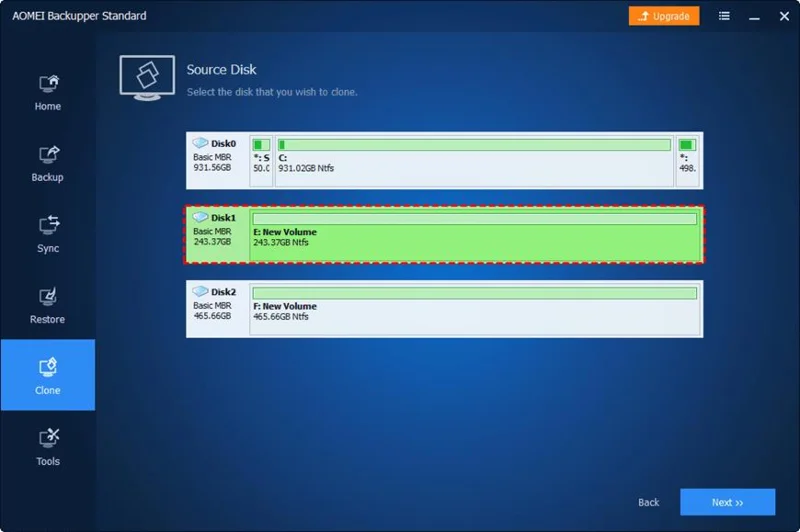
Step 2. Choose the source disk you intend to clone, and then proceed by clicking on Next.
![IMG_256]()
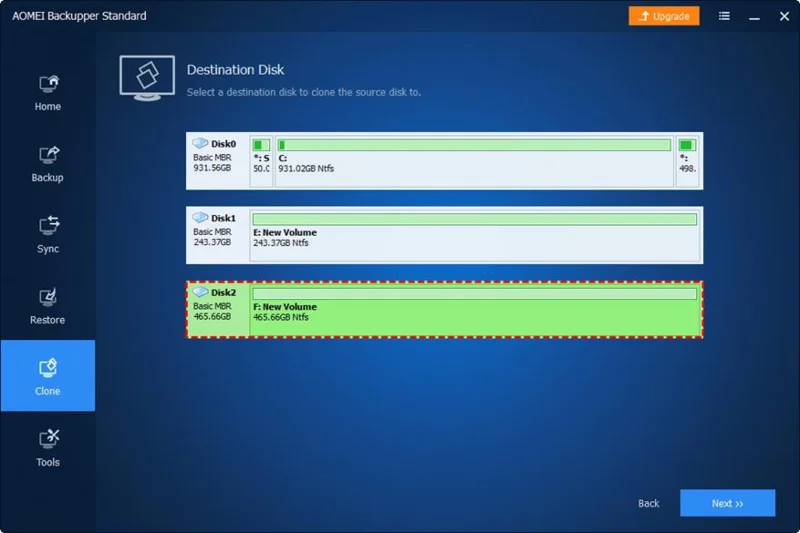
Step 3. Pick the destination disk where you want to store the cloned data, and then click on Next.
![IMG_256]()
Note: A prompt will appear, notifying you that the destination disk will be overwritten or deleted. It is advisable to back up your files in advance to prevent potential data loss, as your data will be overwritten during the cloning process if not backed up.
![IMG_256]()
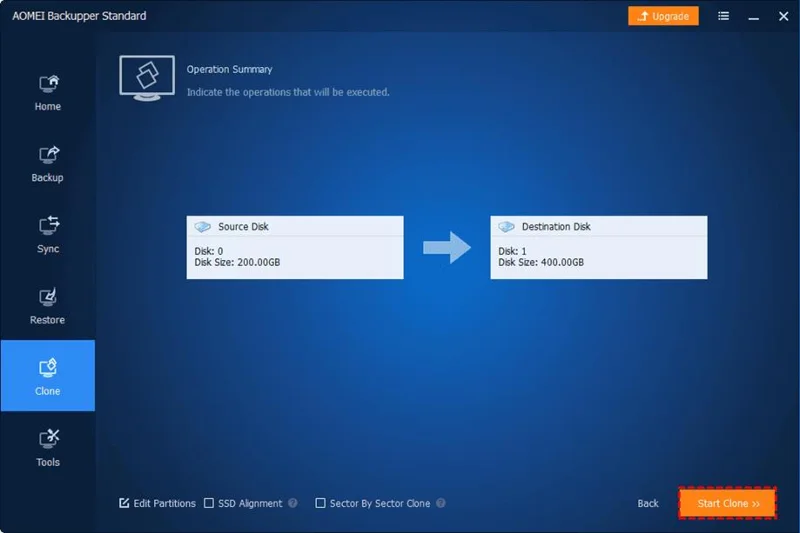
Step 4. Check the box for SSD Alignment to enhance the performance of the SSD if needed, especially when cloning a hard drive to an SSD. Additionally, you have the option to choose Sector by Sector Clone to replicate all sectors on the old hard drive.
Step 5. Press the Start Clone button to effortlessly initiate the free disk-to-disk cloning process on Windows 10.
![IMG_256]()
Notes:
Ensure that your target disk has sufficient space before initiating the disk cloning process; otherwise, the operation cannot proceed.
Dynamic disks are not supported by Disk Clone. If dealing with dynamic disks, consider using the System Clone or Partition Clone options for effective cloning.
Securing a Secure Boot from the Cloned System Disk:
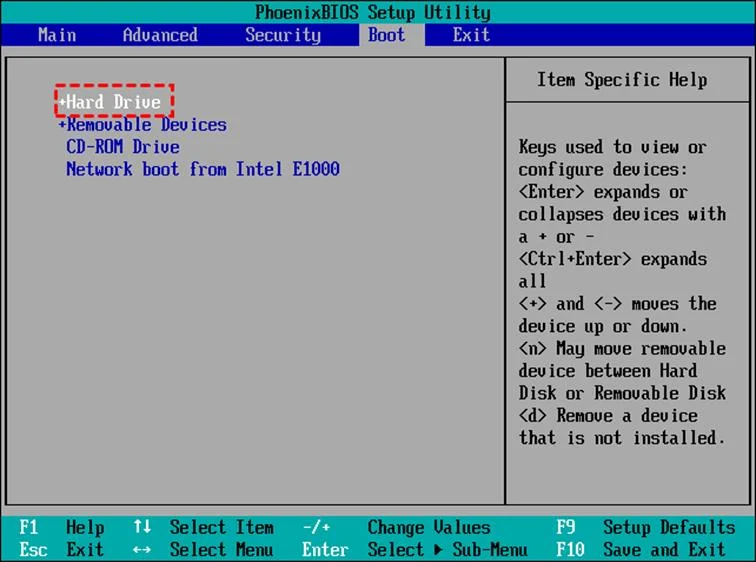
If the cloned hard drive includes the operating system, it is recommended to restart your computer and consistently press a designated key (commonly F2, F8, F12, Del) to access BIOS Setup -> Boot. Subsequently, configure the cloned disk as the primary boot device in BIOS or directly substitute the old hard drive with the new drive to facilitate booting from the cloned drive.
![IMG_256]()
Summary
Cloning a disk presents a convenient and effective means of transferring data from an old disk to a new one. This method offers the advantage of enjoying a new hard drive's benefits, including enhanced performance, faster boot times, and increased durability.
For a cost-free disk-to-disk cloning operation, the best disk clone tool - AOMEI Backupper Standard is a dependable choice. It facilitates the seamless cloning of a hard drive to an SSD, even a smaller one, providing ease and efficiency. Moreover, AOMEI Backupper Standard offers diverse backup options, enabling automatic backup of Windows systems, hard drives, partitions, and specific files or folders.