Connect Nextcloud to CODE Docker: Setup and Tradeoffs
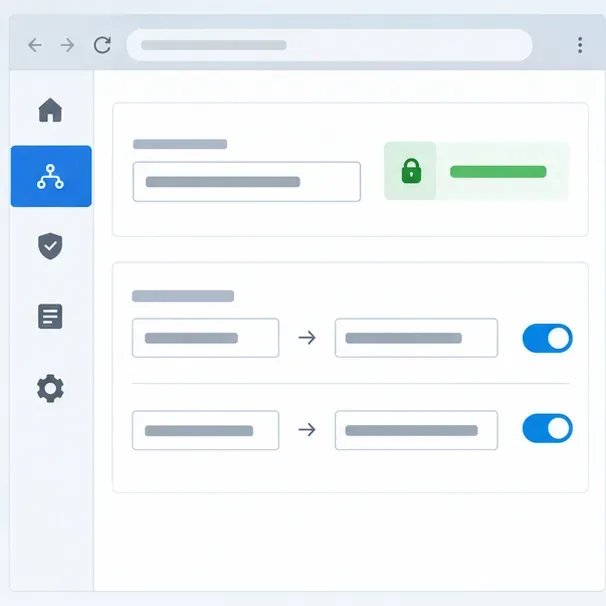
Compare built-in and Docker-based CODE, then connect Collabora Online to Nextcloud through a secure HTTPS reverse proxy.
Connect Nextcloud to Collabora CODE by running the official collabora/code image, restrict its port to the host, route an HTTPS office subdomain through a WebSocket-capable reverse proxy, and set that public URL in Nextcloud’s Collabora integration. Ten minutes is plausible only if Docker, DNS, TLS, and the proxy are ready.
Choose the right office service first. As of October 2026, Nextcloud distinguishes its Euro-Office-powered Nextcloud Office from Collabora Online. CODE is Collabora Online Development Edition, so use the Collabora integration, not the Euro-Office connector. The built-in CODE app is quickest for personal use, but Nextcloud describes it as slower and lacking advanced scalability. A separate container is easier to manage independently but adds proxy and update work. CODE suits home use and testing; choose a supported Collabora Online deployment when a business needs production support.
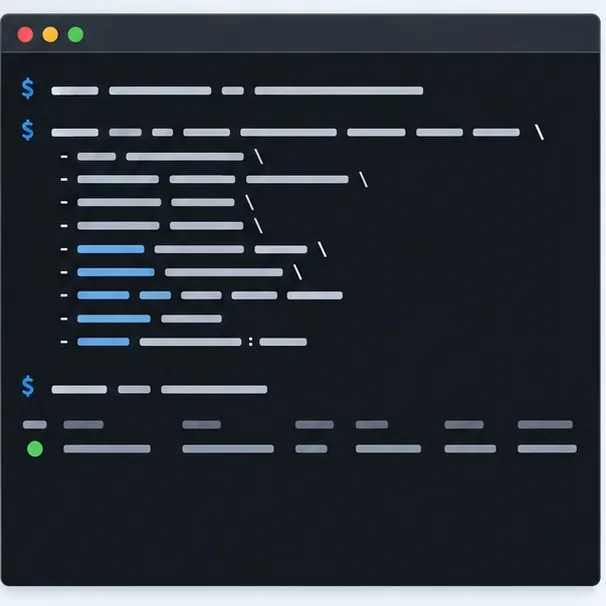
Have a working Nextcloud HTTPS address, a separate office hostname with valid TLS, and Docker access on the CODE host. Point the office hostname to a reverse proxy that can route to the container. Both users’ browsers and the Nextcloud server must reach the office URL.
If DNS or TLS is not ready, don’t expose port 9980 publicly as a shortcut. Bind it to loopback and finish the proxy first.
Replace the sample Nextcloud hostname with the exact HTTPS origin users use to sign in. The aliasgroup1 setting restricts which WOPI host (the file service that supplies documents to the editor) may connect. Do not use a wildcard just to make a failed connection disappear.
docker pull collabora/code

docker run -t -d --name collabora-code -p 127.0.0.1:9980:9980 -e 'aliasgroup1=https://cloud.example.com:443' --restart unless-stopped --cap-add MKNOD collabora/code
Binding to 127.0.0.1 keeps the port private while a proxy on the same host can reach it. If your proxy is elsewhere, allow only that trusted proxy to connect to port 9980.
Check that the container started and that its discovery endpoint answers locally:
docker ps --filter name=collabora-code
docker logs --tail=50 collabora-code
curl -kfsS -o /dev/null -w 'Discovery HTTP %{http_code}\n' https://127.0.0.1:9980/hosting/discovery
-k bypasses certificate validation only for this local self-signed check; it does not fix an invalid public certificate.
Serve https://office.example.com from your reverse proxy with a valid certificate and route requests to CODE. Collabora’s proxy guidance covers editor assets, discovery/capabilities, /cool/, and WebSocket forwarding. Without WebSocket upgrades, the page may load while the editor fails.
Use the maintained configuration for your proxy software. If it terminates TLS before CODE, follow the documented backend TLS settings; don’t disable certificate checks globally.
In Nextcloud, enable or install the Collabora integration app available for your release. Then open the administration area for Office and enter the public Collabora URL, https://office.example.com. Current manuals label the setting “Collabora Online Server”; wording and app labels can vary by release, especially as Nextcloud adds its Euro-Office option. Select Collabora Online for this CODE server. Do not enter the container-only address https://127.0.0.1:9980 unless Nextcloud itself runs on the same host and that address is also the configured service endpoint; in the recommended proxy setup, use the public office hostname.
Save the setting and run the built-in connection check if your release shows one. If it fails, compare the exact Nextcloud origin in aliasgroup1, confirm that both Nextcloud and the browser can resolve and reach the office hostname, and inspect the reverse-proxy logs for denied paths or WebSocket errors.
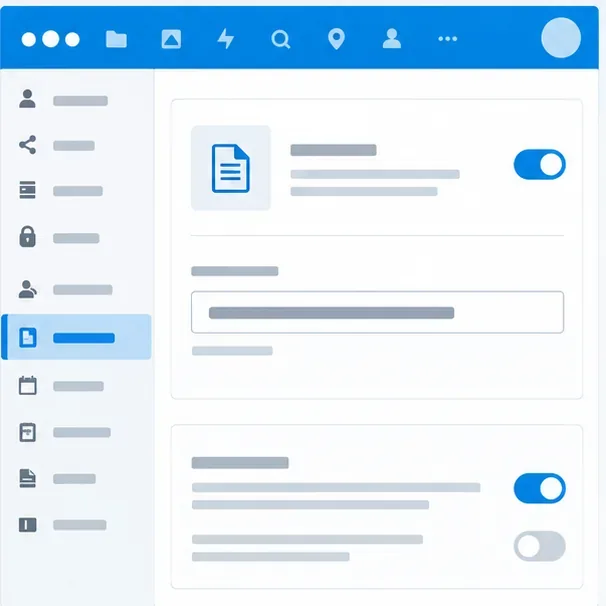
Open a small test document in Nextcloud and confirm that it opens in the browser editor, accepts a change, saves, and reopens with that change intact. Test from a normal user account as well as an administrator account. A working discovery check alone confirms that CODE responds; it does not prove that WOPI authorization, proxy WebSockets, and document save operations all work.
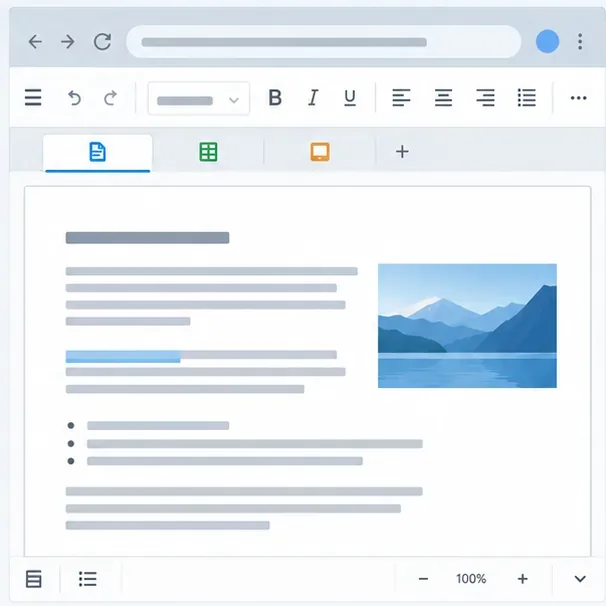
For a personal server or small team, CODE Docker separates the editor from Nextcloud’s PHP stack. You also own the proxy, restarts, compatibility checks, and image updates. The built-in CODE app is simpler but shares the host and has fewer scalability features. For an organization that depends on daily editing, evaluate a supported Collabora Online service instead of treating CODE as a production guarantee.
When ready to update CODE, pull the new image and recreate the container with the same options. Review the release notes and test document opening and saving before updating a service users rely on; the latest tag can move. Pin a specific image version when repeatable rollouts matter.
The setup is working when the public office hostname presents a valid certificate, the Nextcloud connection check succeeds, and a test document opens, saves, and reopens through the editor. If the office landing page loads but editing hangs, check WebSocket forwarding. If Nextcloud reports that the host is not allowed, correct aliasgroup1 to match the actual Nextcloud origin. If CODE responds locally but not from users’ browsers, check public DNS, firewall routing, and the reverse proxy.
References: Nextcloud’s Docker installation example; Nextcloud Office installation options; Nextcloud Collabora configuration; Collabora reverse-proxy settings; official CODE Docker image details; Nextcloud Hub 26 Summer office options.
Compare built-in and Docker-based CODE, then connect Collabora Online to Nextcloud through a secure HTTPS reverse proxy.
Plan a reliable Nextcloud HA deployment with shared storage, Redis locking, quorum-aware MariaDB routing, and practical failover checks.
Configure and verify a reachable TURN relay for Nextcloud Talk when firewalls or restrictive NAT block direct call media.
Use the invalid-file report to identify changed, missing, or extra Nextcloud code, restore trusted files safely, and verify the result.
Set up OAuth2 for Nextcloud Mail with Gmail or Microsoft 365, verify receiving and sending, and resolve common consent and SMTP failures.
Use OCC to restore Nextcloud access, verify database migration status, and choose the right command for archive, Docker, or Snap installs.
Connect Nextcloud to LDAP or Active Directory, limit access with user and group filters, and verify secure authentication before rollout.
Enable a supported 2FA provider, prepare account recovery, then require two-factor authentication for everyone or selected Nextcloud groups.
Secure files edited in Collabora CODE by encrypting the storage layer, protecting temporary data, and verifying encryption and recovery.
Check your host architecture, confirm the CODE tag publishes ARM64, remove forced AMD64 settings, and separate image errors from permissions or memory issues.