How to Check Your PHP Version and Find Security Updates
Check which PHP version your website really uses, verify support and security releases, and plan safer PHP updates without disrupting your site.
To check your PHP version, run php -v in a terminal, check the PHP setting in your hosting dashboard, or inspect your application’s server information. Then compare the full version number with the official PHP support schedule and PHP change log. The key is to check the PHP version serving your website—not just the command-line version installed on the machine.
Hypothetical example: Imagine that Maya maintains a small WordPress store hosted in the United States. Her hosting panel reports PHP 8.3.35, but a terminal on the server reports PHP 8.4.26. These are example values, not observations from a live website. Here is how she can find the version that matters and decide whether an update is needed.
If you have SSH access to the server, connect and run:
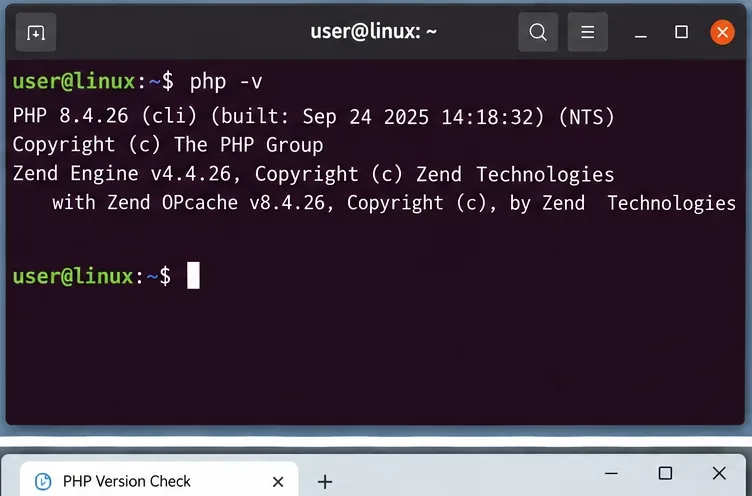
php -vThe first line normally identifies the PHP command-line interpreter and its full version. Record all three numbers: for example, 8.4.26 is not the same patch release as 8.4.25. On Windows, run the same command in PowerShell or Command Prompt if PHP is on your PATH. If the command is not found, you may need your host’s control panel or the absolute path to PHP.
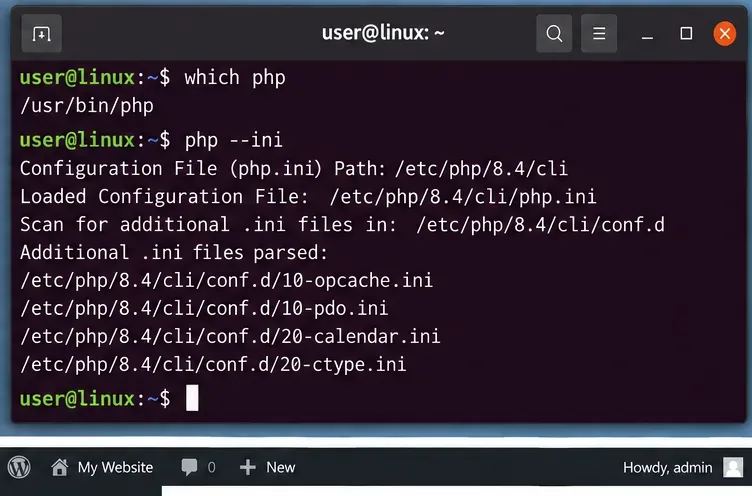
A server can have multiple PHP versions, including separate command-line and web-server configurations. To see which executable your shell uses, run:
command -v php
php --ini
The second command identifies the configuration files loaded by that CLI executable. A different PHP-FPM pool or web-server handler may serve the website. In Maya’s hypothetical case, the differing 8.3 and 8.4 results would be a reason to investigate, not proof that either installation is broken.
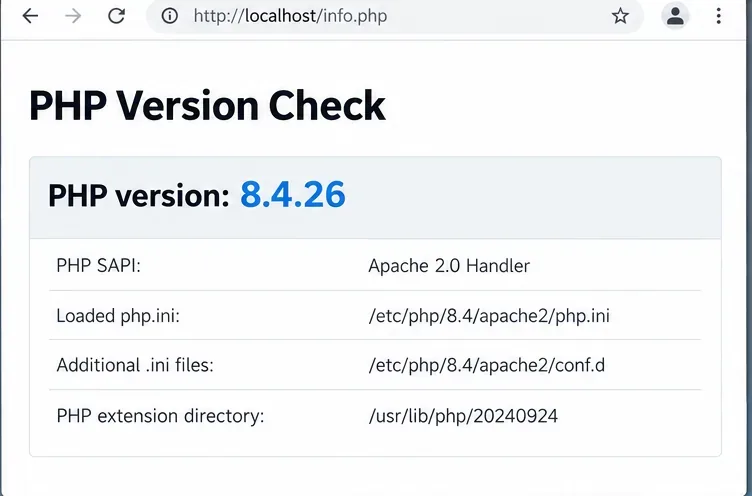
For a site you control, the PHP function phpversion() returns the version used by the request. In a protected development environment, create a temporary PHP file containing:
<?php
echo htmlspecialchars(phpversion(), ENT_QUOTES, "UTF-8");
Load that file through the same web server and virtual host as the application. Remove it immediately after checking. If a version-only endpoint is unnecessary, use your host’s administration interface instead. Avoid leaving a publicly accessible phpinfo() page: PHP documents that it can reveal paths, environment values, loaded modules, and other sensitive configuration details.
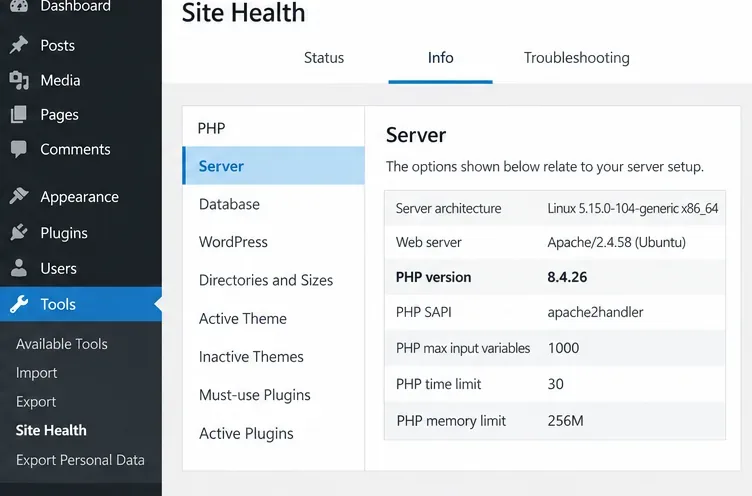
In WordPress, open Tools → Site Health → Info → Server and look for the PHP version field. Many hosting dashboards also have a PHP selector or configuration page for each domain. Menus vary by host, and the host’s selected version should be checked against the version actually executing website requests.
For Maya’s example, if WordPress reports 8.3.35 while SSH reports 8.4.26, she should evaluate the 8.3 branch used by the live store. Updating CLI PHP alone would not necessarily update the web runtime.
As of October 21, 2026, PHP lists versions 8.4 and 8.5 in active support, while 8.2 and 8.3 receive critical security fixes only. PHP 8.2 is scheduled to reach end of security support on December 31, 2026; PHP 8.3 on December 31, 2027; PHP 8.4 on December 31, 2028; and PHP 8.5 on December 31, 2029. Check the live supported-versions page before planning an upgrade.
An actively supported branch can still require a patch update. Do not assess security solely from “PHP 8.4” or “PHP 8.5”: compare the complete patch version with vendor releases. Also check whether your Linux distribution or hosting provider backports fixes without changing the upstream-looking version string.
Read PHP.net announcements and the PHP 8 change log for the affected versions, bug descriptions, and fixed releases. The PHP project announced on October 20, 2026 that it planned a critical security release for October 21 at 14:00 UTC (10:00 a.m. EDT), involving two vulnerabilities rated CVSS v4.0 9.2. At the time of this article’s assigned publication slot, the detailed advisory and fixed version numbers had not yet been published; do not treat an unverified CVE number as confirmed.
When a security release becomes available, verify the published affected-version ranges and compare them with the runtime that serves your site. Check your operating-system vendor’s security notices if PHP comes from a distribution package. If you use a managed host, ask whether the relevant fix has been deployed.
In the hypothetical store, Maya would first confirm the website’s PHP 8.3.35 runtime, review the official advisory after publication, then ask her host whether an affected build needs a security patch. She could separately plan migration to an actively supported branch after compatibility testing. The upgrade decision depends on verified advisories and the provider’s packages—not on the terminal version alone.
Not necessarily. It shows the command-line PHP executable. A website can use a different PHP-FPM pool, Apache module, container, or hosting configuration.
Use a supported, patched release compatible with the application. Test major or minor upgrades before production; do not deploy release candidates on a live site.
No. The output can expose detailed server configuration. Prefer authenticated hosting tools and remove temporary diagnostic files immediately.
Check which PHP version your website really uses, verify support and security releases, and plan safer PHP updates without disrupting your site.
Learn how magma, gas, and water drive eruptions; compare eruption and volcano types, understand warning signs, and follow practical U.S. safety advice.
Find official early voting dates, hours, and locations in your state. Learn what to verify for registration, ID, accessibility, and in-person absentee voting.
Learn what Social Security trust fund depletion means, the latest 2032 and 2034 projections, what benefits could be payable, and how to plan using SSA estimates.
Check a Kayem Foods recall product against the official brand, product description, UPC, lot code, and USDA establishment number. Here’s what to do if it matches.
AI adoption is widespread, but business returns vary. Learn why U.S. companies revisit AI budgets and how to measure full costs, productivity, and value.
Check automatic time and time-zone settings on iPhone, Android, and Galaxy phones before the U.S. fall clock change on November 1, 2026.
Learn how to vote in the 2026 U.S. midterms: check registration, confirm your state’s deadlines, compare voting options, and find official election resources.
Learn how Tesla Autopilot’s cruise and steering assistance works, what it can miss, how it differs from FSD (Supervised), and what U.S. drivers must still do.
See who may qualify for the expanded Amazon Prime FTC refund, how payments work through April 2027, where to check status, and how to avoid scams.