5 Halloween Cocktails That Are Easy to Serve at Your 2026 Bash

Mix five vivid, approachable Halloween cocktails with measured recipes, simple prep tips, and an alcohol-free option for your party guests.
When you add Copilot to Microsoft Office 365 , you will be able to use Copilot to support working with office applications, such as using Copilot in PowerPoint. Copilot will help you add creative ideas to PowerPoint content slides, or fix the content that is not good in your presentation slides. Below are instructions for using Copilot in Copilot in PowerPoint.
How to use Copilot in PowerPoint
Step 1:
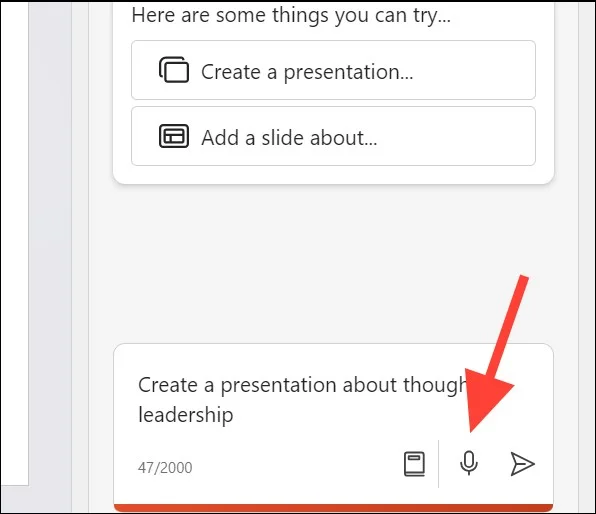
At the PowerPoint interface, we click on the Copilot icon to display the tool interface. Next, click on Create a presentation , then enter the slide topic you want to make or you can use the microphone to record your voice.
Once you have entered the content, click the send icon to send your request to Copilot.
Step 2:
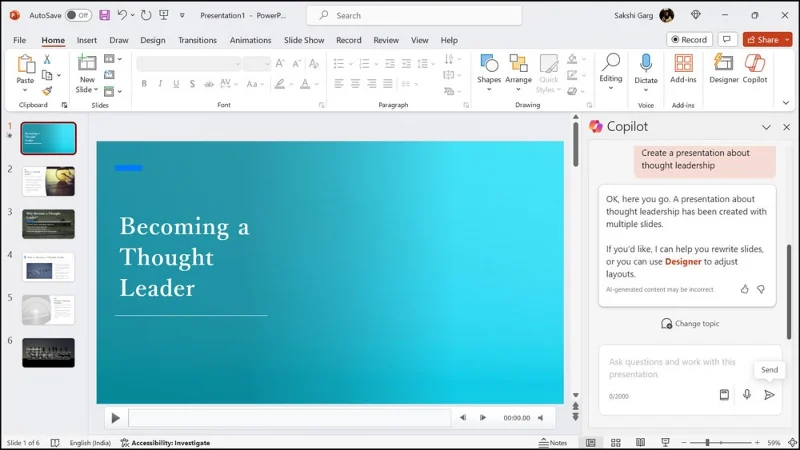
Copilot then proceeds to create the content for the slide you want. The result is a basic slide with a few slides containing images and text using a consistent layout and theme.
Step 3:
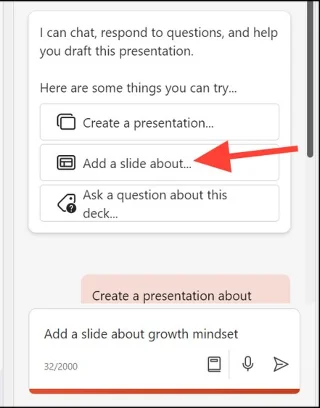
To add a slide to the content , in the Copilot interface, click Add a slide about and then enter the content of the slide you want to add below .
Step 4:
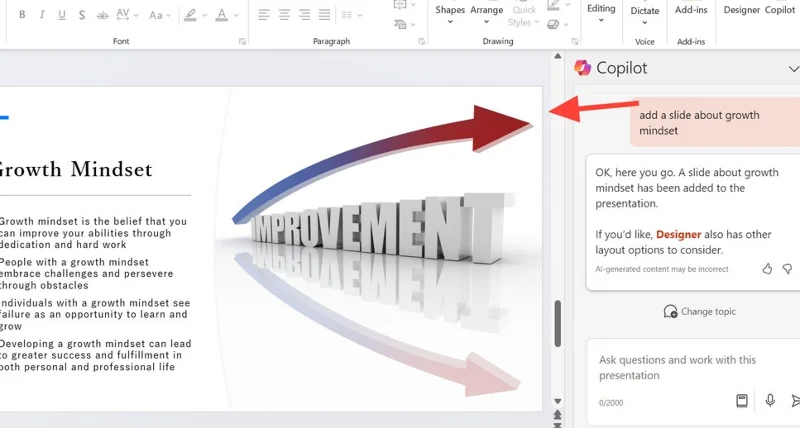
Copilot will add a new slide after the current slide. We can still move the slide order in our presentation if we want.
Step 5:
In a presentation slide, to add a photo , you enter the photo content to add in the slide number , or add it to the slide you have selected to display on the interface.
Step 6:
To summarize your presentation slides, simply click Summarize this presentation and send it to Copilot .
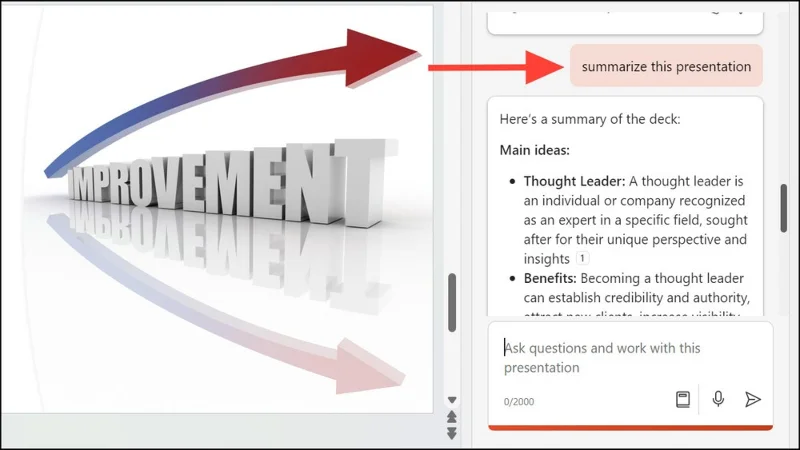
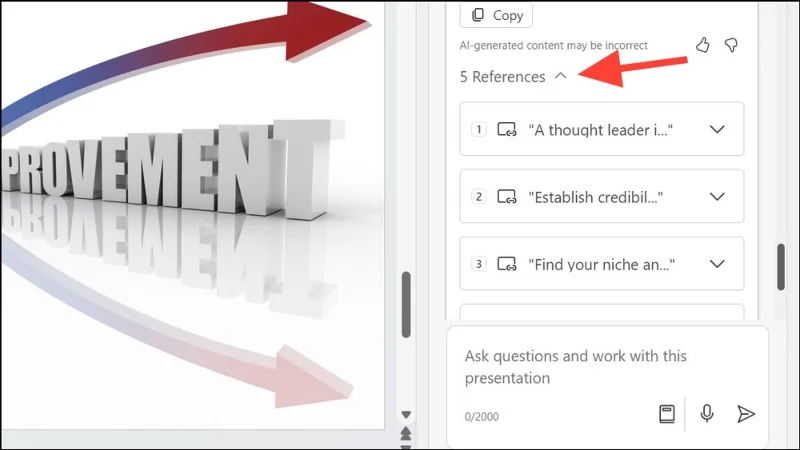
Copilot then generates a summary of the presentation along with quotes from the presentation so you can reference the information.
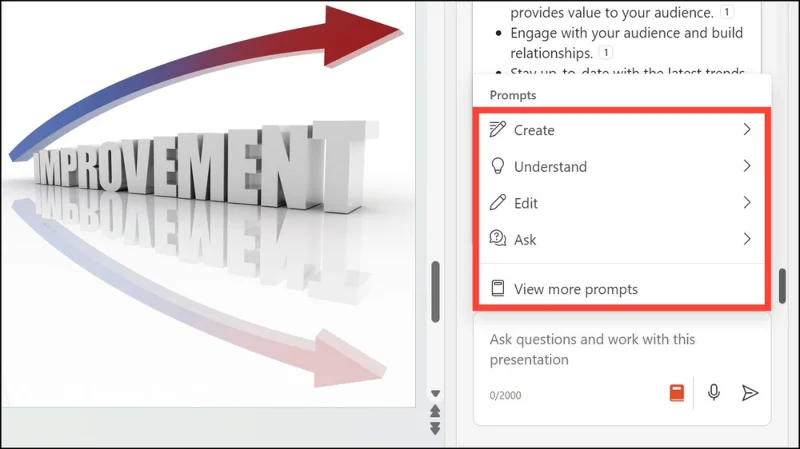
In addition, when you click on the View Prompt icon as shown , you also have more options to use Copilot.
Mix five vivid, approachable Halloween cocktails with measured recipes, simple prep tips, and an alcohol-free option for your party guests.
Find 15 office-friendly Halloween costume ideas for 2026, with practical checks for dress codes, respectful themes, comfort, and workplace safety.
Plan a fun elementary school Halloween party with easy crafts, games, inclusive treats, costume tips, and a sample 75-minute classroom schedule.
Compare realistic side hustles for 2026 by startup cost, fees, flexibility, and income control, with current tax and scam guidance from official sources.
Upgrade your home office ergonomics with current OSHA and NIOSH guidance on chair fit, monitor height, laptop setup, lighting, and movement.
Learn why emotional intelligence matters in leadership, where it helps most, how to strengthen it, and how to tell whether your approach is working.
A practical roadmap for moving into tech without a degree: choose an accessible role, build job-ready skills, prove them with projects, and use hiring feedback to improve.
Build a credible LinkedIn personal brand in 2026 with current profile, content, newsletter, analytics, verification, and visibility guidance from LinkedIn.
Quiet quitting and quiet firing are catchy labels, not diagnoses. Learn what is verified, what depends on context, and what employees and managers can do next.
Fractional executives offer senior leadership without a full-time hire. Learn when the model works, what to ask, and the risks to manage.








