Home
» Today
»
How to Use the BOM Weather App and Website for Australian Forecasts
How to Use the BOM Weather App and Website for Australian Forecasts
Australia’s Bureau of Meteorology (BOM) provides two closely related tools for everyday weather checks: the free BOM Weather app and the bom.gov.au website. Both use Bureau weather information, but they are designed for slightly different situations. The app is usually the faster choice for a phone, notifications, and checking rain on the move. The website is useful when you want a larger map, detailed location pages, or a desktop view.
This beginner’s guide walks through the setup, the main forecast screens, radar and warnings, and the most common mistakes to avoid. The Bureau’s redesigned website went live in October 2025 and has continued to receive updates during 2026, so older tutorials may show a different layout. The steps below reflect the Bureau’s current public help material as of September 2026.
What you need before you start
You do not need an account for ordinary forecasts. For the app, install BOM Weather from the official app store listing linked by the Bureau. The app is free and ad-free. On the website, a modern browser is enough.
You will get more convenient local results if you allow location access, but it is optional. Both the app and website let you search by place name, and the website also supports postcode searches. If you prefer not to share location access, simply search for the town, suburb, or city you want.
Step 1: Set the location you actually want to forecast
Weather information only becomes useful when the location is correct. In the app, you can follow your current location or search for a place in Australia. The Bureau says the app can save favorite locations and show recent locations. On the website, use the location search or the favorites star. Your first favorite town or city can become the default weather shown on the homepage.
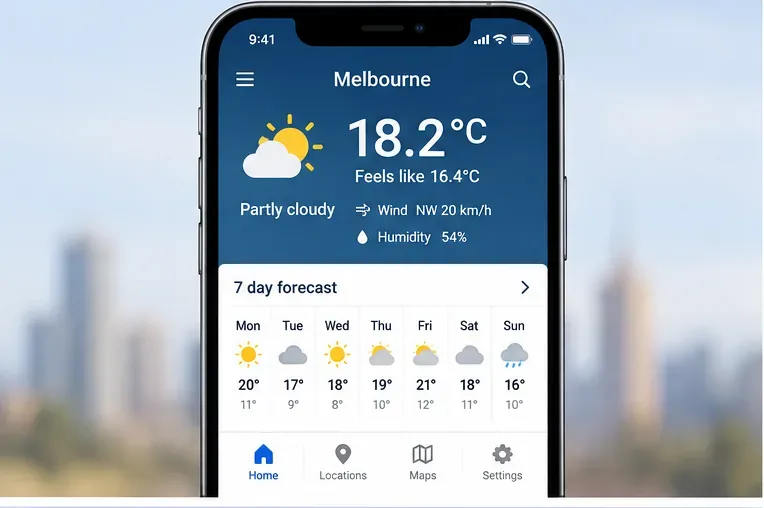
Start by checking that the location at the top of the forecast is the place you intended to view. This interface illustration is based on the types of information documented for the BOM Weather app.
If the website does not keep your favorites, the Bureau notes that favorites are stored with cookies and local storage on your device. Clearing browser data or blocking site storage can remove them. The official favorites and current location guide explains how to add, remove, and manage them.
Step 2: Read the “now” conditions before the longer forecast
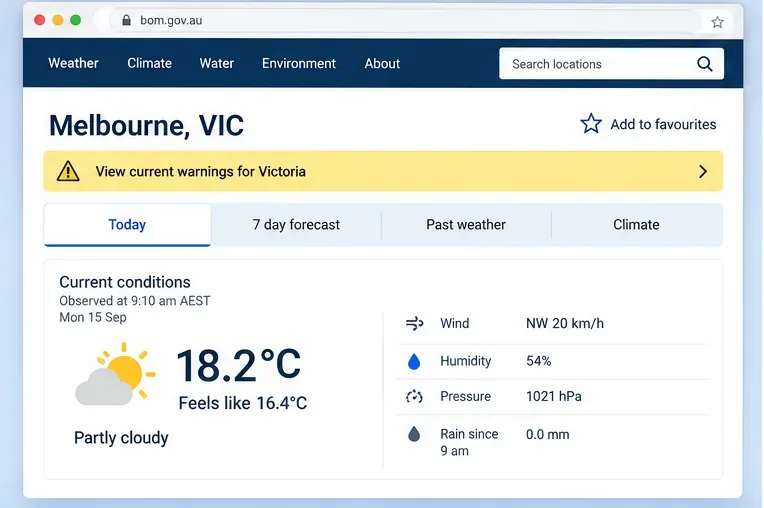
The first numbers you see are observations or near-current conditions, not a promise about the rest of the day. In the app, current weather can include temperature, “feels like” temperature, rain, wind speed and direction, gusts, humidity, rainfall since 9 a.m., and a local text forecast. The website location page similarly separates current conditions from the forecast.
That distinction matters. An observation tells you what has been measured recently. A forecast tells you what the Bureau expects later. If you are deciding whether to leave the house with a jacket or umbrella, check both the current conditions and the next few hours rather than relying on the large temperature number alone.
Step 3: Use hourly forecasts for timing, and the 7-day forecast for planning
The app provides hourly forecast information for the next 72 hours, including temperature, humidity, dew point, wind, gusts, rain, and hourly UV information. It also shows a 7-day forecast. The website offers location pages with tabs for today, 7 days, and past weather.
A useful rule is simple: use hourly data when timing matters, and the multi-day forecast when choosing a day. For example, a daily icon may suggest showers, but the hourly forecast can show whether the wetter period is expected before breakfast, during the afternoon commute, or overnight.
Do not treat a forecast three or four days away as equally certain as the next few hours. Forecasts are updated as new observations and model guidance arrive, and the Bureau notes that rainfall forecasts generally become more accurate as the forecast period approaches.
Step 4: Open the map when rain location and movement matter
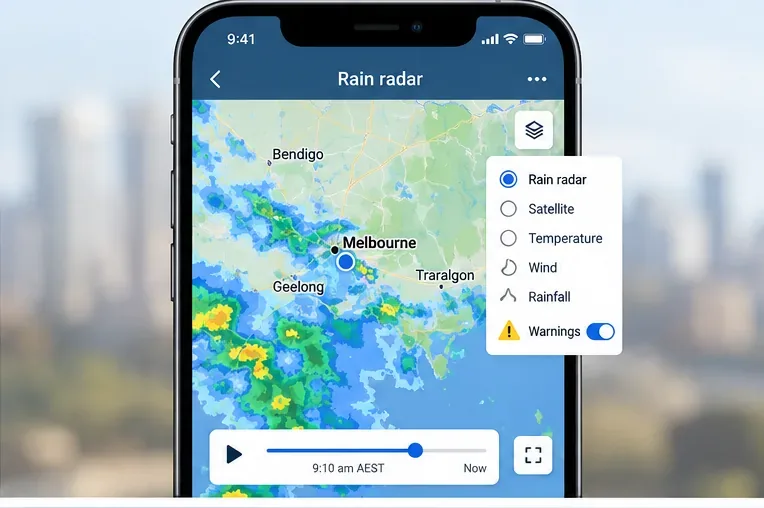
Radar is most useful for answering “where is the rain now?” rather than “will it rain at some point today?” In the BOM Weather app, search for your location and select Map at the bottom of the screen. The Bureau’s current support page says you can then choose Rain or Warnings, either directly or through the layers control. The app can show rain 90 minutes into the past and future.
Use the app map to examine nearby rain and its recent or short-range movement; check the selected layer and map time before interpreting the colors.
Radar reflectivity represents the strength of the signal returned by precipitation. It does not translate perfectly into how much rain reaches the ground at your exact address. The Bureau explains that hail and ice can produce strong radar returns, and radar detail can also vary with distance and coverage. For a broader explanation, see the Bureau’s rain radar and weather maps guide.
Step 5: Check warnings separately from ordinary forecast icons
A forecast icon is not a substitute for an official warning. On the website, warnings can be opened from the warning icon in the main navigation, from the current warnings area on the homepage, or from a location page. The location warning bar is highlighted when warnings are current for that area.
In the app, warning notifications can be configured for favorite locations. The Bureau lists warning categories including coastal hazards, fire weather, flood watches and warnings, heatwave, marine wind, tropical cyclone, tsunami, severe weather, and severe thunderstorm. Which options appear depends on location.
On a website location page, treat the warning area as a separate decision point from the routine current conditions and daily forecast.
During severe weather, open the warning itself and read the detail page rather than relying only on a map color or push notification preview. Warning text can contain the affected area, timing, hazards, and safety information that a compact forecast screen cannot show.
Step 6: Save favorites so repeat checks take seconds
Favorites are useful if you regularly check more than one place, such as home, work, a relative’s town, or a holiday destination. The website allows an unlimited number of favorite locations. In the app, favorites make it easier to switch between locations and can also be used with supported notifications.
On the website, select the star near a location name to save it. The favorites menu also lets you manage the homepage location. The Bureau’s September 17, 2026 update says favorite locations appear on the homepage and can be opened quickly from the favorites control.
Step 7: Set rain notifications when a short lead time is useful
Rain notifications are a newer app feature. The Bureau announced them on May 20, 2026. You can enable them for up to three locations. According to the Bureau’s current app support page, a rain alert is sent when there is a 50% chance of at least 0.2 mm in the next half hour at the selected location. After an alert, another rain notification is not sent for that same location within two hours.
To set one up, open the app menu, choose notifications, select a location, and turn on the rain notification. The Bureau’s BOM Weather app help and support page has the current procedure and troubleshooting guidance.
A notification is a convenience, not a guarantee that drops will reach your exact street. Local showers can be small and fast-moving, and short-range rain forecasts still have uncertainty.
Step 8: Use the website map when you want a larger view
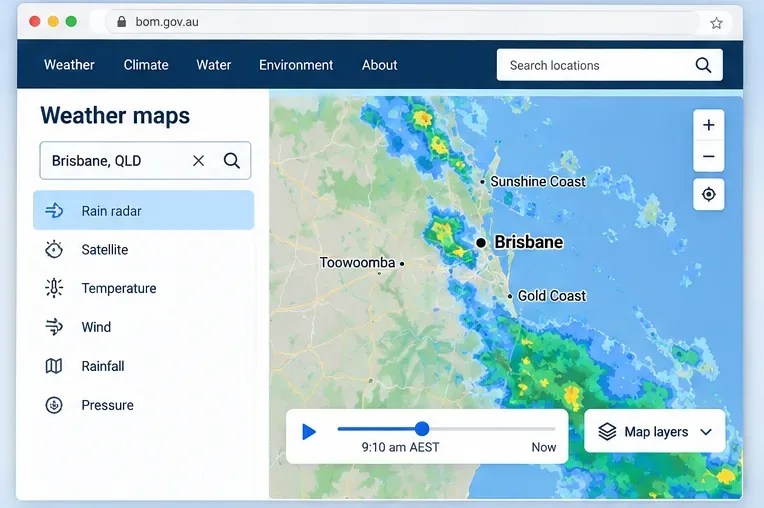
The website’s Rain radar and weather maps page is useful on a laptop or tablet because you can see a larger geographic area and switch among map information. The Bureau’s 2026 website help describes location search, map settings, rain radar, and links to specialist products. Recent website updates also added more town and place names and improved access to Doppler wind and estimated rainfall radar products.
A larger browser map is helpful for comparing rain around a city or region. Always confirm the selected weather layer and the time shown on the map.
If you need more detailed forecast mapping, the Bureau also maintains MetEye. MetEye can show official seven-day forecasts for locations and map layers such as rainfall, temperature, wind, and other weather elements. Its forecast information is fine-tuned by Bureau forecasters and is routinely updated twice a day.
How to interpret rain percentages without making a common mistake
Chance of rain is a probability, not a statement about what fraction of the day or area will be wet. In the Bureau’s Australian Digital Forecast Database, the daily chance of precipitation refers to the probability of receiving more than 0.2 mm at the relevant grid cell during the forecast period. A 40% chance does not mean it will rain for 40% of the day.
Also separate “chance of rain” from “possible rainfall.” One tells you likelihood; the other describes an amount range or expected accumulation. Look at both when rain matters to your plans.
Common mistakes to avoid
Checking the wrong location: Similar place names exist across Australia. Confirm the suburb, town, state, or postcode shown.
Reading radar as a long-range forecast: Radar mainly shows recent and current precipitation, with only short-range future rain in the app.
Ignoring the map timestamp: Always check whether you are looking at past, current, or forecast frames.
Treating a daily icon as the whole story: Open the hourly forecast when timing matters.
Assuming a notification replaces a warning page: Open the full official warning for details and safety information.
Expecting favorites to sync automatically between browsers: Website favorites are stored on the device, so you may need to set them again elsewhere.
Using an old tutorial as a UI reference: The BOM website changed substantially in October 2025 and has continued to receive 2026 updates.
A simple daily routine
For most people, a reliable routine takes less than a minute: confirm the location, check current conditions, scan the next several hourly periods, look at the 7-day forecast if you are planning ahead, open radar if rain timing matters, and check the warning area before travel or outdoor activity during active weather.
For additional official guidance, use the Bureau’s website help center and the BOM Weather app help page. Those pages are the best places to confirm interface changes after future updates.