







How To Open In Browser From VS Code

If you’re using HTML, PHP, or JS files, you might want to open them in your browser from Visual Studio Code. However, there’s no integrated option to do so. This can be frustrating, especially if you want to have a quick look at the result of your coding.

How To Open In Browser From VS Code

Luckily, you can enable the “Open in Browser” function through other methods. This article will show you how to do just that.

How to Open in Browser in VS Code on a Windows PC

The easiest way to get the Open in Browser option for Visual Studio Code in Windows is to use an extension. Installing extensions in Visual Studio Code is relatively straightforward, as is using them to open files in the browser.

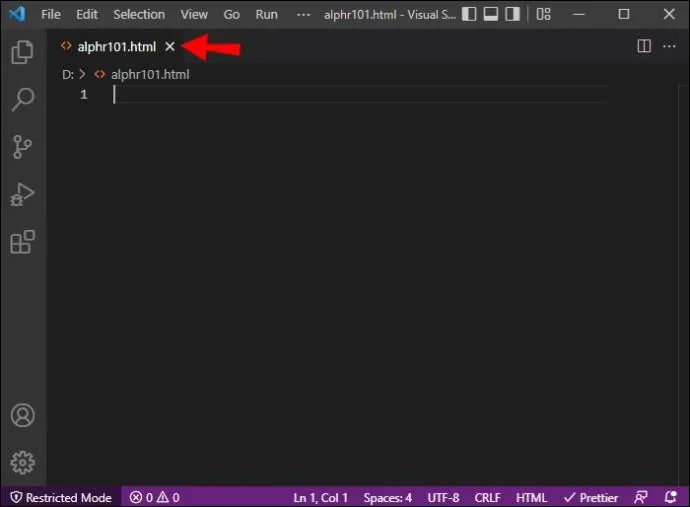
  1. Open your HTML file in the Visual Studio Code Editor.
    How To Open In Browser From VS Code
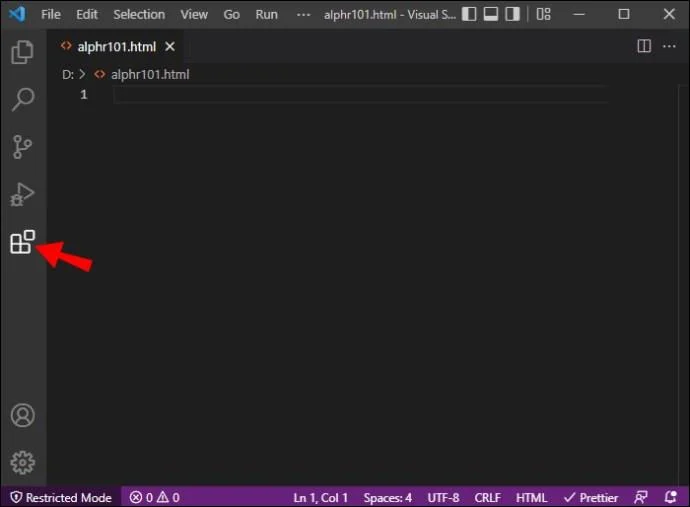
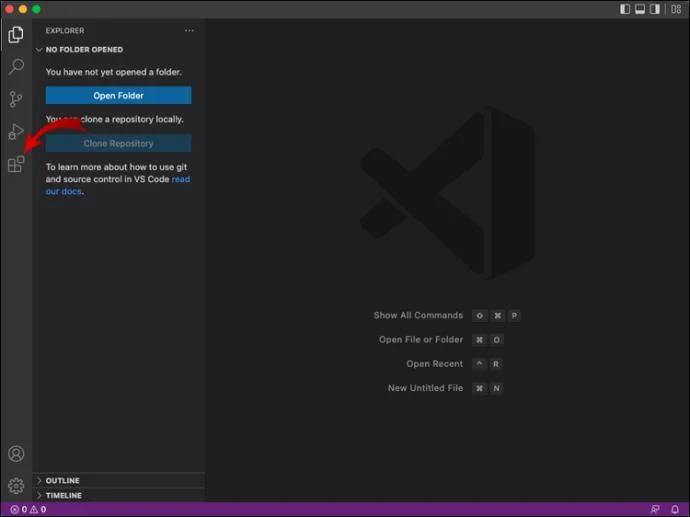
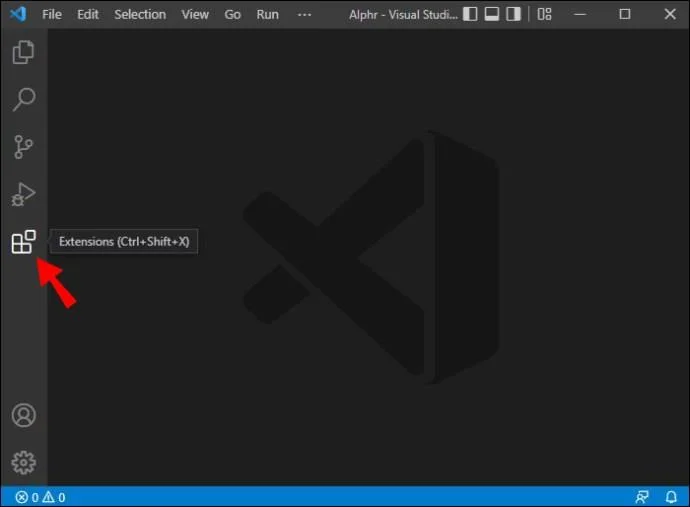
  2. On the far left vertical toolbar, click on “Extensions.” Alternatively, you can use the keyboard shortcut “Ctrl + Shift + X” to launch Extensions.
    How To Open In Browser From VS Code
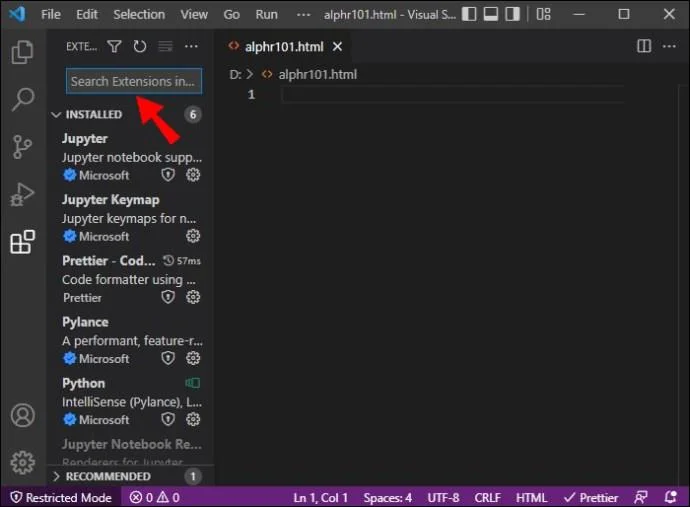
  3. Click on the search bar to enable writing.
    How To Open In Browser From VS Code
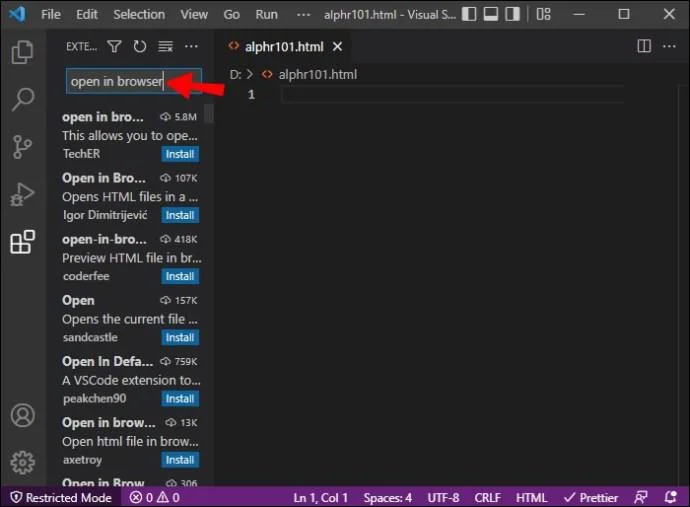
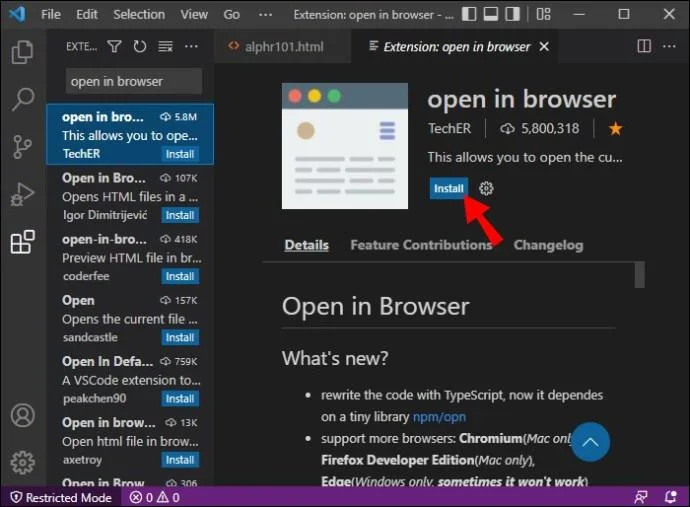
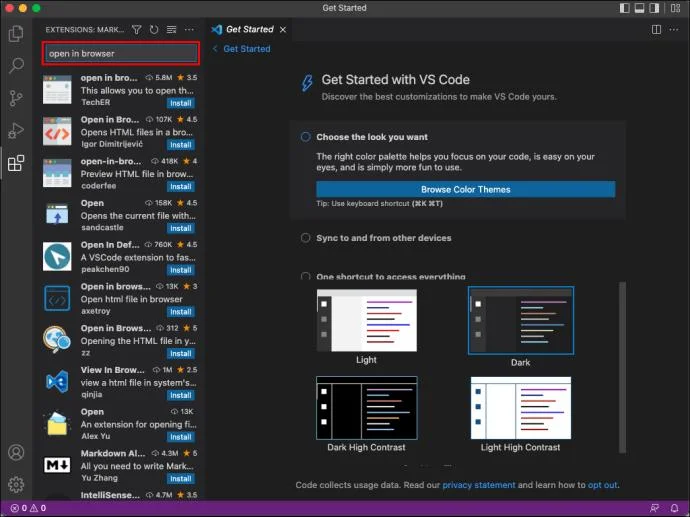
  4. Input “open in browser.” Choose an extension that matches your search term.
    How To Open In Browser From VS Code
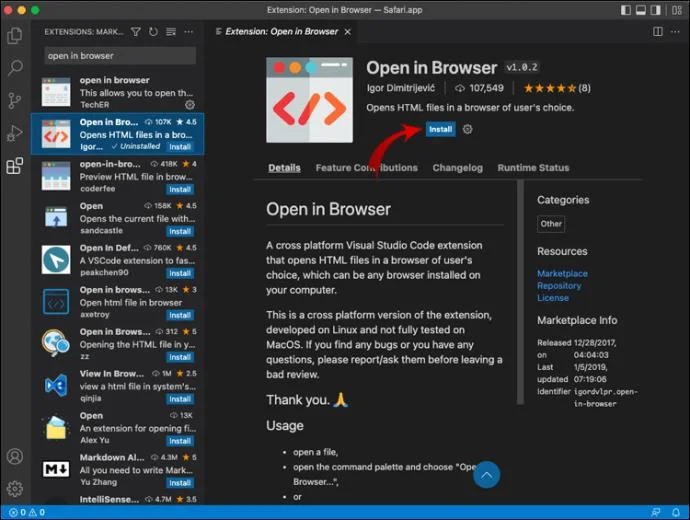
  5. Click the “Install” button.
    How To Open In Browser From VS Code
  6. Reload the program.
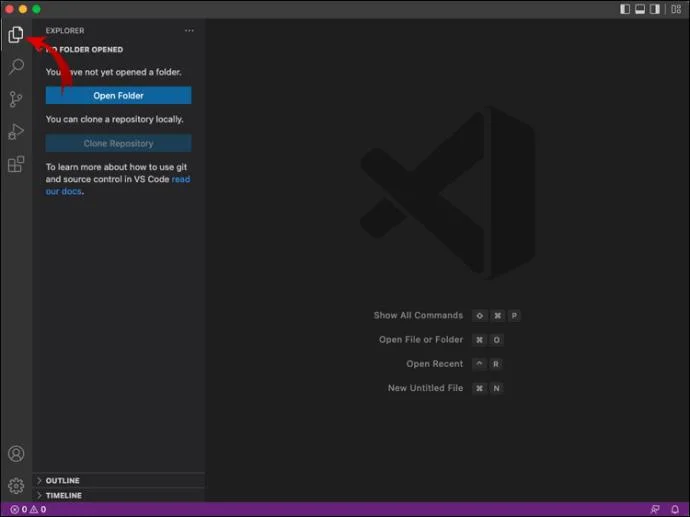
  7. Select the Explorer from the left toolbar.
    How To Open In Browser From VS Code
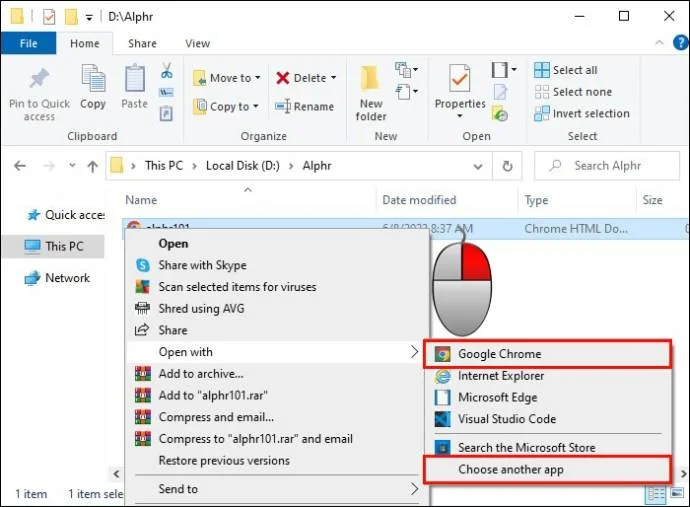
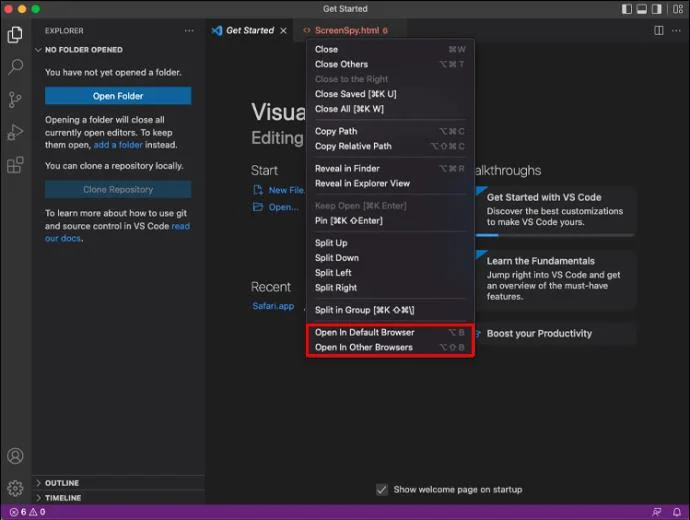
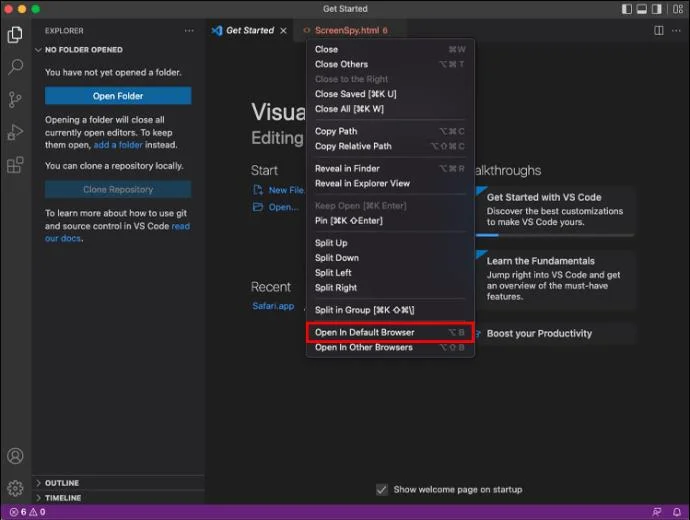
  8. Find your HTML file in the Explorer and right-click on it. Choose “Open in Default Browser” or “Open in Other Browsers.”
    How To Open In Browser From VS Code
  9. If you select the “Open in Default Browser” option, the HTML file will launch in whatever browser is set as default. If you choose “Open in Other Browsers,” you’ll need to specify which browser will be used.

You can find plenty of useful extensions on the Visual Studio Marketplace. Or you can get the Open in Browser extensions with the most positive user reviews here: Extension 1, Extension 2, Extension 3, Extension 4.

How to Open in Browser in VS Code on a Mac

Visual Studio Code can be upgraded using various extensions that increase the program’s functionality. One type of extension can enable opening HTML, PHP, or JS files in a default or other browser. Here’s how to enable that option on a Mac.

  1. Using the Visual Studio Code Editor, open the desired file.
    How To Open In Browser From VS Code
  2. Go to the toolbar on the left and select “Extensions.”
    How To Open In Browser From VS Code
  3. Click on the search bar in the Extensions panel and write “open in browser.”
    How To Open In Browser From VS Code
  4. Choose an extension and click on “Install.”
    How To Open In Browser From VS Code
  5. Reload the software.
  6. Go to the left toolbar and select Explorer.
    How To Open In Browser From VS Code
  7. Locate the file you want to open in the Explorer panel and right-click on it. Select either “Open in Default Browser” or “Open in Other Browsers.”
    How To Open In Browser From VS Code
  8. The “Open in Default Browser” option will launch the file using the preselected browser.  “Open in Other Browsers” will bring up a prompt where you’ll be able to choose one of the browsers installed on your machine.
    How To Open In Browser From VS Code

The Visual Studio Marketplace has a vast selection of extensions that can add new functions to Visual Studio Code. The website is well worth exploring if you wish to tweak the program further. And if you’re interested in Open in Browser extensions exclusively, here are some suggestions: Extension 1, Extension 2, Extension 3, Extension 4.

Open in Browser Shortcut

Nearly every Open in Browser extension for Visual Studio Code comes with keyboard shortcuts enabled. However, the shortcuts aren’t uniform. Instead, each extension has a particular combination of keys that will activate opening the file in your browser.

Here are the keyboard shortcuts for the extensions suggested in this article.

  1. Extension 1: “Ctrl + 1” on Windows, “Command + 1” on Mac.
    How To Open In Browser From VS Code
    How To Open In Browser From VS Code
  2. Extension 2: “Ctrl + Alt + O” on Windows, “Command + Option (Alt) + O” on Mac.How To Open In Browser From VS Code
    How To Open In Browser From VS Code
  3. Extension 3: “Ctrl + Shift + F9” on Windows, “Command + Shift + F9” on Mac.
    How To Open In Browser From VS Code
    How To Open In Browser From VS Code
  4. Extension 4: “Ctrl + Shift + P” on Windows, “Command + Shift + P” on Mac.
    How To Open In Browser From VS Code
    How To Open In Browser From VS Code

Note that these shortcuts will work only on their respective extensions linked in this article. If you choose to install a different extension, the relevant shortcuts will likely be listed on its Marketplace page.

Running HTML in Visual Studio Code

If you’re interested in working with HTML in Visual Studio Code, here are some methods of running HTML code within the program.

The first method consists of manually loading the file you wish to run.

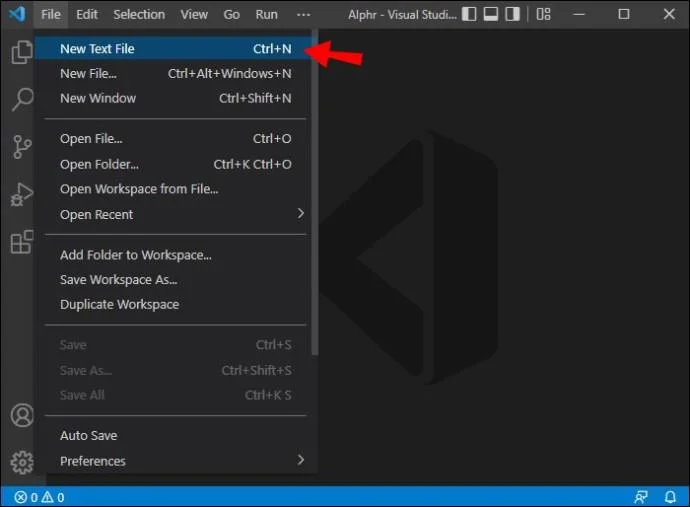
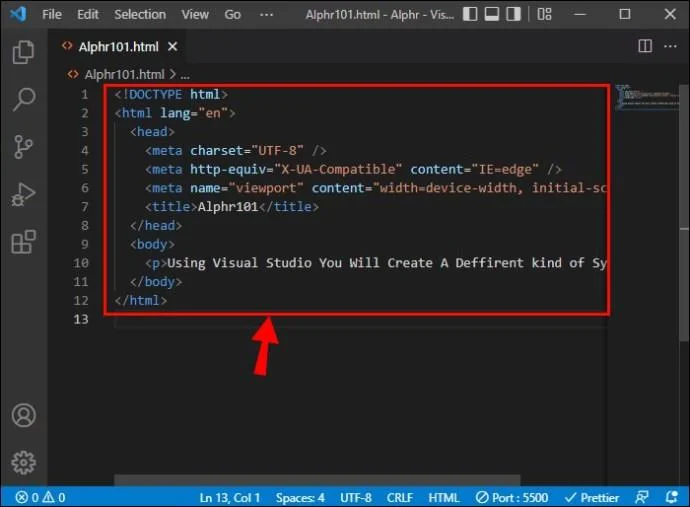
  1. Open Visual Studio Code and create a new HTML file.
    How To Open In Browser From VS Code
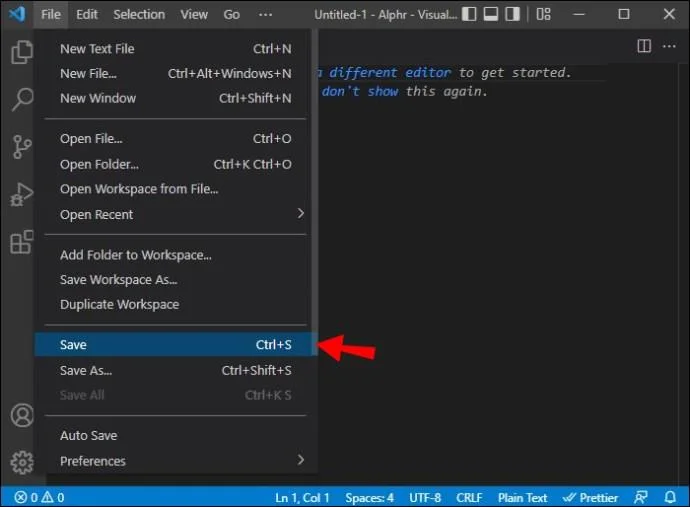
  2. Go to “File,” then click “Save.”
    How To Open In Browser From VS Code
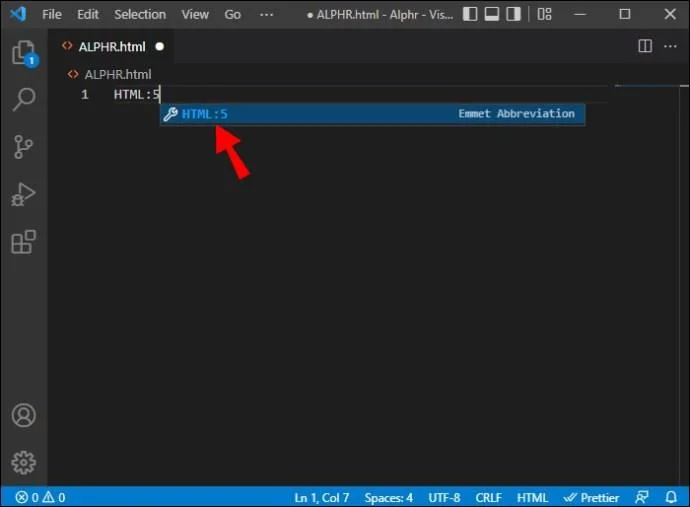
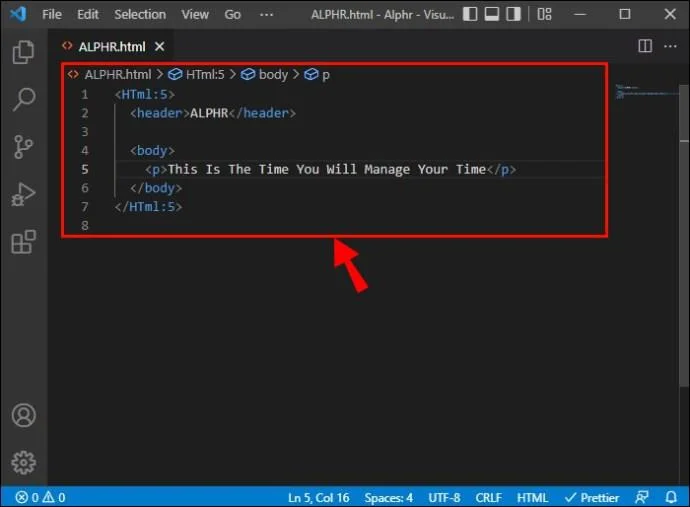
  3. Using HTML:5, activate the template for HTML. Then, open the file you saved in step 2.
    How To Open In Browser From VS Code
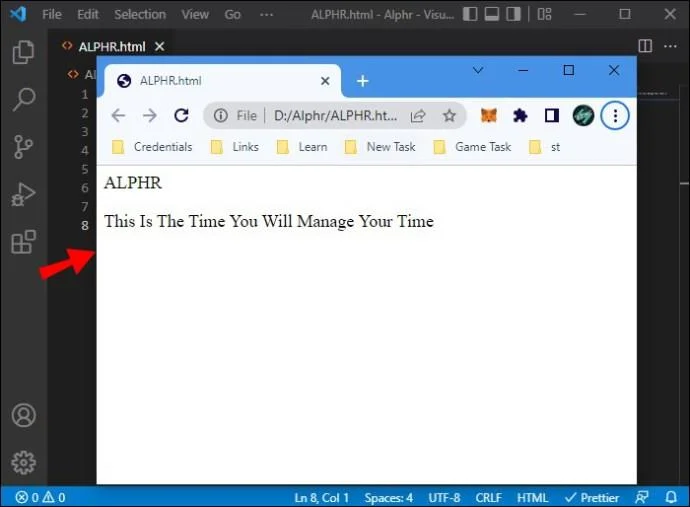
  4. Use the Open in Browser extension you installed previously to launch the file in your browser.
  5. Leaving the browser open, go back to Visual Studio Code and edit the HTML file, saving your changes.
    How To Open In Browser From VS Code
  6. Return to the browser and click refresh. You should see the page change based on your editing.
    How To Open In Browser From VS Code
  7. Repeat steps 5 and 6 to check your progress as you continue editing the HTML file.

The manual method can help keep track of your work. However, there’s an even better solution: auto-loading. This option will require you to install another extension, but should be well worth the time.

  1. In Visual Studio Code, go to Extensions, located at the bottom of the left toolbar.
    How To Open In Browser From VS Code
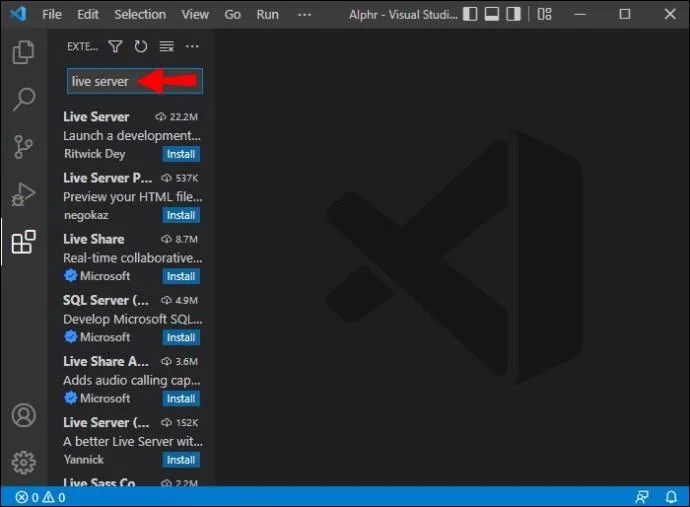
  2. In the Extensions search bar, type in “live server.”
    How To Open In Browser From VS Code
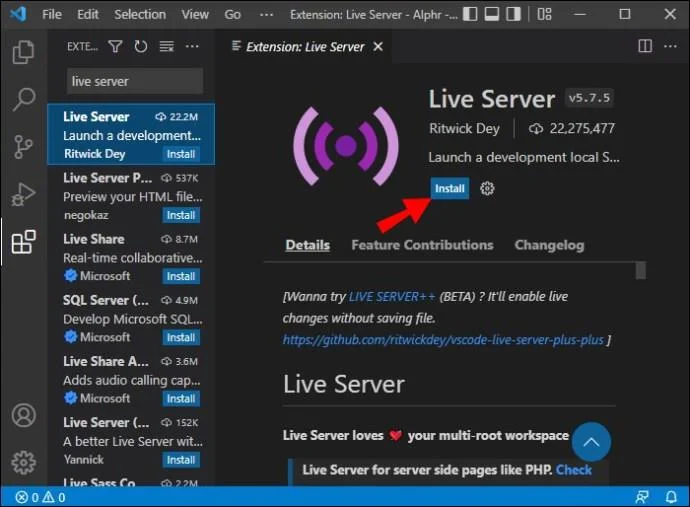
  3. Click the “Install” button next to the Live Server extension.
    How To Open In Browser From VS Code
  4. Create and save a new HTML file.
    How To Open In Browser From VS Code
    How To Open In Browser From VS Code
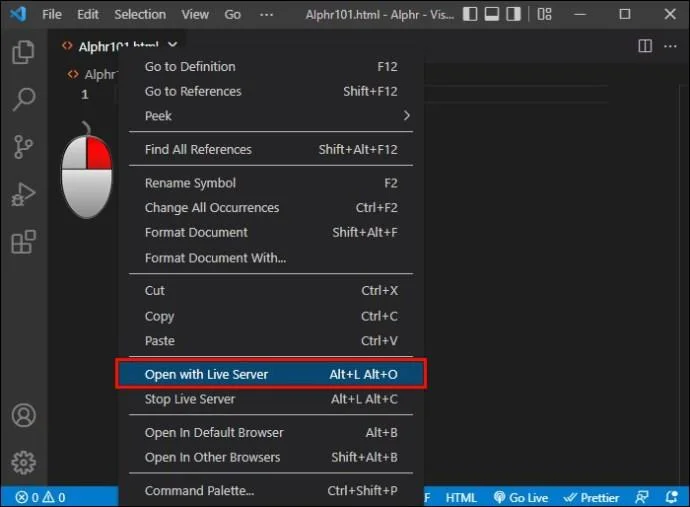
  5. In the Visual Studio Code Explorer, right-click on your new file. Select “Open Live Server.”
    How To Open In Browser From VS Code
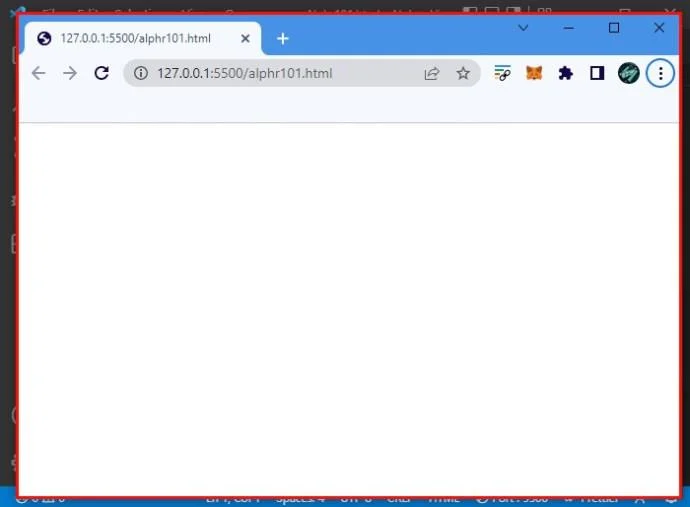
  6. The HTML file will open in the browser. Once it does, try to edit the HTML code. Save your progress.
    How To Open In Browser From VS Code
    How To Open In Browser From VS Code
  7. As soon as you create a change in the code and save it, your browser should refresh, showing the new content. You won’t need to refresh the page manually and will instead be able to have visual confirmation of the changes in real time.
    How To Open In Browser From VS Code

Other Useful Visual Studio Code HTML Extensions

As mentioned, the Visual Studio Marketplace is full of excellent tools, many of which are geared towards HTML. Here are the ten most useful and best-graded extensions for HTML.

  • lit-plugin: A tool that highlights syntax, checks typing, and helps you complete the code without errors. This extension has customizable rules.
  • SCSS Everywhere: An auto-complete extension for class definitions for HTML, SCSS, Elixir, SASS, PHP, CSS, and many other file types.
  • Angular Snippets: Adds Angular snippets for easy use in HTML and TypeScript. The extension works by unfolding a snippet once it’s partially typed out.
  • ES6 String HTML: Enables es6 string code support for syntax highlighting. Works with HTML, CSS, XML, GLSL, and other formats.
  • Split HTML Attributes: This extension will split HTML attributes, as well as Angular, Vue, and React props and directives. You can use it on opening and self-closing tags, as well as on multiple selections.
  • Djaneiro – Django Snippets: An extensive snippet collection for django HTML templates. Using this extension will significantly shorten the time spent typing.
  • Live Preview: The Live Preview extension from Microsoft allows local server hosting. If you have a project that doesn’t use Angular, React, or other server tools, this extension will enable regular and embedded HTML previewing with page refreshes in real time.
  • Oracle JET Core: This extension created by the Oracle Corporation provides full support for Oracle JET custom HTML data. The included snippets will auto-complete any JET attributes and tags.
  • CSS Navigation: Enables Go to Definition for HTML to CSS, HTML to Less, and HTML to Sass. The Peek Definition command is also enabled.
  • HTML accented character converter: Seamlessly replaces special characters with appropriate HTML entities. This extension is situationally helpful, but essential when handling localizable strings.

You Can Run Visual Studio Code From Your Browser

In addition to running HTML files in a browser, it’s also possible to use the entire Visual Studio Code online. This requires you to launch a particular version of the program developed for browser use.

It’s worth noting that this version is much more lightweight compared to the desktop Visual Studio Code. However, it can be a straightforward solution for easy repository and file navigation, as well as minor code changes.

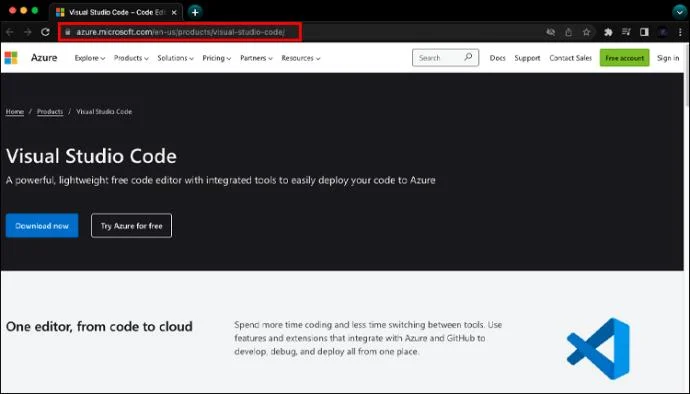
If you’d like to try out the Visual Studio Code browser variant, you can get started immediately by clicking here.

Get Your HTML Files Up and Running

Opening HTML files in your browser is made easy with the dedicated extension for Visual Studio Code. If you decide to explore the vast offerings of extensions for this coding tool, the Open in Browser function will be just the beginning of your journey.

Did you manage to open your HTML file in your browser of choice? Which extension did you use? Let us know in the comments section below.

Leave a Comment

How to Chromecast in Samsung TV

How to Chromecast in Samsung TV

Learn how to Chromecast in Samsung TV by connecting a Chromecast device and streaming from your phone or computer in just a few minutes.

Adobe Acrobat DC Reader Free Download

Adobe Acrobat DC Reader Free Download

Get the official Adobe Acrobat DC Reader free download safely. Follow this step-by-step guide to install the latest version for viewing and editing PDFs on Windows or Mac.

How to Update to Win 11

How to Update to Win 11

How to Update to Win 11 from Windows 10 safely with this detailed guide. Check requirements, run the upgrade, and enjoy new features and better security on compatible hardware.

Adobe Reader Free Version

Adobe Reader Free Version

Get the Adobe Reader Free Version to view, print, and annotate PDFs at no cost. Follow this guide to download, install, and use the official free reader safely on any device.

How to Boot in Safe Mode Windows 11

How to Boot in Safe Mode Windows 11

How to boot in safe mode Windows 11 helps isolate driver and software issues. Follow these precise steps using built-in tools to start your PC with minimal services.

No Sound Chrome Browser

No Sound Chrome Browser

Fix No Sound Chrome Browser problems fast with these targeted troubleshooting steps that restore audio on Windows, Mac and Linux.

Critical Process Died Windows 11

Critical Process Died Windows 11

Resolve the Critical Process Died Windows 11 error with targeted fixes for drivers, system files, and hardware. Restore stability fast and stop repeated Blue Screen crashes.

Adobe Reader PDF Reader

Adobe Reader PDF Reader

Adobe Reader PDF Reader lets you view, annotate, sign and fill PDF forms with precision. Follow this guide to install and master its core tools on desktop or mobile.

Windows 11 Update Issues

Windows 11 Update Issues

Windows 11 Update Issues often stem from corrupted files or service glitches. Follow these targeted fixes to resolve errors and keep your system current without reinstalling Windows.

How to Sync One Drive

How to Sync One Drive

How to Sync One Drive keeps files current across every device. Follow these exact steps to set up automatic syncing in minutes on Windows, Mac, or mobile.