Get LibreOffice to Recognize Your Java Runtime

Install a compatible Java runtime, enable it in LibreOffice, and troubleshoot an empty JRE list without changing unrelated settings.
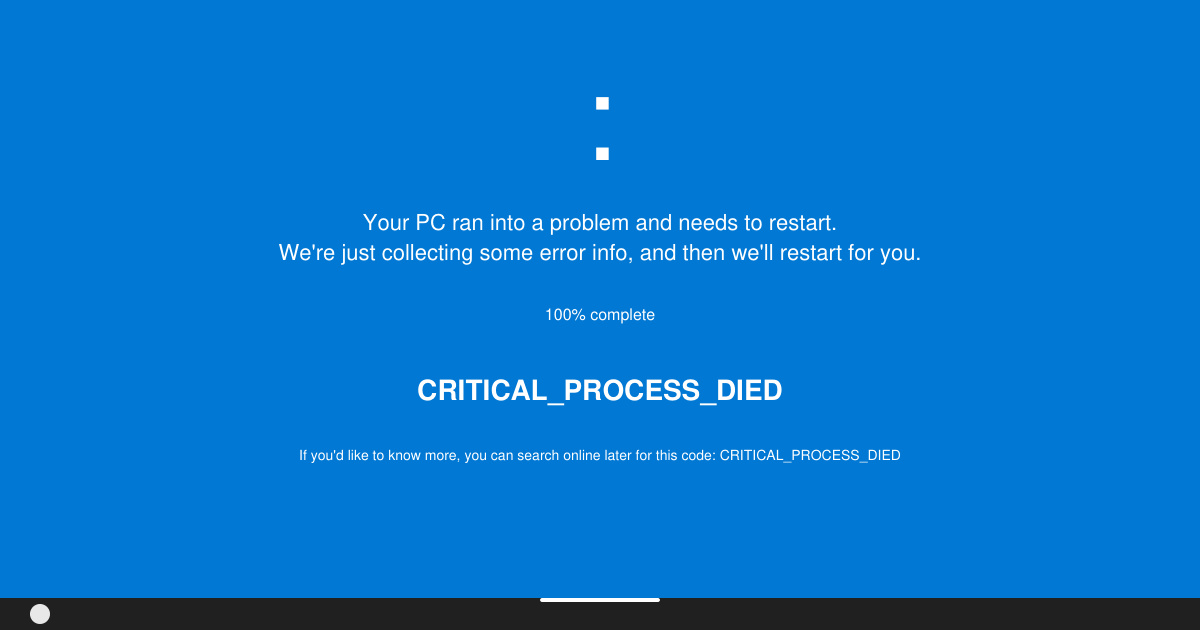
The Critical Process Died Windows 11 error appears as a Blue Screen of Death and halts your system when a core process fails. It usually points to corrupted files, outdated drivers, or memory issues. Follow the steps below to diagnose and repair the problem without data loss.
This stop code (0x000000EF) occurs when Windows detects that an essential system process has stopped unexpectedly. Common triggers include faulty drivers after updates, damaged system files, or failing RAM modules. Before starting repairs, create a system restore point and back up important files to an external drive or cloud storage.
Run Windows in Safe Mode first to test whether third-party software is causing the crash. Restart your PC, hold Shift while clicking Restart on the login screen, then navigate to Troubleshoot > Advanced options > Startup Settings > Restart and choose option 4 or 5.
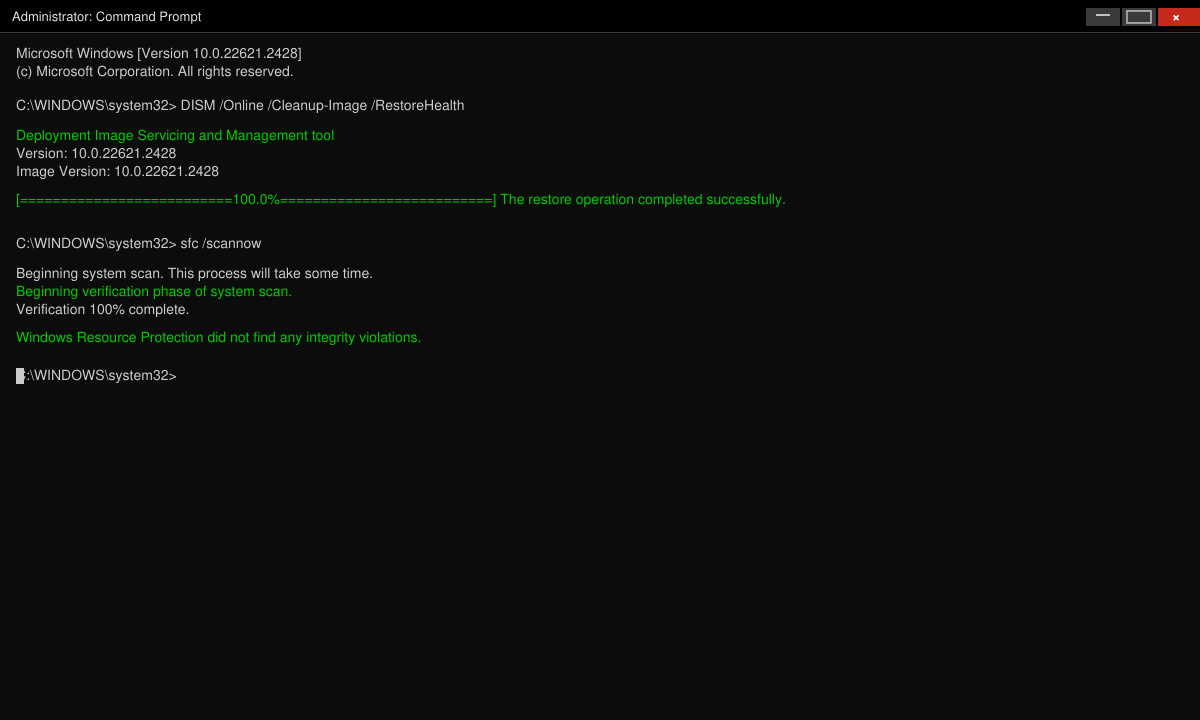
Open Command Prompt as administrator from the Start menu. Type the command dism /online /cleanup-image /restorehealth and press Enter. Once finished, run sfc /scannow. Restart after both complete to apply repairs to corrupted system files.
Right-click the Start button and select Device Manager. Expand categories such as Display adapters and Network adapters. Right-click any device with a yellow exclamation mark, choose Update driver, then select Search automatically. If the error began after a recent update, use the Roll Back Driver option instead.
Go to Settings > Windows Update > Check for updates. Install all available updates, including optional driver updates listed under View optional updates. Restart the PC after installation completes.
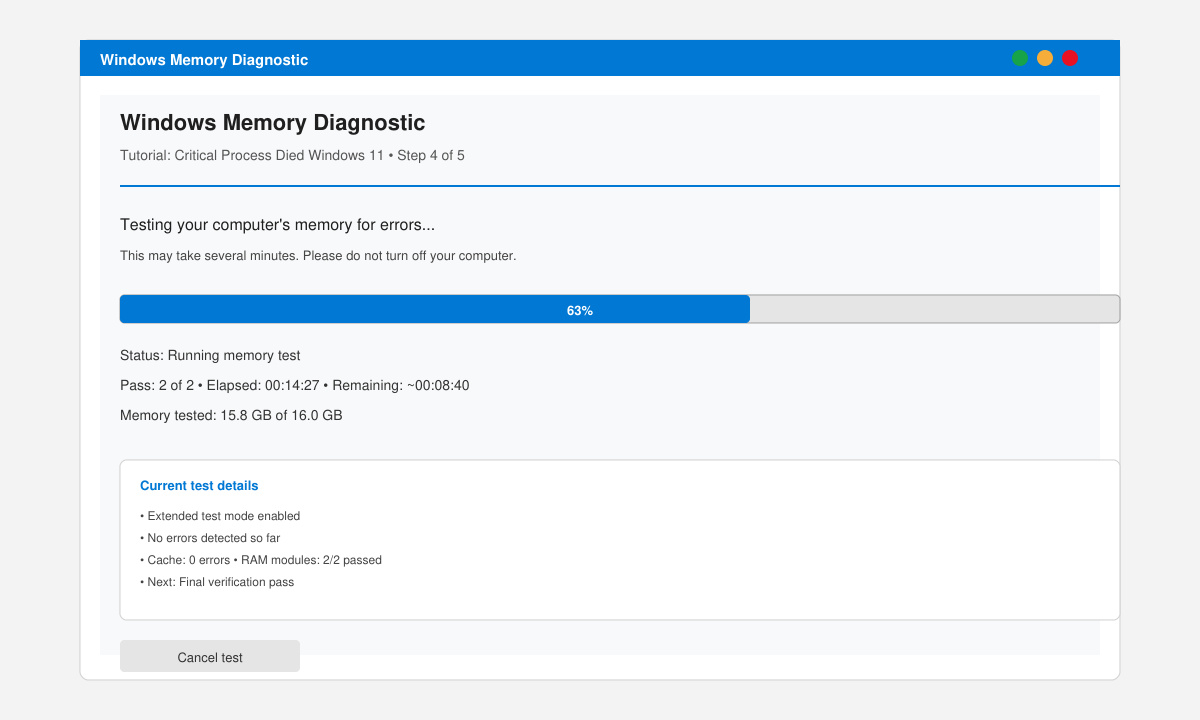
Search for Windows Memory Diagnostic in the Start menu and run it. Choose Restart now and check for problems. The tool runs on reboot and reports results on the next login. Replace any faulty RAM modules identified.
Open Command Prompt as administrator again and enter chkdsk C: /f /r. Type Y when prompted, then restart. The scan repairs bad sectors and file system errors that can trigger the Critical Process Died Windows 11 stop code.
No. Most cases result from driver conflicts or corrupted system files that software repairs can resolve.
Windows sometimes autosaves open documents. Check the AutoRecover folder in affected applications after rebooting successfully.
Only after trying the repair steps above. A clean install erases all apps and settings unless you choose the Keep personal files option during setup.
Applying the SFC scan, driver updates, and memory test in sequence resolves the Critical Process Died Windows 11 error for most users and restores normal operation.
Install a compatible Java runtime, enable it in LibreOffice, and troubleshoot an empty JRE list without changing unrelated settings.
Build a small LibreOffice container, convert office documents without a GUI, and verify PDF output while limiting host-file access.
Reduce oversized LibreOffice presentation files by compressing embedded photos, choosing sensible image settings, and checking slide quality before sharing.
Match LibreOffice’s page dimensions to your printer, check printable margins, and correct scaling before printing a custom-size document.
Replace repeated cell access with bulk range reads and writes, then benchmark the result and protect formulas in large Calc workbooks.
Split a long manuscript into chapters, assemble them in Writer, and keep styles, contents, and export checks consistent.
Use Base’s direct PostgreSQL option to enter your server details, sign in, save an ODB connection file, and troubleshoot common access errors.
Install a font in your Linux user font folder, restart LibreOffice Flatpak, and confirm it appears in Writer without weakening the app sandbox.
Protect your work and isolate network-drive save crashes in LibreOffice on macOS Sonoma with a local-first workflow, permission checks, and targeted tests.
Preserve leading zeros in Calc by setting ID columns to Text during CSV import, checking the preview, and verifying the saved data.








